The most repeated advice about how to convert MKV to MP4 video is to re-encode every file to H.264 so it plays anywhere. It does play anywhere. It also throws away a generation of quality and burns CPU time on files that needed a repackaging job measured in seconds.
The runner-up is worse. Rename the file from .mkv to .mp4 and call it finished. That changes the label on the box. Nothing inside the box moves, and a player that refused the file before will refuse it again.
The decision that matters is made stream by stream, not file by file. Read the codecs, then decide what gets copied and what gets re-encoded. That single habit separates a two-second job from a forty-minute one, and it's the difference between a file that looks like the master and one that's a copy of a copy.
Table of Contents
- Pick Stream Copy or Re-encoding Before You Start
- How to Remux MKV to MP4 Without Re-encoding
- Re-encoding MKV to H.264 MP4 for Compatibility
- Keeping Subtitles, Chapters and Audio Tracks
- Convert MKV to MP4 Without the Command Line
- Batch Converting MKV Folders with FFmpeg and RenderIO
- Fix Failed MP4s and Run Your First Conversion
Pick Stream Copy or Re-encoding Before You Start
Every MKV-to-MP4 job resolves to one question per stream: copy it or re-encode it. MKV and MP4 are containers, wrappers around compressed video, audio, subtitles and metadata, while the codecs inside (H.264, HEVC, VP9, AV1, AAC, DTS) decide how that media was compressed. MP4 is formally standardized as MPEG-4 Part 14, first published as ISO/IEC 14496-14:2003. That tight specification explains both halves of its reputation: it plays on nearly everything, and it refuses streams an MKV accepts without complaint.
Because the wrapper never touches the pixels, an MKV holding H.264 video and AAC audio becomes an MP4 through a remux. FFmpeg copies the compressed streams into the new container without decoding them, the output is bit-identical, and the job is nearly free. When the video is VP9 or the audio is DTS, that stream has to be decoded and re-encoded.
Read the Codecs Before You Choose a Path
Probe the file first. ffprobe lists every stream with its codec, and that list decides the job before you touch an encoding flag. On files from unknown sources, MediaInfo checks for suspicious clips give a second read on the same streams, which matters when a filename claims one codec and the file carries another. If you want a picture of those tracks before probing, the track layout inside an MKV file covers the video, audio and subtitle streams ffprobe will report.
| Source streams in MKV | Video | Audio | Action |
|---|---|---|---|
| H.264 + AAC | copy | copy | Remux with -c copy |
| H.264 + AC-3 or E-AC-3 | copy | re-encode to AAC | Copy video, transcode audio |
| HEVC (H.265) + AAC | copy | copy | Remux, or re-encode to H.264 if the target player rejects HEVC |
| H.264 + DTS or FLAC | copy | re-encode to AAC | Copy video, transcode audio |
| VP9 or AV1 + Opus | re-encode to H.264 | re-encode to AAC | Full transcode |
The two outcomes behave nothing alike. Stream copy is fast, lossless and light on CPU. Re-encoding is slower, shifts file size and quality with your settings, and is the only route for codecs MP4 will not carry. Subtitle tracks deserve the same check. MKV files regularly carry ASS or PGS subtitles that MP4 will not take without conversion, so a remux that copies every track can produce a file that looks fine until playback starts.
The destination decides as much as the source. A 2025 format-compatibility matrix published by Sima Labs reports that MP4 supports 98% or more of browsers, while MKV has desktop-player support but requires transcoding for web delivery. A file headed for a phone, a browser or a client belongs in MP4 with H.264 video and AAC audio.
Default rule: if the video is H.264 and the audio is AAC, copy both. Transcode only the stream that fails.
How to Remux MKV to MP4 Without Re-encoding
A remux is the cheapest operation in video work. Same streams, new wrapper, no quality lost, and the result is usually ready before you've alt-tabbed back to the file browser.
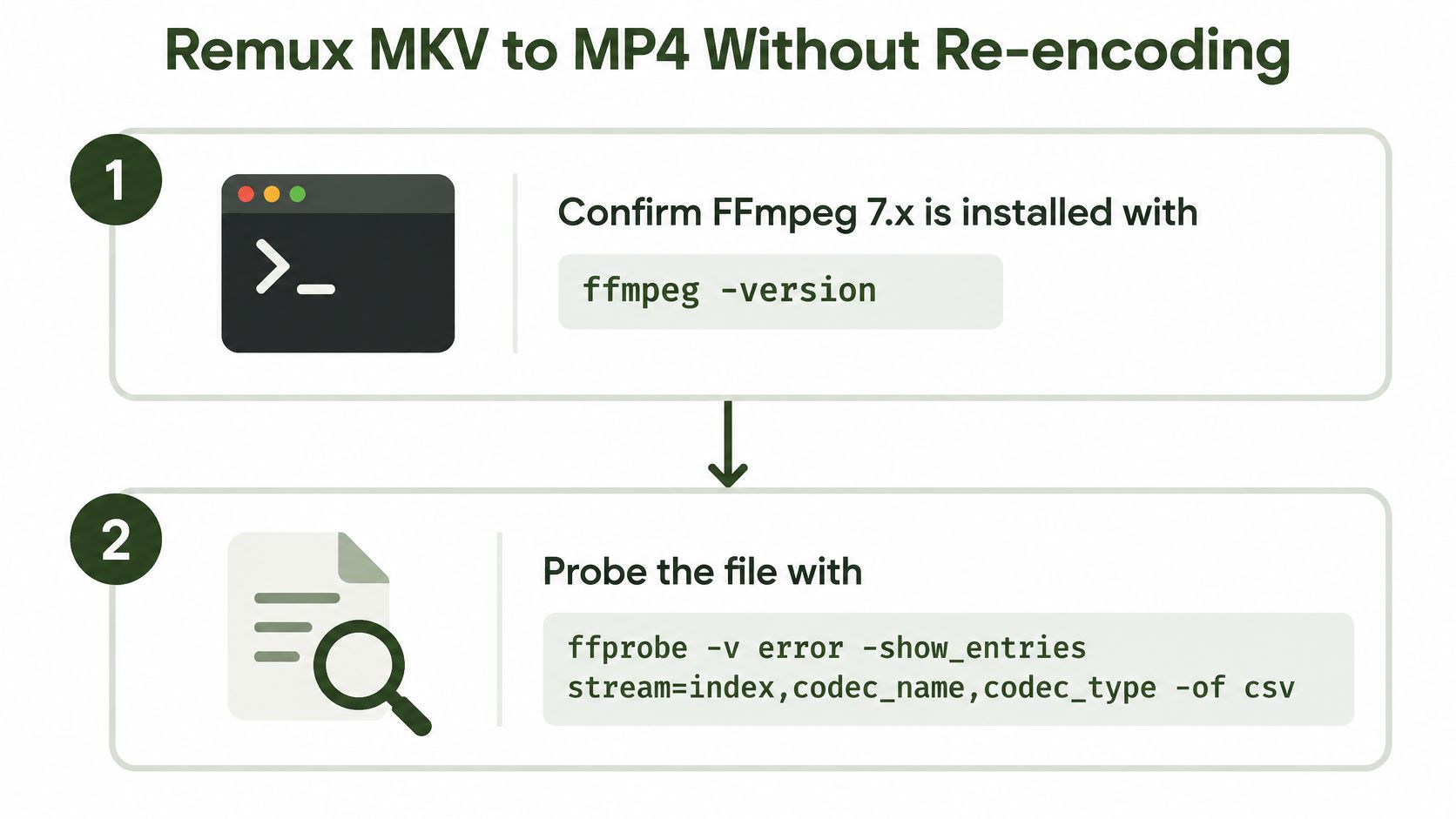
- Confirm the build.
ffmpeg -versionshould report 7.x. The version matters less for copying than for encoding, but knowing what you have installed saves an hour when a flag you read about doesn't exist on your machine. - Probe every stream. Run
ffprobe -v error -show_entries stream=index,codec_name,codec_type -of csv input.mkv. The-v errorflag keeps the output to genuine problems, and one CSV row per stream is easy to scan even on a file with nine tracks. - Check the codec pair. H.264 video plus AAC audio is a copy job. Anything else follows the table above rather than hope.
- Run the remux.
ffmpeg -i input.mkv -map 0:v -map 0:a -c copy -movflags +faststart output.mp4. The FFmpeg documentation is clear that stream mapping decides which tracks enter the output while codec options decide whether each one is copied or encoded. Explicit maps keep every video and audio track, and+faststartruns a second pass that moves the MP4 index to the front so playback can begin before the download finishes. - Compare both files. Probe the input and the output for duration, resolution and stream count. Two numbers that drift apart tell you a stream was dropped or truncated.
- Handle subtitles separately.
-map 0:vand-map 0:aexclude subtitle tracks by design, so a silent remux carries no captions into the new file.
The slip that bites hardest is forcing -c copy on an MKV with DTS or Opus audio. FFmpeg will happily write the file. Some players then produce silence or refuse the file entirely, and the failure looks like a broken conversion rather than an incompatible stream.
What a Clean Remux Looks Like
Three checks settle it. Duration matches the source within a frame. Resolution and stream count match what ffprobe reported on the input. And the output plays in a browser, not just in VLC, because VLC decodes things browsers never will.
Copy the streams, then verify the clone. A remux that quietly loses a commentary track is worse than a transcode that keeps everything.
Re-encoding MKV to H.264 MP4 for Compatibility
Re-encoding is the right answer when the file fails the codec test and the wrong answer when it doesn't. When it is right, one command carries every decision.
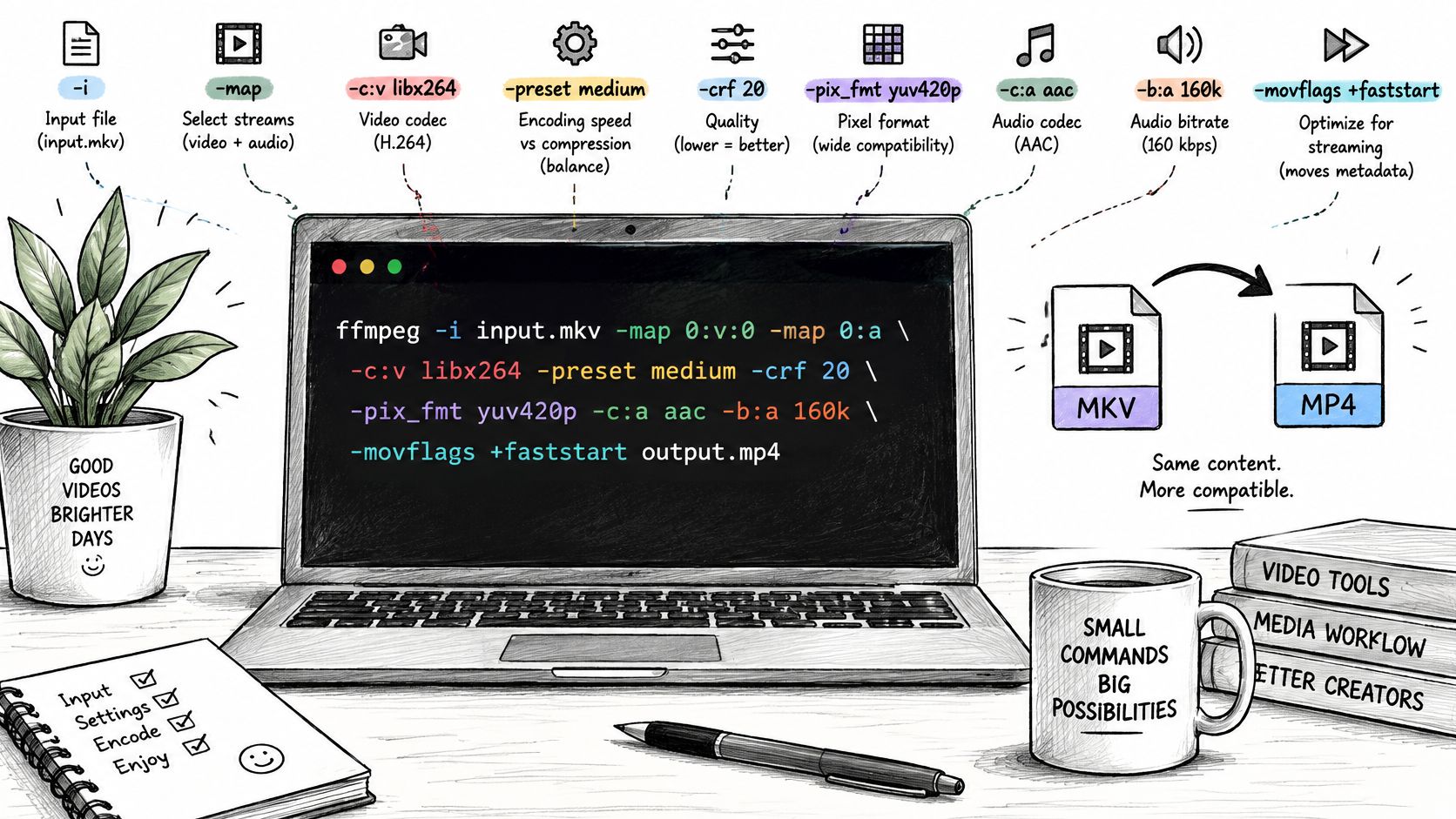
Here's the compatibility encode I reach for by default:
ffmpeg -i input.mkv -map 0:v:0 -map 0:a -c:v libx264 -preset medium -crf 20 -pix_fmt yuv420p -c:a aac -b:a 160k -movflags +faststart output.mp4
The Flags That Decide Quality and Size
-pix_fmt yuv420pforces 8-bit 4:2:0 chroma, the layout older hardware decoders and every browser agree on. Drop it and a source that arrived as yuv422p or 10-bit can play as a black screen on some phones.-crf 20sets quality per frame instead of a fixed bitrate, so simple scenes stop wasting space and hard scenes get the bits they need.-preset mediumtrades encode time for file size. Slower presets spend more CPU to reach the same quality in a smaller file; they don't make a soft source sharp.-b:a 160kis enough for stereo AAC on speech and most music, and it stays well inside what every player handles.
If your source is unusual or your target list is long, RenderIO's codec support reference is a quick way to confirm which codecs the tools around you accept before you pick a preset.
| CRF value | Visual result | Typical file size | When to use |
|---|---|---|---|
| 18 | Near-lossless, differences are hard to see | Largest | Archival masters or heavy grain |
| 20 | Very high quality | Large | Compatibility encode for mixed sources |
| 23 | Default balance of quality and size | Medium | Everyday conversion of TV or film footage |
| 28 | Softening in gradients and dark scenes | Smallest | Previews, proxies and review cuts |
Size changes come from the source encoding and the settings, never from the extension. In 2026 testing published by CompressVid, converting a 45-second MKV file to H.264/AAC MP4 reduced its size from 65.5 MB to 37.4 MB, a 43% decrease. Run the same conversion on a well-encoded H.264 MKV at CRF 20 and the output can grow instead.
Every re-encode costs a little quality, so keep the original MKV until the MP4 passes playback checks. If the file is going out to viewers, the choice of container and codec also shapes delivery. MP4 with H.264/AAC pairs medium file size with broad mobile and browser support and full adaptive-bitrate support, and Dacast's 2025 comparison notes that broadcasters commonly transcode MKV into MP4 or WebM before adaptive-bitrate workflows.
Two details trip people up in this command. -map 0:a keeps every audio track, not just the first, so a bilingual file stays bilingual. And DTS or Opus audio must be encoded to AAC, because copying it into MP4 produces a file that some players open with no sound at all.
Keeping Subtitles, Chapters and Audio Tracks
The most common complaint after a conversion isn't a broken picture. It's a missing subtitle, a lost commentary track or a chapter list that vanished. None of these are accidents. They're what the default stream selection does.
| MKV subtitle type | Survives in MP4? | Command or fix |
|---|---|---|
| SRT (text) | Yes, as mov_text | -c:s mov_text |
| ASS or SSA (styled text) | Text yes, styling lost | -c:s mov_text, or burn in with the subtitles filter |
| PGS (Blu-ray image) | No | OCR to SRT, then mov_text, or burn in |
| VobSub (DVD image) | No | OCR to SRT, or burn in |
MP4 carries text subtitles through mov_text and cannot hold image-based formats such as PGS or VobSub. Those either get converted with OCR or get burned into the picture, which is permanent and re-encodes the video. If you only need the text, extracting subtitles from the MKV first is cleaner than fighting the muxer.
Chapters Survive More Often Than Subtitles
Add -map_chapters 0 to carry the chapter list across, then check it with ffprobe -show_chapters -i output.mp4. A remux usually keeps chapters intact. Some re-encode paths drop them without a warning, which is why the check belongs in your routine rather than in your memory.
Two Audio Tracks, Two Codec Rules
Per-stream options let you treat each track differently. -c:a:0 aac -c:a:1 copy encodes the main mix and copies the commentary track untouched. That only works while MP4 accepts the copied codec, so a DTS commentary still has to become AAC like everything else.
Without explicit maps, FFmpeg picks one stream of each type and discards the rest. Confirm the track count and the language tags after every conversion, not just the ones you expect to be tricky.
Convert MKV to MP4 Without the Command Line
Compatibility trouble between these two formats is widespread enough to show up in market analysis. DataHorizzon Research's 2025 media-player software report lists MP4 and MKV among the formats creating compatibility challenges across operating systems and devices. Two GUI tools cover most of the need.
In HandBrake, do this:
- Open the MKV and choose the Fast 1080p30 preset as a starting point.
- Set Format to MP4 and Video Codec to H.264, and keep Constant Quality between RF 20 and 23.
- Set the audio codec to AAC on the Audio tab, and add subtitle tracks in the Subtitles tab, preferring SRT or closed-caption text over image formats.
- Check Chapter Markers if you want them, then click Start Encode. The queue lets you stack a whole folder.
VLC is the lighter option: Media, then Convert / Save, add the file, choose the Video - H.264 + MP3 (MP4) profile, set a destination ending in .mp4, and press Start. Its profiles give you almost no control over subtitle and audio track selection, so check the output before you delete anything.
Both tools re-encode everything they touch, even when the codecs already matched the rule at the top of this article. HandBrake suits quality control and batches; VLC suits one file on a machine where you don't want another install. If the streams are already compatible, a stream copy with FFmpeg is still the faster route by a wide margin.
Batch Converting MKV Folders with FFmpeg and RenderIO
One file at a time doesn't scale, and a folder of 300 screen recordings is the normal case, not the edge case. The local pattern is a loop.
for f in *.mkv; do ffmpeg -n -i "$f" -map 0:v -map 0:a -c copy -movflags +faststart "${f%.mkv}.mp4"; done
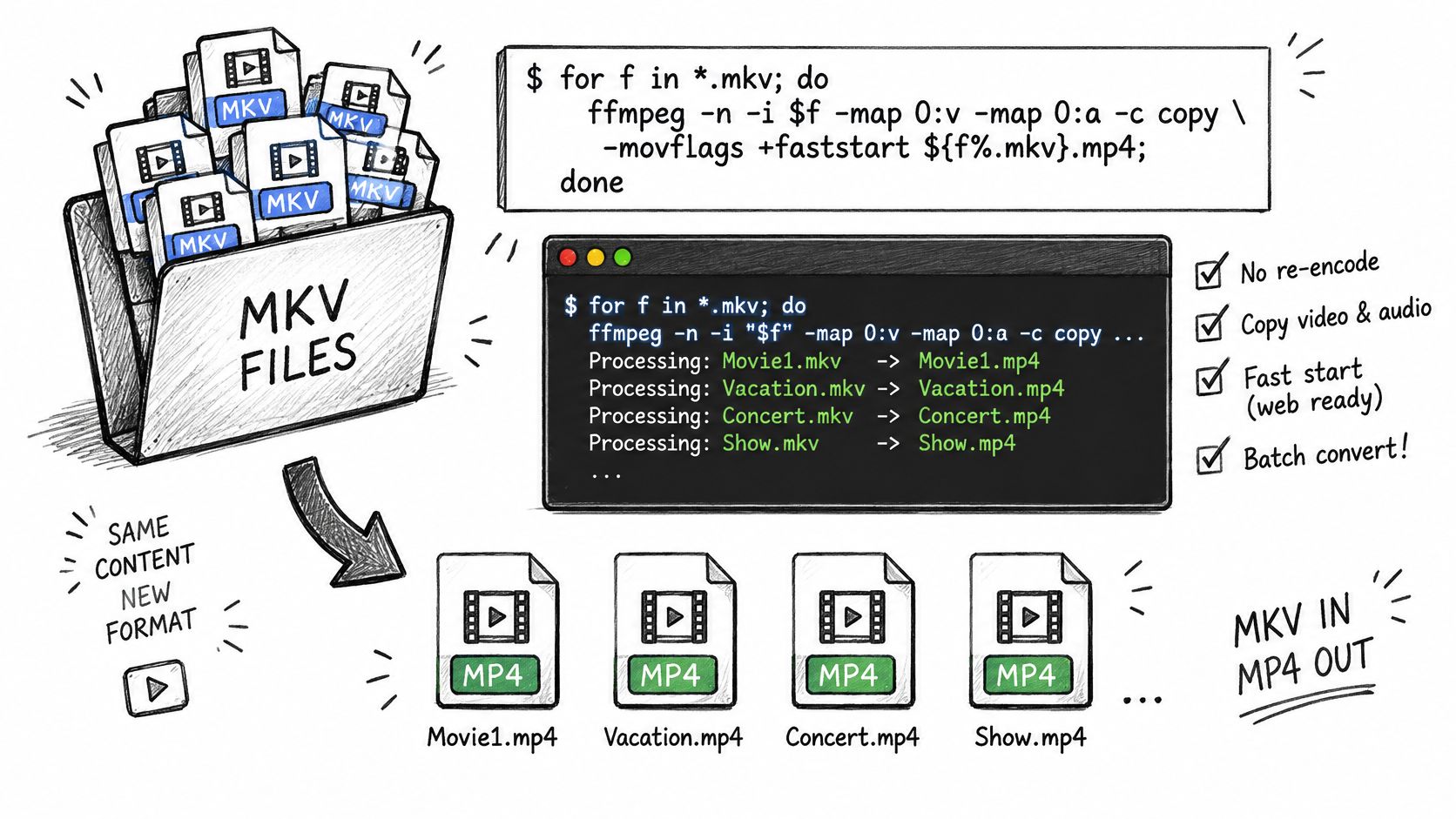
Two flags earn their place. -n refuses to overwrite an existing output, so a rerun after a crash picks up where it stopped instead of redoing finished files. Quoting the variables keeps filenames with spaces and brackets from splitting into separate arguments, which is the single most common reason a batch loop half-fails.
Check Exit Codes, Not Just Output Files
A loop that ignores exit codes will report success on a folder where a third of the files failed. Capture $? after each iteration, log the filename and the full stderr, and stop treating "a file exists" as proof the conversion worked. Zero-byte outputs land in the same trap.
The API Route
RenderIO runs the same FFmpeg command through an endpoint. Each file becomes one POST request carrying the command plus input and output file mappings, and the command uses {{double_brace}} placeholders that map to your file keys. The endpoint returns a command_id immediately while the FFmpeg job runs in the background, so you poll that id or register a webhook instead of holding a connection open.
Storage uses signed URLs that expire, so download outputs promptly rather than leaving them for the next sprint. Budget the upload too: a 2 GB file over a 100 Mbps connection takes about 2.5 minutes to arrive before any processing starts.
For the 300-recording scenario, where every file is H.264 and AAC, the loop handles it on one machine overnight. The API handles it as parallel requests, which is the reason to pick it: the wall-clock time stops being a function of how many files are in the folder.
Fix Failed MP4s and Run Your First Conversion
A failed conversion usually means a file that converts cleanly and then refuses to play on the device it was made for. The codec decision went wrong before the command ever ran.
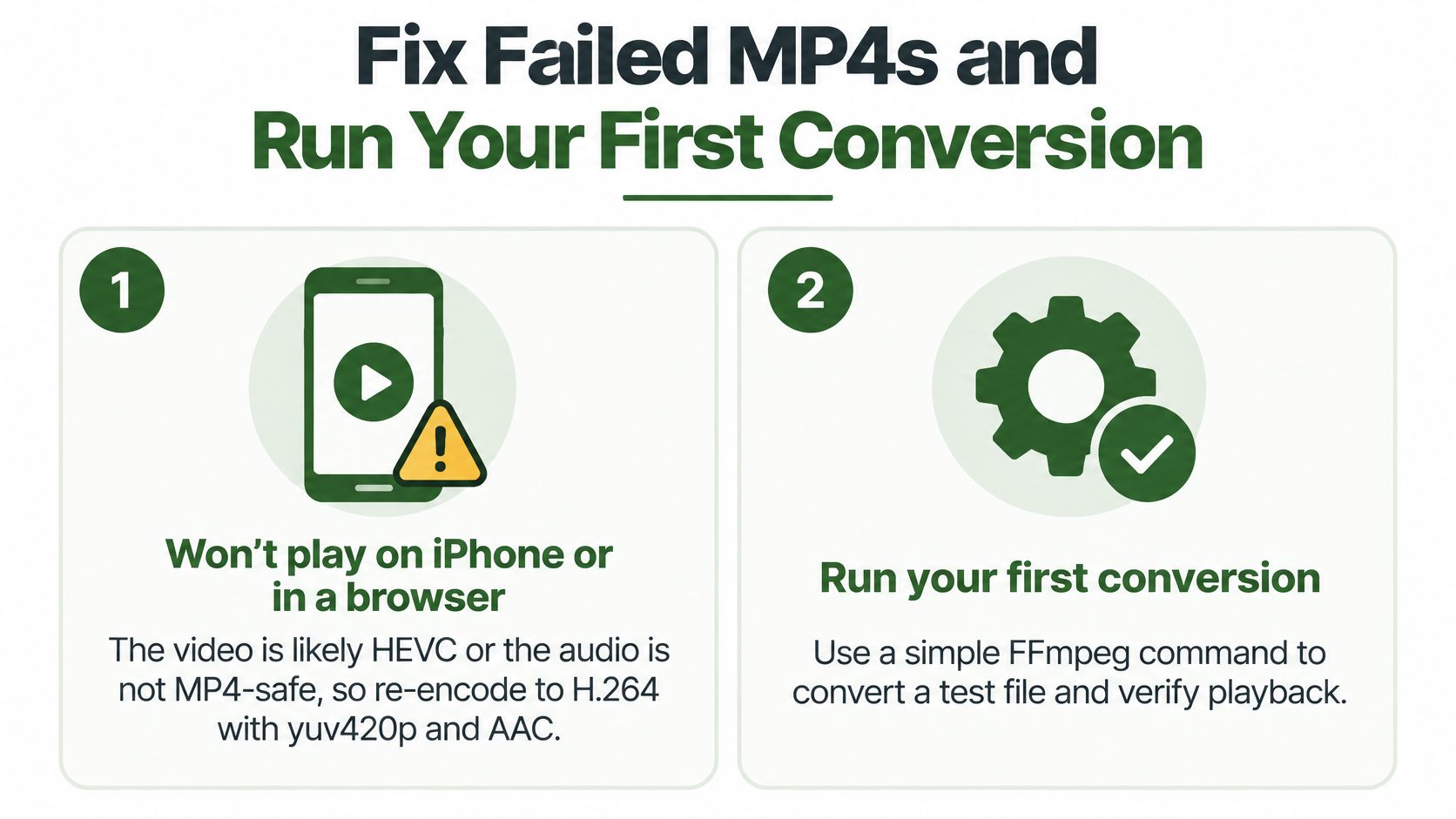
- Won't play on an iPhone or in a browser. The video is likely HEVC, or the audio is in a format MP4 players skip. Re-encode to H.264 with
-pix_fmt yuv420pand AAC audio, and the file plays on effectively everything. - Audio is missing. A track was dropped because it was never mapped. Re-run with
-map 0:a. - Audio drifts or the duration reads wrong. The MKV carries timestamp offsets. Add
-avoid_negative_ts make_zero, or re-encode and let the timestamps regenerate. - Playback stalls before it starts on the web. The index sits at the end of the file.
-movflags +faststartrelocates it to the front in a second pass, which FFmpeg's format documentation notes adds processing time and doesn't apply to fragmented output. - Subtitles vanished. They were image-based. Use the OCR or burn-in fix from the subtitle section.
- Colors look washed out. Check the pixel format and color range on both files, then re-encode with yuv420p.
- Output is zero bytes or truncated. Keep the complete FFmpeg stderr and read the exit code before touching the file again.
Validation is what separates a finished job from a hopeful one. Compare stream counts between input and output, confirm the duration matches within 0.1 second, and play the result in Safari and Chrome before deleting anything. Keep the original MKV until every check passes. Retry only transient I/O failures; mark everything else failed with the stderr attached, because retrying a codec mismatch just fails twice.
Then run one real conversion. Sign up at renderio.dev, post your actual FFmpeg command against the API with a test file, and generate an API key once the output checks out. A 1 GB file with a simple transcode typically finishes in under 60 seconds, which makes batch timing easy to plan: multiply by file count, then decide whether one worker or twenty is the right answer.
Converting an MKV shouldn't mean guessing at flags or losing a subtitle track you needed. RenderIO runs the exact FFmpeg 7.x command from this article, stream copy or full transcode, through a REST endpoint with no servers to manage, full stderr returned when something breaks, and no egress fees on the output. Start with a single test file at RenderIO and see how long a remux really takes.