A compatibility table can tell you whether a browser recognizes a codec. It can't tell you whether a user's device can decode that stream smoothly, whether your pipeline can produce the required profile, or whether your distribution model introduces licensing exposure. Treating video codec support as a yes-or-no browser feature is how pipelines pass a desktop test and still fail on customer devices.
A more reliable approach treats codec selection as a delivery policy. Match each output to its audience, playback environment, and operational constraints, then test the complete stream rather than trusting a codec label.
Table of Contents
- Why Video Codec Support Is a Delivery Policy Problem
- Understanding Codecs, Containers, and Profiles
- Browser Codec Matrix and Capability Strings
- Hardware Decoding and Device Generation
- FFmpeg Commands and RenderIO API Examples
- Licensing, Patent Pools, and Codec Economics
- Fallback Strategies for Multi-Rendition Delivery
- Troubleshooting Codec and FFmpeg Errors
- Quick Reference Matrix and Decision Checklist
- Frequently Asked Questions
Why Video Codec Support Is a Delivery Policy Problem
Shipping more codecs can make playback worse. Every rendition you publish costs encoder time, storage, and CDN delivery, and every device that receives a codec it can only decode in software pays for it in heat and battery drain. The checklist instinct, add AV1 because AV1 is newer, ignores all three costs.
In pipelines I've debugged, the failures were rarely "codec not supported." They were a supported codec delivered to a device a few hardware generations too old for the decoder block, or a profile the GPU driver rejected while the browser still reported the codec as playable. Those users don't get an error message. They get dropped frames, a hot phone, and a support ticket that says "video is choppy."
Codec policy is also a moving target. A 2025 market assessment put AV1 at roughly 13% share, and Mozilla began defaulting to AV1 for WebRTC calls (Streaming Media's codec coverage). Treat those numbers as current, not permanent. The right output set this year may be wrong once your audience's device mix shifts or a licensing pool changes its terms.
Practical rule: Choose a default for reach, then add efficient alternatives only where the audience and playback path justify the extra encoding and storage.
For many services, that means one broadly compatible rendition plus newer-codec versions generated selectively, priced against real numbers: encode hours, storage footprint, egress, licensing exposure, and what a software-decode fallback costs the viewer. A single universal output simplifies the pipeline and charges the difference to your weakest devices.
Frame support as a tuple: codec, profile, level, bit depth, chroma subsampling, container, playback API. Change any element and you've made a different delivery promise, even though the codec label on the dashboard stays the same.
Understanding Codecs, Containers, and Profiles
A codec compresses and decompresses video. H.264, HEVC, VP9, and AV1 are video codecs. A container packages encoded video and audio streams with metadata. MP4, MKV, and WebM are containers; HLS and DASH describe streaming formats and packaging approaches rather than single video codecs.
That distinction is practical, not academic. An MP4 file can contain different video and audio codecs, and a player's ability to open the container doesn't guarantee that it can decode every stream inside. Similarly, saying a device supports H.264 doesn't tell you whether it supports the specific H.264 profile and pixel format your file uses.
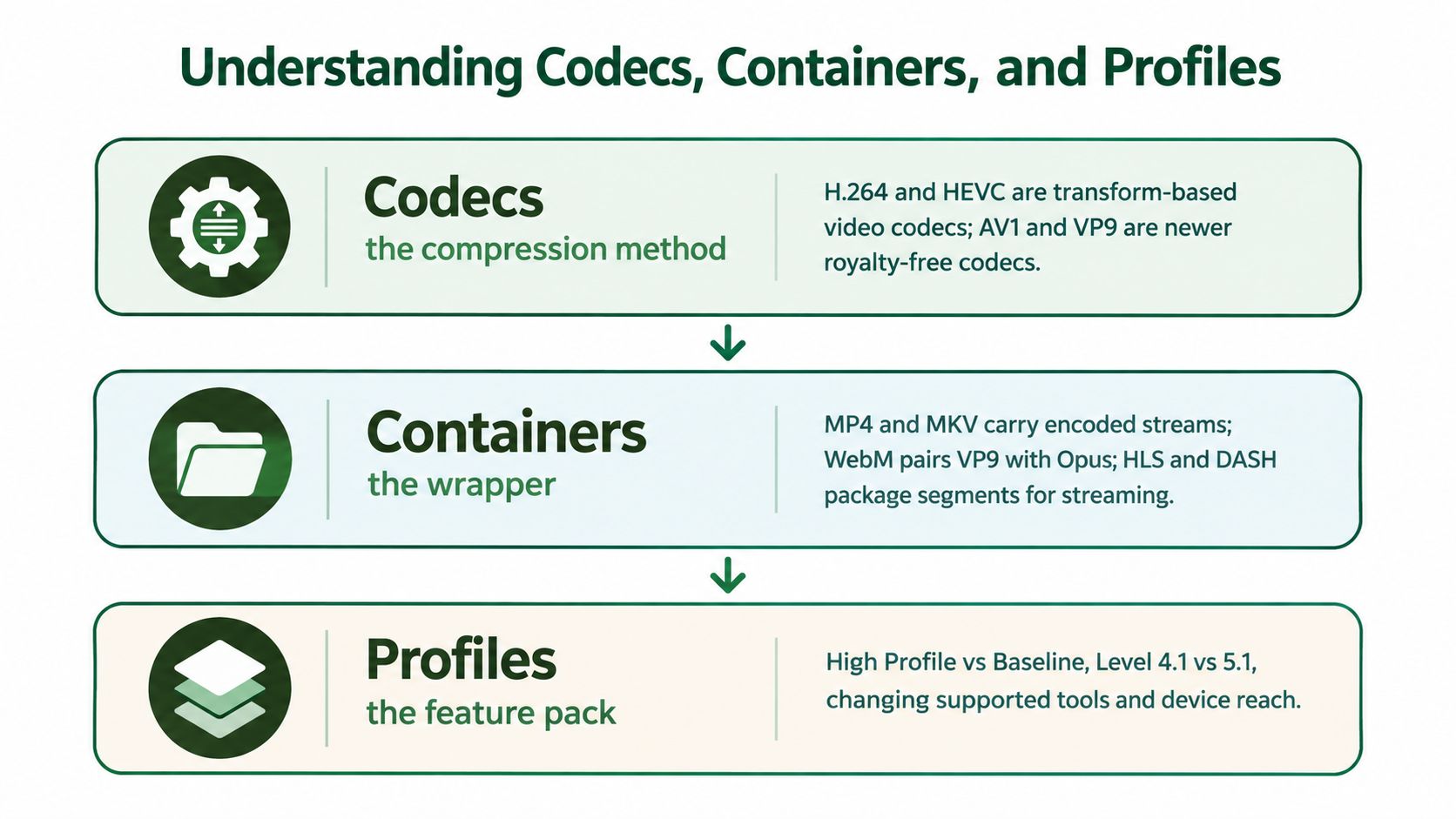
A profile defines a set of coding features. A level constrains the stream's requirements, including aspects of resolution and processing. Bit depth describes how much precision is used per sample, while chroma subsampling describes how color information is sampled relative to brightness information. Pixel formats such as yuv420p encode choices about those image components in a form that an encoder or decoder must support.
H.264 is a useful example of why support isn't static. Its standardization was completed in 2003, and a second edition in March 2005 added High, High 10, High 4:2:2, and High 4:4:4 profiles. Those extensions expanded the format's capabilities without replacing the codec (background on H.264 profiles and standardization). A player that handles common 8-bit 4:2:0 H.264 may not handle every one of those variants.
When inspecting a file, check its streams and parameters with ffprobe, not just its filename. For a practical look at what a container holds, see this guide to what an MKV file contains. Production teams working with live events can also benefit from understanding on-site expo audio visual execution, where capture, playback, and equipment compatibility all meet in practical conditions.
Browser Codec Matrix and Capability Strings
A label such as “H.264 supported” leaves out details that browser APIs use to assess a particular stream. The WebCodecs documentation specifies fully qualified strings such as avc1.4d0034 for H.264 and vp09.00.40.08.00 for VP9. Those strings identify more than the codec name, including profile, constraints, level, and bit-depth information (MDN's WebCodecs API documentation).
The matrix below is a testing guide, not a promise that every browser and device combination behaves alike. A broad “yes” would hide differences in operating system, hardware decoder, profile, and API availability. Record results for the actual output configuration you intend to serve.
| Codec | Example string | Chrome | Firefox | Safari | Edge |
|---|---|---|---|---|---|
| H.264 | avc1.4d0034 |
Probe target configuration | Probe target configuration | Probe target configuration | Probe target configuration |
| HEVC | Use a fully qualified string for the target profile | Probe target configuration | Probe target configuration | Probe target configuration | Probe target configuration |
| VP9 | vp09.00.40.08.00 |
Probe target configuration | Probe target configuration | Probe target configuration | Probe target configuration |
| AV1 | Use a fully qualified string for the target profile | Probe target configuration | Probe target configuration | Probe target configuration | Probe target configuration |
For WebCodecs, test the exact decoder configuration with VideoDecoder.isConfigSupported(). For a media element, MediaSource.isTypeSupported() can help determine whether a browser recognizes a MIME type and codec string. Neither check proves that playback will be smooth on the user's hardware, so validate representative devices as well.
A useful output registry pairs each target with its codec string, container, pixel format, and playback API. Don't choose an encode path from a browser name alone. Probe the proposed configuration, preserve the result with your job logs, and provide a fallback when the target can't use that rendition.
Hardware Decoding and Device Generation
A browser can recognize a stream while the device decodes it in software. That difference can turn successful playback into poor playback: the video may stutter, the device may heat up, or battery use may rise. The failure isn't necessarily that the codec is unsupported. It may be that the device can't decode the chosen stream efficiently.
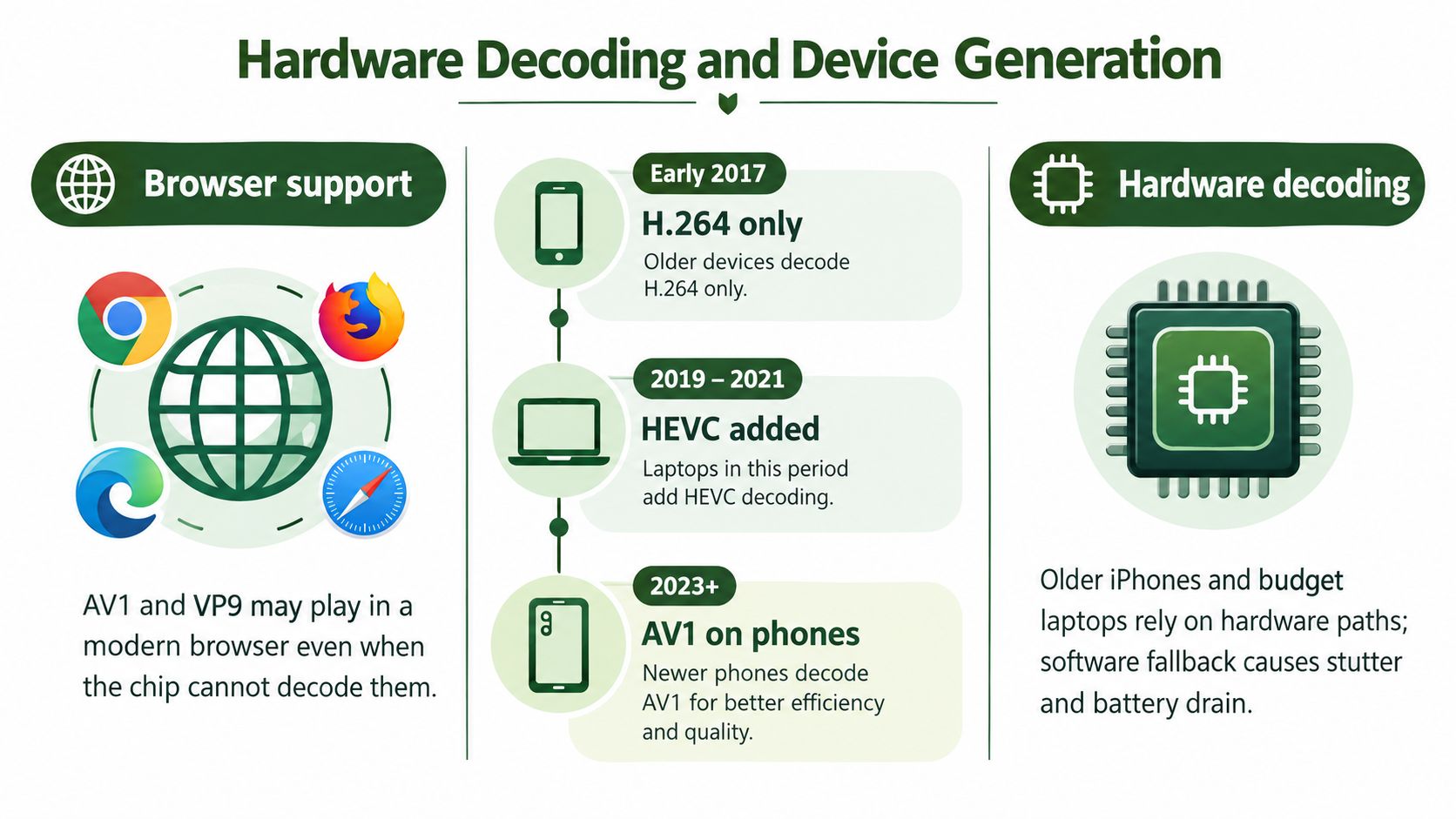
The AV1 case shows why device generation belongs in delivery policy. As of 2025, hardware AV1 decoding on Apple devices is limited to M3-or-later chips and iPhone 15 Pro-or-later; software fallback can impose substantial CPU, battery, and thermal costs (MDN's video codec guide). A browser capability result alone doesn't tell you whether a particular device will use an efficient hardware path.
Build policy around observed capability
Your service often won't know the viewer's exact decoder before encoding. Don't try to solve that uncertainty by generating a rendition for every possible device. Instead, define a conservative default for broad reach and add more efficient renditions for audiences and playback environments where they make sense.
For example, keep H.264 available when the device or playback path is uncertain. Offer AV1 where your clients can make effective use of it, and monitor playback failures and quality signals by device category. Treat these categories as operational hints rather than guarantees: operating system, device configuration, and player implementation can still matter.
Hardware acceleration also affects encoding capacity, not only playback. Teams comparing CPU and GPU paths should consider the whole workload, including supported formats and output requirements. This overview of FFmpeg GPU acceleration is a useful starting point for evaluating that side of the pipeline.
FFmpeg Commands and RenderIO API Examples
Make compatibility explicit in the command. For a general-purpose H.264 MP4 rendition, define the profile, level, pixel format, and audio codec rather than inheriting defaults:
ffmpeg -i input.mov -c:v libx264 -profile:v high -level 4.1 \
  -pix_fmt yuv420p -c:a aac -b:a 128k output-h264.mp4
Apple's HLS authoring specification recommends H.264 High Profile over Main or Baseline and advises using High Profile at or below Level 4.1 for maximum device compatibility. It allows Level 5.2 for higher-resolution delivery (Apple's HLS authoring requirements). Treat the profile and level as target constraints, not decoration. Verify that the source and output settings meet your intended playback requirements.
For a VP9 WebM rendition, set the video and audio codecs directly:
ffmpeg -i input.mov -c:v libvpx-vp9 -pix_fmt yuv420p \
  -c:a libopus output-vp9.webm
For AV1, the selected encoder depends on what's installed and how you've configured FFmpeg. One possible software-encoding path is:
ffmpeg -i input.mov -c:v libaom-av1 -pix_fmt yuv420p \
  -crf 30 -b:v 0 -c:a aac output-av1.mp4
That command is an example, not a universal quality preset. Test encode time, visual quality, decoder compatibility, and output size against your own content. For HLS output, create segments and a playlist, then validate the resulting package with the player and devices you intend to support:
ffmpeg -i input.mov -c:v libx264 -profile:v high -level 4.1 \
  -pix_fmt yuv420p -c:a aac -f hls \
  -hls_time 6 -hls_playlist_type vod output.m3u8
To run the same logic as a managed job, submit the FFmpeg command and input reference through your chosen service's documented REST interface, then capture the job identifier and output location. Avoid copying an API payload from a different service: request fields, authentication, and output handling are provider-specific. Keep the encode options identical between local tests and managed execution so that a deployment change doesn't alter the stream without notice.
The video below provides a visual companion to the command examples.
Licensing, Patent Pools, and Codec Economics
Codec selection sets your cost structure, and compression efficiency is only one line of it. Encoding burns compute. Every rendition you store costs money. Distribution can trigger licensing questions that have nothing to do with how good the video looks. A codec marketed as royalty-free or open is not automatically free to ship at your scale, in your markets, under your business model.
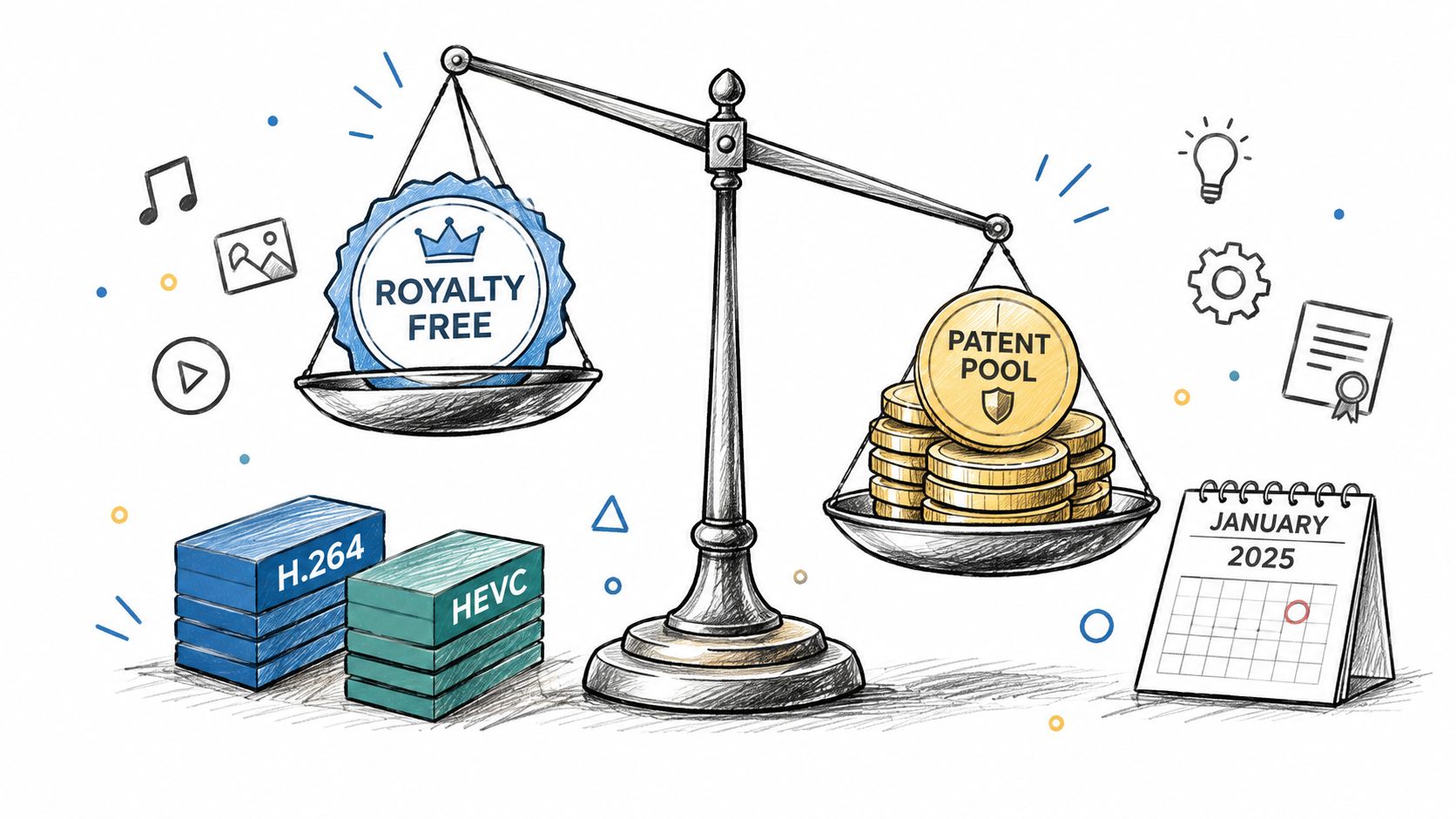
As noted earlier, Access Advance's Video Distribution Patent Pool announcement extended pooled licensing to AV1 and VP9 alongside HEVC and VVC. That development pulls formats engineering teams often treat as royalty-free by default into the same review process as the MPEG codecs. It does not establish what any particular service owes. Applicable terms depend on the product, distribution arrangements, and legal analysis, so involve qualified counsel instead of deriving a licensing conclusion from a codec support chart.
Compare the economics you control
Compute, storage, and egress are engineering decisions. A more demanding encoder raises processing cost or job time. Each additional rendition adds storage and complicates packaging and cache management. Weigh those trade-offs against the bandwidth and playback benefits your audience gets.
Licensing exposure sits outside encoding benchmarks.
Patent-pool terms require their own review, and that review belongs in product planning, especially when adding a codec to a consumer-facing service or changing distribution scale.
VVC illustrates the gap between a spec sheet and a shipping decision. It is promoted on bitrate savings over HEVC, but device decode support remains thin while AV1 keeps gaining encoder and decoder integration. Before committing, ask whether your target devices can decode it, whether your pipeline can produce it at acceptable cost, and whether the expected delivery savings offset the added implementation and licensing questions.
Fallback Strategies for Multi-Rendition Delivery
A fallback isn't an admission that your codec choice was wrong. It's how a delivery system handles differences among devices without forcing every viewer onto the least efficient stream. Keep a broadly compatible rendition, then add alternatives when your audience and playback data justify them.
A practical policy can start with H.264 for broad reach and add VP9 or AV1 for clients that can use those formats. Package the renditions for your streaming method and let the player select among available options. For adaptive delivery, the manifest and player need consistent metadata, aligned segment behavior, and valid alternatives; a collection of files alone isn't a fallback system.
Client checks help narrow the options. MediaSource.isTypeSupported() can test whether a browser recognizes a MIME type, while WebCodecs VideoDecoder.isConfigSupported() can probe a decoder configuration. If a check fails, or playback errors occur, select a known-compatible rendition rather than repeatedly retrying the same unsupported stream.
A fallback should be a planned output path, not an emergency encode triggered after a customer reports a black screen.
For a live sports service, codec policy is only one part of whether a viewer can find and watch a game. A clear Patriots TV schedule guide illustrates the separate discovery problem: a good stream still needs to reach viewers through the right product experience.
Build your manifest and fallback behavior alongside the encode pipeline. This guide to adaptive bitrate streaming provides additional context for organizing delivery across changing playback conditions. Test both normal selection and failure behavior, including what happens when a rendition is unavailable or the client rejects its codec configuration.
Troubleshooting Codec and FFmpeg Errors
Start with FFmpeg's stderr. The final line may report failure, but earlier lines often identify the input stream, selected decoder, pixel format, or encoder option that caused it. Save the complete output with the job record so you can distinguish a repeatable media issue from a transient execution problem.
Match the error to the failing stage
“Could not find codec parameters” can point to an input that's truncated, corrupt, or difficult to probe. Confirm the file is complete, inspect it with ffprobe, and try a larger probe window only when the input structure warrants it.
An incompatible pixel format usually means the encoder can't accept the source format as-is. Inspect the source pixel format, then convert deliberately to a format the target encoder supports. For conventional H.264 delivery, -pix_fmt yuv420p is a common explicit choice, but don't apply it blindly to workflows that must preserve higher bit depth or chroma detail.
A profile mismatch means the requested output profile can't represent the selected coding features or settings. Check the requested profile, level, and encoder capabilities together. Don't assume that changing the container will fix a bitstream that the target decoder can't handle.
Make retries idempotent: classify the failure, preserve stderr, and retry only when a changed input or setting can reasonably address it. Re-running the same invalid command just produces the same failure.
Quick Reference Matrix and Decision Checklist
Use this matrix as a starting point, then validate each row against your playback targets and source material. A profile or level should be explicit when compatibility depends on it.
| Target | Codec | Profile/Level | Container | Audio |
|---|---|---|---|---|
| General web delivery | H.264 | High, Level 4.1 where suitable | MP4 | AAC |
| Browser workflow with verified support | VP9 | Match target decoder | WebM | Opus |
| Bandwidth-sensitive delivery | AV1 | Match target decoder | MP4 or supported streaming package | AAC or supported alternative |
| Adaptive streaming | H.264 baseline rendition plus tested alternatives | Match device and output constraints | HLS or DASH package | AAC or supported alternative |
| Archive or mezzanine | Select for workflow and preservation needs | Preserve required image characteristics | Suitable media container | Preserve required audio format |
Before shipping, probe the input, map the target to an explicit codec tuple, encode with deliberate parameters, and inspect the output. Test playback on representative devices, record decoder failures, and keep a fallback ready. If you can't explain why a rendition exists and which clients should use it, simplify the policy.
Frequently Asked Questions
When should a service move away from H.264?
Move selectively, not by replacing every H.264 output at once. Add a newer codec when your audience can use it efficiently and the bandwidth or storage benefit justifies the encoding and delivery complexity. Keep H.264 where uncertain device support makes reach more important than compression efficiency.
How can a pipeline detect hardware decoding without fingerprinting a browser?
A server-side encoder generally can't know the viewer's actual hardware decoder from the media file alone. Let the client probe its playback configuration and report capability or playback outcomes through your application, then use broad, privacy-conscious capability categories to select renditions. Don't treat codec recognition as proof of hardware acceleration.
Does the 2025 patent-pool announcement change existing AV1 or VP9 pipelines?
It's a reason to review distribution terms, not proof that a particular pipeline has a new obligation. The announcement covered several codecs; assess the terms that apply to your product with qualified legal advice before making business or encoding decisions.
How should a pipeline handle 10-bit, HDR, or 4:2:2 sources?
Treat these as preservation requirements, not incidental input properties. Probe bit depth, chroma format, and HDR metadata before converting; define whether each output should preserve or intentionally reduce them. If you create an 8-bit 4:2:0 compatibility rendition, retain a higher-fidelity master when the workflow requires it and verify that the conversion doesn't discard information unexpectedly.
RenderIO provides a cloud FFmpeg API for submitting video-processing commands and receiving processed outputs without managing your own encoding servers and queues. If you're building a codec-aware pipeline, visit RenderIO to evaluate how its REST API fits your processing workflow.