You've got an MKV file on your disk. Your desktop player opens it, but a browser tab won't, and the upload form for your next video project rejects it. Before you run a converter and potentially change the picture, you need to know what's inside the file and what the destination accepts.
Table of Contents
- The MKV You Have on Disk Right Now
- How a Matroska Container Is Built
- A Brief History of the Matroska Format
- What MKV Can Hold That Other Containers Cannot
- MKV vs MP4 and Where Each Format Wins
- Remuxing and Converting MKV with FFmpeg
- Running MKV Pipelines on RenderIO
The MKV You Have on Disk Right Now
Suppose a colleague sends you a high-resolution film export with alternate-language audio and subtitles you can switch on and off. The filename ends in .mkv, so you reasonably assume the extension tells you how to play it. Instead, it tells you how the contents are packaged.
A .mkv file uses the Matroska Multimedia Container format. It's an open, non-proprietary container that can package video, audio, subtitles, chapters, metadata, and attachments together. It doesn't specify the compression method or promise that a particular device can decode everything inside, as the Library of Congress description of Matroska explains.
Think of the file as a delivery box. The label identifies the kind of box, but you still need to inspect its contents before deciding how to handle them.
The extension isn't the diagnosis
A player needs to understand both the packaging and the encoded media. It might recognize Matroska but lack support for an audio codec, or play the picture while failing to render the subtitle track correctly. Those are different failures, even though the filename looks identical.
If you're asking what is a .mkv file, the useful answer goes beyond “a video file.” It's a package whose contents determine your next troubleshooting step.
- File rejected immediately: Investigate whether the destination accepts the container.
- Picture plays but audio doesn't: Inspect the audio stream rather than assuming the whole file needs conversion.
- Captions disappear: Check the subtitle format and the player's subtitle handling.
For a creator-focused introduction to destination requirements, these video format basics for creators provide useful context alongside the engineering distinctions.
The practical habit is simple: inspect before converting. Don't rename the extension and expect a different file structure, and don't assume a failed upload means the picture needs to be re-encoded. First identify which layer the destination can't handle.
How a Matroska Container Is Built
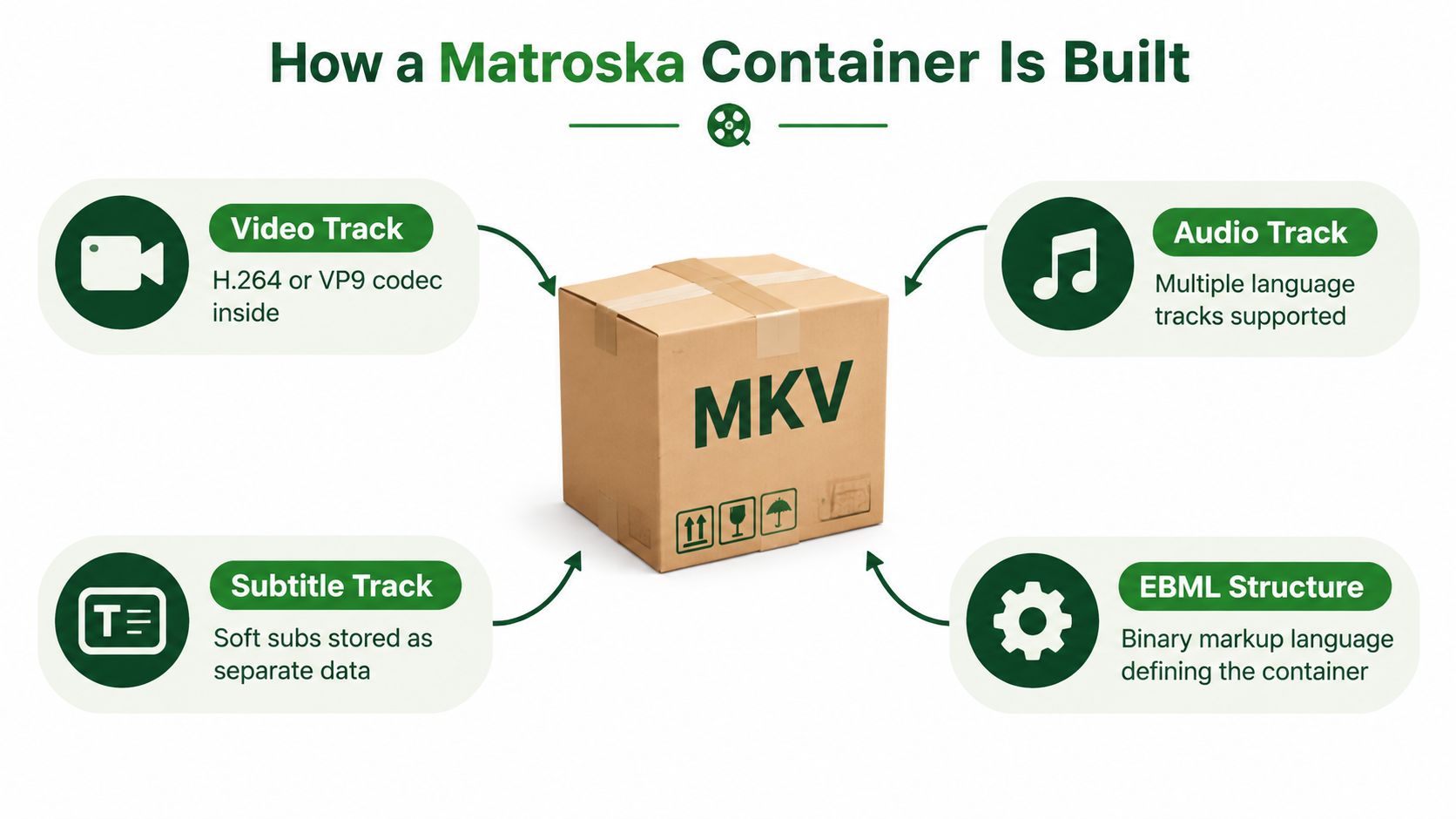
The moving-box analogy becomes more useful when you add an inventory and packing order. A player needs to discover what's inside, locate the actual media, and connect each piece to its playback time. Matroska provides named structural elements for those jobs.
The diagram connects the media tracks to their shared container structure.
The inventory and the payload
Matroska is based on EBML, or Extensible Binary Meta Language. Its EBML header must identify the document type as matroska, and its track structures identify the codecs and timing needed to interpret the streams. The Matroska specification in RFC 9559 defines this architecture, including support for video codecs such as H.264, H.265/HEVC, VP9, and AV1, and audio codecs such as AAC, Opus, Vorbis, and FLAC.
The main elements have distinct responsibilities:
Tracks: Describes the streams so the reader knows what media it's dealing with.Cluster: Holds media payloads associated with playback timing.Info: Provides information about the segment.SeekHead: Helps the reader locate important structural elements.Cues: Provides an optional seek index linking timestamps to cluster positions.
The codec names belong to the inventory, not the box itself. If those names are unfamiliar, this explanation of what a video codec does helps separate compression from packaging.
Why indexing and ordering matter
To seek to a requested moment, a player needs a route to the relevant media. With useful cues, it can jump near the requested timestamp instead of discovering that position through a broader scan. A poorly organized file can therefore feel sluggish even when its video codec is supported.
A playable file must contain a Tracks element and a Cluster. Matroska's ordering guidance recommends placing Info and Tracks before the first cluster, or making them discoverable through an earlier SeekHead; its element-ordering documentation also explains the role of cues in efficient seeking.
Diagnostic distinction: Slow seeking is a reason to inspect indexing and file organization, not automatically a reason to change the video codec.
For developers, this vocabulary makes logs actionable. A missing stream description, an unsupported codec, and an ineffective seek index aren't interchangeable problems. They point to different places in the processing pipeline.
A Brief History of the Matroska Format
Matroska wasn't created as an undocumented workaround for awkward video files. Its development history explains why extensibility is central to its design and why its specification matters independently of any particular player.
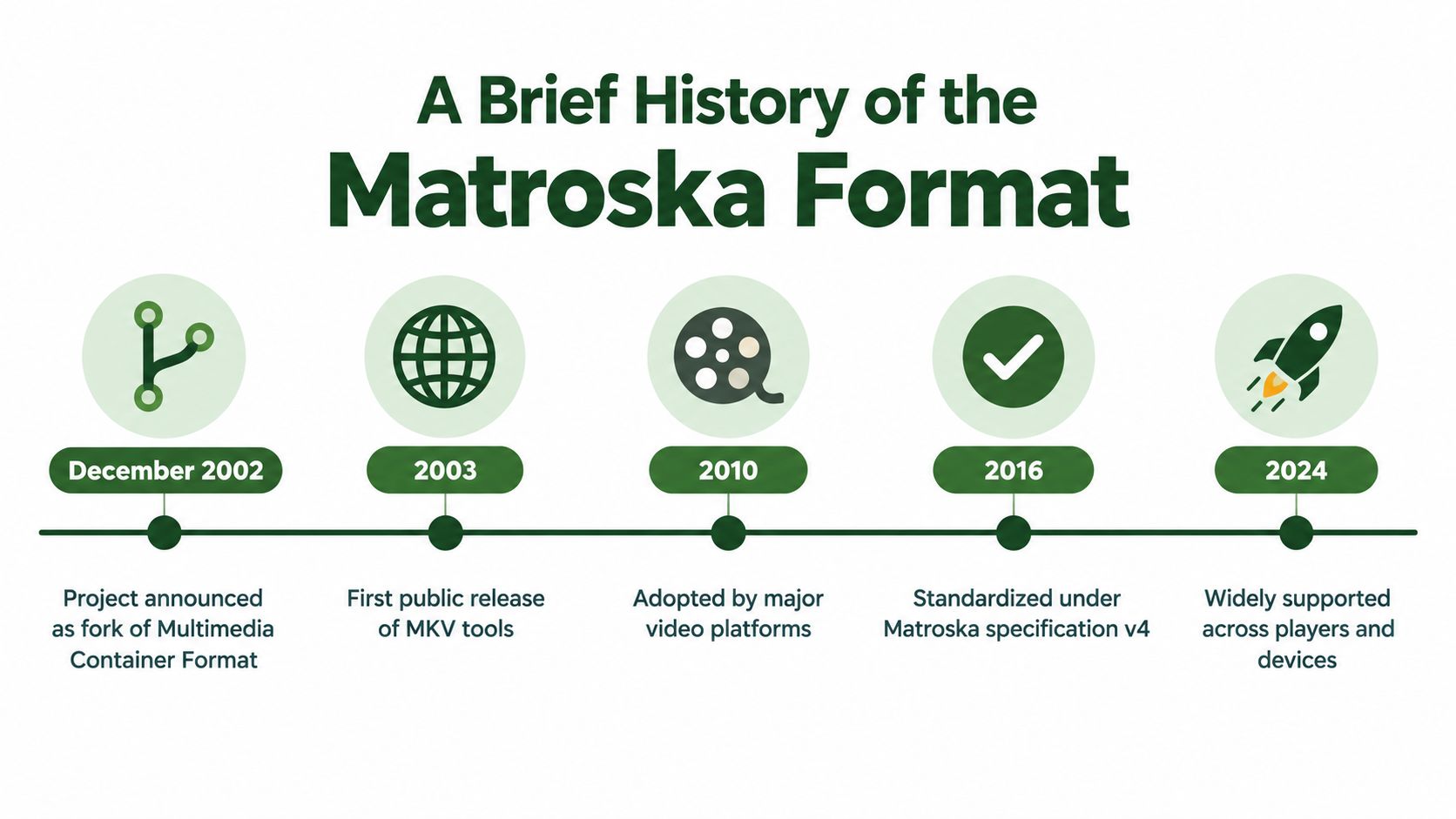
The timeline provides a visual overview, while the formal milestones below establish its standards history.
From a project fork to an Internet standard
The project was announced on December 6, 2002, as a fork of the Multimedia Container Format, with disagreement over using EBML rather than a conventional binary structure. Specification work entered the IETF process in 2018, working-group adoption followed in October 2018, and submission to the Internet Engineering Steering Group occurred in April 2022, according to the Matroska standardization history.
The resulting specification became RFC 9559 in October 2024, published as a Proposed Standard covering Matroska versions 1 through 4, with version 4 current and the earlier versions no longer maintained, as documented in that same standardization record.
A format's age and its standardization date answer different questions. An established format can acquire a formal standards-track specification after years of development.
The important distinction is between implementation history and a documented interoperability contract. Developers don't have to infer the intended structure solely from whichever files their customers happen to upload.
For an additional visual explanation, the embedded video offers another way to approach the topic.
In practice, treat the specification as the reference when debugging unusual files. A player accepting a file is useful evidence, but it doesn't establish that every structural choice or advanced feature will work elsewhere.
What MKV Can Hold That Other Containers Cannot
The heading needs a qualification: MKV's advantage isn't that every feature is exclusive to Matroska. Other containers can support multiple streams and metadata too. What matters is whether your chosen container and downstream tools preserve the particular combination your project needs.
Consider a foreign-language archive. You might want the original audio, a dubbed track, translated subtitles, and separate captions retained together. A flattened export could still look correct while losing the choices that make the archive useful.
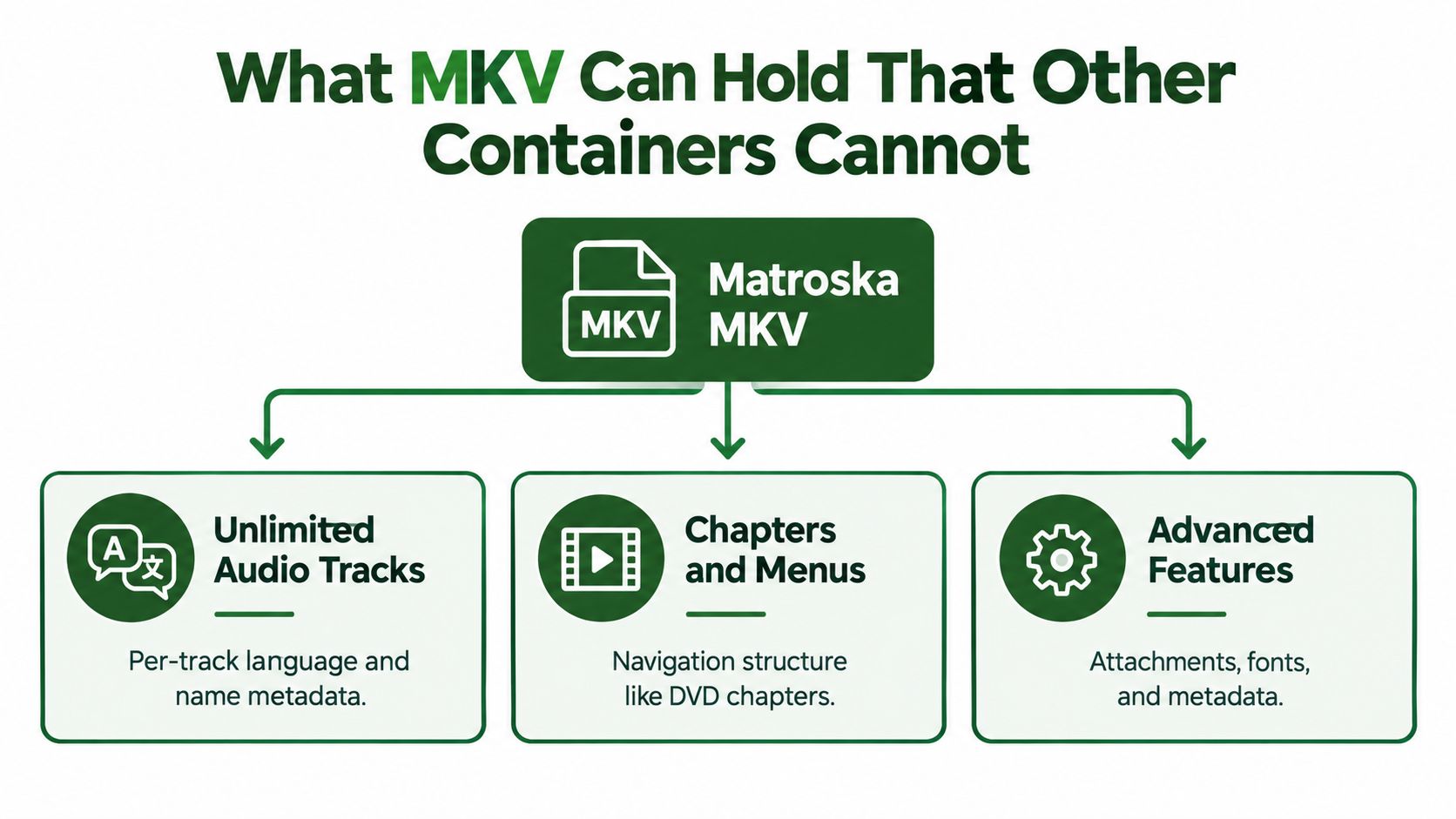
This diagram groups the kinds of content that require attention during conversion.
Features that change the delivery requirements
Matroska's specification, discussed earlier, provides structures for tracks, chapters, tags, and synchronized media. The practical value depends on how you use them:
- Alternate audio: Keep original-language dialogue, a dub, or commentary available as separate choices rather than mixing them permanently.
- Separate subtitles: Retain captions independently from the picture so a compatible player can offer subtitle selection.
- Chapters: Give viewers navigable points within a longer recording without splitting the recording into separate files.
- Attachments: Preserve supporting material, such as embedded subtitle fonts, alongside the media.
- Tags: Carry descriptive information that an archive or downstream application can use.
A director's cut with commentary illustrates the distinction between storage and presentation. Keeping the commentary track is a preservation decision; exposing it in the playback interface is a player capability.
Preserve features deliberately
Chapters don't automatically create a functioning menu in every player, and attaching a font doesn't guarantee that every subtitle renderer will use it. The playback limitations described earlier are particularly important when evaluating apparently successful conversions.
For a production master, write down which features must survive: selectable audio, subtitle appearance, chapter navigation, or descriptive tags. Then compare the derivative against that checklist, not just against a screenshot of its opening frame.
If captions need their own delivery path, extracting subtitles from MKV can separate that task from video conversion. A subtitle sidecar may be more appropriate than forcing every archival feature into a distribution file.
MKV vs MP4 and Where Each Format Wins
Choose the destination before choosing the delivery container. An internal master and a browser preview have different requirements, even when they originate from the same source.
For preservation, I'd favor retaining the source's useful tracks and metadata rather than simplifying it prematurely. For public playback, I'd favor a tested derivative whose container, codecs, captions, and audio selection match the target environment.
MKV vs MP4 at a glance
| Dimension | MKV | MP4 |
|---|---|---|
| Flexibility | Useful for complex, multi-track packages | Useful for a defined delivery profile |
| Metadata | Supports extensive tags, chapters, and attachments | Verify which source features survive conversion |
| Codec support | Broad container-level support | Select codecs accepted by the destination |
| Browser playback | Requires testing of container and embedded streams | Often the practical distribution choice, still needs testing |
| Best use case | Preservation and internal masters | Web, mobile, and social derivatives |
These are workflow recommendations, not universal compatibility promises. The Matroska playback FAQ is a useful starting point for format questions, but your product's actual playback matrix should determine release decisions.
There's also an emerging compatibility signal: an independent late-2025 report described newer Chrome, Edge, and Firefox versions recognizing MKV when the embedded codecs were supported, while Safari remained unsupported. Without a directly verifiable report to establish the version boundaries, don't turn that observation into a production support claim.
Quality isn't a container ranking
Calling MKV “higher quality” confuses the wrapper with its contents. Evaluate the encoded picture and audio, then evaluate which container can deliver them with the features you need. A conversion that changes encoding settings is a different operation from one that only changes packaging.
Release rule: “The file opens” isn't a complete acceptance test. Check captions, color handling, audio selection, and seeking on the devices your users actually have.
Phone footage introduces the same destination-first question from another direction. If you need to convert iPhone clips for editing, define the editor's requirements before choosing an export profile.
Keep the original until the derivative passes validation. That lets you correct a delivery decision without rebuilding missing tracks or working from an unnecessarily re-encoded copy.
Remuxing and Converting MKV with FFmpeg
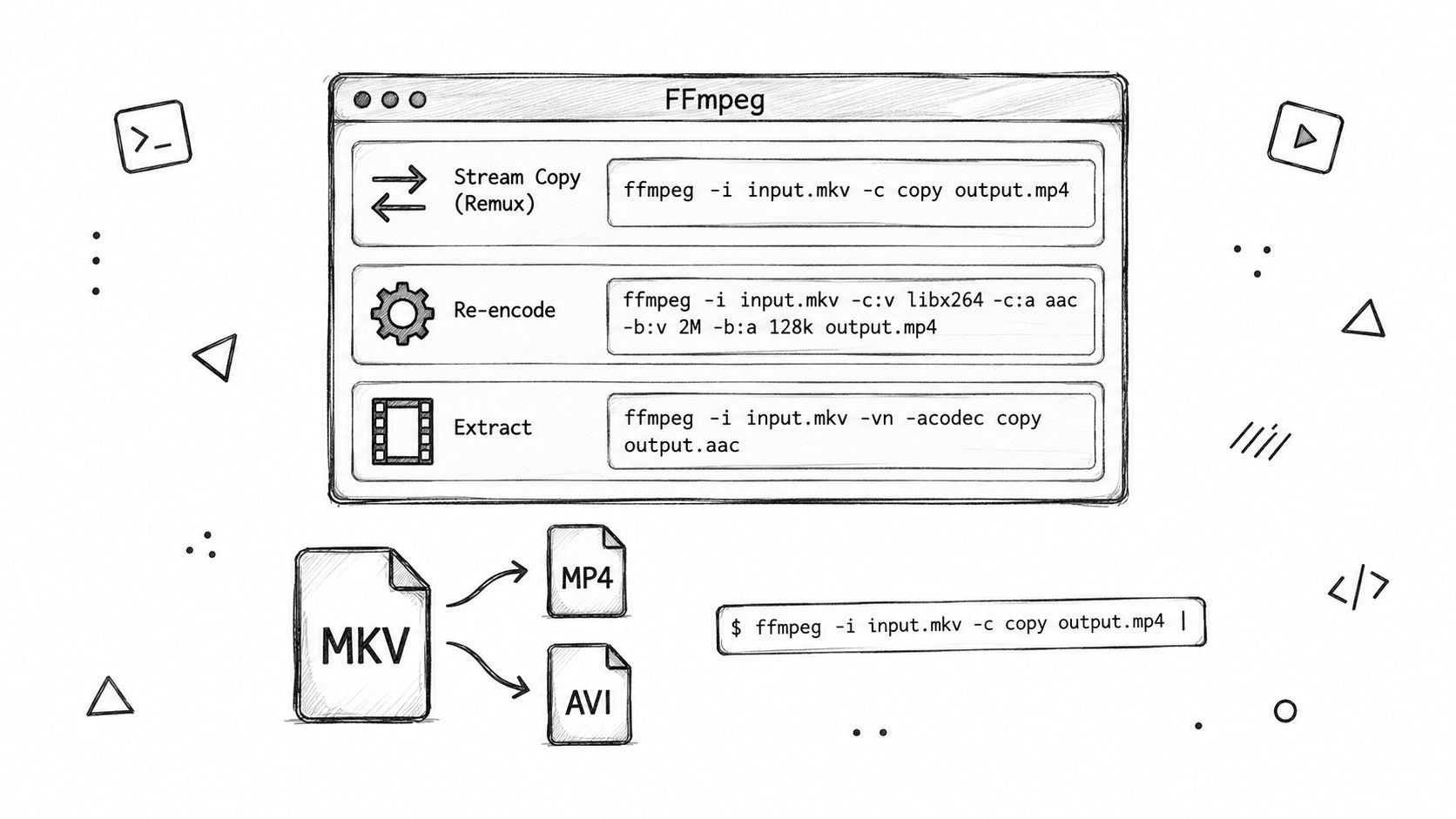
Start with an inventory: ffprobe -v error -show_streams -show_format input.mkv. Inspect the video and audio codecs, subtitle streams, language tags, attachments, and color metadata before selecting a command.
The examples below illustrate different operations. They aren't interchangeable presets, and none guarantees playback on every destination.
Remux when the streams already fit
Use this when the destination accepts the selected codecs and subtitle format:
ffmpeg -i input.mkv -c:v copy -c:a copy -c:s copy output.mp4
The copy options request stream copying, not video or audio re-encoding. This is a remux: FFmpeg writes the selected compressed streams into another container.
Watch the subtitles. Copying an MKV subtitle stream into MP4 can fail if the output container doesn't accept its format; convert it separately or intentionally exclude it rather than assuming copy makes it compatible.
This command also uses automatic stream selection. It's not an instruction to preserve every track and attachment, so review the selected streams in FFmpeg's output.
Transcode when compatibility requires it
Use this when the selected picture and audio need a new encoding:
ffmpeg -i input.mkv -c:v libx264 -crf 23 -c:a aac output.mp4
Here, libx264 requests H.264 video encoding, while aac requests AAC audio encoding. The CRF value is an example setting, not a universal quality recommendation; evaluate the result against your content and delivery requirements.
Define subtitle handling explicitly before using this in production. For a picture-and-audio derivative that deliberately excludes subtitle streams, add -sn; don't let accidental caption loss become your default policy.
If you prefer a conversion interface, the MKV-to-MP4 conversion tool provides another route to the task. The same remux-versus-transcode decision still applies.
Select tracks without changing their encoding
Use this when you need a specific video, audio, and subtitle combination:
ffmpeg -i input.mkv -map 0:v:0 -map 0:a:1 -map 0:s:0 -c copy output.mkv
FFmpeg's indexes are zero-based: this selects the first video stream, second audio stream, and first subtitle stream from the input. Check that those streams exist and represent the intended language or role before running the command.
- Validate selection: Match stream indexes to the probe results.
- Validate preservation: Check whether required attachments and metadata survived.
- Validate playback: Test the actual destination, not just FFmpeg's successful exit.
The same checks belong downstream of a script to video generator: generated content still needs a deliberate delivery profile.
Running MKV Pipelines on RenderIO
A local FFmpeg command is only part of a production workflow. Your application also needs input access, job tracking, output storage, error reporting, and a way to avoid duplicate work when requests are retried.
The publisher's cloud FFmpeg API is one option alongside self-managed workers and workflow tools. It accepts processing commands through REST requests and supports progress polling or webhooks, signed output URLs, and FFmpeg stderr for debugging.
A concrete processing workflow
Consider a SaaS feature that accepts a track-rich MKV master and produces a browser preview, a thumbnail, and a selected-language audio download. This is a proposed implementation pattern, not a reported customer deployment.
Probe the input first and store the stream inventory with the upload record. The application should decide whether the preview can use stream copying or needs encoding, rather than routing every file through the same expensive conversion.
A remux request can carry the command ffmpeg -i input.mkv -map 0:v:0 -map 0:a:0 -c copy -sn output.mp4, with the source reference and output settings supplied using the API's documented request fields. Submit that request with REST POST; use the actual endpoint and schema from the documentation rather than guessing either.
- Preview branch: Produce the selected picture-and-audio derivative after checking destination compatibility.
- Thumbnail branch: Generate a representative image independently of the delivery encode.
- Audio branch: Extract the intended language or commentary stream using the stored inventory.
The API returns access to the processed output through signed URLs. Store the result association in your application, and account for URL expiration rather than treating a signed download address as permanent archival storage.
Make completion observable
For longer jobs, use polling or a progress webhook according to your application's needs. Automatic webhook retries and a dead-letter queue help surface delivery failures, but your consumer still needs to handle repeated notifications safely.
Keep the original master, the probe results, the exact command, and the processing outcome associated with the same asset. If a subtitle disappears or the wrong language reaches the preview, those records let you distinguish a selection mistake from an encoding failure.
Automation becomes more predictable when the application makes explicit decisions about streams, not just extensions. The cloud worker executes the command; your delivery policy determines whether that command is appropriate.
RenderIO offers cloud FFmpeg processing for MKV conversion, track extraction, and derivative generation without running your own processing workers. Visit RenderIO to try a workflow with a representative MKV, inspect its streams, and validate a remuxed or transcoded MP4 against your target player.