You've exported a clean timeline, run it through a compressor to make the upload faster, and the YouTube version still looks soft. Faces smear. Fine detail in hair, grass, or game HUDs turns to mush. The file got smaller, but the picture paid for it twice, once in your encode and again when YouTube re-encoded it.
That's the core misunderstanding with YouTube video compression. You aren't trying to win the smallest file. You're trying to hand YouTube a clean, predictable mezzanine it can transcode without inventing detail you already threw away.
Table of Contents
- Why YouTube Video Compression Goes Wrong
- Inspect the Source Before You Encode
- FFmpeg Settings for Shorts Longform and High Motion
- When Local FFmpeg Is Not Enough
- Check the File Before You Upload
- Run the Same Compression at Scale
Why YouTube Video Compression Goes Wrong
A creator exports a 4K timeline, runs one aggressive encode to shrink it, and uploads. On the timeline it looked sharp. After processing, edges crawl and gradients band. The instinct is to blame YouTube and lower the quality setting further next time to save upload time. That makes it worse.
YouTube video compression works best when your upload already matches what YouTube expects to ingest. Keep the source frame rate, deinterlace anything interlaced before you encode, and deliver progressive H.264 video in an MP4 container with AAC-LC audio. That's the production target. Anything that fights it creates work YouTube has to undo, and undoing is where artifacts live.
The Four Pitfalls That Actually Hurt
Most bad uploads trace back to the same short list.
- Unnecessary frame rate conversion: You shot at 24 fps, then forced 30 fps on export. FFmpeg has to duplicate or blend frames to fill the new cadence. Motion stutters on pans and looks unnatural on dialogue. Matching the recorded rate prevents those cadence artifacts entirely.
- Interlacing left in place: An old camera, capture card, or broadcast archive gives you interlaced fields. If you encode that as is, you'll see combing on movement, thin horizontal teeth on edges. YouTube's later transcode can preserve or amplify that combing instead of fixing it.
- Bitrate cut too hard, too early: You crush the first encode to save minutes on upload. The encoder discards texture to hit your low target. YouTube then re-encodes a picture that already lost detail, so there's nothing left to preserve.
- A second lossy generation: You take an already compressed export, trim it, add captions, and re-encode it again at a low bitrate. Each lossy pass throws away a little more. Two careless passes look worse than one deliberate pass from the master.
If the file looks compromised before upload, YouTube won't restore it. It will compress the compromise.
What a Cleaner Sequence Looks Like
The fix isn't a magic preset. It's order. Inspect the source first. Normalize only when necessary, for example deinterlacing or fixing pixel aspect if the source needs it. Scale with a high-quality filter if you're resizing. Encode with two-pass or quality-based VBR at a bitrate matched to resolution and frame rate. Then validate the output before you upload.
Notice what's missing from that sequence. There's no step that says chase the lowest CRF number you can tolerate, and no step that says convert everything to 30 fps because a template did. CRF is a tool, not a target. The target is a faithful frame rate, a progressive picture, and enough bitrate that your encode isn't the bottleneck.
Treat your upload as the best version YouTube will ever see. If you starve it, every derivative YouTube makes for phones, TVs, and browsers inherits the starvation. If you feed it clean, those derivatives have something real to work from.
Inspect the Source Before You Encode
Don't touch pixels until you know what you have. A phone vertical, a 24 fps interview, and a 60 fps gameplay capture need different decisions, and the file names won't tell you which is which. ffprobe will, in seconds.
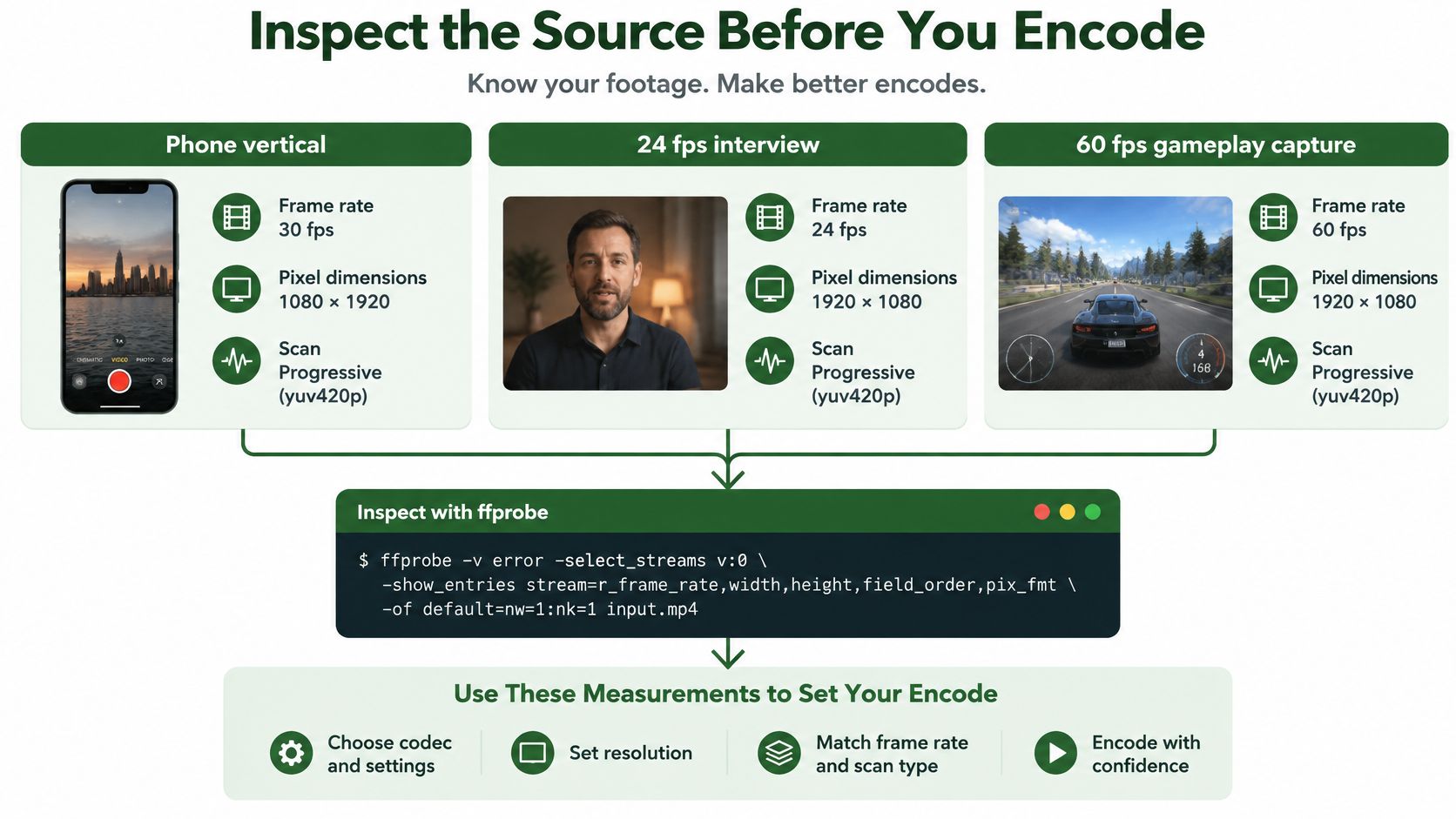
Run this before any encode:
ffprobe -hide_banner -i input.mp4
For a cleaner preflight note, pull the specific fields you'll act on. The walkthrough in this ffprobe tutorial for reading stream metadata shows how to format that output so it doesn't scroll past. What matters here is reading it correctly once you have it.
The Five Fields That Decide Your Next Move
Write these down beside the file. They become your encode brief.
- Frame rate: Look at both the stream's fps and its average frame rate. On phone clips they often differ because phones record with a variable frame rate. If the average sits close to your timeline rate, plan to keep that rate. If the rate is variable, you'll need to settle it to a constant rate that matches the recording as closely as possible, not an arbitrary round number.
- Pixel dimensions: Width and height tell you if scaling is even needed. A clip that's already your target size shouldn't be rescaled. Scaling for no reason softens the picture.
- Scan type: Progressive means you encode as is. Interlaced means you deinterlace before encoding. Don't guess from the camera age. Read the field.
- Audio codec and duration: Note what the audio is now and whether audio and video durations line up. You'll deliver AAC-LC, but you want to know if you're transcoding from something already lossy.
- Container and pixel aspect: Note the container and the sample aspect ratio, often shown as SAR. Square pixels are what you want for upload. A non-square SAR that displays correctly in one player can stretch in another.
Normalize Only When the Probe Says So
Normalization isn't a ritual. It's a response to a specific finding.
If the scan type is progressive, pixels are square, and the frame rate is constant and correct, skip the normalize step entirely. Encode the file as it is. Every filter you don't run is detail you don't risk.
If the probe shows interlacing, deinterlace, and only then. If SAR is non-square, set square pixels during scaling so the display size is unambiguous. If audio level is wildly off compared to the rest of a series, correct it in the same pass as the encode rather than adding a separate generation later.
Preflight habit: container, fps, size, scan, audio. Five facts, written once, decide every flag that follows.
That short note stops the most common waste in YouTube video compression, running a full filter chain because a copied command included it. Your command should reflect this file, not the last tutorial's file.
FFmpeg Settings for Shorts Longform and High Motion
Decision first, then the command. All three cases below share the same delivery shape, progressive H.264 in MP4 with AAC-LC audio. They differ in scale, frame rate handling, and bitrate, because the pictures differ.
Before picking a number, anchor to YouTube's recommended upload encoding settings. For SDR, the reference targets are 8 Mbps for 1080p at 24 to 30 fps and 12 Mbps at 48 to 60 fps, 35 to 45 Mbps for 4K at standard frame rates, and 53 to 68 Mbps for 4K at high frame rates. HDR targets rise to 10 and 15 Mbps for 1080p and 44 to 56 and 66 to 85 Mbps for 4K.
YouTube Reference Bitrates for Upload
| Resolution | Frame rate | SDR target | HDR target |
|---|---|---|---|
| 1080p | 24 to 30 fps | 8 Mbps | 10 Mbps |
| 1080p | 48 to 60 fps | 12 Mbps | 15 Mbps |
| 4K | Standard | 35 to 45 Mbps | 44 to 56 Mbps |
| 4K | High | 53 to 68 Mbps | 66 to 85 Mbps |
If you want the wider container and codec context behind those numbers, this overview of the best video formats for YouTube is a useful companion. The table above is what sets your bitrate flags.
Shorts and Vertical Video
Decision. Keep the phone's frame rate, scale cleanly to vertical, and don't undershoot the bitrate just because the clip is short.
ffmpeg -i input.mp4 -vf "scale=1080:1920:flags=lanczos,setsar=1" -c:v libx264 -preset slow -b:v 12M -maxrate 12M -bufsize 24M -pix_fmt yuv420p -c:a aac -b:a 192k -movflags +faststart short.mp4
scale with lanczos gives you a sharper resize than the default when you're changing dimensions. setsar=1 forces square pixels so the vertical frame displays as intended. Notice there's no -r 30. Forcing 30 fps on a clip recorded at another rate is how you create the cadence problem covered earlier. Check the expected dimensions against this guide to YouTube Shorts video size before you run a batch.
Longform at 1080p and 4K
Decision. Hit the reference bitrate for your resolution and frame rate. Use two-pass when file size must land in a band, or quality-based VBR with a bitrate cap when you want a single solid pass.
ffmpeg -i master.mov -c:v libx264 -preset slow -b:v 8M -maxrate 8M -bufsize 16M -pix_fmt yuv420p -c:a aac -b:a 192k -movflags +faststart upload_1080p.mp4
Swap 8M for the row that matches your file from the table. A 24 fps interview at 1080p uses the 8 Mbps SDR row. A 4K standard frame rate upload uses a value inside 35 to 45 Mbps. -preset slow trades encode time for better compression efficiency at the same bitrate, which is the honest trade here. A faster preset finishes sooner and looks worse at the same size. -movflags +faststart moves the index to the front of the MP4 so playback and processing can start without reading the whole file. -c:a aac delivers the AAC-LC audio YouTube expects.
Two-pass is worth it when a long video has mixed scenes, dark segments, bright segments, stills, and action, because the first pass lets the encoder spend bits where they're needed. For a uniform talking head, a single quality-based VBR pass capped near the reference target is usually enough and saves real time.
High Motion, Gameplay, and Sports
Decision. Stay at the high frame rate target. Don't borrow settings from a static interview.
ffmpeg -i gameplay.mp4 -c:v libx264 -preset slow -b:v 12M -maxrate 12M -bufsize 24M -pix_fmt yuv420p -c:a aac -b:a 192k -movflags +faststart gameplay_1080p60.mp4
At 1080p and 48 to 60 fps, 12 Mbps is the SDR reference, not the 8 Mbps used for standard rates. For 4K high motion, use a value inside 53 to 68 Mbps. High motion spends bits on moment-to-moment change. If you cap it like a talking head, the encoder smears exactly the movement viewers came to watch. HDR gameplay steps up again to the HDR column, but that's a bitrate change, not a reason to re-grade SDR footage into fake HDR.
Good enough to upload means the frame rate matches the source, the picture is progressive, and the bitrate sits in the correct row for that resolution and rate. If one of those is off, fix that one thing and re-encode from the master.
When Local FFmpeg Is Not Enough
Three Shorts a week? Stay in the terminal. It's fast, free, and you control everything. The question changes when one master has to become a 1080p longform, a vertical Short, a Reel, and account-level variations, every day, without someone babysitting a laptop.
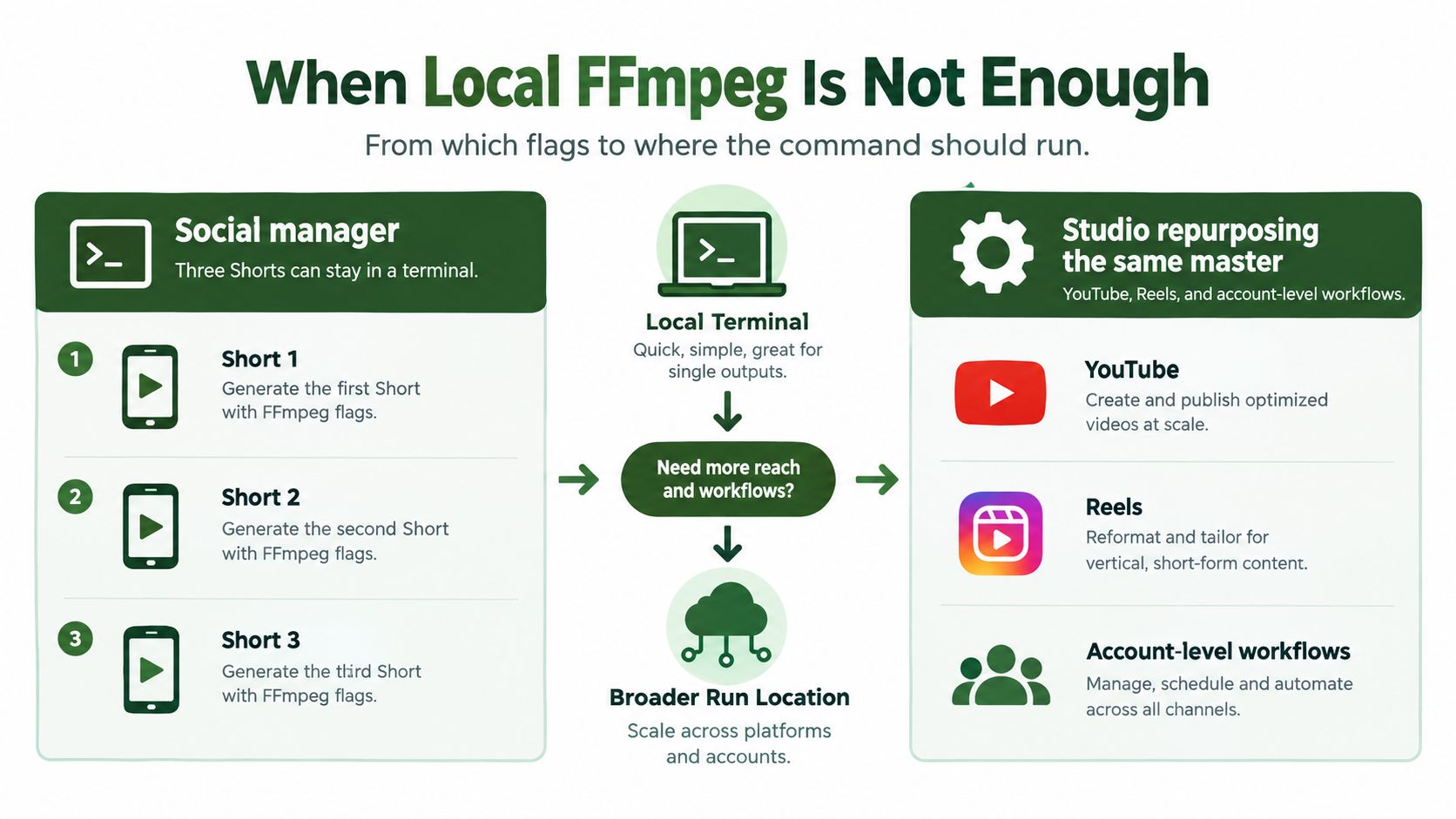
Three Ways to Run the Same Command
- One-off local FFmpeg: You run the exact lines from the previous section. Best when volume is low and you're still tuning settings. The cost is your machine and your attention. A long 4K two-pass encode ties up both.
- A shell or no-code loop you maintain: A script walks a folder and encodes each file. It works until a job fails at 2 a.m., the disk fills, or two encodes fight for the same output name. You now own queues, retries, and cleanup, none of which improve the picture.
- A cloud FFmpeg API: You post the command you've already proven locally and receive the processed file back. With RenderIO, you post any FFmpeg 7.x command to a REST endpoint and get the output with zero egress fees, without setting up servers, queues, or storage. Runs are isolated on a global edge network with no cold starts or timeouts, and you track progress by polling or webhook, with automatic retries and a dead letter queue for jobs that keep failing.
The appeal isn't different encoding. It's the same encoding without you operating the infrastructure around it. Signed URLs expire automatically, idempotent requests prevent a retry from double-encoding the same job, and you get full FFmpeg stderr when a flag is wrong, so the fix is the flag, not guesswork.
Where No-Code and Generation Fit
If your workflow lives in automation tools, the same command can leave n8n or Zapier natively, or reach Make and Pipedream through a webhook or HTTP call. The encode step becomes one node in a larger chain, fetch, compress, validate, upload, instead of a manual gap in the middle.
Generation sits upstream of compression, not instead of it. If you're producing the creative itself with a tool like the ShortGenius AI video ad maker, you still need that output brought into the same progressive H.264, AAC-LC, reference bitrate shape before upload. Generate however you like. Compress deliberately.
A practical batch sketch looks like this. One master comes in. Two jobs run in parallel using commands you've already chosen, one producing the 1080p longform at its table bitrate, one producing the vertical Short with the lanczos scale. Neither waits for the other. Neither waits for your laptop.
The decision isn't about flags anymore. It's volume, and who operates the queue when volume grows.
Check the File Before You Upload
Encoding produced a file. That isn't proof. Run ffprobe a second time on the output and compare it against the preflight note you wrote for the source. Five checks, under a minute, catch almost every bad upload before YouTube does.
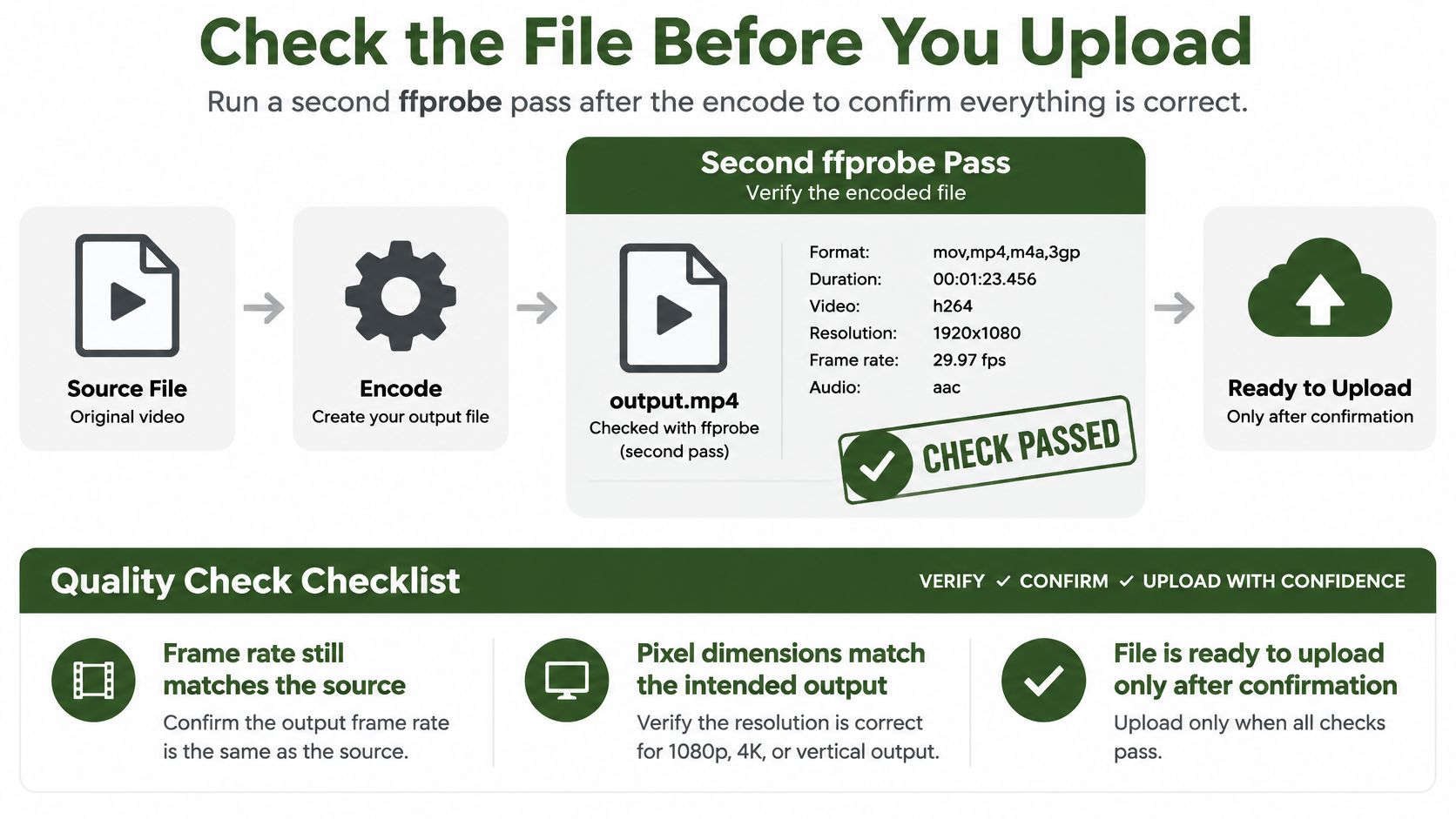
The Five-Point Validation
- Frame rate matches the source: If the interview went in at 24 fps, it should come out at 24 fps. A different number means a conversion crept in.
- Pixel dimensions match the intent: The output should read as your intended 1080p, 4K, or vertical size, with square pixels. A surprise dimension usually means a scale filter did something you didn't plan.
- Scan type is progressive: No interlaced flag on the output. If it's still interlaced, the deinterlace step never ran.
- Audio sync and duration line up: Audio and video durations should match closely, and a quick play-through at the start, middle, and end should show dialogue on the lips. Drift often means a variable frame rate source wasn't settled properly.
- Measured bitrate sits near your target: The video stream bitrate should sit near the row you picked from the reference table, not at a fraction of it. A tiny file is a symptom, not a victory.
Upload checklist: frame rate unchanged, dimensions as intended, progressive scan, audio in sync, bitrate near target. Five passes, then upload.
Symptoms and the One Fix for Each
Combing on movement means deinterlacing was skipped on an interlaced source. Fix it by adding deinterlacing before encoding and re-encoding from the master, not from the combed output.
Judder on pans after a needless frame rate change, such as 60 down to 30, means cadence was broken. Remove the forced rate, keep the source rate, and re-encode.
Muffled dialogue often comes from encoding already lossy audio again at a low rate. Go back to the master audio where you can, and encode to AAC-LC once at a sensible audio bitrate in the same pass as the video.
A suspiciously small file usually means the bitrate cap was set far too low, sometimes by a misplaced unit or a copied value meant for a different resolution. Correct the cap to the reference row for your resolution and frame rate.
If the command failed before producing any output, read the stderr. Locally, it's in your terminal. If the job ran through an API, read the stderr returned in the response instead of guessing which flag YouTube video compression commands usually reject. The error names the filter, option, or input problem directly. Fix that line, rerun, and probe again.
Run the Same Compression at Scale
The whole workflow reduces to an order you can repeat without rethinking it each time. Probe. Fix only what's wrong. Scale with a high-quality filter if you must resize. Encode to progressive H.264 and AAC-LC inside the bitrate band for that frame rate. Probe again.
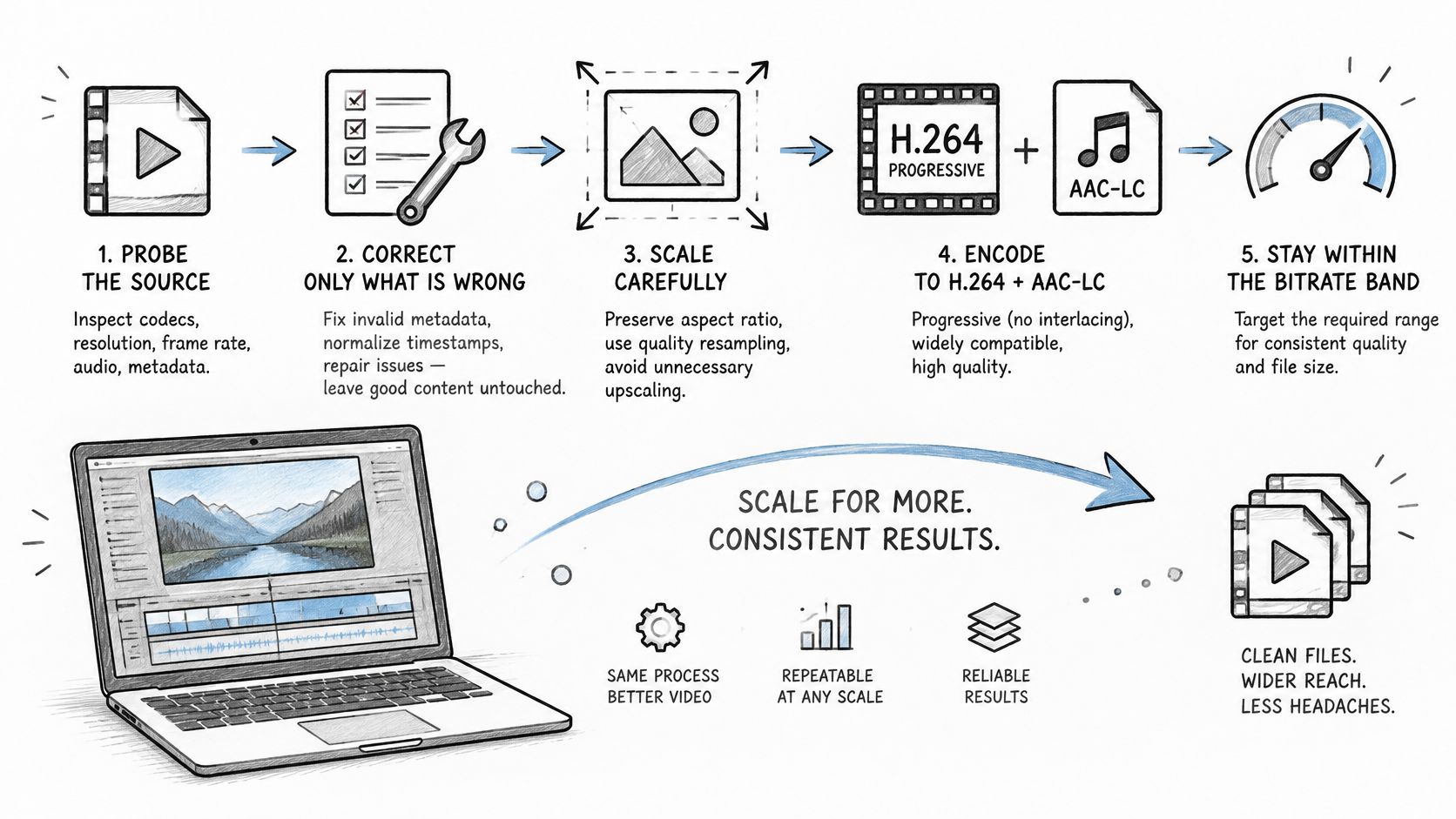
One Practical Next Step
If you have a single upload today, run the matching command locally, run the five-point check, and upload only when it passes. That's a complete job. Don't add infrastructure to a one-off.
If you have a stack of Shorts, longform cuts, or creative variations waiting, take the command you just proved and post it to the RenderIO REST endpoint, or drop it into an n8n or Zapier step, and use the free trial instead of standing up your own queue. The operational ideas in these batch processing best practices apply directly here, parallel jobs, idempotent retries, and validation as a pipeline step rather than a hope.
The same pattern extends without new decisions. Resize for other short-form crops by changing only the scale values. Generate per-account variations by chaining the proven encode after the variation step. You aren't re-deciding quality settings each time, because the decision was made once, against the reference table, and written into the command.
When a call fails, the returned stderr turns the next attempt into a flag fix. That matters at scale. A broken architecture costs you a rebuild. A wrong flag costs you one corrected line and a rerun. Keep the master untouched, keep the command versioned with the project, and every future derivative starts from the same known good state.
Send the command you already trust. Prove it once on one file, check it with ffprobe, and then let it run wherever your volume lives.
Stop re-encoding the same master by hand and post your proven FFmpeg command to RenderIO's cloud API, where it runs at scale with webhooks, retries, and full stderr when something needs fixing. Bring the exact YouTube settings from this guide, run your Shorts and longform jobs in parallel, and visit RenderIO to start with the free trial.