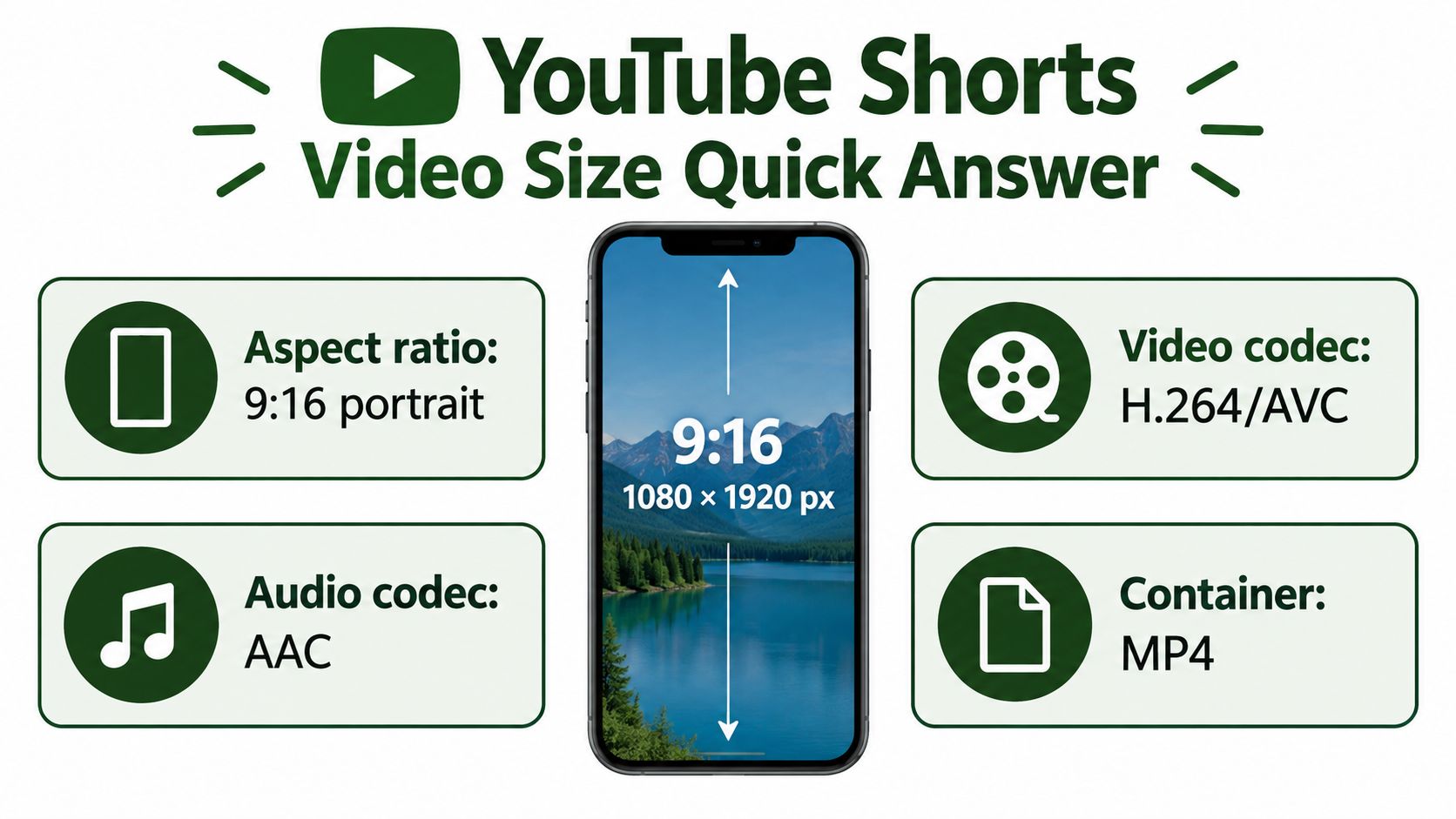
1080 × 1920 pixels in a 9:16 portrait aspect ratio is the recommended YouTube Shorts video size, with H.264 video, AAC audio, an MP4 container, and a maximum duration of 3 minutes. For dependable automation, render below the duration limit and validate the final file before upload.
That specification is easy to satisfy and still easy to get wrong in practice. A video can qualify as a Short while faces sit behind interface controls, captions disappear below the fold, or a wide crop removes the product being demonstrated. The production problem isn't only whether YouTube accepts the file. It's whether the composition remains readable on a real phone after the platform UI, device framing, compression, and swipe-driven viewing are taken into account.
The most reliable workflow treats dimensions, encoding, composition, and validation as one system. A 1080 × 1920 master gives you a stable target, but scene-aware reframing and safe-area rules determine whether that master actually works.
Table of Contents
- YouTube Shorts Video Size Quick Answer
- Evolution of YouTube Shorts Specifications
- Technical Specifications Reference Table
- Essential FFmpeg Commands for Shorts Encoding
- Square Versus Portrait Format Decision Matrix
- Safe Area and Composition Guidelines
- Building Automated Shorts Processing Pipelines
- Common Pitfalls and Troubleshooting Guide
YouTube Shorts Video Size Quick Answer
The practical specification is straightforward:
| Setting | Recommended target |
|---|---|
| Dimensions | 1080 × 1920 pixels |
| Aspect ratio | 9:16 portrait |
| Video codec | H.264/AVC |
| Audio codec | AAC |
| Container | MP4 |
| Maximum duration | Up to 3 minutes |
YouTube's guidance identifies 1080 × 1920 and 9:16 as the best-suited format for Shorts assets, while the platform accepts square or vertical uploads up to three minutes and limits Shorts resolution to 1080p. Google Ads guidance supports the portrait production target, and YouTube's current upload documentation confirms the current duration rule.
The key distinction is between a valid upload and a usable mobile video. A square file may qualify, but it occupies less of the phone screen than a portrait composition. A 16:9 source may contain excellent footage, but shrinking it into a vertical canvas often makes subjects too small or cuts off important details.
For AI-generated or music-led content, the same constraints apply. A useful production reference on how to make AI music videos for YouTube Shorts can help with creative planning, but the exported asset still needs exact dimensions, compatible codecs, and mobile-safe composition.
YouTube originally built Shorts around brief, vertical clips. The format later changed, so older templates may still enforce a 60-second ceiling even though current uploads can use the longer limit.
Evolution of YouTube Shorts Specifications
YouTube introduced Shorts in the United States on March 18, 2021, describing the format as a mobile-first short-form video experience with tools for multi-segment recording, speed control, and music integration. At launch, Shorts were designed around a maximum duration of 60 seconds, which shaped early editing templates, API assumptions, and trimming logic. YouTube's launch announcement documents that original format.
That historical limit still appears in old automation code. A pipeline written around -t 60, a database field named short_max_seconds, or a hard rejection above 60 seconds may be technically obsolete for new uploads. It can still be useful for legacy exports, campaign consistency, or destinations that retain shorter constraints, but it shouldn't be mistaken for the current YouTube rule.
On October 15, 2024, YouTube expanded Shorts eligibility to square or vertical videos lasting up to 3 minutes, increasing the maximum from 60 seconds to 180 seconds, a 200% increase in allowable duration. YouTube's current Shorts help documentation confirms the modern classification rule for eligible uploads.
What changed for pipeline design
The duration change doesn't require a different canvas. The reliable production target remains portrait 1080 × 1920, with square uploads supported when the creative requires them. What changes is the validation policy:
- Accept square or vertical input.
- Reframe or pad to the chosen output policy.
- Reject output above 180 seconds.
- Prefer a margin below the boundary, such as 179.5 seconds.
- Preserve a legacy 60-second mode when older workflows need it.
This is a compatibility issue as much as a publishing issue. A reliable service should expose duration as a configurable policy rather than burying one historical value inside the encoder.
Technical Specifications Reference Table
Use this table as the production baseline, not as a substitute for testing the rendered file. YouTube's current guidance supports square or vertical Shorts up to three minutes and a maximum Shorts resolution of 1080p. The remaining choices below are implementation recommendations for interoperability and predictable downstream processing.
| Specification | Recommended | Acceptable range | Notes |
|---|---|---|---|
| Dimensions | 1080 × 1920 | Square or vertical dimensions up to 1080p | Keep the output exact when targeting a Shorts-first workflow. |
| Aspect ratio | 9:16 | 1:1 square | Portrait uses more mobile screen area. |
| Duration | Below 180 seconds | Up to 180 seconds | Validate after encoding, not only before it. |
| Video codec | H.264/AVC | Platform-supported alternatives | H.264 is a broadly interoperable choice for upload pipelines. |
| Audio codec | AAC | Compatible audio formats | Include an audio stream when the creative requires sound. |
| Container | MP4 | Other accepted containers | MP4 reduces surprises across upload and processing tools. |
| Scan type | Progressive | Avoid interlaced output | Progressive output fits mobile playback more reliably. |
| Frame rate | Constant frame rate | Native source rate where practical | Avoid variable timing that can complicate validation. |
| Pixel aspect ratio | 1:1 square pixels | No non-square pixels | Set SAR explicitly during transcoding. |
| Bitrate | Motion-dependent | No universal fixed value | More detail and motion can justify a higher bitrate. |
| File size | Determined by duration and bitrate | No Shorts-specific fixed target | Validate readability and upload behavior instead of chasing a size number. |
The distinction between dimensions and aspect ratio matters. Dimensions describe the pixel canvas, while aspect ratio describes its shape. A file can have enough pixels and still frame the subject poorly if the ratio is wrong or if the conversion uses a careless crop.
For a deeper explanation of format choices, Trendy helps creators choose formats, while the 9:16 video guide is useful when implementing a vertical output policy.
Production choices that hold up
Use scale-and-pad when preserving the complete source image matters. Use scale-and-crop when edge-to-edge portrait framing matters more than retaining every part of the original frame. Don't allow the player to perform the crop implicitly, because you lose control over faces, text, logos, and focal points.
A three-minute file encoded at 10 Mb/s carries about 225 MB of video payload before audio and container overhead. YouTube's upload guidance provides the relevant duration and resolution constraints, while bitrate should remain an engineering decision based on motion, detail, storage, and processing cost.
Essential FFmpeg Commands for Shorts Encoding
A larger file isn't automatically a better Short. For discovery-oriented creative, a short, sharp export can be more practical than a longer high-bitrate file because it processes faster and delivers less data. Longer narrative clips may need more bitrate for motion and fine detail, but the correct setting depends on the source rather than a universal preset.
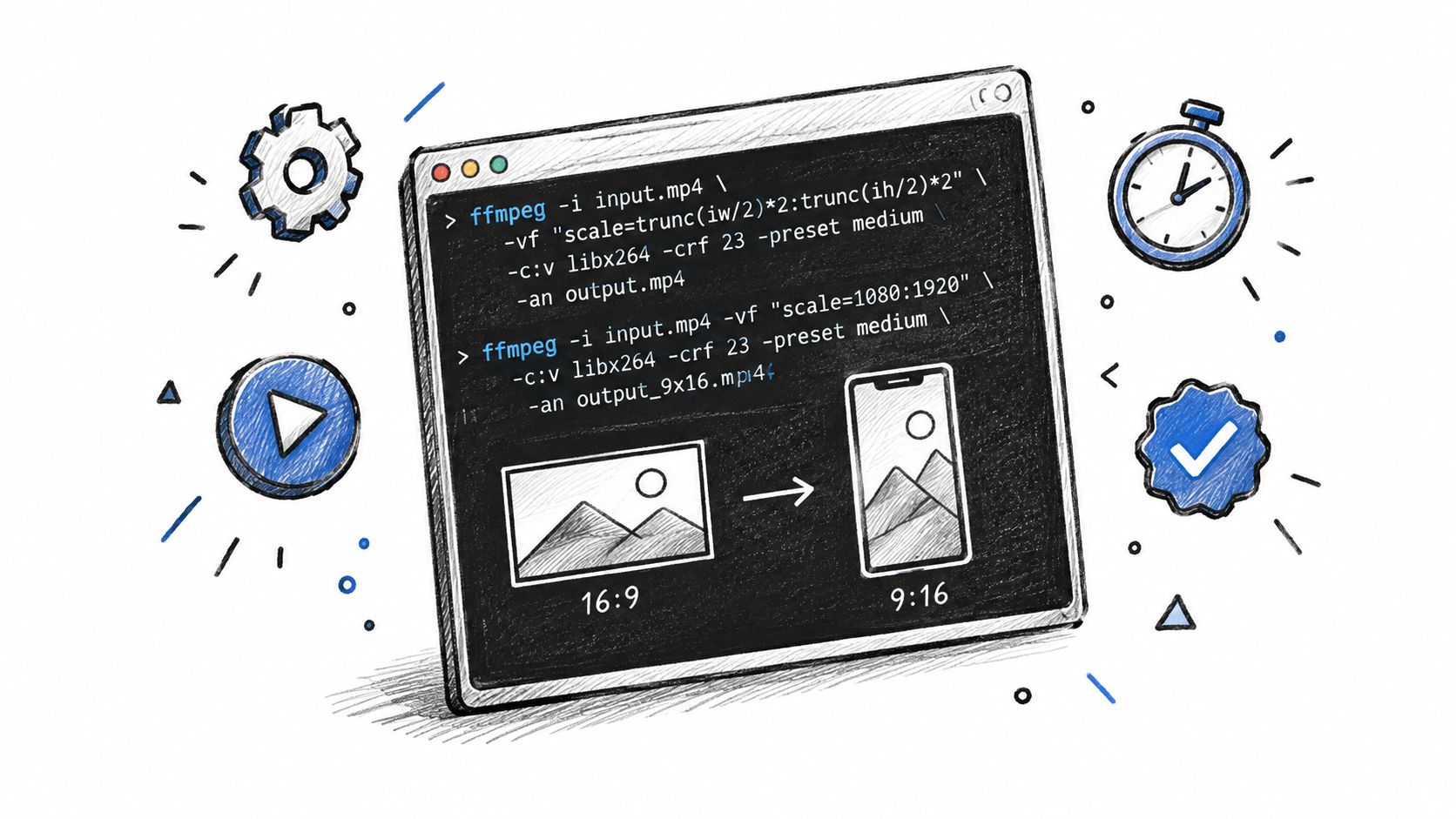
Preserve the full frame with padding
This command converts a source to a 1080 × 1920 canvas while retaining the entire image:
ffmpeg -i input.mp4 -vf "scale=1080:1920:force_original_aspect_ratio=decrease,pad=1080:1920:(ow-iw)/2:(oh-ih)/2,setsar=1" -c:v libx264 -pix_fmt yuv420p -r 30 -c:a aac -movflags +faststart output.mp4
The scale filter fits the source inside the target canvas. pad fills the remaining space, and setsar=1 prevents non-square pixel metadata from distorting playback. The yuv420p pixel format is a practical compatibility choice for consumer playback.
For a crop-first workflow, use:
ffmpeg -i input.mp4 -vf "scale=1080:1920:force_original_aspect_ratio=increase,crop=1080:1920,setsar=1" -c:v libx264 -pix_fmt yuv420p -r 30 -c:a aac -movflags +faststart output-crop.mp4
This fills the portrait canvas, but it can cut off people or text. An automated system should apply this only when a focal point is known or when a human has approved the crop policy.
The same approach can be implemented through the FFmpeg resize workflow, whether the command runs locally or through a remote processing service.
Enforce a safe duration
To create a compatibility export below the current boundary:
ffmpeg -i input.mp4 -t 179.5 -vf "scale=1080:1920:force_original_aspect_ratio=decrease,pad=1080:1920:(ow-iw)/2:(oh-ih)/2,setsar=1" -c:v libx264 -pix_fmt yuv420p -c:a aac -movflags +faststart output-179s.mp4
Do not rely on the source metadata alone. Trimming can change timestamps, and a final validation pass should inspect the encoded output.
This video demonstrates the basic conversion pattern visually:
Validate with ffprobe
Use ffprobe to verify the output instead of trusting the command's exit status:
ffprobe -v error -show_entries format=duration:stream=index,codec_type,codec_name,width,height,pix_fmt,r_frame_rate,sample_aspect_ratio -of json output.mp4
A production validator should check duration, width, height, aspect ratio, pixel format, frame rate, audio presence, and file readability. Store FFmpeg stderr with the job record. It often contains the fastest explanation when a source has damaged timestamps, unsupported audio, or unexpected stream characteristics.
Square Versus Portrait Format Decision Matrix
Both 1:1 square and 9:16 portrait videos can qualify as Shorts, but they serve different production goals. Portrait should be the default for Shorts-first content because it occupies more of a phone's available screen. Square is more defensible when one master must also serve feed placements or when the original visual composition is already square.
| Decision factor | 9:16 portrait | 1:1 square |
|---|---|---|
| Shorts viewing | Uses the vertical screen naturally | Leaves more unused mobile space |
| Repurposing | Requires a dedicated vertical composition | Easier to reuse in square feeds |
| Source footage | Works well with vertical capture or reframing | Preserves a centered, compact composition |
| Text placement | More room for stacked captions | Less vertical room for subtitles and context |
| Default use | Shorts-first production | Cross-platform reuse or square-native creative |
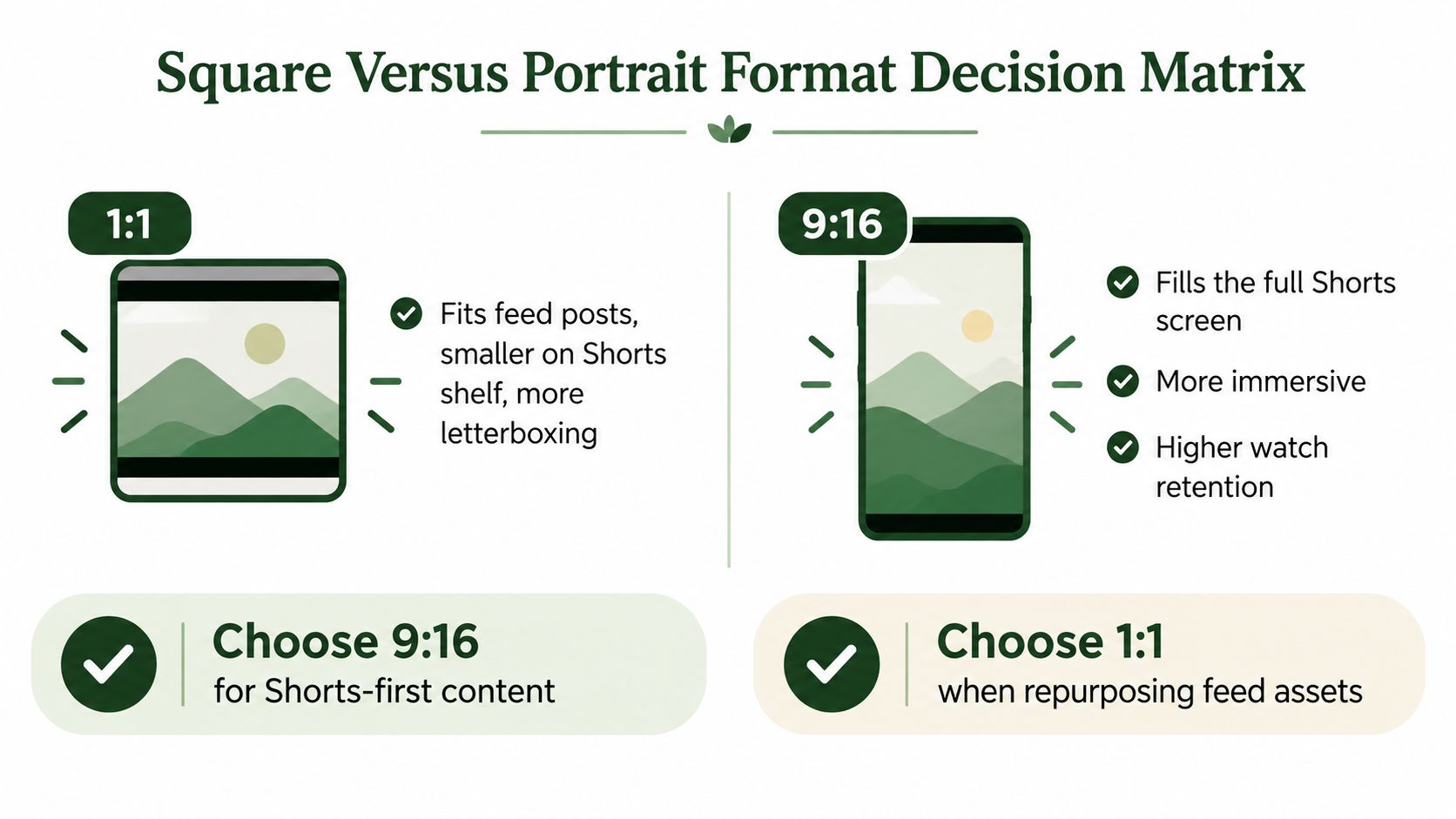
Portrait also gives an editor more usable vertical structure. A speaker can remain prominent while captions sit below the face, and a product demonstration can reserve space for supporting text without shrinking the subject into a narrow central strip.
Square becomes practical in a few cases:
- Existing square assets: Reuse a designed square animation without rebuilding every scene.
- Cross-platform feeds: Keep one composition for placements that already expect a square canvas.
- Centered subjects: Use a square frame when the action is compact and doesn't depend on vertical staging.
- Archive conversion: Preserve a legacy layout when a crop would remove essential information.
The wrong approach is to choose square merely because it avoids editing. If the original is wider than it is tall, square cropping can still remove context. If the creative is intended for full-screen mobile viewing, square sacrifices available display area and may make captions or product details harder to read.
Composition rule: Choose portrait for a Shorts-first master. Choose square only when reuse or source framing gives it a clear operational advantage.
Test the actual export on a phone. A desktop preview can make square video appear perfectly legible while the same content feels undersized in a vertical feed.
Safe Area and Composition Guidelines
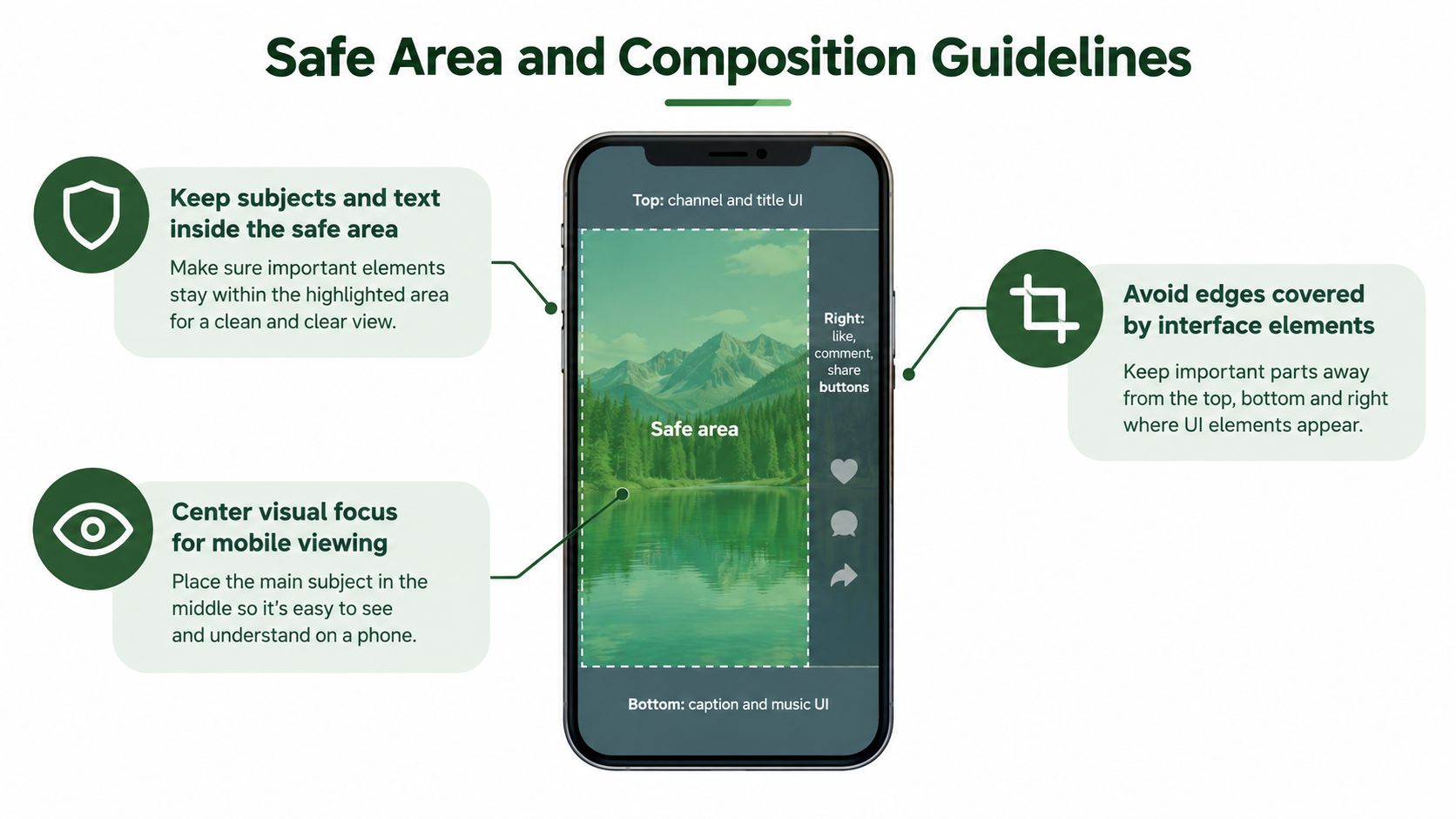
A 1080 × 1920 canvas doesn't mean every pixel is available for important information. Shorts interface elements can overlay the top, bottom, and right edges, so a subject's face, caption, logo, or call to action can become partially hidden even when the file passes every technical check. YouTube's Shorts guidance establishes the square-or-vertical format, but composition requires an additional production policy.
Treat the safe area as data
A basic template can reserve a central region for the elements that must remain visible:
- Faces and presenters: Keep the primary face away from the right interaction column and lower caption area.
- Subtitles: Place captions above the bottom interface zone, then test them over different scenes.
- Logos: Use a restrained corner position only after checking that the corner isn't covered.
- Calls to action: Keep the main action close enough to the visual focus that it doesn't compete with controls.
- Product labels: Reframe the shot if the label lands near an edge or becomes too small after cropping.
Static padding isn't enough for a moving subject. A speaker can begin inside the safe area and walk out of it within a few frames. Automated reframing should track the focal point, then adjust the crop window as the scene changes.
Build scene-aware reframing
For horizontal footage, compare three strategies:
- Center crop: Fast and deterministic, but it fails when the subject isn't centered.
- Blurred or padded background: Preserves the full source, but can make the main content feel small.
- Focal-point crop: Keeps the face, product, or action in view, but requires detection and validation.
For batch production, store focal-point metadata per scene and apply it during rendering. If detection confidence is low, fall back to padding and flag the asset for review rather than producing a crop that damages the message.
A complete mobile check should include a real-device preview, subtitle readability, face visibility, logo clearance, and edge inspection. Technical validation answers whether the file is structurally sound. Safe-area review answers whether a viewer can understand it while scrolling.
Building Automated Shorts Processing Pipelines
A dependable pipeline separates input inspection, rendering, validation, and delivery. Combining all four in one opaque job makes failures difficult to diagnose and encourages silent fallback behavior.
1. Inspect before encoding
Read the source with ffprobe and record:
- Duration and timestamps: Detect malformed or unexpectedly long inputs.
- Dimensions and aspect ratio: Choose crop, pad, or focal-point logic.
- Video and audio streams: Reject missing or incompatible streams early.
- Frame timing: Identify variable-rate sources that may need normalization.
- Rotation metadata: Apply orientation before calculating the output crop.
Normalize the source into an internal job object. That object should carry the target canvas, duration policy, crop mode, caption placement, and output naming rule.
2. Render deterministic variants
Use a stable FFmpeg command template for the standard portrait master. For more than one creative cut, generate variants from the same source timeline, but assign each a unique idempotency key. This prevents retries from creating duplicate files and makes webhook events safe to process repeatedly.
A cloud service such as RenderIO can run FFmpeg 7.x commands through a REST endpoint, return processed outputs through signed URLs, and expose polling or webhook-based progress for automation. That model fits batch systems connected to n8n, Zapier, Make, or Pipedream, particularly when the application shouldn't manage its own encoding workers. The YouTube Shorts automation guide provides relevant workflow context.
3. Validate after rendering
Don't return a download URL until the output passes structural checks. The validator should confirm:
- Canvas: Exact 1080 × 1920 dimensions for the portrait policy.
- Classification inputs: Square or portrait ratio, with duration below the configured limit.
- Encoding: H.264 video, AAC audio, progressive scan, and square pixels.
- Playback: The container opens and all expected streams decode.
- Composition: Captions, faces, logos, and calls to action remain in the safe area.
Retain stderr and validation results with the job. If the operation fails, return a useful error that identifies the stage, stream, and relevant FFmpeg message. A dead-letter path is preferable to producing a visually broken file that looks successful to an upstream automation.
Common Pitfalls and Troubleshooting Guide
Most Shorts failures fall into a small set of categories. Diagnose the output file, not just the source and not just the FFmpeg command.
The video isn't classified as a Short
Check the final coded width, height, aspect ratio, and duration. A file can start as portrait and become horizontal after a filter chain, or it can exceed the duration threshold after timestamp handling. Inspect the finished MP4 with ffprobe, then reject anything outside the configured square-or-portrait policy.
Faces or captions are cut off
The encoder may have produced a valid 1080 × 1920 file while the crop window ignored the subject's position. Replace a fixed center crop with focal-point tracking, or use scale-and-pad when preserving the complete frame matters more than edge-to-edge presentation.
The file looks stretched or distorted
Non-square pixel metadata or an incorrect aspect-ratio flag can make the player interpret the image incorrectly. Set setsar=1, verify the coded dimensions, and inspect sample_aspect_ratio in the probe output.
Audio is missing
List the output streams and confirm that an audio stream exists when the source requires one. Explicitly encode AAC, and fail validation when the pipeline expects audio but receives a video-only result.
Playback or upload behaves unpredictably
Use progressive H.264 video in an MP4 container, constant frame rate, square pixels, and AAC audio. Preserve FFmpeg stderr, test the file locally, and avoid relying on a player to repair unusual timestamps or unsupported stream combinations.
The file is unnecessarily large
Don't raise bitrate by default. Match bitrate to motion and detail, then compare the rendered image at phone size. Shorter cuts can use less storage and process faster, while longer or highly detailed scenes may need more data to avoid visible compression.
The final check should combine machine validation with a mobile preview. A structurally valid file is only the starting point. The viewer sees the crop, overlays, captions, and compression, so those are the conditions your pipeline must test.
RenderIO provides cloud-based FFmpeg processing for resizing, transcoding, validation-oriented workflows, and batch video automation through REST calls and webhooks. If you're turning wide footage into validated 1080 × 1920 Shorts outputs, visit RenderIO to evaluate the workflow for your pipeline.