A thumbnail image is a small preview still that stands in for a larger video, page, or file so people can recognize it before they open it. It's a visual label, not the full content, and the right version depends on where it will appear.
The popular advice to make one thumbnail and reuse it everywhere misses an important point: each platform shows a different crop, at a different size, often with controls overlaid. A picture that works as a wide video preview can lose its subject in a vertical feed. Good thumbnail production means planning a set of platform-specific crops, protecting a central safe area, and supplying alt text separately.
Table of Contents
- What a Thumbnail Image Is
- Thumbnail Sizes Formats and Ratios
- How Feeds Change the Picture
- Design Choices That Affect the Click
- Alt Text When the Picture Is the Label
- Generate Platform Variants with Automation
- Pick the Variant Before You Publish
What a Thumbnail Image Is
A thumbnail is a preview image that represents a larger digital asset before someone opens or plays it. A book cover helps a reader choose a book; a thumbnail helps someone identify a video, webpage, document, product photo, or full-size image.
In a media library with dozens of training videos, for example, a person can scan the previews to find the one about editing audio without loading each video. YouTube's guidance on custom thumbnails describes them as preview images in the embedded player. A thumbnail can be selected automatically from a video frame or supplied as a custom image, but it stays separate from the playing video.
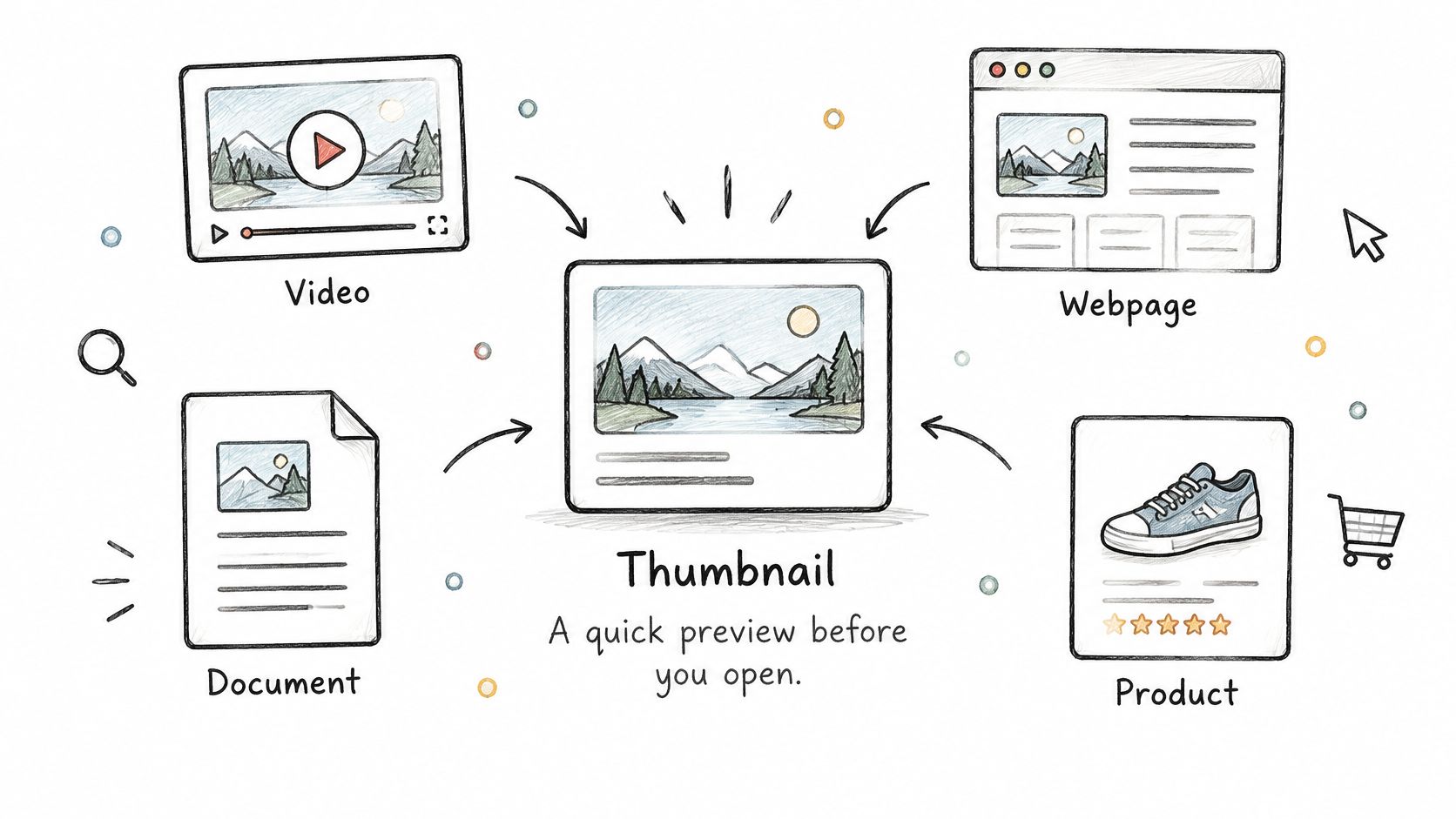
Thumbnails appear in search results, media libraries, social feeds, content catalogs, and workflow previews. Their job is navigational: a visual cue helps viewers decide what to open without loading the full asset.
For a video, creating a thumbnail means choosing or making a representative still, preparing it for the destination, and storing it separately from the source video. A single image may not suit every platform, because each destination can show a different crop. The table below gives you a starting point.
Thumbnail Sizes Formats and Ratios
| Destination | Aspect ratio | Pixel size | File guidance |
|---|---|---|---|
| YouTube standard videos | 16:9 | 1280×720 common; minimum width 640 pixels; up to 3840×2160 | JPEG or PNG; 2 MB is an older note, not a universal cap |
| Instagram Reels and Stories | 9:16 | 1080×1920 | Keep faces and type in a central safe area |
| Instagram feed preview | 4:5 | Crop the vertical video toward 4:5 | A 9:16 still can lose the subject when cropped |
| Short-form covers such as TikTok | 9:16 | 1080×1920 commonly used | Reuse a Reels still only if the safe area matches |
| Link and article previews | About 1.91:1 | 1200×630 commonly used | JPEG for photos; repeat essential words in page text |
YouTube recommends a 16:9 ratio for standard videos, a minimum width of 640 pixels, and JPEG or PNG formats. Its current guidance recommends supplying images up to 3840×2160 pixels. The YouTube thumbnail specifications matter because a platform may create several display sizes from the image you upload. If the source is too small, faces and text can look soft after resizing.
Aspect-ratio mismatches cause two common problems: the platform crops the image, or it adds letterboxing to fill the space. A vertical Reels still, for example, isn't automatically a suitable feed preview. You can learn more about matching video dimensions to a destination in this guide to video aspect ratios.
The 2 MB rule often repeated in older YouTube advice isn't a universal file limit. Check the current upload interface for your account and destination, then encode for the dimensions that will be displayed. JPEG usually suits photographic frames. Choose PNG when a thumbnail has sharp typography, flat graphics, or transparency.
Treat each row as a separate output. Export a derivative for each destination instead of assuming one image file will fit every display.
How Feeds Change the Picture
A wide YouTube still has a face on the left and a title on the right. It looks balanced in a search result, but when the same image is cropped for a vertical Reel or a 4:5 feed preview, the face or words may disappear. The preview surface changes what viewers can see, so a thumbnail isn't just a smaller copy of the source frame.
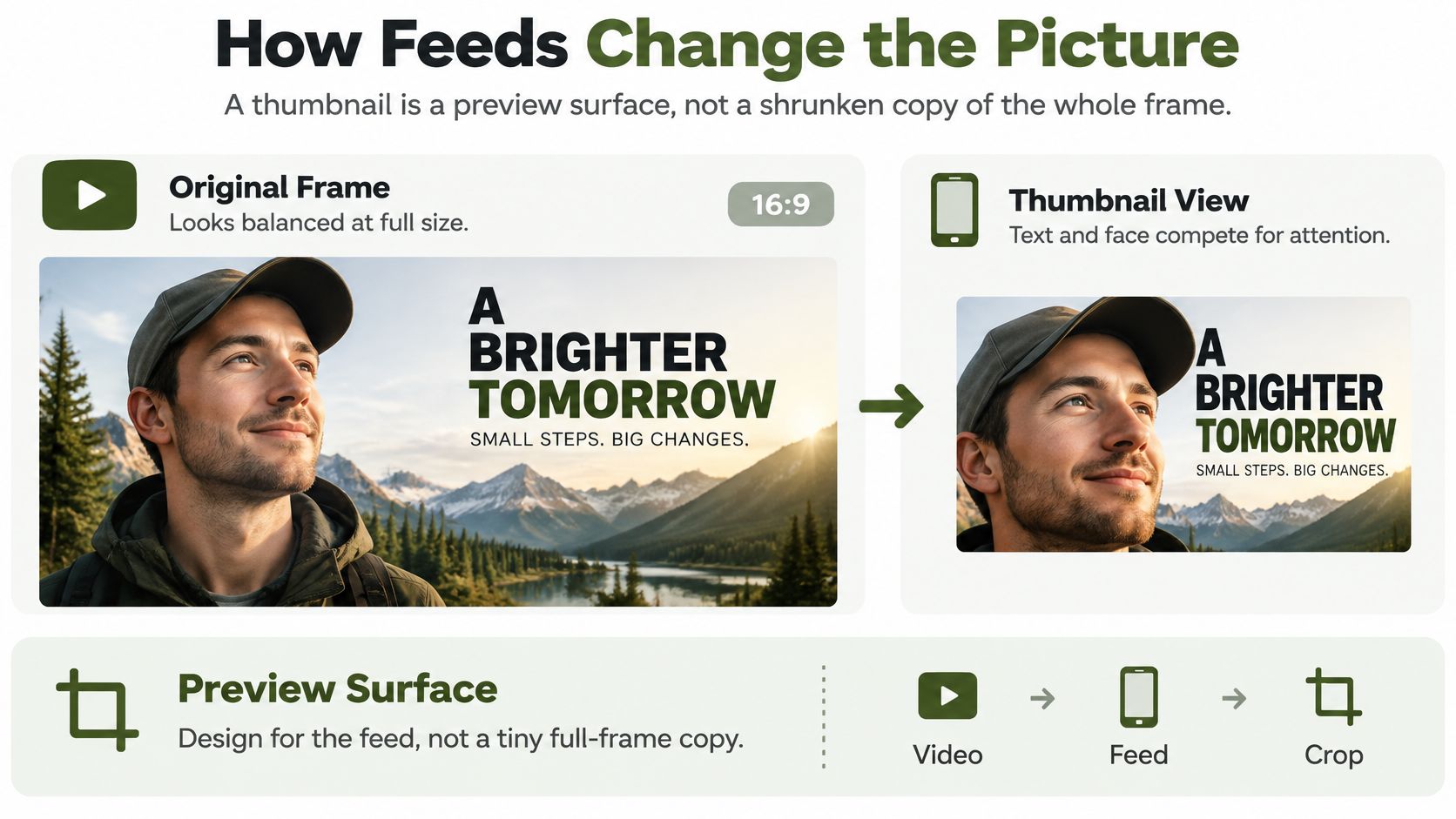
The social-media image guidance from HubSpot describes distinct contexts: YouTube standard thumbnails commonly use 16:9 at 1280×720, Instagram Reels and Stories use 9:16 at 1080×1920, and Instagram feed previews may crop vertical video toward 4:5. A single master image can't guarantee that the same details will stay visible in all those shapes.
Platform controls can take up picture space, too. Duration badges, progress bars, profile chips, and like or sound controls may sit over the image, particularly near edges and corners. Keep the face, product, and any short title within a central safe area, away from the edges where crops and controls are likely to interfere.
Practical rule: Review the rendered thumbnail at phone size. A desktop view can make small lettering look clear even when it vanishes in a feed.
A useful master composition puts the main subject near the middle so you can cut wide, vertical, and square-ish versions without moving it out of view. Keep backgrounds simple and type large enough to survive resizing. Thin letters and small details are usually the first things to disappear.
The common recommendation to pick one universal size fits a one-destination upload, not a video republished across YouTube, Reels, Stories, and a link card. Treat thumbnail generation as responsive asset production: create a crop for each destination from a protected master, check each rendered preview, and save each crop as its own file.
Design Choices That Affect the Click
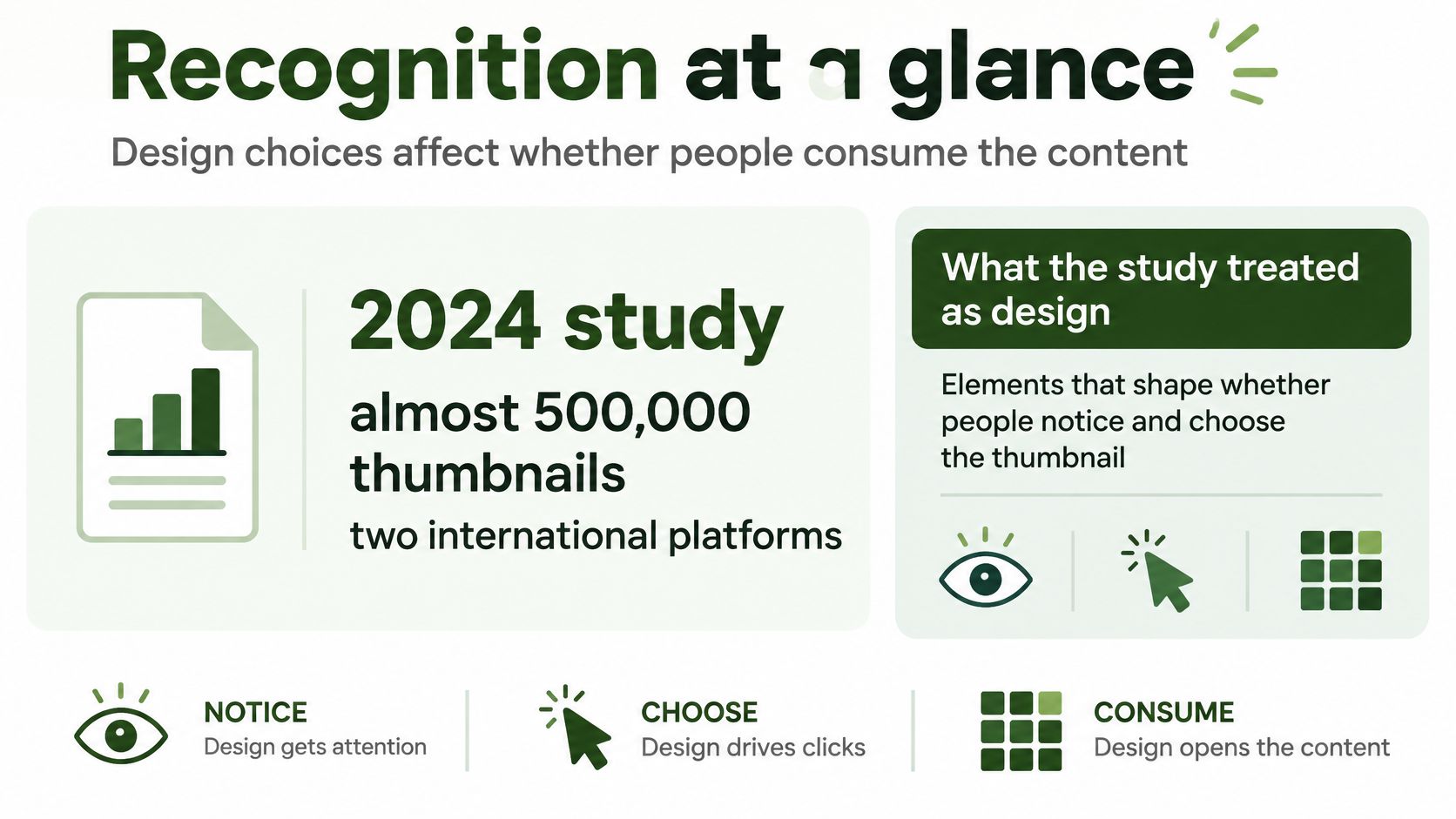
A thumbnail's job is to help viewers recognize a video and decide whether to open it. A 2024 academic study examined nearly 500,000 thumbnail images from two international digital-media platforms in relation to content consumption. Its findings put thumbnail design in the context of how people choose what to watch.
Kapwing and NeoMam Studios found that surprised expressions were a recurring feature in thumbnails by popular YouTube creators. That pattern is not a requirement to perform shock for the camera. A face can communicate emotion, but a product or other clear subject may serve the thumbnail better.
Use this checklist to assess a candidate:
- Choose one clear subject. Make a person, product, or key object stand out from the background.
- Keep faces readable. Check whether the expression still comes across at phone-card size.
- Separate subject from background. Contrast helps the main element register quickly.
- Use brief text. A few words in sturdy lettering are easier to read after the image is reduced.
A random frame may catch a closed eye or a transition. A collage of unrelated objects can leave viewers unsure what the video is about. Keep claims from depending on text inside the picture alone. For more production guidance, see how to optimize videos for YouTube.
Preview the candidate at about the size of a mobile feed card. If the subject is hard to identify at a glance, choose another frame or simplify the design. Click appeal helps attract attention; accessibility depends on giving people a way to understand the image beyond its appearance.
Alt Text When the Picture Is the Label
An attractive thumbnail can still be an inaccessible label. A viewer might see a face and bold words, but someone using a screen reader needs a text description to understand what the image represents. Click appeal and accessibility are separate jobs.
The W3C's guidance on text alternatives says meaningful non-text images need a text equivalent. For a thumbnail, write a concise description that identifies what's shown and gives enough context to understand where the image leads. For example: “A baker holding a loaf beside a video about shaping sourdough.” If an image is purely decorative, an empty alt attribute may be appropriate instead.
Words painted into a JPEG or PNG aren't a substitute for alt text. They can be too small to read, covered by an interface badge, or unavailable to someone using a screen reader. Repeat essential information in the surrounding page or post text, too, so the message doesn't depend on seeing the picture.
There's a practical complication when the same video goes to several platforms. Website og:image:alt metadata doesn't fill every platform's uploaded-photo description. As the social-image requirements guidance notes, teams may need to enter alternative text in each publishing tool that supports it.
Store the image and its description as separate outputs in your publishing workflow. The image record can carry a stable filename or API field, while a separate alt-text field holds the description for each destination. Then check the image at mobile size: if the words inside it are unreadable there, they were never a reliable accessible label.
Generate Platform Variants with Automation
A thumbnail workflow starts with one master and produces a separate image for each destination. The master protects the subject; each output adjusts the crop and dimensions to fit its platform.
- Choose the still. Select a representative video frame or create a designed master. Keep the subject inside the safe area so a tighter crop does not cut it off.
- Set the crop. Crop or pad the master to the destination's ratio, such as 16:9, 9:16, 4:5, or about 1.91:1.
- Scale to the display. Apply a high-quality scaling filter and export at the dimensions the interface needs.
- Choose the format. JPEG suits photographic frames. PNG suits sharp lettering, flat artwork, or transparency. Strip metadata the output does not need.
- Save the asset details. Record a stable filename or signed URL, image dimensions, and a separate alt-text field.
- Test variations fairly. Change one design element, such as a face versus a product, while keeping the crop constant. That way, the comparison focuses on the design change rather than a different framing.
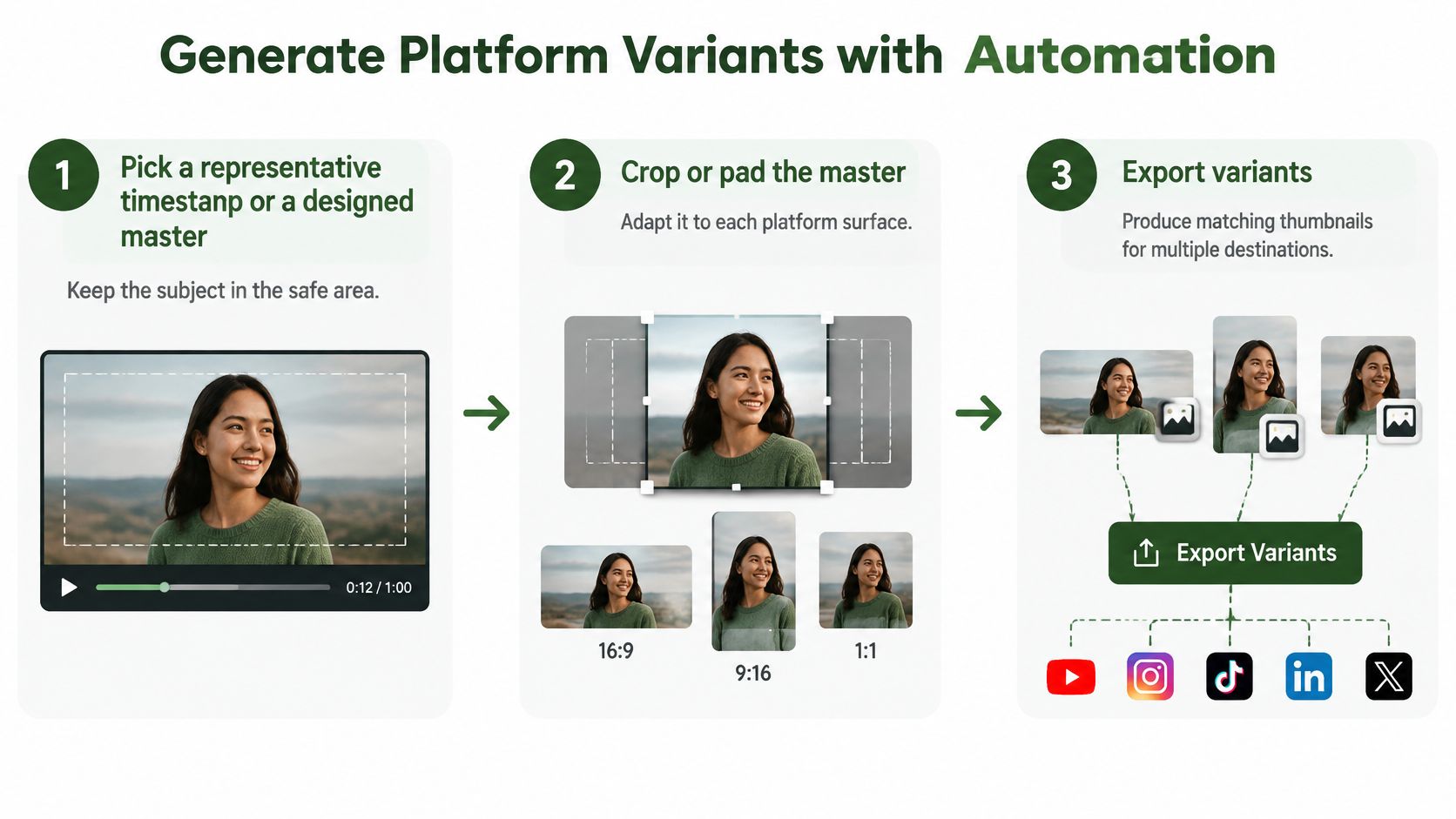
Manual exports work for an occasional upload. Repeating the process for Shorts, Reels, and a website can make crop and scale settings harder to keep consistent. A cloud FFmpeg API can run those steps as repeatable jobs. RenderIO accepts FFmpeg commands through a REST endpoint and returns processed outputs. Connect jobs to n8n or Zapier, or continue a workflow through webhooks.
For automated publishing, YouTube metadata for automated import workflows can help clarify which video details travel through the process. Keep thumbnail dimensions and descriptions in separate fields rather than assuming they accompany the video metadata. Idempotent requests can prevent duplicate renders, and signed URLs provide temporary access to finished files. If a crop or scale fails, use the returned FFmpeg stderr to identify the command that needs attention. For more on connecting repeatable jobs to video publishing, see YouTube automation workflows.
A/B options are additional exports from the same steps, with one design element changed at a time.
Pick the Variant Before You Publish
List every destination before exporting. If a video will appear only on YouTube, make the 16:9 thumbnail for that destination. If you're also publishing to Reels, Stories, a 4:5 feed preview, or a link card, create a separate crop for each place from the protected master.
Decide whether you need a second design for a click test. If you do, change one feature, such as face versus product, while keeping the crop constant. Then preview each rendered card at phone size, confirm the subject stays inside the safe area, and check that the publishing tool or surrounding page includes a useful text description. Re-export if a crop hides the subject or the description is missing.
A manual export works for a one-off video. For a repeating workflow, automate the crop and scale steps so each new upload gets consistent files and metadata. The choice is straightforward: use one 16:9 file when the video is YouTube-only, or make one crop per destination when you repurpose it.
RenderIO offers cloud-based FFmpeg processing for generating and resizing thumbnail variants without managing video-processing servers. If you're building a repeatable workflow for platform-specific crops, visit RenderIO to see how its API can fit into your pipeline.