Encode everything to AV1 and delete the H.264 file. That's the advice you'll find in most threads about video compression for web, and it's the fastest way to ship a page that plays beautifully on your laptop and fails, stutters, or drains battery on a big slice of your audience. The smallest file isn't the best default. Ship a measured H.264 baseline first, then add AV1 only where decode support and measured quality both justify the extra encode.
Table of Contents
- Web Video Targets Worth Encoding First
- Codec Choice When Support Beats Efficiency
- How to Compress a Video with FFmpeg
- ABR Ladders and Segmenting for HLS
- Quality Checks That Beat File Size
- Compression Mistakes and Fast Fixes
- Scale Encoding Without Running Servers
Web Video Targets Worth Encoding First
A good web encode starts with the content, not the codec leaderboard. Use 1080p at 30 fps, H.264 in MP4, CRF 22 or 23, and AAC-LC at 128 kbps as a practical baseline for a typical page clip. Set faststart so playback can begin before the download finishes. Then adjust for what the video contains: faces, text, and fast pans respond differently to compression.
Starting Targets for Web Video
| Clip | Frame rate | Codec and container | Quality |
|---|---|---|---|
| Talking head or interview | 30 fps | H.264 in MP4 | CRF 23, about 2.5 to 4 Mbps |
| Screen recording or slides | 30 fps | H.264 in MP4 | CRF 18 to 20, about 1.5 to 3 Mbps |
| High motion or sports | 30 fps | H.264 in MP4 | CRF 20 |
| High motion at 60 fps | 60 fps | H.264 in MP4 | CRF 20 |
| AV1 extra rendition | 30 fps | AV1 in MP4 or WebM | CRF 28 to 32, target bitrate 0 |
| Vertical short | 30 fps | H.264 in MP4 | CRF 22 to 23, about 3 to 6 Mbps |
| Small-screen fallback | 30 fps, 720p | H.264 in MP4 | CRF 23, about 1.2 to 2.5 Mbps |
| Audio alongside any row | n/a | AAC-LC in MP4, or Opus in WebM | AAC-LC or Opus |
Talking-head footage often holds up at CRF 23 because skin tones and static backgrounds tolerate compression. Raise CRF too far, though, and banding may show on walls before faces look noticeably worse. Screen recordings need a different target: text edges and flat UI blocks show damage early, so start at CRF 18 to 20. Slides may need modest bitrate because there is little motion, but sharp edges still need protection.
For sports and fast camera moves, start near CRF 20 and roughly 5 to 8 Mbps at 1080p30. At 60 fps, budget closer to 8 to 12 Mbps: there are twice as many frames, with less redundancy for motion estimation to exploit. Vertical 1080x1920 clips typically sit at 3 to 6 Mbps. A phone viewer may see the clip full-screen, so do not lower its bitrate just because the preview looks small on a desktop.
Why H.264 Earns the Baseline Row
H.264 remains a practical baseline because its hardware decoding support reaches a broad range of devices. The history of H.264 from its 2003 specification describes it delivering approximately the same visual quality as MPEG-2 at about half the bitrate, with the specification finalized in 2003. That combination makes H.264 a dependable first rendition when broad playback support matters.
Add AV1 as a second rendition only when its playback support and measured quality justify another encode. Start around CRF 28 to 32 with a zero target bitrate, which tells the encoder to prioritize quality rather than a fixed rate. Expect AV1 to reduce video data relative to a comparable H.264 encode, but encode a short sample and measure the result rather than assuming a fixed savings percentage. In WebM, use Opus at 64 to 96 kbps instead of AAC. Choose the target row, encode a sample, and check playback on the devices you need to support.
Codec Choice When Support Beats Efficiency
The smallest codec is not the best default. Codec choice is a reach decision, not a leaderboard: the file that saves the most bytes may never play for some of your audience. Ship a measured H.264 baseline, then add a more efficient codec only when its decode support and quality justify the extra encode.
The comparison below is qualitative. Support and encoding cost depend on the browser, device, codec settings, and workload, so treat each row as a deployment choice rather than a universal ranking.
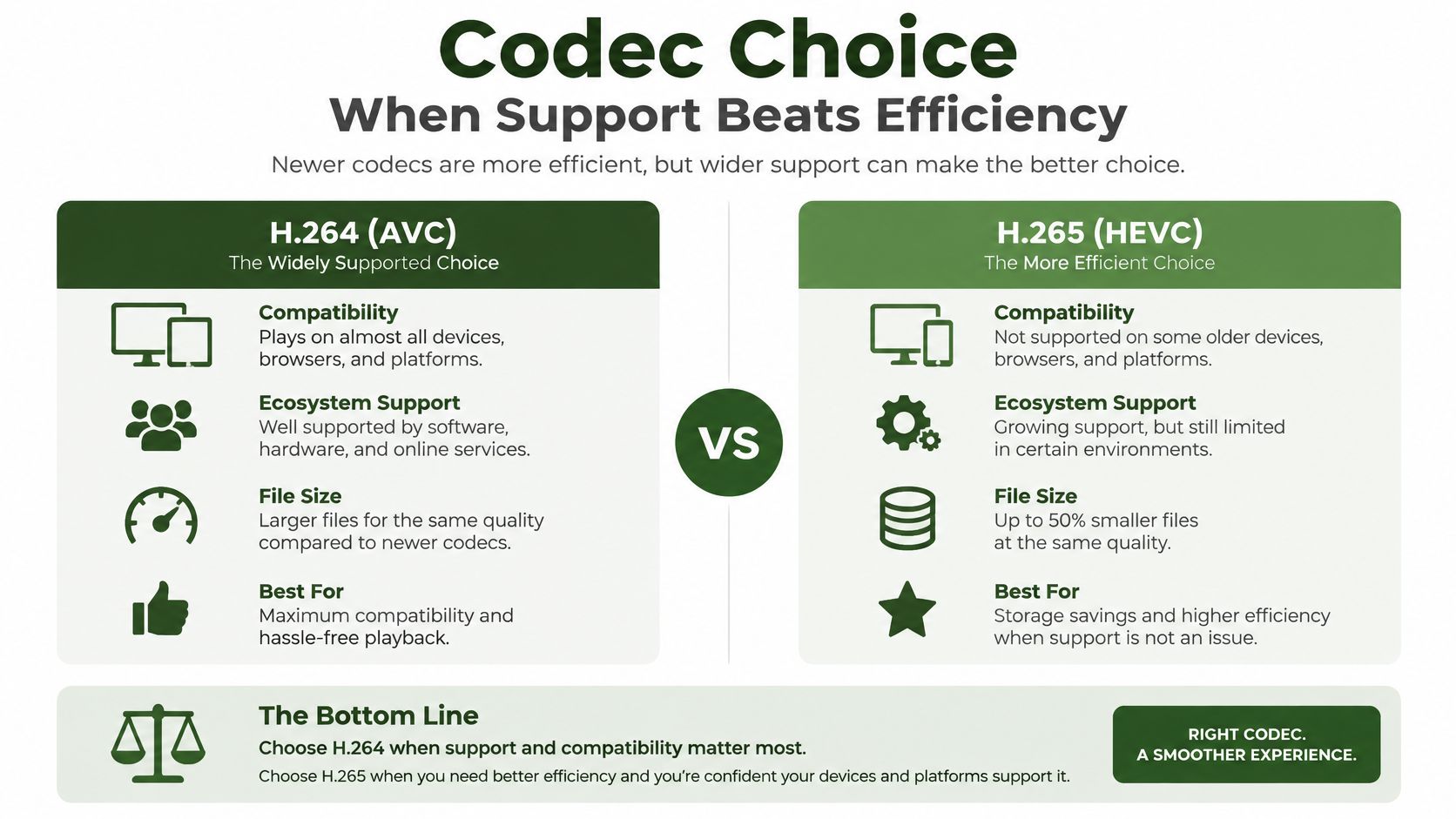
Web Codecs by Savings, Reach, and Cost
| Codec | Bitrate versus H.264 | Where it plays | Encode cost | Use it for |
|---|---|---|---|---|
| H.264/AVC | Baseline | Broad browser and device support | Generally the least expensive to encode | The default rendition for wide reach |
| VP9 | Often more efficient than H.264 | Common in Chrome, Firefox, and Edge; support is less consistent in Safari | Can take more encoding time than H.264 | A WebM option when its support and output suit your audience |
| HEVC/H.265 | Often more efficient than H.264 | Strong option for Apple hardware and Safari | Can take more encoding time than H.264 | An additional rendition for Apple-heavy audiences |
| AV1 | Often more efficient than H.264 | Supported on capable browsers and devices; support varies | Can be expensive to encode | A second rendition when measured quality and decode support justify it |
H.264 is the baseline to keep. Its broad hardware-decoder support makes it a practical fallback for browsers and devices that cannot decode a newer codec. Check video codec support across browsers and devices against your audience's actual device mix before assuming an efficient format will reach everyone.
AV1 can reduce bitrate at comparable quality, but its encode cost and device support both matter. MDN's guide to web video codecs describes its compression advantages and notes that Safari playback depends on hardware support, including newer Apple silicon and recent iPhones. Treat AV1 as an additional rendition, not the only file. If a meaningful share of your viewers use devices that cannot decode it, smaller files for the rest do not make up for failed playback.
Make the decision with a short encode from representative footage. Compare AV1 and H.264 at matched visual quality, then check playback on the devices and browsers your audience uses. A lower bitrate is useful only if the encode preserves the detail you need and reaches the people who need to watch it. If the encode takes substantially longer or the quality gain is marginal, H.264 may remain the better default.
Add HEVC when your audience is known to be Apple-heavy and the additional rendition is worth maintaining. Keep H.264 as the fallback; support can vary with profile, bit depth, browser version, operating system, and hardware. VP9 can suit a WebM delivery path, but its weaker Safari coverage makes it a poor universal replacement.
Containers still need to match the playback path. Use MP4 for H.264 and HEVC, MP4 or WebM for AV1, and WebM for VP9 with Opus. A browser must parse both the container and codec, so choosing a suitable codec alone does not guarantee playback.
Practical rule: The most efficient codec is not automatically the best default. Keep H.264 as the baseline, and ship AV1 only when decode support and measured quality justify the extra encode.
The walkthrough below shows how support checks fit into choosing a playback path.
How to Compress a Video with FFmpeg
A smaller encode is not automatically a better web video. Start with a measured H.264 baseline, then add AV1 only when the target devices can decode it and its quality justifies the extra encode. Before building a ladder, make one single-file encode work cleanly. If playback fails at this stage, packaging more versions will multiply the problem.
The seven-step flow below runs from inspecting the source to checking a short sample.
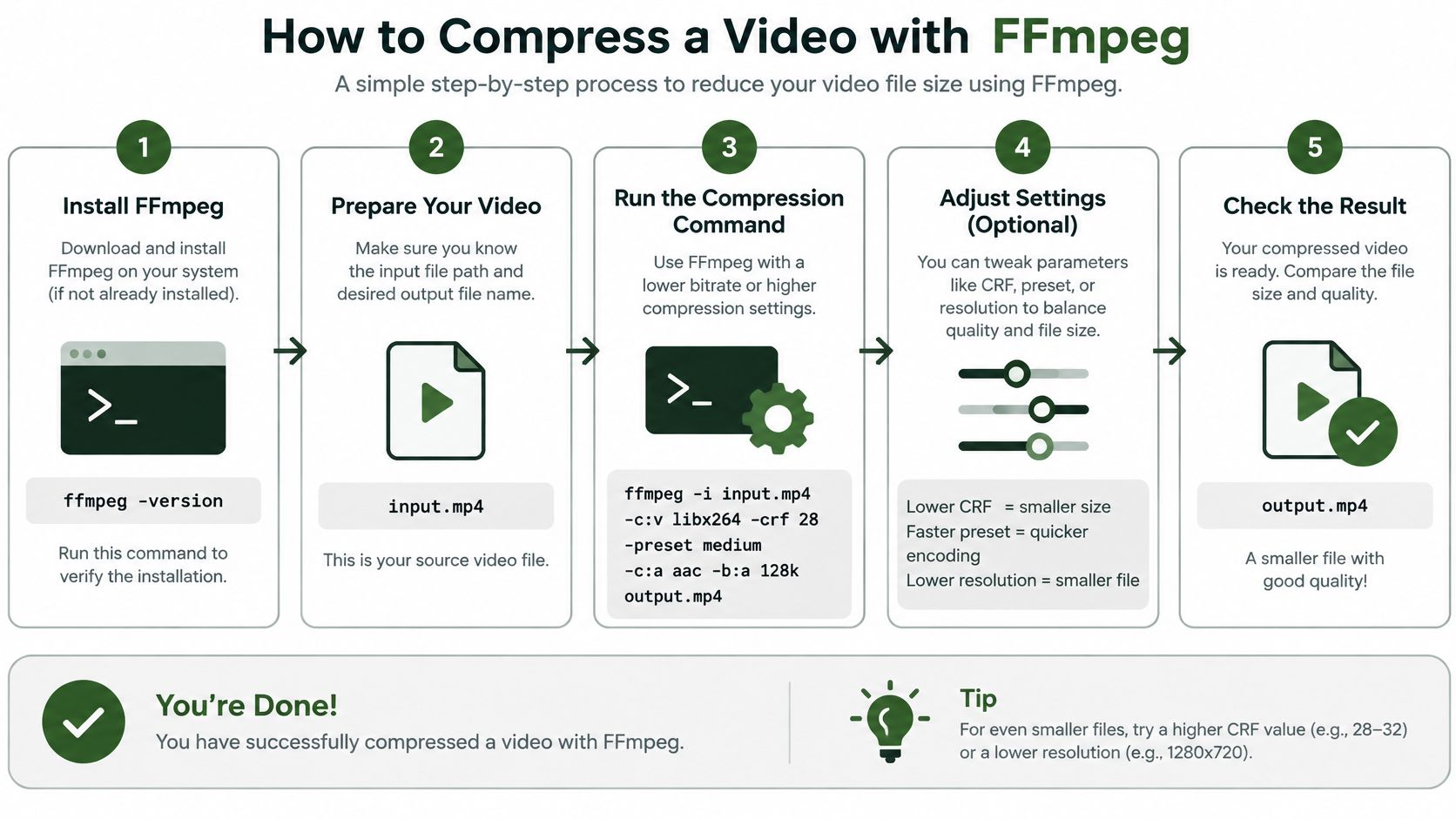
The Encode in Seven Steps
- Probe first: Run ffprobe to check resolution, frame rate, pixel format, audio codec, and duration. If the file is already H.264 with AAC in MP4 and meets your target bitrate, skip re-encoding and remux with -c copy. Re-encoding a compliant file spends time and reduces quality without improving delivery.
- Plan for faststart: Add -movflags +faststart to place the moov atom at the front of the file. This lets the browser start playback before the download finishes.
- Encode the default: Run
ffmpeg -i input.mp4 -c:v libx264 -preset slow -crf 22 -profile:v high -pix_fmt yuv420p -c:a aac -b:a 128k -movflags +faststart output.mp4. yuv420p and High profile suit ordinary browser playback. slow balances quality against encode time; reserve veryslow for a master that you encode once. - Use two-pass only for a hard cap: For a strict size limit, use two-pass variable bitrate instead of CRF. Pass 1 uses -b:v 2500k -pass 1 -an -f null. Pass 2 repeats the bitrate with -pass 2 and adds AAC audio.
- Treat AV1 as an extra encode: Try libsvtav1 at CRF 30 and preset 6 with Opus at 96 kbps, or libaom-av1 -crf 30 -b:v 0 -cpu-used 4 when encode time allows. VP9 uses libvpx-vp9 -crf 32 -b:v 0. Keep the H.264 baseline unless AV1 works on the intended devices and its measured quality makes the added encode worthwhile.
- Scale and decimate carefully: Scale only when the source exceeds the target dimensions, using force_original_aspect_ratio=decrease. Drop 60 fps to 30 with -r 30 only if the motion remains clear without the extra frames.
- Sample before committing: Encode the first, middle, and last 10 seconds, then watch each sample. A short review can catch smeared titles before a long encode is complete.
The order matters. MDN's WebCodecs video processing concepts explains how bitrate, codec profile, and level work together to determine retained detail. The Media Capabilities API can test codec support, expected smoothness, and power efficiency for specific resolution and bitrate combinations. A codec that plays in the wrong profile can still fail on the target device.
Don't apply one CRF to talking heads, screen captures, animation, and sports. A setting that preserves an interview can smear a fast pan or turn interface text to mush.
Use the 10-second samples to find a practical point where file size and visible detail hold up together. This guide to balance file size and video quality offers another perspective on that trade-off. Check the sample on a real phone as well: playback that looks fine on a workstation may fall back to software decoding and heat the handset.
ABR Ladders and Segmenting for HLS
Use a ladder when the same video must survive a phone on LTE and a desktop on fiber. One file can't serve both well. A single 1080p encode stalls on the train, and a single low-bitrate encode looks soft on a 27-inch monitor.
Four-Rung Ladder for HLS and DASH
| Rung | Resolution | Segment length |
|---|---|---|
| 1080p | 1080p | 4 or 6 seconds |
| 720p | 720p | 4 or 6 seconds |
| 480p | 480p | 4 or 6 seconds |
| 360p | 360p | 4 or 6 seconds |
| Audio | n/a | Same timeline as video |
For capped bitrates, start with 1080p at about 4500 kbps H.264 or 2800 kbps AV1, 720p at 2500 or 1500 kbps, 480p at 1000 or 600 kbps, and 360p at 600 or 350 kbps. Share one AAC 128 kbps or Opus 96 kbps audio rendition across the ladder instead of encoding audio into every rung. Use these capped rates only for adaptive packaging. A standalone page clip still follows its CRF row, since a cap that's right for switching can starve a single file.
That AV1 discount per rung is plausible because AV1 was designed for internet delivery. According to the AV1 reference on Wikipedia, in a 2018 Facebook evaluation using 400 compressed videos encoded under practical conditions, AV1 achieved approximately 34.0% lower bitrate than libvpx-VP9. A 1 GB collection at that reduction lands near 660 MB before audio and packaging. The compute cost is the catch, and it's why I would encode AV1 for the top one or two rungs first, where absolute byte savings are largest.
Lock Keyframes to Segment Boundaries
A segment length of 4 or 6 seconds is the practical default. Shorter segments switch faster but add request overhead and hurt compression, since every segment starts with an expensive keyframe. Longer segments compress better and react slowly to a dropping connection.
Force a keyframe on every boundary with a GOP equal to frame rate times segment seconds. Set keyint_min to the same value and sc_threshold to 0, so scene-cut detection doesn't shove keyframes off the boundary. With aligned keyframes and independent segments, the player can switch rungs at a segment edge without waiting for the next GOP or showing a frozen frame.
After the GOP is locked, package each rung without a second encode using ffmpeg -i rung.mp4 -c copy -f hls -hls_time 4 -hls_playlist_type vod -hls_segment_type fmp4 -hls_flags independent_segments. Write a master playlist that sets BANDWIDTH and CODECS on every variant, so the player picks a rung from declared values instead of guessing from the first segment.
For DASH, put the same rungs in an MPD with H.264 as the base adaptation set and AV1 as a second adaptation the player takes only when it can decode it. A deeper walkthrough of adaptive bitrate streaming covers player-side switching logic if you're wiring this into an existing stack. HLS can use fMP4 or MPEG-TS segments, but fMP4 is the sensible default for new work because the same segments can feed both HLS and DASH packaging.
Quality Checks That Beat File Size
The smallest encode is not the best default. Choose settings by checking visual quality, playback behavior, and device support, then keep a measured H.264 baseline. Add AV1 only where decode support and VMAF results justify the extra encode.
Use the checklist below before adopting a setting as a default.
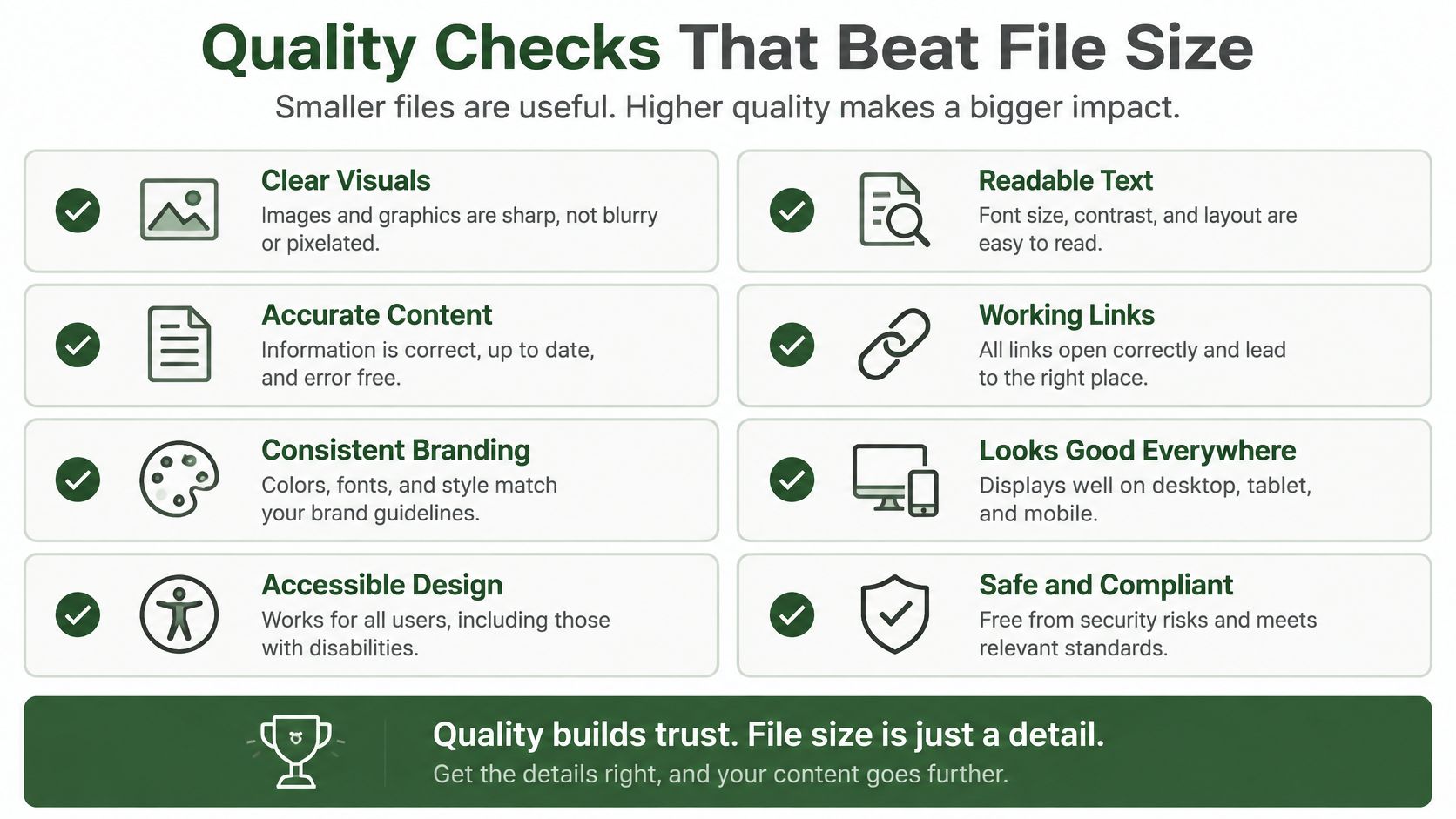
The Three-Point VMAF Method
Encode the same 20 to 30 second sample at three points, such as H.264 CRF 20, 23, and 26 and AV1 CRF 28, 32, and 36. Score each encode against the source with VMAF, then plot bitrate against score. Look for the curve's knee, where extra bits deliver diminishing gains. Below it, small bitrate cuts can cost noticeable quality. Above it, added bandwidth may buy little visible improvement.
For hero video on a large player, establish a VMAF floor from representative encodes and subjective review, then use that placement-specific threshold rather than assuming one score works everywhere. A muted background loop can use a lower floor because faces and text are not its focus. Set thresholds by placement: a product demo and a decorative loop have different quality demands.
Do not estimate the AV1 CRF point with a fixed percentage. A technical overview of AV1 in 2026 summarises NTIA VMAF-based testing that found AV1 quality declined less sharply than AVC or HEVC as compression increased. Test AV1 at lower bitrates directly rather than multiplying the H.264 rate by a constant. Keep the H.264 baseline for devices where AV1 decode support or playback efficiency does not justify another encode.
Where a Good Score Still Fails
Check four content classes: talking head, screen recording, animation, and high motion. A CRF that scores well on an interview may smear UI text or fail during a pan. VMAF averages frames, so a brief defect can disappear inside a strong mean. Inspect scene changes, dark frames, and titles by eye, including footage around a hard cut where bit allocation can be uneven.
VMAF does not measure the whole experience. A file can score well and still take too long to show its first frame.
Check startup, seek, and a full segment switch on the target player. Use the Media Capabilities API to check whether the device should decode that codec, resolution, and bitrate smoothly and with low power use. A smaller file is the wrong choice if it falls back to software decoding on the phones you support, increasing battery use and heat. Reject an encode if playback depends on a fallback your player does not provide.
Compression Mistakes and Fast Fixes
Match each visible failure to one change, test that change on a 10-second cut, and stop guessing. Changing three flags at once teaches you nothing about which one fixed it.
The chart below pairs the most common symptoms with the fix to try first.
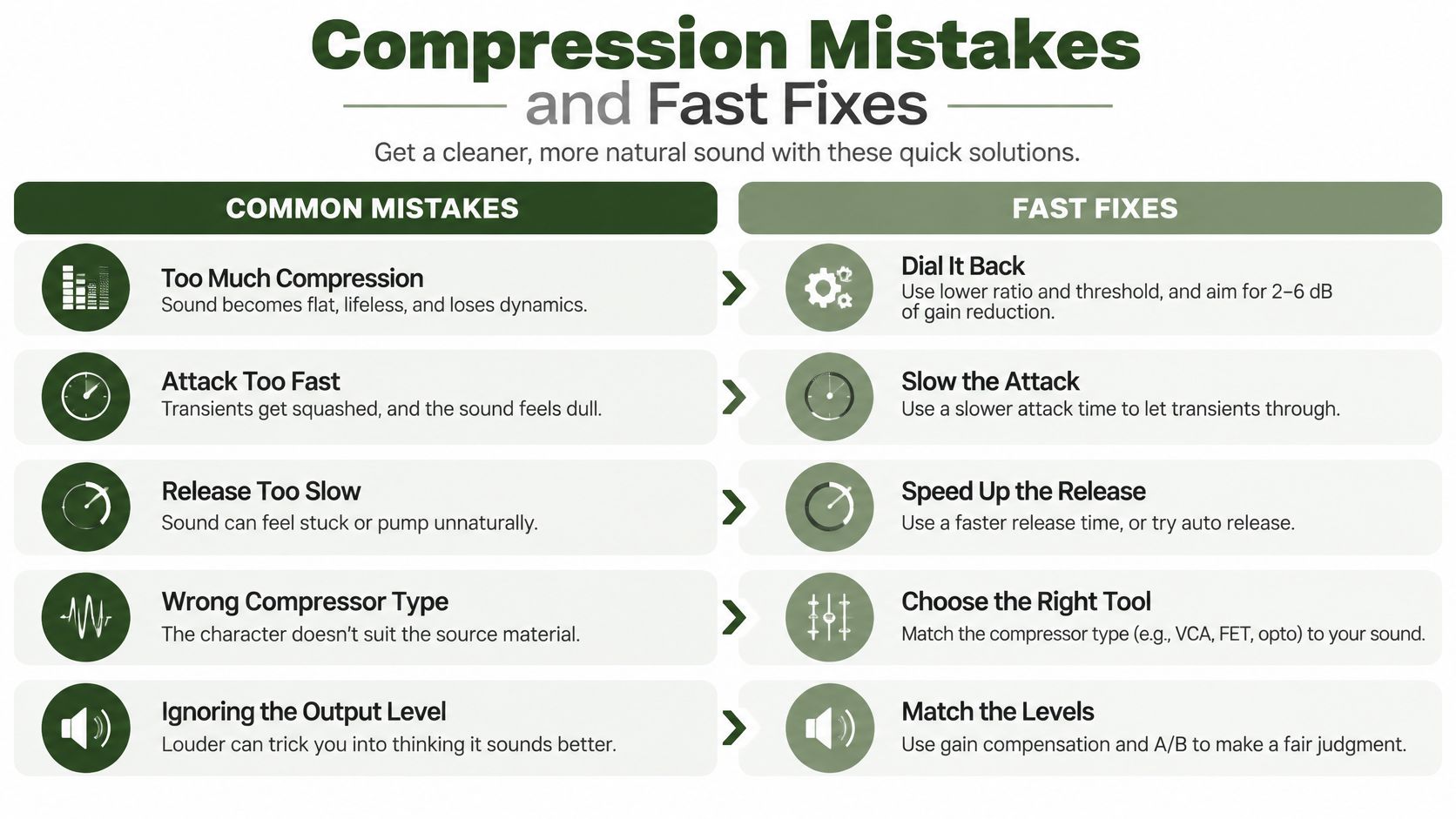
Symptom by Symptom
- Blocky captions after a social download: That's generation loss from re-encoding an already compressed file. Go back to the master at CRF 18 to 20. If there's no master, stop and say so, because no flag restores detail a platform already threw away.
- Safari or an older phone refuses the file: The usual culprits are High 10, 4:4:4 chroma, or an AV1-only URL. Write 8-bit H.264 High in yuv420p and keep that file as the default source in your markup.
- Several seconds before the first frame: The moov atom is at the end of the file. Remux with -movflags +faststart -c copy. It's a copy, not a re-encode, so it takes seconds.
- Stutter after a concat or rung switch: Phone footage is often variable frame rate, and segmenters assume a constant cadence. Convert to constant frame rate before you segment anything.
- Audio eats the video savings: WAV or 320 kbps stereo in a web file is waste. Use AAC-LC at 128 kbps or Opus at 64 to 96 kbps, and check whether a muted autoplay loop needs an audio track at all.
- Picture freezes on a rung change: Keyframes are missing the segment boundary. Set GOP and keyint_min to frame rate times segment seconds and sc_threshold to 0, then re-encode one rung and force a switch in the player.
- Video looks squashed after scaling: Anamorphic sources carry non-square pixels. Force square pixels with setsar so the sample aspect ratio isn't left untouched by your scale filter.
One more trap deserves a plain warning. Don't upscale a 720p source to 1080p to match a spec sheet. You'll pay 1080p bitrate for 720p detail, and the player would have scaled it for free. Encode at or below the source resolution, and let the display do the stretching.
Scale Encoding Without Running Servers
Hand-running FFmpeg is how you lock the settings. It's the wrong way to compress every upload, ad variation, and vertical cut your team produces. Once your samples clear the quality floor and a real phone plays both codecs, freeze those commands and stop touching them per file.
Freeze the Pipeline in Five Rules
- Probe and skip: Skip the encode when a source is already H.264 plus AAC in MP4 inside the target bitrate.
- Always write the baseline: Every job emits the H.264 MP4 with faststart, no exceptions and no per-request judgement calls.
- Gate AV1 on evidence: Add it only when that audience can decode it and the smaller file still clears your floor.
- Segment selectively: Emit HLS only when the video is long enough that a rung switch matters.
- Fail loudly: Send bad inputs to a dead-letter path with FFmpeg stderr attached, and make requests idempotent so a retried webhook doesn't encode the same master twice.
Teams working in n8n, Zapier, Make, or Pipedream can post the exact command they just proved instead of maintaining an encoding box. RenderIO accepts an FFmpeg 7.x command on a REST endpoint and returns the processed output, which fits the model described in this guide to run FFmpeg in the cloud without a server. Start with one product video. Ship the H.264 baseline, prove the AV1 variant on your own audience numbers, then automate both.
Take the exact CRF commands you validated here and run them on every upload without provisioning or babysitting an encoding server. RenderIO runs your FFmpeg 7.x command through a simple REST endpoint and returns the H.264 baseline, the AV1 variant, or the full HLS ladder, with webhooks and retries handled for you. Start with one product video, compare the outputs against your local encode, and scale the pipeline only when the files match.