You recorded a clip the right way up. Your phone plays it back correctly, so you send it to a TV, a browser, or a social platform and it arrives sideways. That isn't usually broken pixels. It's orientation metadata doing the work in one player and getting ignored in another. Learning how to rotate a video properly means knowing whether you're changing that flag or rebuilding the picture itself, because only one of those survives every destination.
Table of Contents
- Rotation Commands for Every Common Angle
- Check the Orientation Your File Already Has
- How to Rotate a Video with FFmpeg Step by Step
- Batch Rotate Folders and Automate with RenderIO
- Rotating Clips for TikTok, Reels and Shorts
- Fixing Rotation Problems in Your Output
- Pick Pixel Rotation Before You Publish
Rotation Commands for Every Common Angle
Use the filter that matches the turn you need. Pixel rotation re-encodes the video; metadata rotation leaves the stored picture unchanged.
| Target rotation | FFmpeg filter or command | Output size | Re-encodes video |
|---|---|---|---|
| 90 degrees clockwise | transpose=1 |
Width and height swap | Yes |
| 90 degrees counter-clockwise | transpose=2 |
Width and height swap | Yes |
| 270 degrees clockwise | transpose=2 |
Width and height swap | Yes |
| 180 degrees | transpose=1,transpose=1 |
Unchanged | Yes |
| 90 degrees clockwise with vertical flip | transpose=3 |
Width and height swap | Yes |
| 90 degrees counter-clockwise with vertical flip | transpose=0 |
Width and height swap | Yes |
| Arbitrary angle, for example 45 degrees | rotate=45*PI/180 with ow, oh, and c set |
Set manually with rotw() and roth() |
Yes |
| Metadata only, quarter turn | ffmpeg -i input.mp4 -c copy -metadata:s:v:0 rotate=90 output.mp4 |
Unchanged | No |
For a pixel rotation, use transpose=1 for 90 degrees clockwise or transpose=2 for 90 degrees counter-clockwise. The FFmpeg transpose filter documentation describes these modes and notes that 0 and 3 combine rotation with a vertical flip. Those modes can mirror text. Named modes such as clock, cclock, clock_flip, and cclock_flip provide the same operations.
A 90 or 270 degree turn swaps width and height. For example, a 1920×1080 horizontal clip becomes 1080×1920 portrait. A 180 degree turn, written as transpose=1,transpose=1, keeps its 1920×1080 dimensions.
Arbitrary angles
For 45 degrees, use the rotate filter and specify the output canvas:
ffmpeg -i input.mp4 -vf "rotate=45*PI/180:ow=rotw(45*PI/180):oh=roth(45*PI/180):c=black" -c:v libx264 -c:a copy output.mp4
Without ow and oh, FFmpeg keeps the input canvas size, which clips the corners. The command re-encodes video with libx264 while copying audio.
For a metadata-only quarter turn, run:
ffmpeg -i input.mp4 -c copy -metadata:s:v:0 rotate=90 output.mp4
This stream-copy command changes the rotation flag without rotating pixels or re-encoding. It only works as intended when the destination player honors that flag. If the file already has a rotation flag, combining it with a pixel turn without clearing the flag can make some players rotate the picture twice.
Check the Orientation Your File Already Has
A clip can look upright in your phone gallery and still contain sideways pixels. Many phones store the frame sideways with a rotation flag that tells compatible players how to display it. Editors, thumbnail tools, and TVs may ignore that flag and show the stored frame as-is.
Inspect the stream before choosing a rotation method.
A four-step check
- Run ffprobe: Use
ffprobe -show_streams input.mp4to inspect the file. See the ffprobe tutorial for inspecting streams for help reading the output. - Find the flag: Check the video stream for a
rotatetag or display matrix side data. - Record the stored dimensions: Note the coded width and height, not just the orientation shown during playback.
- Compare: If the stored dimensions and displayed orientation differ, the player is applying a rotation flag.
For example, a tablet clip stored at 1920×1080 with a 90-degree flag may display as 1080×1920. The stored pixels remain unchanged; the flag affects how a compatible player presents them.
A stale flag can turn a correct-looking output sideways again, or make some players rotate it twice. If you need the pixels oriented correctly across players, rotate them and clear the flag. If only the metadata is wrong and the destination player honors the flag, changing the metadata may be enough.
Check each file in a mixed folder individually. Phones, tablets, and cameras can store different orientations, so one rotation setting may not suit every clip.
How to Rotate a Video with FFmpeg Step by Step
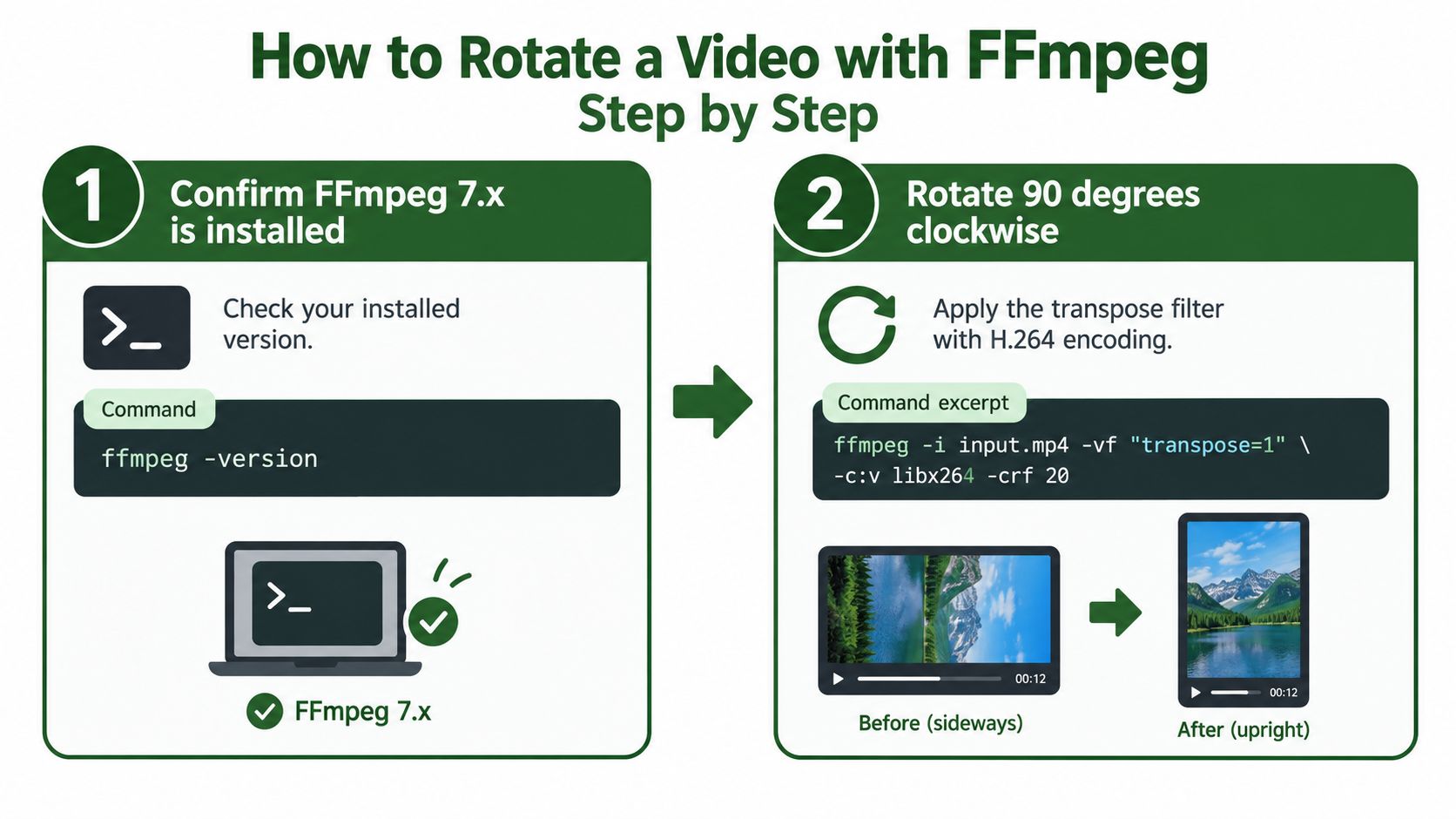
A tablet clip can look upright in one app and sideways on a relative's TV. If the TV ignores orientation metadata, rotate the pixels so the picture displays correctly without relying on that flag.
The procedure
1. Confirm your FFmpeg version. Run ffmpeg -version and note whether it reports FFmpeg 7.x. Filter syntax is stable, but version details help narrow down behavior if a command fails.
Check the source with ffprobe before building the command. If the video stream has a rotation matrix, include -noautorotate before -i in the command below. This stops FFmpeg from applying the stored orientation automatically before the filter runs. Without it, FFmpeg may rotate the decoded frame and then apply your transpose filter, producing an unintended second turn.
2. Rotate 90 degrees clockwise. For a file with a rotation matrix, run:
ffmpeg -noautorotate -i input.mp4 -vf "transpose=1" -c:v libx264 -crf 20 -c:a copy -metadata:s:v:0 rotate=0 output.mp4
If ffprobe shows no rotation matrix, remove -noautorotate and run the command as written otherwise. transpose=1 turns the pixels clockwise. -c:v libx264 re-encodes the video because a pixel filter changes the frames. -crf 20 sets the encoder's quality target, with more bits used for complex scenes than for static ones. -c:a copy copies the audio stream without re-encoding it. The FFmpeg documentation on deterministic quarter turns describes the rotate filter; this command uses transpose for a quarter-turn rotation.
3. Turn an upside-down clip. Replace the filter with transpose=1,transpose=1 for two clockwise quarter turns. The result is a 180-degree rotation, and the frame dimensions remain unchanged.
4. Clear any old rotation flag. The command includes -metadata:s:v:0 rotate=0 to clear the orientation instruction on the output. This matters when the source had a rotation matrix: the pixels are now rotated, so leaving a stale flag can make a compatible player turn the clip again. Check the output metadata to confirm the flag is gone.
5. Verify the output. Use ffprobe to inspect width, height, frame rate, codec, and whether an audio stream remains. A sideways 1920×1080 source rotated clockwise should report 1080×1920. If the dimensions have not swapped, check that the filter ran and that you probed the output file.
6. Test playback in two players. Use one player that honors rotation metadata and another that ignores it. If both display the clip upright, the pixels are oriented correctly and the cleared flag is not causing a second turn.
For a visual walkthrough of rotation in a player interface, watch the embedded video:
What the trade-off really costs
Re-encoding takes processing time and can introduce generational loss because the video is decoded and encoded again. Setting -crf 20 gives you a specific quality target instead of relying on the encoder's default. It does not eliminate quality loss, so check the output before replacing the source.
A correct output reports the rotated dimensions, keeps its audio stream, and plays upright in a player that ignores rotation flags.
A local preview alone is not enough. Test the exported file on the kind of player that will receive it, especially if that device may handle metadata differently.
Batch Rotate Folders and Automate with RenderIO
For a folder of phone clips, a single FFmpeg command can save time, but applying the same rotation to every file can make correctly oriented clips wrong. Check each file's rotation metadata before encoding, then clear the flag after rotating the pixels.
This basic loop avoids overwriting existing output files, but it assumes every input needs the same clockwise turn:
for f in *.mp4; do ffmpeg -n -i "$f" -vf "transpose=1" -c:v libx264 -crf 20 -c:a copy "rotated_$f"; done
The -n flag makes FFmpeg skip an output file that already exists, so rerunning the loop won't overwrite completed results. It doesn't detect whether a previous output is correct, though. For larger batches, xargs -P can run jobs in parallel. Increase concurrency only while the CPU has capacity; beyond that, contention can slow the work.
Check each file before choosing a rotation
Phone clips may be upright, sideways with a rotation flag, or upside down. A batch that blindly applies transpose=1 turns every file clockwise, including clips that need no rotation or a different correction.
Use ffprobe inside the loop to read each file's rotation value and set a filter for that file. For example, this shell fragment reads the video stream's side data and applies a clockwise transpose only when the reported rotation is 90 degrees:
for f in *.mp4; do
  angle=$(ffprobe -v error -select_streams v:0 -show_entries stream_side_data=rotation -of default=nw=1:nk=1 "$f" | head -n 1)
  case "$angle" in
    90|-270) filter="transpose=1" ;;
    180|-180) filter="hflip,vflip" ;;
    270|-90) filter="transpose=2" ;;
    *) filter="null" ;;
  esac
  ffmpeg -n -i "$f" -map 0 -vf "$filter" -metadata:s:v:0 rotate=0 -c:v libx264 -crf 20 -c:a copy "rotated_$f"
done
This example assumes ffprobe reports rotation as stream side data. If it reports no angle, the loop leaves the pixels unchanged. The -metadata:s:v:0 rotate=0 option clears the rotation flag on the output, preventing players that honor metadata from applying a second turn. Confirm how your files expose rotation before relying on the check. See these batch processing best practices for guidance on making reruns safer.
Run the same workflow off your machine
When jobs outgrow a local computer, queues, retries, and storage become part of the work. RenderIO is designed to accept an FFmpeg command as JSON through a REST endpoint and return an output URL. Its workflow can be monitored by polling or webhook, so a team can run jobs without maintaining its own worker fleet.
When evaluating a service, check how it handles failed jobs, exposes FFmpeg errors, and prevents duplicate requests from repeating a transformation. Those details affect how easy it is to diagnose a failed batch and recover safely. A repeated 90-degree rotation can turn a clip 180 degrees, so make sure retries or duplicate job submissions cannot produce a second transform without warning.
The no-code route
Teams that prefer not to write integration code can connect a cloud-folder upload to an HTTP request using n8n or Zapier, then send the output URL to Slack or a spreadsheet. Make and Pipedream can build a similar flow with standard HTTP calls.
The FFmpeg command stays the same. The workflow around it changes.
Rotating Clips for TikTok, Reels and Shorts
A phone or camera clip recorded horizontally may need a 90-degree rotation for a vertical feed. A 1920×1080 frame turned on its side becomes 1080×1920, filling a vertical canvas without cropping. Crop only if the subject needs reframing.
| Destination | Target shape | Working size |
|---|---|---|
| TikTok | Vertical | 1080×1920 |
| Instagram Reels | Vertical | 1080×1920 |
| YouTube Shorts | Vertical | 1080×1920 |
| Vertical or other accepted shapes | Check the current upload spec |
Order of operations
Rotate first, then resize if needed. Rotation sets the correct top edge and changes the frame dimensions. A 1920×1080 clip rotated 90 degrees is already 1080×1920, so resizing or cropping is unnecessary if that is the source size and framing you want. Crop only to reposition or tighten the shot.
Check what your export does with empty space. If a horizontal clip sits unrotated inside a vertical canvas, it will have bars above and below. That is padding, not rotation. A sideways clip that has been rotated to 1080×1920 needs no bars to fill the frame.
After each batch, check the output dimensions with ffprobe and inspect a thumbnail. Confirm the frame is 1080 pixels wide and 1920 pixels high, then make sure the subject sits well within the crop. Correct dimensions do not guarantee good framing.
If one source clip feeds several destinations, keep each export's orientation and framing consistent with the target platform. This guide to multi-platform video editing for lean teams covers organizing those variants. For platform-specific size requirements, consult vertical video dimensions by platform. LinkedIn accepts more than one shape, so check its current upload specifications before exporting a batch.
Fixing Rotation Problems in Your Output
The most common complaint is a clip that looked perfect locally and then turned again after upload. That's not the platform being difficult. It's a stale flag, and it's fixable in one flag change.
| Symptom | Likely cause | Fix |
|---|---|---|
| Video turns twice in some players | Rotate flag kept while pixels were also rotated | Add -metadata:s:v:0 rotate=0 and re-check |
| Correct in one player, wrong after upload | Player ignores or inconsistently honors the flag | Re-encode the pixels with transpose and clear the flag |
| Black triangles in corners at 45 degrees | Canvas stayed at input size | Set ow=rotw(), oh=roth() and c=black |
| Soft or jagged diagonal edges | Bilinear interpolation resampling | Accept softness or test with interpolation off |
| Encoder error about odd dimensions | libx264 needs even width and height | Add scale=trunc(iw/2)*2:trunc(ih/2)*2 after the transpose |
| Audio missing or drifting | Audio re-encoded or stream mapping dropped | Keep -c:a copy and check the audio stream with ffprobe |
Reading the table
The first two rows are the same root problem seen from opposite ends. One player applies the flag, another doesn't, and the file can't satisfy both while it carries both a pixel rotation and an instruction. Pick one representation. For anything leaving your own machine, that means rotated pixels and no flag.
The 45 degree rows are different. Black triangles mean the rotated image is larger than the canvas it landed on, so set ow=rotw(45*PI/180), oh=roth(45*PI/180), and c=black to size and fill the frame deliberately. Soft diagonal edges come from bilinear interpolation resampling the image. You can test with interpolation off, but you'll likely trade softness for jagged edges, so judge it on your actual footage.
The odd dimensions error surprises people because the source played fine. After a transpose, an odd height becomes an odd width, and libx264 with yuv420p needs even values for both. Append scale=trunc(iw/2)*2:trunc(ih/2)*2 after the transpose to round down to even numbers.
For audio, -c:a copy avoids a needless re-encode and the sync drift that can come with it. Then confirm the stream survived by checking ffprobe output rather than trusting that playback had sound once.
Test the fix on the destination, not only on your local preview. A local player that honors flags will hide exactly the bug you're trying to kill.
Pick Pixel Rotation Before You Publish
A clip can look upright on your computer and still publish sideways. That usually happens because one player applies the rotation flag while another ignores it. Choose either rotated pixels or metadata rotation, not both. A stale flag on already-rotated pixels can make some players turn the clip twice.
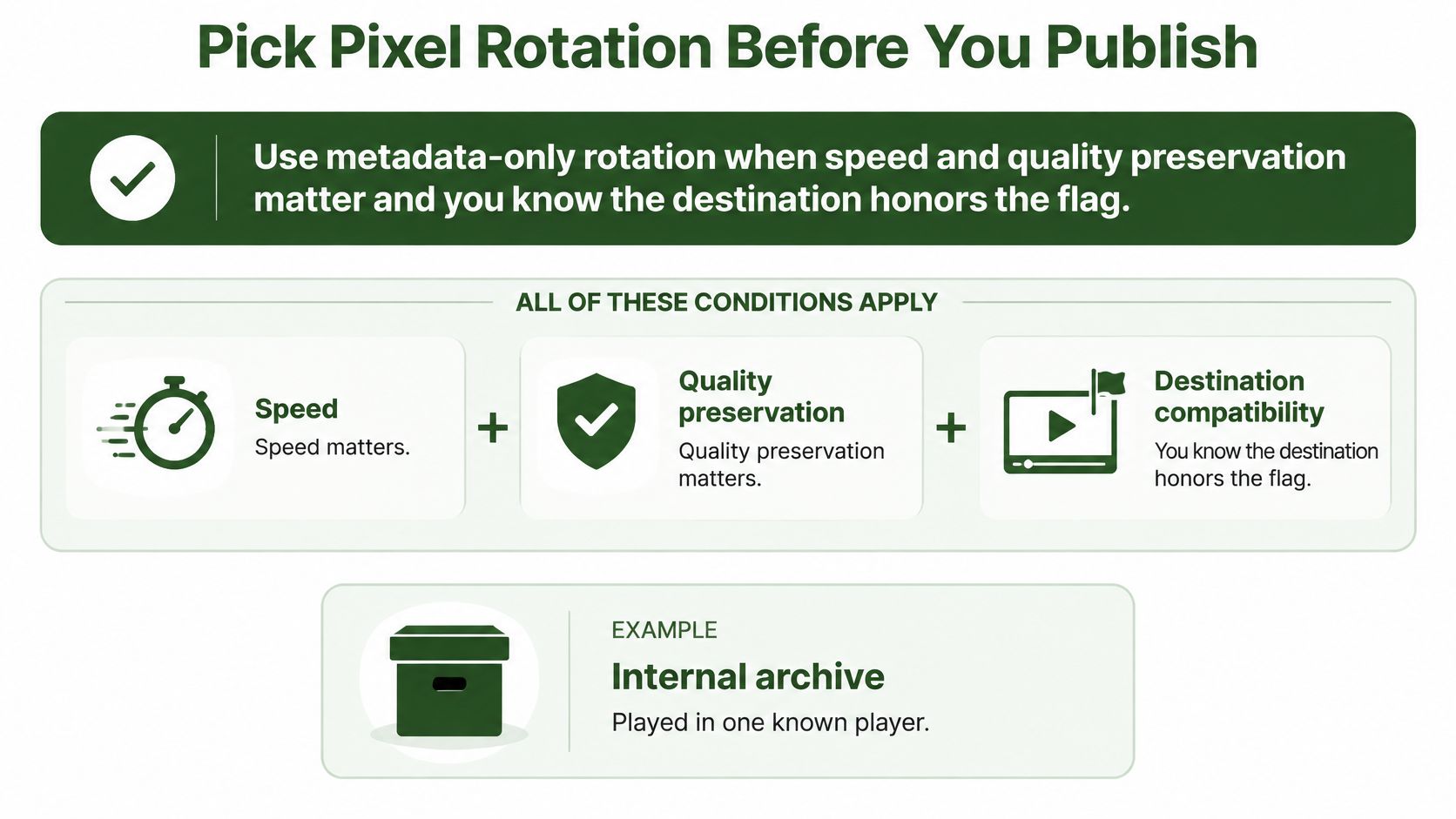
Metadata-only rotation is fast and preserves the encoded frames, but it is safe only when you control the destination and have tested that it honors the flag. An internal archive viewed in one known player can fit that case.
For public files, rotate the pixels before publishing. Browsers, older devices, social platforms, thumbnail extractors, and computer-vision systems can interpret orientation differently. Some players ignore rotation metadata, so a file that depends on the flag may display sideways there and need its pixels rotated with a transpose filter. Thumbnail tools and vision pipelines may read raw pixels without checking the flag.
openSUSE's FFmpeg documentation
The visual guide shows when metadata-only rotation can suit a video, and when to rotate its pixels instead.
Compatibility checklist
- Test the exact destination. Send a sample to the platform or workflow that will receive the finished file.
- Check playback in two players. Use one that honors metadata and one that ignores it.
- Extract a thumbnail. Run
ffmpeg -ss 00:00:01 -i output.mp4 -frames:v 1 thumb.jpgand verify its orientation. - Check dimensions and audio with ffprobe.
- Run the full batch only after the sample passes.
Save the tested clip and command as your template. Reusing that proven setup helps prevent a rotation flag from surviving into a batch of already-rotated videos.