Most advice about vertical video dimensions starts and ends with “export at 1080 × 1920.” That specification is useful, but it's not a complete delivery strategy. A file can have the correct canvas and still fail when a feed crops the composition, interface controls cover the captions, or rotation metadata makes an automated renderer interpret portrait footage as horizontal.
The reliable model is one normalized source canvas plus destination-aware derivatives. Keep a clean vertical master, then generate alternate crops, padded versions, cover frames, subtitle placements, and UI-safe compositions for each surface. That approach takes more planning than one universal export, but it protects the actual message, subject, and call to action.
Table of Contents
- The Myth of the Universal Vertical Export
- Why 9:16 Dominates Mobile Video Consumption
- Platform Specifications and Feed Crop Rules
- Mapping Safe Areas and UI Overlay Zones
- Resizing and Padding Non-Standard Sources
- Encoding Settings for Platform Recompression
- Automating Vertical Pipelines with RenderIO
- Vertical Video Quick Reference Guide
The Myth of the Universal Vertical Export
A single 9:16, 1080 × 1920 file is a sensible baseline for TikTok, Instagram Reels and Stories, YouTube Shorts, Facebook Reels, and similar full-screen mobile placements. The specification is widely recommended because it matches portrait playback and lets teams reuse one source asset without changing its canvas shape, as documented in this vertical video dimensions guide.
The operational mistake is treating that baseline as the finished product. A full-screen Reel may be presented inside a narrower home-feed preview, and the visible composition can change even though the uploaded file remains 9:16. Instagram, for example, can crop Reels to roughly 4:5 in the home feed, according to the platform comparison in the cross-platform short-form delivery guide. A title placed near the top or a product positioned close to the edge can disappear from that preview.
Canvas and composition are different things
A canvas describes the encoded frame. Composition describes what remains visible after a platform applies its own player, preview crop, controls, captions, account information, and engagement buttons. Your renderer needs to manage both.
A practical asset family might contain:
- A normalized master, encoded at 1080 × 1920 with square pixels.
- A feed derivative, reframed for a narrower preview where the subject and opening action remain visible.
- A cover frame, designed as a thumbnail rather than extracted blindly from the full-screen composition.
- A subtitle variant, with text positioned inside a conservative central area.
- A padded version, used when cropping would remove a face, product, or essential movement.
This structure preserves creative intent instead of assuming that every destination displays the entire source canvas in the same way.
Rotation metadata is a pipeline hazard
Mobile phones often record portrait footage with rotation metadata rather than physically encoding portrait pixels. A player may display the clip upright, while an automated resize step reads the coded raster as horizontal. The result can be a sideways output, a 1920 × 1080 file with unexpected display behavior, or a crop applied along the wrong axis.
Normalize orientation before resizing. Then inspect the resulting width, height, display aspect ratio, sample aspect ratio, rotation state, and coded dimensions. A file that looks correct in one media player isn't necessarily normalized for downstream processing.
Practical rule: Treat 1080 × 1920 as the baseline output preset, not as proof that one export is suitable for every destination.
The right abstraction is therefore not “one universal dimension.” It's a source canvas with destination-aware derivatives, each validated against the current presentation rules of its target platform.
Why 9:16 Dominates Mobile Video Consumption
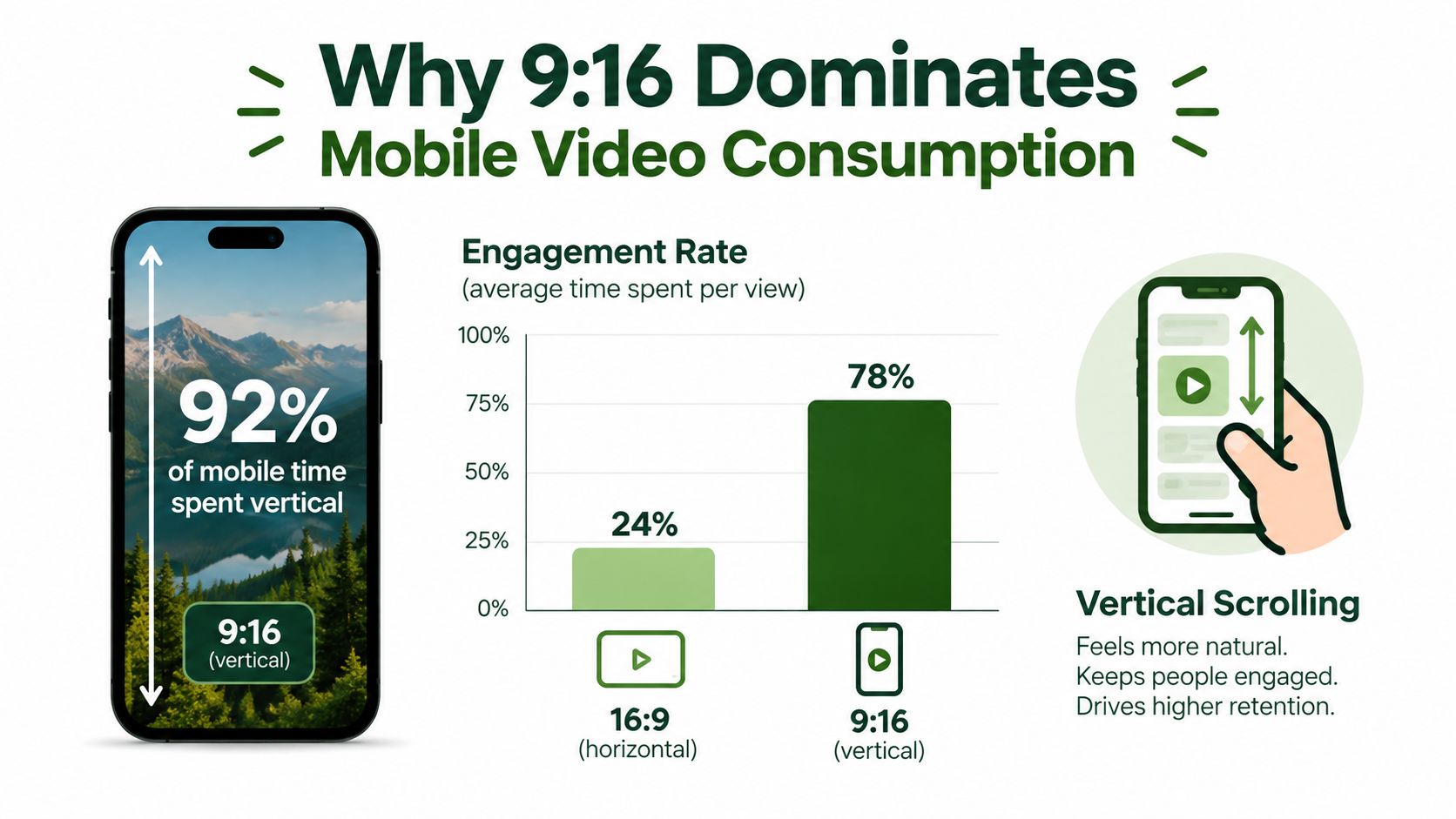
Portrait video follows the way people hold and use their phones. One widely cited mobile-use figure places vertical smartphone holding at approximately 94%, while additional industry reporting places mobile devices at roughly 75% of global video plays. Both figures are documented in this analysis of vertical video as the default content format.
That behavior changed the job of a video pipeline. A standard master can still be valuable for websites, television, and desktop playback, but a short-form mobile derivative must respect the screen orientation users already chose. A 9:16 frame fills the portrait display instead of asking viewers to rotate the device or watch a reduced wide rectangle inside a mobile feed.
The format shift was distribution-led
Early mobile-first products such as Vine and Snapchat Stories helped establish portrait publishing around 2013–2014, then TikTok accelerated adoption with a full-screen, swipe-based feed. TikTok reported reaching 1 billion monthly active users in September 2021, a milestone that showed how far vertical-first consumption had normalized globally. These historical and audience figures appear in the Oyelabs analysis linked above.
The engagement rationale is also clear in the cited industry data. Vertical mobile videos are reported at approximately 76% completion, compared with about 54% for horizontal videos, a difference of 22 percentage points. Those figures don't prove that aspect ratio alone creates performance, since creative quality, subject matter, pacing, and distribution also matter. They do explain why teams increasingly generate portrait derivatives alongside side-by-side masters.
What this means for infrastructure
The engineering decision isn't just whether to rotate a file. It affects:
- Framing, because the narrow canvas may remove lateral action.
- Typography, because captions need to survive different interface layers.
- Storage, because a team may retain a master and several derivatives.
- Validation, because rotation metadata can change how a renderer interprets the source.
- Testing, because a composition that works in full-screen playback may fail in a feed preview.
A portrait pipeline is justified when the target audience watches on mobile and the distribution surface is designed around vertical swiping. It isn't a decorative variant of the horizontal workflow. It uses a different composition model, with the phone's physical orientation as the starting constraint.
The best systems preserve a high-quality source, then render portrait outputs deliberately. They don't rely on a late-stage orientation switch after subtitles, logos, and motion graphics have already been positioned for a wide screen.
Platform Specifications and Feed Crop Rules
Across the major short-form destinations, the common delivery canvas is 9:16 at 1080 × 1920 pixels. That shared baseline works well for TikTok, Instagram Reels and Stories, YouTube Shorts, Facebook Reels, and comparable full-screen mobile placements. The important distinction is that a shared canvas doesn't guarantee a shared presentation.
A platform may show the full frame in a dedicated viewer, crop it in a home feed, overlay controls on top of it, or use a separate cover image in a grid. The source file remains identical while the viewer's visible composition changes. For a broader explanation of how aspect ratio relates to TikTok presentation, this vertical video aspect ratio explained resource is a useful reference.
Compare the delivery model, not just the pixels
| Platform | Canvas Size | Feed Crop | Max Frame Rate |
|---|---|---|---|
| TikTok | 1080 × 1920, 9:16 baseline | Full-screen playback with destination-specific interface overlays. Validate current feed behavior before publishing. | Match the source or current platform guidance |
| Instagram Reels | 1080 × 1920, 9:16 baseline | Reels can appear in a narrower home-feed crop, including a roughly 4:5 presentation. | Match the source or current platform guidance |
| Instagram Stories | 1080 × 1920, 9:16 baseline | Full-screen portrait canvas with story controls, stickers, and account interface layers. | Match the source or current platform guidance |
| YouTube Shorts | 1080 × 1920, 9:16 baseline | Shorts feed presentation with platform controls and metadata over the image. | Match the source or current platform guidance |
| Facebook Reels | 1080 × 1920, 9:16 baseline | Reels may be displayed through feed surfaces with their own crop and interface layers. | Match the source or current platform guidance |
| Snapchat | 1080 × 1920, 9:16 baseline | Portrait-first presentation with destination-specific overlays and placement rules. | Match the source or current platform guidance |
The table intentionally avoids pretending that one static export sheet can capture rules that platforms change. Maximum frame rate, upload limits, duration, and file-size requirements should be stored as configurable destination settings in your pipeline rather than hard-coded into creative logic.
Build derivatives around visible composition
For a talking-head clip, a 9:16 master may keep the speaker's face centered while a feed crop removes decorative space above and below. For a product demonstration, the crop may remove the hand holding the product or the result of the demonstration. Those are composition failures, not resolution failures.
Use destination-specific derivatives when:
- A preview crop removes the hook, so the opening frame needs a different scale or position.
- A cover uses a different aspect ratio, so a dedicated thumbnail frame is safer than reusing the video.
- Subtitles compete with interface text, so the caption layer needs a destination-specific vertical offset.
- The subject moves laterally, so a pan-and-scan crop must follow action rather than stay centered.
- A story placement has interactive controls, so the lower region needs more clearance.
The correct pipeline can retain one 1080 × 1920 master while producing alternate crops, padded outputs, cover frames, and caption placements. The universal export saves encoding work, but it can increase creative loss and platform inconsistency.
Mapping Safe Areas and UI Overlay Zones
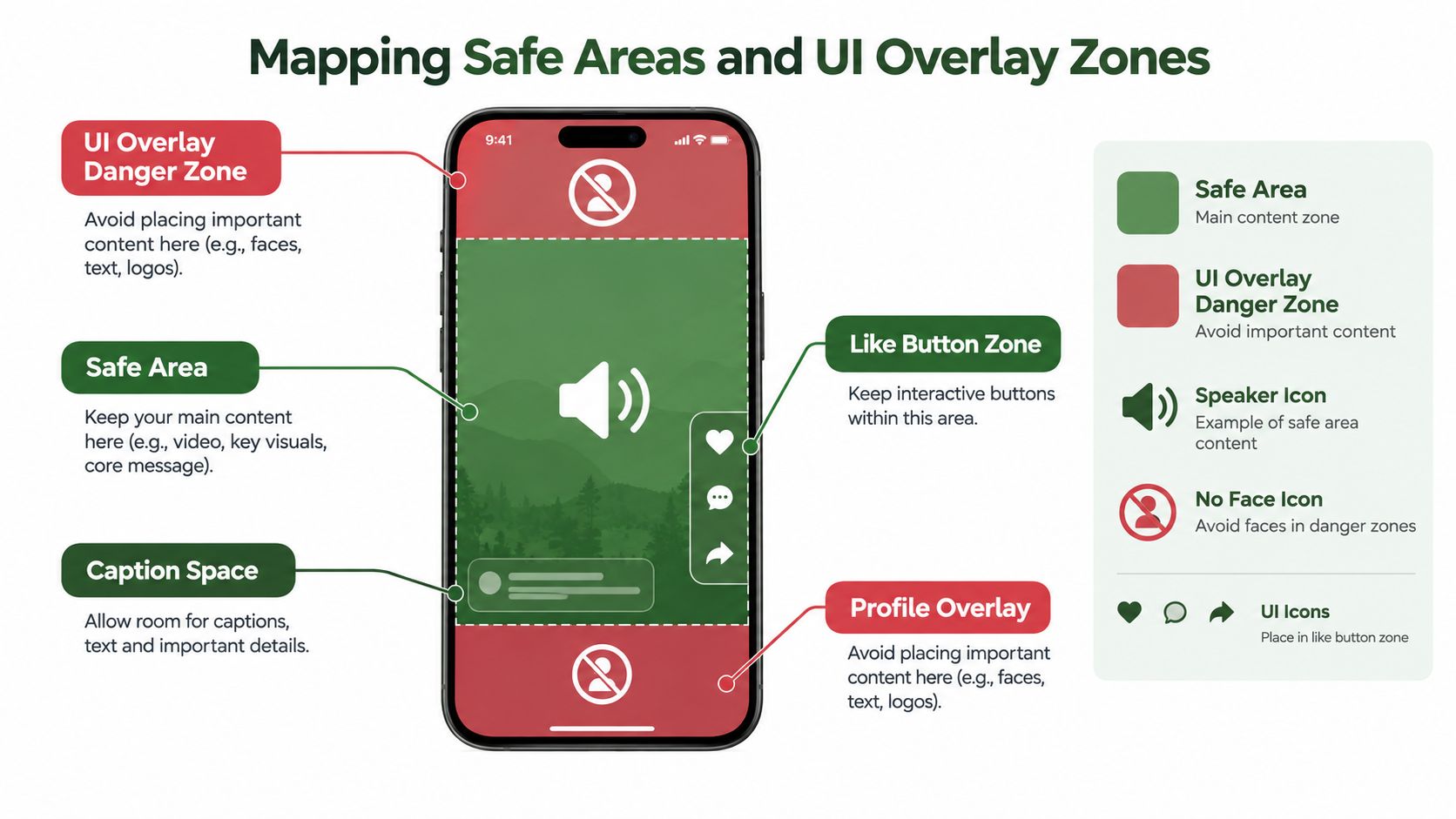
A technically valid 1080 × 1920 file can still hide its most important information. Platforms place captions, profile details, engagement controls, audio metadata, buttons, and other interface elements over the video. Those zones can change by destination and surface, so safe-area design should be part of the render template, not an editor's last-minute adjustment.
Start with a coordinate system
Use the output frame as a fixed coordinate plane:
- Canvas: x=0 to 1080, y=0 to 1920.
- Central content column: place faces, products, logos, and essential titles away from all four edges.
- Top buffer: keep primary headlines below profile, search, or platform branding elements.
- Bottom buffer: keep subtitles and calls to action above captions, account metadata, and audio controls.
- Right-side buffer: keep important visual information away from stacked engagement controls.
The exact pixel boundaries shouldn't be treated as universal constants. Interface layouts change, device displays vary, and a platform can render different controls for different account types or placements. A conservative template should reserve visible breathing room rather than placing essential content directly against an edge.
Separate visual safety from subtitle safety
A face may remain visible while its spoken subtitle is covered. A logo may avoid the right-side buttons but still collide with a bottom caption block. Treat these as separate layers with separate placement rules.
A capable compositor can expose named regions such as:
- Subject region, used for faces and product interaction.
- Headline region, used for short opening text.
- Subtitle region, positioned above the platform's likely caption area.
- Brand region, kept clear of profile and engagement overlays.
- Action region, reserved for a call to action that remains readable in previews.
Store these regions as normalized coordinates rather than hard-coding them only in pixels. The renderer can then map them onto the 1080 × 1920 output and adjust them for a destination-specific crop.
Validate with visual overlays
During development, render a diagnostic version with translucent rectangles for the top, bottom, and right-side danger zones. Review it on an actual phone, not only in a desktop player. A desktop preview often shows the entire encoded frame without the interface that will cover it in production.
The RenderIO guide to 9 × 16 video provides a useful reference point for the portrait canvas, but safe-area policy still belongs in your own templates because the same frame can appear across several surfaces.
Keep anything that must be read or recognized in the central composition. Edge space is expendable. The face, product, subtitle, and call to action are not.
Resizing and Padding Non-Standard Sources
Source footage rarely arrives in a perfect 9:16 raster. It may be wide-format, square, an odd phone resolution, or portrait footage whose orientation exists only in metadata. The first decision is whether to crop to fill or scale and pad.
Cropping uses the available screen more effectively, but it removes content. Padding preserves the complete source, but it can create unused space unless the background is designed intentionally. Distortion is never an acceptable shortcut. Stretching a face or product to force 1080 × 1920 creates a technically filled frame with visibly damaged geometry.
Scale without distortion
For a source that should fit completely inside the portrait canvas, use the verified filter pattern:
scale=1080:1920:force_original_aspect_ratio=decrease,pad=1080:1920:(ow-iw)/2:(oh-ih)/2
This scales the input down until it fits, then pads the remaining area to produce the target canvas. It avoids changing the source's aspect ratio. Add setsar=1 to enforce square pixels, especially when source files contain unusual sample-aspect-ratio metadata.
A representative FFmpeg command is:
ffmpeg -i input.mp4 \
-vf "scale=1080:1920:force_original_aspect_ratio=decrease,pad=1080:1920:(ow-iw)/2:(oh-ih)/2,setsar=1" \
-c:v libx264 -c:a aac output.mp4
This is a baseline transformation, not a complete creative treatment. Plain padding can look like a mistake, particularly when the source is a small horizontal rectangle surrounded by empty space. Replace the padding color with a branded background, a controlled blur, or a designed information panel when the complete source needs to remain visible.
Crop when the frame needs to feel native
To fill the portrait canvas, scale the source until both dimensions cover the output, then crop around the subject. A center crop can work for a centered speaker. It fails when the important action happens at the edge.
A typical crop-first chain is:
ffmpeg -i input.mp4 \
-vf "scale=1080:1920:force_original_aspect_ratio=increase,crop=1080:1920,setsar=1" \
-c:v libx264 -c:a aac output.mp4
For production, replace the static crop position with metadata or an editorial decision. Face detection, object tracking, or manually supplied focal-point coordinates can drive the crop. The renderer should know whether the salient object is a person, product, caption, or moving action.
The FFmpeg video resizing guide is a useful companion for implementing these transformations. In a batch pipeline, inspect the source dimensions and rotation state first, then route each clip to a crop, pad, or tracked-reframe branch.
Normalize before making decisions
Don't classify a file as horizontal solely from the stored width and height. Read rotation metadata and normalize the video before applying aspect-ratio logic. Then validate:
- Encoded width and height.
- Display aspect ratio.
- Sample aspect ratio.
- Rotation metadata.
- Even coded dimensions.
- Final output dimensions after encoding.
A lower-resolution variant such as 720 × 1280 preserves the same 9:16 geometry but carries less detail after platform compression, as summarized in the vertical video specification reference. Generate it deliberately for bandwidth-constrained use cases rather than allowing an upload service to make an undocumented choice.
Encoding Settings for Platform Recompression
Social platforms re-encode uploaded media, so the goal isn't to prevent compression. The goal is to give the platform a clean, compatible source that doesn't begin with avoidable artifacts.
For broad compatibility, H.264 video inside an MP4 container with AAC audio remains the conservative delivery choice. H.265 can reduce storage or transfer requirements in workflows that control the playback environment, but H.264 is usually safer when the same output must pass through several social upload paths and device types.
Choose quality controls by source complexity
A fixed bitrate isn't equally useful for every clip. A static interview, a fast dance sequence, a screen recording, and a scene with fine foliage place different demands on the encoder. Motion, texture, gradients, grain, and subtitle edges can all reveal compression damage.
For an automated encoder:
- Use a quality-based control such as CRF when the output size can vary.
- Use a constrained bitrate strategy when a destination imposes strict file limits.
- Test fast movement and dark gradients, not only a static talking head.
- Avoid repeated generation from already compressed derivatives.
- Keep a higher-quality master for future crops and re-encoding.
The verified technical guidance supports retaining a higher-resolution master for future processing while using 1080 × 1920 as the practical processing target. That balance preserves useful source detail without making every social derivative unnecessarily heavy.
Frame rate should follow the source
Don't invent motion by forcing every clip to a higher frame rate. Match the captured material where possible, and use a deliberate conversion policy when sources differ. Mixed frame rates can produce uneven motion, duplicated frames, or cadence issues that viewers notice as stutter.
The pipeline should declare its policy clearly:
- Detect the source frame rate.
- Preserve it when the destination accepts it and the content plays correctly.
- Convert only when a destination or house standard requires conversion.
- Check the output timestamps and frame count after encoding.
Audio deserves the same discipline. Use a broadly compatible AAC configuration, preserve synchronization, and test clips with voice, music, and silence. A visually sharp file with delayed speech still fails the viewer.
Validate the encoded artifact
Don't stop at a successful FFmpeg exit code. Run a post-encode probe and compare the artifact with the intended contract:
- Is the output physically 1080 × 1920?
- Is the sample aspect ratio 1:1?
- Is the rotation metadata normalized?
- Does the container report the expected video and audio streams?
- Are subtitles inside the safe composition?
- Does the final frame remain readable after a second-generation export?
A pipeline that validates these properties catches failures before upload. It also makes platform-specific derivatives auditable, since every output can carry its destination, crop policy, caption region, and encoder settings as metadata in the job record.
Automating Vertical Pipelines with RenderIO
Local FFmpeg commands work for a handful of clips. They become harder to operate when a team needs multiple crops, caption variants, cover frames, retries, progress reporting, and repeatable outputs for many accounts. The scalable design treats each derivative as a declared job with an input, a filter policy, an output contract, and a delivery event.
RenderIO provides a cloud FFmpeg and yt-dlp API for this kind of automation. Teams can post FFmpeg 7.x commands to a REST endpoint, receive processed outputs through signed URLs, and connect processing to n8n, Zapier, Make, or Pipedream through HTTP and webhooks. Its documented capabilities include isolated execution, polling or webhook progress, automatic retries, returned FFmpeg stderr, idempotent requests, and chained or parallelized commands.
Treat derivatives as a job graph
A useful job graph starts with orientation normalization, then branches into destination outputs:
- Normalization job: removes rotation ambiguity and enforces square pixels.
- Master job: creates the 1080 × 1920 portrait source.
- Feed job: generates a destination-aware crop, such as a narrower preview composition.
- Caption job: applies the platform's safe-area coordinates.
- Cover job: extracts or renders a dedicated thumbnail frame.
- Validation job: probes dimensions, aspect ratio, streams, and encoding results.
These jobs can run sequentially when one output depends on another, or in parallel when every derivative uses the same normalized input. Keeping the graph explicit prevents a common failure mode, where a team uses a captioned social derivative as the source for another crop without noticing.
Pass policy, not just commands
A production request should include more than an FFmpeg string. Pass the destination name, crop mode, focal point, safe-area profile, subtitle style, output dimensions, and validation expectations. The worker can then construct the command and record why a particular derivative was generated.
For example, a portrait source might use a centered crop for Shorts, a focal-point crop for a feed preview, and a separate cover frame with larger title treatment. The source remains the same, but the visible composition is intentionally different.
The guide to converting video to TikTok format is relevant when a workflow needs to turn a normalized source into a destination-ready portrait output. The important implementation choice is to keep platform rules configurable. Social specifications change, and a hard-coded pipeline becomes a liability when crop behavior or upload requirements shift.
Make failures observable
Batch rendering needs a clear failure path. Capture the complete FFmpeg stderr, persist the input and output parameters, and send a webhook when a job succeeds or fails. Automatic retries help with transient execution problems, while a dead letter queue prevents a bad source from being retried indefinitely.
Use idempotent job identifiers so a webhook timeout doesn't create duplicate work. Expiring signed URLs also require downstream consumers to download or transfer outputs promptly. A reliable system records the output before notifying the publishing layer, then lets the publisher acknowledge completion separately.
This architecture changes the unit of work from “export a video” to “produce a validated set of destination-aware assets.” That is the difference between a script that happens to resize clips and an infrastructure layer that can support a high-volume creative operation.
Vertical Video Quick Reference Guide
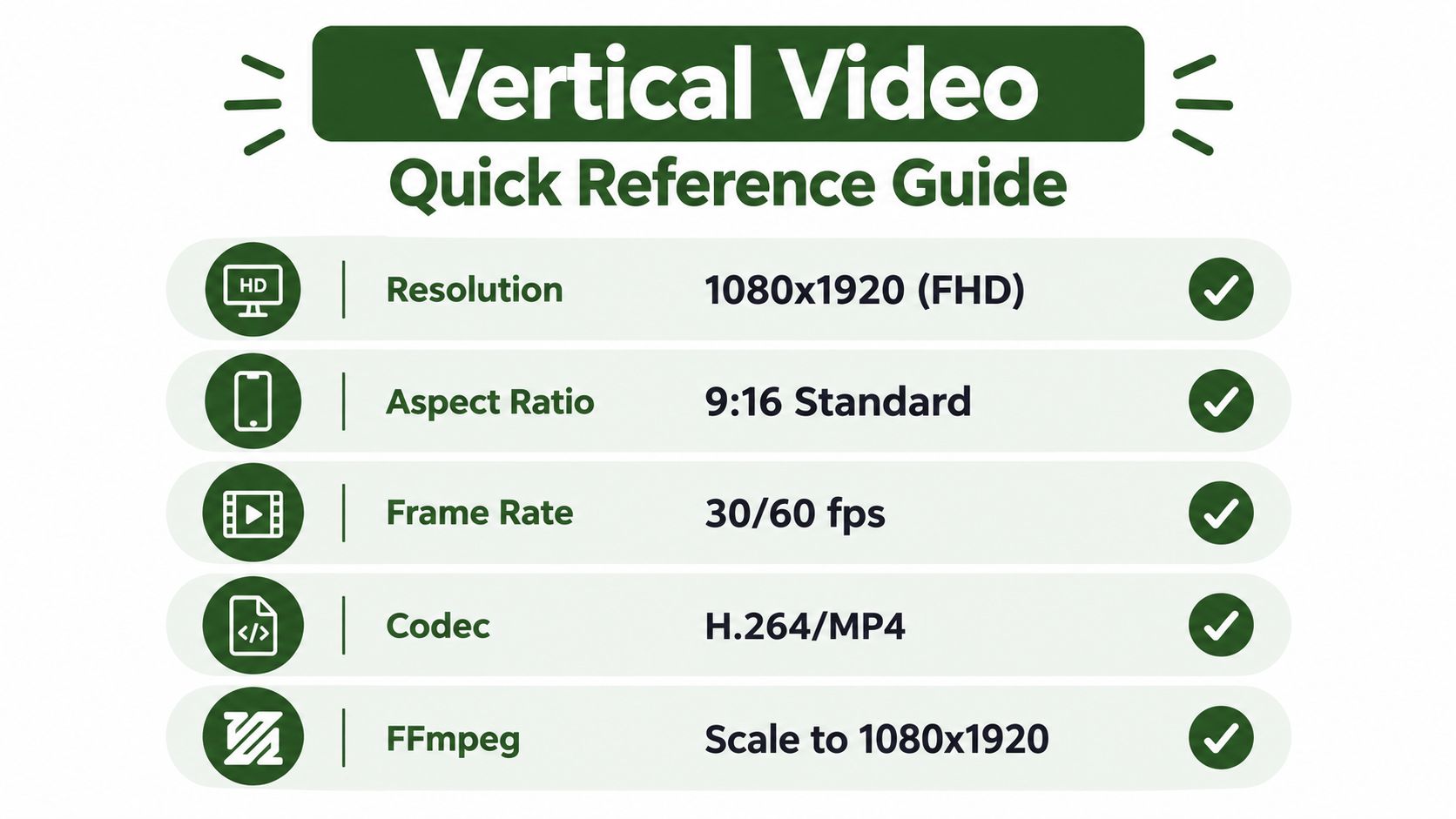
Use the following as a compact implementation checklist. The most important distinction is still the one established at the beginning: 1080 × 1920 is the shared canvas, not the complete presentation strategy.
Delivery contract
- Canvas: Use a portrait 9:16 output, with 1080 × 1920 as the baseline raster for major short-form destinations.
- Pixels: Apply
setsar=1so players interpret the portrait frame with square pixels. - Orientation: Normalize rotation metadata before aspect-ratio detection or resizing.
- Composition: Keep faces, products, logos, subtitles, and calls to action inside a conservative central area.
- Derivatives: Create alternate crops, padded versions, caption placements, and cover frames when the destination surface changes the visible composition.
FFmpeg baseline
For a complete fit without distortion:
scale=1080:1920:force_original_aspect_ratio=decrease,pad=1080:1920:(ow-iw)/2:(oh-ih)/2,setsar=1
For a crop that fills the frame:
scale=1080:1920:force_original_aspect_ratio=increase,crop=1080:1920,setsar=1
Select between them based on the creative subject. Padding preserves the whole frame. Cropping creates a more native full-screen composition but removes lateral content.
Quality checks before publishing
- Probe the final coded width and height.
- Confirm the display and sample aspect ratios.
- Confirm that rotation metadata won't rotate the output unexpectedly.
- Inspect the right, top, and bottom interface danger zones.
- Review the output on a phone and in any narrower feed preview that matters.
- Store the source, derivative policy, and validation result with the job record.
Don't let a successful upload become your only test. A platform may accept a file while still cropping the hook, covering subtitles, or hiding the call to action. Validate the composition as well as the encoding.
RenderIO offers cloud FFmpeg and yt-dlp API execution for resizing, transcoding, cropping, watermarking, thumbnail generation, and batch video workflows. Use it to turn a normalized source into validated 9:16 masters and destination-aware derivatives, then visit RenderIO to evaluate the API for your vertical video pipeline.