A short product clip looks clean on your laptop, but the destination needs it to repeat for longer. You could ask the player to replay the same file, or create a longer output that contains repeated footage. Those choices solve different problems, and the wrong one can waste storage, cause a playback glitch, or leave an automated job running without an end.
The practical workflow is straightforward: choose whether the player or the file owns repetition, use the FFmpeg command that fits, then validate the output. If you're processing clips as part of a publishing workflow, you can send the same command to a cloud API instead of running and managing your own worker.
Table of Contents
- Player-Side vs. File-Side Looping
- The Three FFmpeg Commands That Handle Most Loops
- Running the Loop Command Through RenderIO
- Platform-Spec Looping for TikTok, Reels, and Shorts
- Pitfalls That Break Production Loops
- Patterns for Scaling Loop Pipelines
Player-Side vs. File-Side Looping
When someone asks how to loop video, first clarify what they mean by "loop." Player-side looping leaves the media file unchanged and tells the player to start it again at the end. File-side looping repeats the media content in a new output file. The first keeps one compact asset; the second produces a clip that plays through the repeated material even in a player with no loop setting.
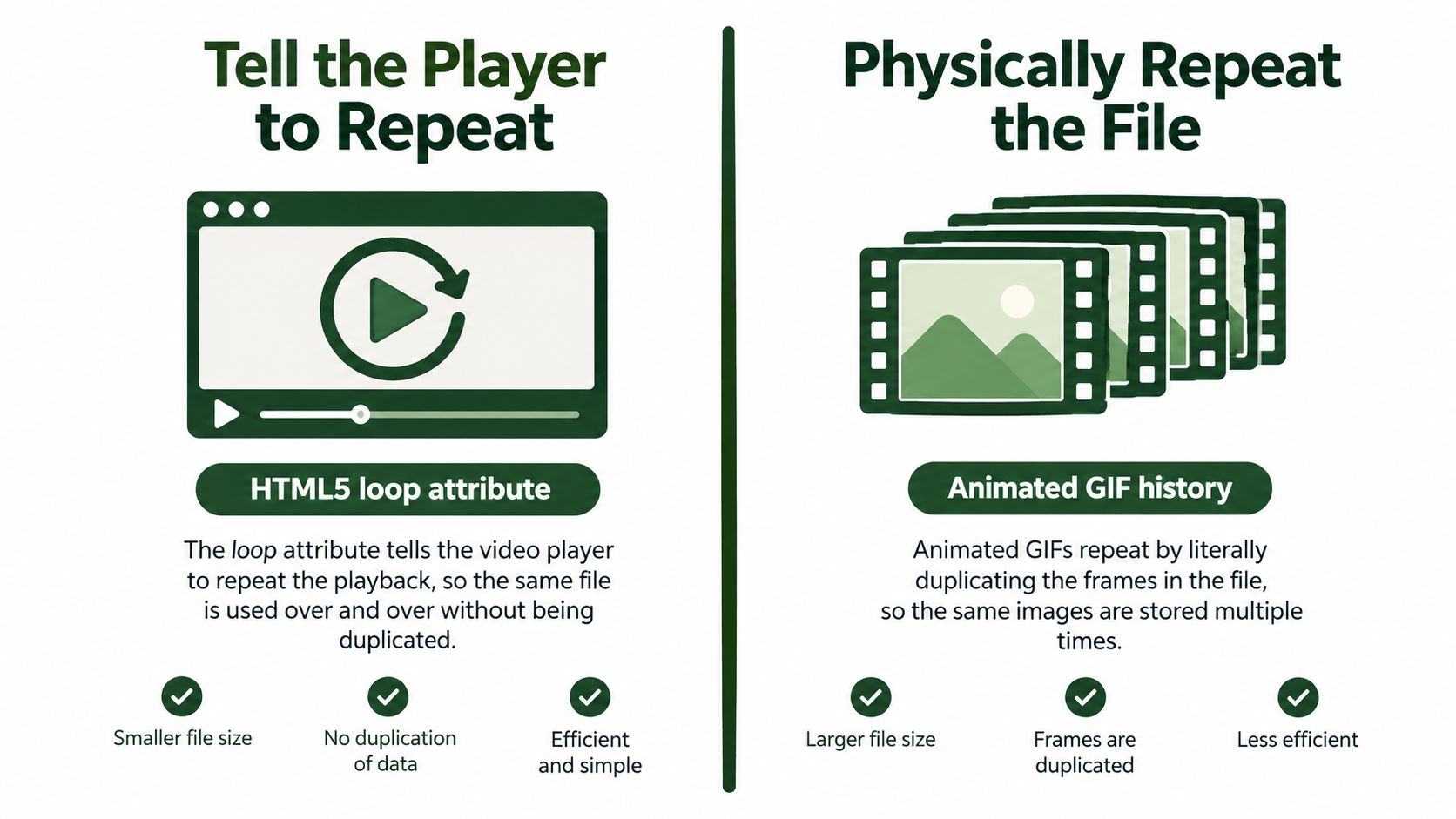
The split is older than web video. GIF89a added frame timing controls when it shipped in July 1989 (animated GIF history), and Netscape's Application Extension later made infinite looping a de facto convention in browsers. In that model, timed frames play to the end and jump back to the first frame. Modern video keeps the same playback idea, but the repeat instruction doesn't have to live inside the media.
HTML5 made that separation explicit. The <video loop> attribute tells the browser to seek back to the start when playback reaches the end, so a page can repeat one file without duplicating its contents (HTML5 video loop behavior). FFmpeg's -stream_loop does the file-side version: it repeats the input while writing a new output, either capped to a set duration or assembled from repeated clips. That same command is what you send to RenderIO's API when the loop has to run inside an automated publishing workflow rather than on a local machine.
Choose by destination: If the destination controls a web player and accepts a loop setting, ship one clip and enable player-side repetition. If a platform, editor, or downstream process needs repeated footage inside the media itself, generate a file with the repetitions included.
Decide where the loop starts and ends before you encode anything. A bad cut jumps visibly on every repeat, and careless stream copying produces timestamp or compatibility errors at the boundary. The storage trade-off is real too: player-side looping costs nothing in bytes, while a looped output file stores a copy of the source frames for every repetition you bake in.
The Three FFmpeg Commands That Handle Most Loops
For a fixed-duration output, use -stream_loop before the input and set a finite duration:
ffmpeg -stream_loop -1 -i input.mp4 -t 30 -c copy output.mp4
Here, -stream_loop -1 repeats the input indefinitely, and -t 30 stops the output at the specified duration. -c copy copies the streams instead of re-encoding, which is quick when the source already fits the target container and playback requirements. FFmpeg defines 0 as no additional repetition, a positive value as the number of additional plays, and -1 as indefinite repetition until an output limit stops it (FFmpeg stream-loop documentation).
The placement matters: -stream_loop is an input option, so it belongs before -i. Don't omit -t or another terminating condition when using -1, or the job won't finish.
Repeat a playlist with the concat demuxer
For a fixed list of compatible clips, create a text file such as:
file 'input.mp4'
file 'input.mp4'
file 'input.mp4'
Then concatenate it:
ffmpeg -f concat -safe 0 -i list.txt -c copy output.mkv
Packet copying is only suitable when the files have compatible stream types, codecs, time bases, and effectively consistent encoding parameters. If they differ, normalize them first or use a concat filter and re-encode. FFmpeg's concat demuxer adjusts timestamps, but differing stream lengths can create gaps (concat demuxer documentation).
Hide the boundary with a crossfade
When the start and end frames don't match, a crossfade can make the join less abrupt. A basic video-only pattern for two inputs is:
ffmpeg -i input.mp4 -i input.mp4 \
-filter_complex "[0:v][1:v]xfade=transition=fade:duration=0.5:offset=4.5[v]" \
-map "[v]" -an output.mp4
Adjust the offset to match the source duration and desired overlap, and re-encode the result. This example drops audio; if the output needs sound, add an intentional audio treatment rather than letting the audio track end at a different point from the image. Test the seam by playing the output, not just by checking that FFmpeg exited successfully.
| Situation | Best FFmpeg method | Re-encodes? |
|---|---|---|
| Repeat one clip to a fixed duration | -stream_loop with -t |
No, with -c copy |
| Repeat a compatible playlist | Concat demuxer | No, with -c copy |
| Blend a visible cut at the join | xfade filter |
Yes |
Running the Loop Command Through RenderIO
A loop command that works on a laptop still needs a reliable way to run in a publishing workflow. RenderIO accepts FFmpeg 7.x commands through a REST endpoint and returns finished files through expiring signed URLs. Jobs support status polling or webhook callbacks, with retries and a dead-letter queue for failures. See the RenderIO video API integration guide for request setup and workflow details.
Use the endpoint and authentication method configured for your account. In the request body, replace <YOUR_SOURCE_URL> with a signed URL the service can access, then provide the FFmpeg command:
{
  "input": "<YOUR_SOURCE_URL>",
  "command": "ffmpeg -stream_loop -1 -i input.mp4 -t 30 -c copy output.mp4"
}
This shows the input and command fields; match the full request body to the API schema in your account. Keep -stream_loop before -i and set an output duration with -t. For a vertical deliverable, add the required scale-and-crop processing where the API supports a multi-step command, then inspect the output dimensions and streams.
Poll or use a webhook
For a one-off job, submit the request and poll its status until it completes or fails. In an automated publishing flow, use a webhook to trigger the next step when processing finishes. Pass the resulting signed output URL to that step, and account for its expiration.
Node and Python clients can send the same JSON with an HTTP library. Confirm the endpoint path, authorization header, and response fields in your account rather than guessing. No-code tools such as n8n or Zapier can submit the request through an HTTP action and pass job status to later steps.
Retries can create duplicate work. Use an idempotency key if the API supports one, and retain the job ID, command, and error output so failures can be diagnosed before resubmitting.
Platform-Spec Looping for TikTok, Reels, and Shorts
A technically valid loop can still be the wrong deliverable for a social destination. Treat aspect ratio, encoding, audio, and playback as separate decisions. Vertical clips are often prepared for a full-height mobile presentation, while square or horizontal versions may suit other placements. Don't assume one export fits every feed or ad slot.
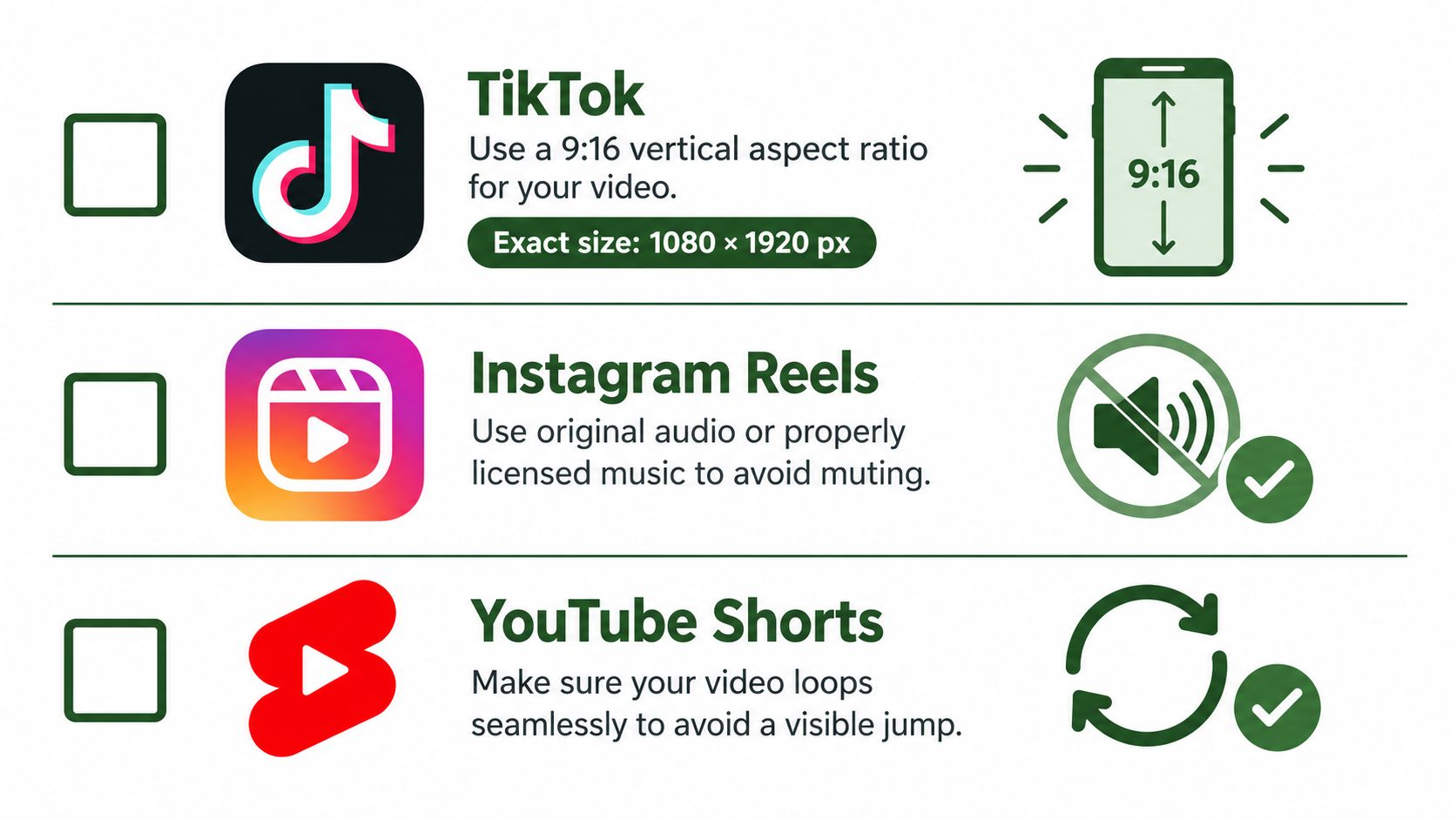
Start with the destination's current upload requirements, especially when preparing paid creative. For a practical checklist of formats and placements, consult these specs for launching TikTok ads. For a reusable vertical-video canvas, see the vertical video dimensions guide, then confirm the final export against the platform's own upload flow.
Compare the delivery choices
For broad playback compatibility, H.264 video with AAC audio is a common encoding target. If the source is already suitable, stream copying avoids a needless generation loss. If you need a new frame size, frame rate, or codec, re-encode and check the output on the target platform.
| Destination | Practical preparation | Audio and playback check |
|---|---|---|
| TikTok | Render to the intended vertical canvas and verify the final framing. | Check music rights and whether sound should remain on. |
| Instagram Reels | Export a compatible file and preview the crop in the app. | Confirm the audio is allowed for the account and use case. |
| YouTube Shorts | Keep the loop boundary visually clean and inspect the vertical framing. | Don't assume the player will begin automatically. |
| Other social feeds | Build a separate crop when the placement calls for square or landscape video. | Test the actual preview and playback behavior. |
A social upload isn't equivalent to embedding a web player. The platform controls how the clip appears and whether it repeats, so creating a file with repeated material may be necessary for some placements and unnecessary for others. If the asset will also appear on your own site, keep a single clean source and apply the browser's playback policy separately.
For browser pages, loop and autoplay are different controls. The loop attribute repeats after playback reaches the end, but autoplay follows separate browser policies; media with audio may be blocked unless it's muted or the user has interacted with the page (MDN video element guidance). Provide a play control or a muted fallback instead of assuming a looping file will start by itself.
Pitfalls That Break Production Loops
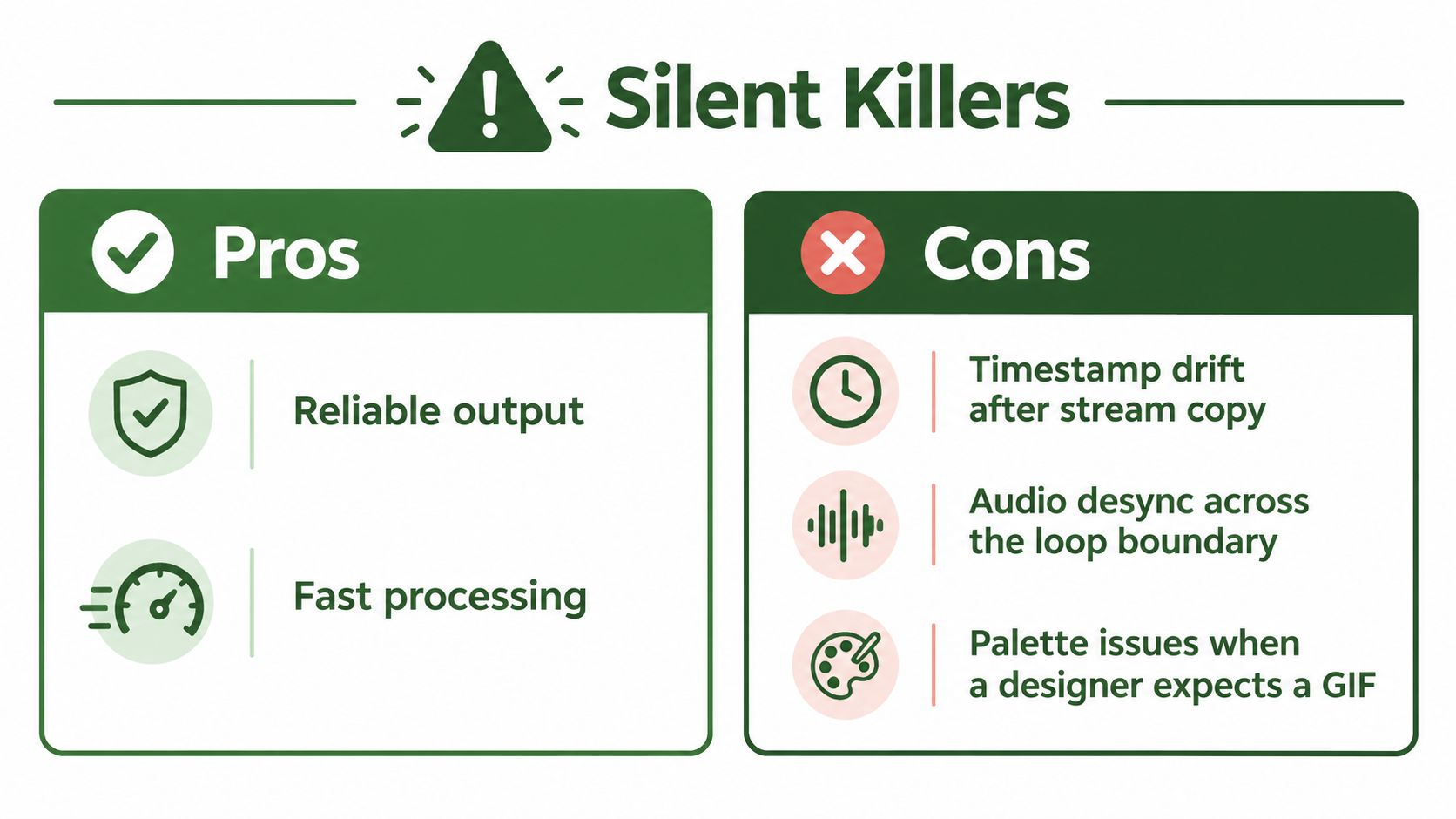
The command can complete successfully while the result still fails in playback. Stream copying preserves the source packets, including their timing behavior, so it's fast but doesn't repair a source that has awkward timestamps or an unsuitable loop boundary. If you see a pause, jump, or audio slip at the seam, inspect the output before blaming the player.
Use ffprobe to check duration, streams, codec parameters, and the final timestamps:
ffprobe -v error -show_streams -show_format output.mp4
For audio analysis, FFmpeg's astats filter can help identify level or continuity problems:
ffmpeg -i output.mp4 -af astats -f null -
Diagnose the failure before changing flags
- The worker never finishes. If the command uses
-stream_loop -1, add-tor another explicit stopping condition. - The file duration is unexpected. Probe the output and confirm the intended input duration, repeat count, and final timestamp. Re-run with a finite
-twhen the output must have a fixed limit. - The loop flashes or pauses. Stream copy may expose timestamp or keyframe behavior at the boundary. Re-encode with explicit codecs and synchronized timestamps, then test the join.
- Audio drifts or clicks at the join. Check whether audio and video end together. Re-encode and trim or crossfade the tracks deliberately rather than copying an unsuitable source.
- A designer expected a GIF. A video export won't automatically reproduce a GIF palette or its frame-by-frame color behavior. Export a GIF deliberately and inspect the palette and frame quality.
- The browser doesn't start playback. A loop setting doesn't force autoplay. Offer a user-initiated control or use muted playback where appropriate.
Production rule: Validate the rendered file, not just the exit code. A clean
ffprobereport confirms structure and duration, but playback is what reveals a visible or audible seam.
Patterns for Scaling Loop Pipelines
Once the command works for one clip, treat it as a repeatable job template. Each source should carry its own input reference, output requirements, and unique job identity. That lets a workflow process a batch without mixing outputs or creating duplicate work when an upstream automation retries.
A practical pipeline can loop a clip to a fixed duration, resize it for a vertical placement, and generate a poster image. The exact JSON schema depends on the API, but the conceptual request might look like this:
{
  "input": "https://storage.example.com/clip.mp4",
  "steps": [
    {
      "command": "ffmpeg -stream_loop -1 -i input.mp4 -t 30 -c:v libx264 -c:a aac looped.mp4"
    },
    {
      "command": "ffmpeg -i looped.mp4 -vf scale=1080:1920:force_original_aspect_ratio=increase,crop=1080:1920 vertical.mp4"
    },
    {
      "command": "ffmpeg -i vertical.mp4 -frames:v 1 poster.jpg"
    }
  ]
}
Treat this as a template, not a guaranteed endpoint schema. Confirm how your API expects multi-step commands, filenames, and returned outputs. If the source already has the right dimensions, skip the resize. If you need a smoother join, replace packet copying with an intentional filter-and-encode step.
Make batch jobs safe to retry
For batch processing, generate a stable idempotency key from the source asset and requested output settings. Keep the job status and output reference associated with that key. If the workflow retries after a timeout, it can check for the existing job instead of submitting the same work again.
Fan out only after defining what changes per variant. For example, account-specific watermarks can be separate steps after a shared normalized loop, while each output gets its own destination settings. Parallel processing makes sense when jobs are independent; shared sources and identical processing steps are easier to maintain when represented as a common template. Use a batch-processing workflow guide to structure those jobs and their failure handling.
Finally, account for output retention. Signed URLs that expire are useful for temporary handoff, but your workflow must copy or publish the output before access expires. Keep enough job metadata and error output to reproduce a failure, and avoid retaining generated files longer than the workflow needs.
RenderIO accepts FFmpeg commands through a REST API and provides signed output URLs, job tracking, and webhook-based completion options for video workflows. If you're turning a local loop command into a repeatable pipeline, visit RenderIO to review the API and build a workflow around your output requirements.