ffmpeg -i input.mp4 -vn -c:a libmp3lame -q:a 2 output.mp3 converts a normal single-audio MP4 into an MP3 using LAME variable-bitrate encoding. It's a useful default, but on a multi-audio upload, a successful encode can still contain the wrong soundtrack.
The important distinction is stream selection plus encoding. You need to identify the intended audio, exclude the picture, and create a new compressed audio file, not just change the extension.
Table of Contents
- The FFmpeg Command for MP4 to MP3
- VBR or CBR and What the File Weighs
- How to Extract the MP3 Step by Step
- When the MP3 Is Silent Missing or Huge
- Batch Folders and a Second Language Track
- Stay Local or Send the Command to an API
The FFmpeg Command for MP4 to MP3
Start with this command for a file whose only audio track is the one you want:
ffmpeg -i input.mp4 -vn -c:a libmp3lame -q:a 2 output.mp3
Read the tokens from left to right. -i input.mp4 names the source container. -vn excludes video from the output, while -c:a libmp3lame selects the LAME MP3 encoder. -q:a 2 selects quality-based variable-bitrate encoding, and output.mp3 is the destination path.
Renaming won't work: the ISO MP4 specification defines a container format, which can carry video, audio, subtitles, metadata, and timing information, whereas this conversion selects audio, decodes it, and encodes it into an MP3 audio file.
MP4 to MP3 commands by file type
| Situation | Flags after -i input.mp4 |
Re-encodes | Use when |
|---|---|---|---|
| Single audio track, quality first | -vn -c:a libmp3lame -q:a 2 |
Yes | Music or a podcast delivery copy |
| Pick the first audio stream | -map 0:a:0 -vn -c:a libmp3lame -q:a 2 |
Yes | Extra language or commentary track |
| Player wants a fixed bitrate | -vn -c:a libmp3lame -b:a 192k |
Yes | Apps that mishandle VBR |
| Voice notes, smaller file | -vn -c:a libmp3lame -b:a 128k -ac 1 |
Yes | Interviews and memos |
Make the audio choice explicit
For real uploads, inspect the file before choosing the mapping:
ffprobe -hide_banner input.mp4
Look at the audio entries, including their language tags, channel layouts, and labels. Don't assume the first listed soundtrack is the main program, and don't assume automatic selection understands which language your user wants.
FFmpeg's automatic audio selection favors the stream with the most channels. A surround commentary track can therefore beat the stereo program audio even though the command finishes without errors.
Practical rule: Treat a successful exit as evidence that encoding finished, not evidence that you selected the right soundtrack.
After inspection confirms that the first audio stream is correct, add -map 0:a:0. This means the first audio stream from the first input, not necessarily the container stream whose absolute index is zero.
Keep input and output paths different. An MP3 delivery copy shouldn't replace the source asset, and a descriptive filename makes it easier to distinguish program audio from commentary during review.
VBR or CBR and What the File Weighs
VBR spends bits where the waveform is busy. CBR spends the same rate on every second, which is what a picky player or a storage budget needs.
The FFmpeg codec documentation separates LAME's quality-based VBR controls from bitrate settings. -q:a 2 is the practical start for music or a podcast delivery copy. -b:a 192k and -b:a 128k are the fixed-rate alternatives. Pick one mode. Do not pass a quality scale and a bitrate flag in the same command and hope LAME honors both.
MP3 quality flags
| Goal | Flags |
|---|---|
| Highest VBR quality setting | -q:a 0 |
| Default music or podcast delivery | -q:a 2 |
| Smaller VBR | -q:a 4 |
| Low VBR | -q:a 6 |
| Stereo CBR | -b:a 192k |
| Speech stereo CBR | -b:a 128k |
| Mono voice | -b:a 64k -ac 1 |
LAME's -q:a scale runs from 0 (highest VBR quality, usually the largest file) toward higher numbers that allow fewer bits on simple passages. Those rows are quality choices, not a promised weight. A dense mix and a quiet voice track of the same length will not finish at the same size. Measure the MP3. CBR is the case where duration and -b:a give you a budget you can estimate before encode: 192k stereo is heavier than 128k stereo for the same runtime, and -b:a 64k -ac 1 is smaller still because -ac 1 folds the mix to one channel before that cap. That downmix is permanent in the output. Use it for voice notes, not for music.
Size also assumes you encoded the program track you inspected. A surround commentary that automatic selection preferred will not weigh like the stereo bed, and LAME will still lossy-encode whichever stream it was handed.
Preserve what the source still contains
Keep the source sample rate unless the destination spec requires another one. -ar is a resample, not an upgrade. Forcing 48 kHz material down to 44.1 kHz throws away timing the file already had.
AAC-to-MP3 is a second lossy generation. A higher MP3 bitrate can limit the extra damage. It cannot rebuild detail the AAC encoder already discarded. Keep the MP4, or an untouched audio asset, if you may edit again or deliver another format.
Do not use -c:a copy to place AAC inside an MP3. Stream copy works for MP3 output only when the selected audio is already MP3. If the source is an uncompressed recording, the WAV-to-MP3 conversion guide covers that start.
A smaller file is useful only if the destination accepts it and the audio remains fit for its purpose.
Test the actual upload form, player, or editor. Check duration and channel layout against the source, then listen for crushed consonants, watery music, or a mono fold you did not ask for.
For a video walkthrough of the conversion, use this demonstration alongside the command checks:
How to Extract the MP3 Step by Step
Use a repeatable inspection-and-validation path rather than changing flags until something plays. The FFmpeg manual documents explicit stream mapping and automatic stream selection, which matter when an upload includes alternate soundtracks.
Prepare the binary and source
Install FFmpeg if it's missing. On macOS with Homebrew, run
brew install ffmpeg. On Debian or Ubuntu, usesudo apt install ffmpeg; on Windows, usewinget install Gyan.FFmpeg. Reopen the terminal if the installed executable isn't yet available on your path.Check the encoder in the binary you'll run. Execute
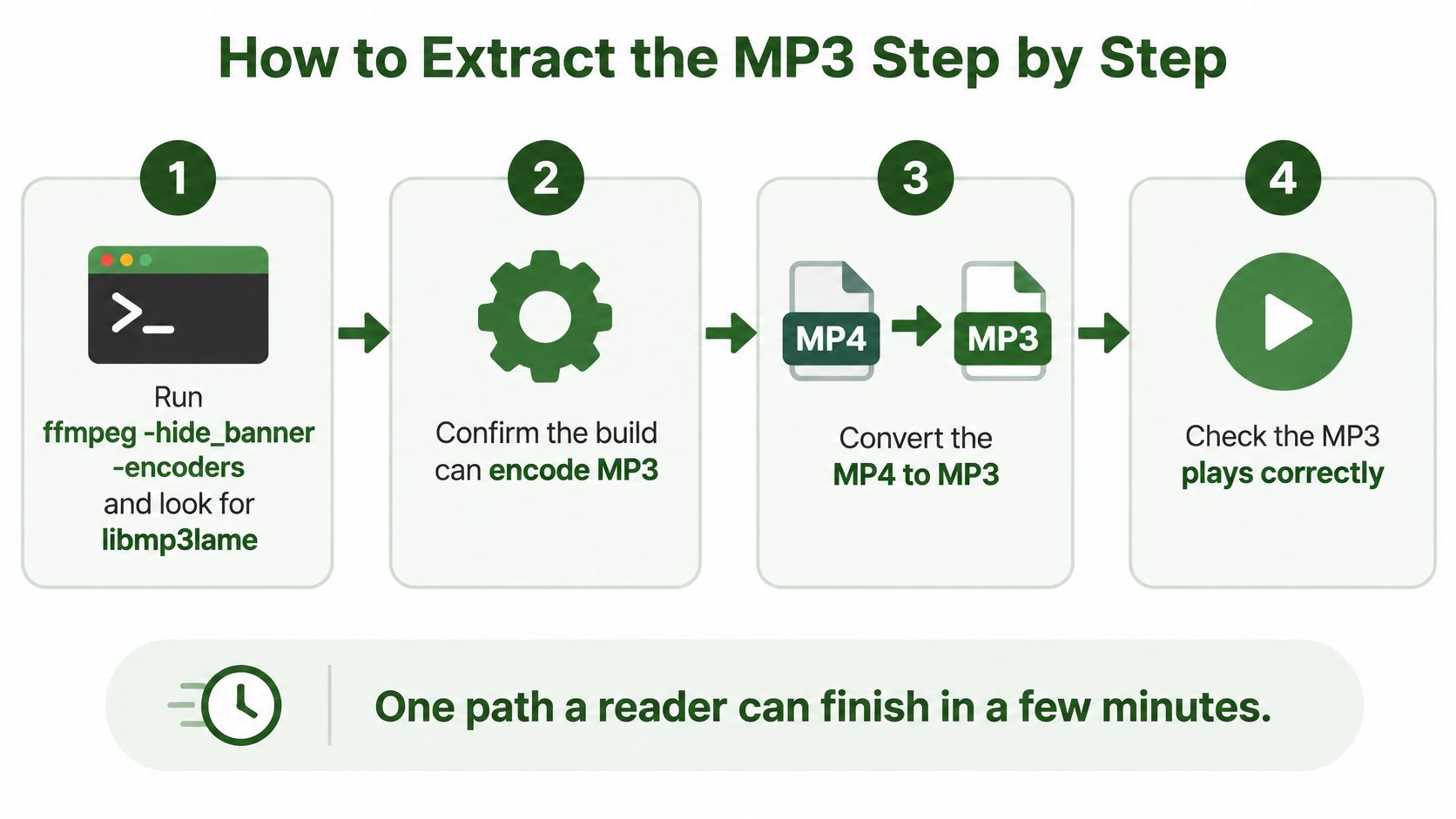
ffmpeg -hide_banner -encodersand look forlibmp3lame. A build intended for this workflow needs LAME support, configured through--enable-libmp3lame. If it's absent, replace the package or build rather than experimenting with quality flags.Resolve the input path. Open a terminal in the source folder or provide the full quoted path. For example,
ffprobe -hide_banner "C:\Media Files\input.mp4"confirms that the Windows path resolves and the file can be opened. macOS and Linux use the same media flags, with their own path syntax.
If your source is a Reel you own or have permission to repurpose, Unfollowers Track's browser tool for saving Reels can help obtain a local source file. Probe the downloaded asset before processing it, since a playable picture doesn't prove that the file includes usable audio.
The extraction sequence is easier to follow when inspection and playback remain separate checks:
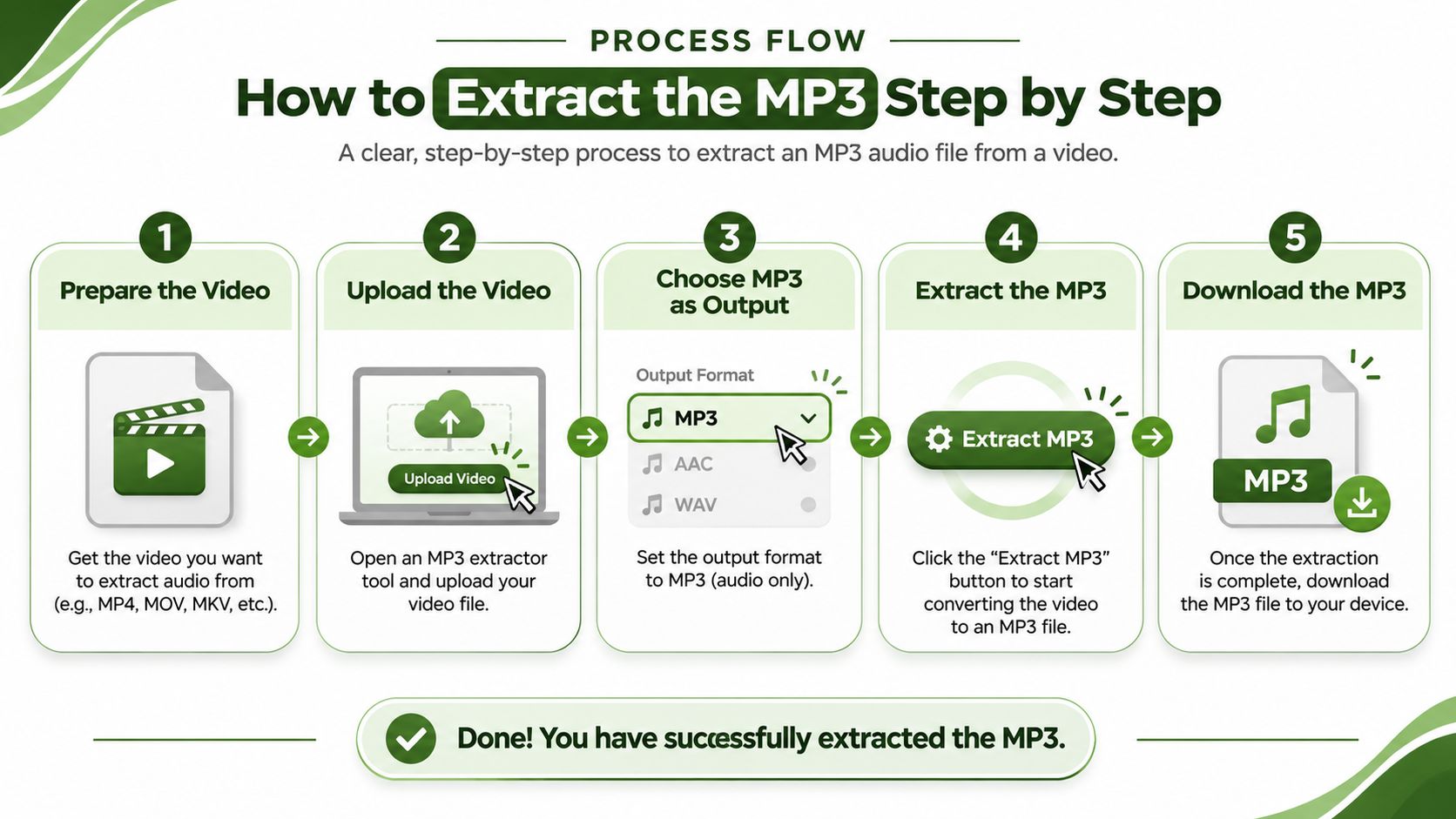
Inspect, encode, and verify
List audio streams only. Run
ffprobe -hide_banner -show_streams -select_streams a input.mp4. Recordindex,codec_name,sample_rate,channels, and any language or title tags. The printedindexis the absolute container stream index, while0:a:0means the first audio stream. If no audio entries appear, stop.Encode the confirmed program track. When inspection identifies the first audio stream as the intended source, run
ffmpeg -i input.mp4 -map 0:a:0 -vn -c:a libmp3lame -q:a 2 output.mp3. Don't substitute0:a:1unless another audio stream exists and is the one you want. The FFmpeg command-line tutorial provides additional context for option placement.Probe the output. Run
ffprobe -hide_banner -show_format -show_streams output.mp3. Confirmcodec_name=mp3, compare duration with the selected source audio, and verify the expected sample rate and channel count. Allow for codec delay and padding rather than requiring exact duration equality.Listen at separated points. Play the beginning, a point around the middle, and the ending. Check the language, speaker, continuity, and final spoken words, not just whether the player opens the file.
For automated jobs, preserve stderr, exit status, and probe results. Reject missing or unexpectedly short output instead of publishing it merely because a destination file exists.
When the MP3 Is Silent Missing or Huge
Unknown encoder libmp3lame is a binary problem. matches no streams is a stream-selection problem. Neither is fixed by increasing the bitrate.
Start with the terminal message, then check the actual output. A partial file left by a failed run can look like a completed download to the next stage of an application.
MP4 to MP3 failures and the fix
| What you see | Likely cause | Fix |
|---|---|---|
Unknown encoder libmp3lame |
Build without LAME support | Use a build that lists libmp3lame in -encoders |
matches no streams on 0:a:1 |
Requested audio ordinal doesn't exist | Map the audio ordinal confirmed by ffprobe |
| MP3 shows no duration or is only a tiny file | No audio stream or truncated input | Probe streams and obtain a complete MP4 |
| Audio much shorter than the video | Leftover -t or -ss, or a short alternate track |
Remove unintended trim flags and map program audio |
| Output enormous | Wrong output container, unexpected duration, or unintended video output | Inspect the output, then rerun with -vn and an .mp3 name |
Permission denied |
Locked file or unwritable output location | Write to a writable folder with a new name |
moov atom not found |
Incomplete or malformed MP4 | Replace the source before encoding |
Separate bad audio from a bad file
A valid MP3 containing silence is different from a failed MP3. Play the selected source track: it may contain silence, an unused microphone channel, or a commentary feed that starts later than the main program.
For a truncated result, inspect the full command for -t, -to, and -ss. Then compare the selected audio track's duration with the video duration. A short alternate soundtrack can encode perfectly and still be unsuitable for the requested output.
An unexpectedly large file needs probing, not assumptions. Omitting -vn doesn't make an MP3 container capable of storing ordinary video; a video-output mistake generally also involves targeting a video-capable filename or format. Confirm what FFmpeg wrote before diagnosing it from the extension.
Keep failed outputs away from your publishing path. A new filename makes it harder to mistake yesterday's partial encode for today's successful result.
For moov atom not found or invalid-data errors, obtain a complete source before retrying. Don't conceal corruption with ignore-error flags and publish whatever survives.
Capture stderr in automation and attach it to the job record. A webhook that reports only failure leaves the operator guessing whether to replace the source, change the mapping, or repair the runtime.
Batch Folders and a Second Language Track
Batch conversion should wrap a proven command, not introduce a different encoding policy. On macOS or Linux, this shell loop processes matching files in the current directory:
for f in *.mp4; do ffmpeg -nostdin -n -i "$f" -map 0:a:0 -vn -c:a libmp3lame -q:a 2 "${f%.mp4}.mp3"; done
On Windows Command Prompt:
for %f in (*.mp4) do ffmpeg -nostdin -n -i "%f" -map 0:a:0 -vn -c:a libmp3lame -q:a 2 "%~nf.mp3"
Choose a rerun policy
- Protect existing output. These examples use
-n, so an existing destination won't be overwritten. Review failures rather than assuming every input produced a fresh file. - Replace deliberately. Substitute
-ywhen your workflow intentionally regenerates the same destination. Stable filenames help avoid duplicate copies, but production idempotency also requires tracking the input and encoding settings. - Quote every path. The quotes preserve filenames containing spaces. In a Windows batch file, replace interactive
%fwith%%f.
Inspect each upload before applying a uniform mapping policy. A folder can contain files with different language ordering, even when their filenames look consistent.
Export another language intentionally
If probing confirms that the second audio stream is Spanish, create a separately labeled output:
ffmpeg -i input.mp4 -map 0:a:1 -vn -c:a libmp3lame -q:a 2 output.es.mp3
The audio ordinal isn't the same as the absolute stream index printed by ffprobe. Verify the language, and skip this export when that audio stream is absent.
Use -ac and -ar only for a destination's channel and sample-rate requirements. Metadata such as -metadata title="Spanish program audio" labels the output; it doesn't select the soundtrack.
If the next task is to put a finished track back into visuals, AIMVG's guide to add audio to AI music videos addresses that separate assembly step. Preserve the original media so future edits aren't forced to start from the MP3 delivery copy.
Stay Local or Send the Command to an API
Stay local when you're converting occasional files and already have a working binary. A terminal command is easy to inspect, and local processing avoids transferring source media elsewhere.
Move processing to a server or hosted API when uploads arrive through an application and you need repeatable execution, job tracking, and accessible errors. Keep the tested mapping and encoding flags; changing where the command runs shouldn't change which soundtrack it exports.
Keep the validation contract
- Use placeholders. Map input and output file keys instead of hard-coding a developer's filesystem paths.
- Record the command. Retain the exact options alongside the input identity and job status.
- Validate before publishing. Compare returned duration, codec, and file size with your expectations, and inspect stderr on failure.
Our RenderIO FFmpeg-as-a-Service REST API runs submitted commands in a secure cloud sandbox, stores the outputs, and returns metadata including duration, codec, resolution, and file size. We support MP3 through libmp3lame and return complete FFmpeg stderr when a command fails.
The FFmpeg REST API tutorial shows how to move a command into an HTTP workflow. Treat an empty or failed result as a job to diagnose, not a downloadable success.
RenderIO lets you run your verified MP4-to-MP3 command over HTTP without maintaining the FFmpeg execution environment yourself. Visit RenderIO to connect your mapped LAME encode to an upload workflow, then validate the returned audio metadata before publishing.