You've got a folder of phone clips, screen recordings, or MKV files that won't play where you need them to, and renaming .mkv to .mp4 did nothing. That's because the extension is not the video. It's the wrapper around it.
When you convert video with FFmpeg, the command is the easy part. The failures come from choosing a codec the target container rejects, letting FFmpeg guess which audio track you wanted, or re-encoding a file that only needed a new wrapper. Check first, then convert.
Table of Contents
- Match the Container and Codec Before You Convert
- How to Convert a Video Step by Step
- Resizing, Bitrate and Quality Control
- Extract Audio and Grab Thumbnails
- Common Errors and How to Fix Them
- Batch Convert Folders and Speed Up with Hardware
- Choose Local FFmpeg or RenderIO for Volume Work
Match the Container and Codec Before You Convert
A file can have the right extension and still fail at playback. Check whether its codecs work in the destination container before choosing a conversion command. If they do, remux with -c copy: FFmpeg changes the container without re-encoding the audio or video, so the streams retain their original quality.
If the codecs do not fit, re-encode to compatible ones. Changing the extension cannot fix an incompatible pairing, and forcing a mismatch can produce a file that fails in the target player.
What each container actually accepts
Container and codec pairs that work
| Target container | Video codecs accepted | Audio codecs accepted | Typical use |
|---|---|---|---|
| MP4 | H.264, HEVC, AV1 | AAC, MP3, AC-3 | Default for phones, browsers and social uploads |
| WebM | VP8, VP9, AV1 | Opus, Vorbis | Web delivery; rejects H.264 |
| MKV | Almost any codec | Almost any codec | Archives with subtitles and several audio tracks |
| MOV | H.264, HEVC, ProRes | AAC, PCM | Apple editing and playback |
| AVI | MPEG-4, MJPEG, H.264 | MP3, PCM | Legacy Windows tools; large files |
The common mismatch is H.264 inside WebM. WebM accepts VP8, VP9, or AV1 video, so FFmpeg cannot write H.264 into that container. Choose the container and codec as a compatible pair, not as separate settings.
For a broadly compatible default, use H.264 video with AAC audio in MP4. Actual playback depends on the target device or application, so check its supported formats before converting. This overview of video codec support across playback targets can help compare options.
Check the source before you choose
Inspect the streams before deciding whether conversion is needed. Run ffprobe -v error -show_streams -show_format input.mkv, then check the codec_name for each stream. An MKV with H.264 video and AAC audio can be remuxed to MP4 with -c copy. An MKV with VP9 video needs a video codec that MP4 and the intended player support.
Check three things:
- Where the file will play: Browsers, phones, editing software, and archives can support different combinations.
- Which codecs the source uses: The probe output lists video and audio streams, including tracks you may not want in the output.
- Whether the file needs progressive playback: For an MP4 delivered over the web, apply faststart handling when you create the output.
Decision rule: Remux when the source codecs are compatible with the destination container. Re-encode when they are not, or when you need to change size, frame rate, or quality.
How to Convert a Video Step by Step
Work in four passes and don't skip the first. Most broken outputs I've fixed were not encoding failures. They were files nobody inspected before or after the command ran.
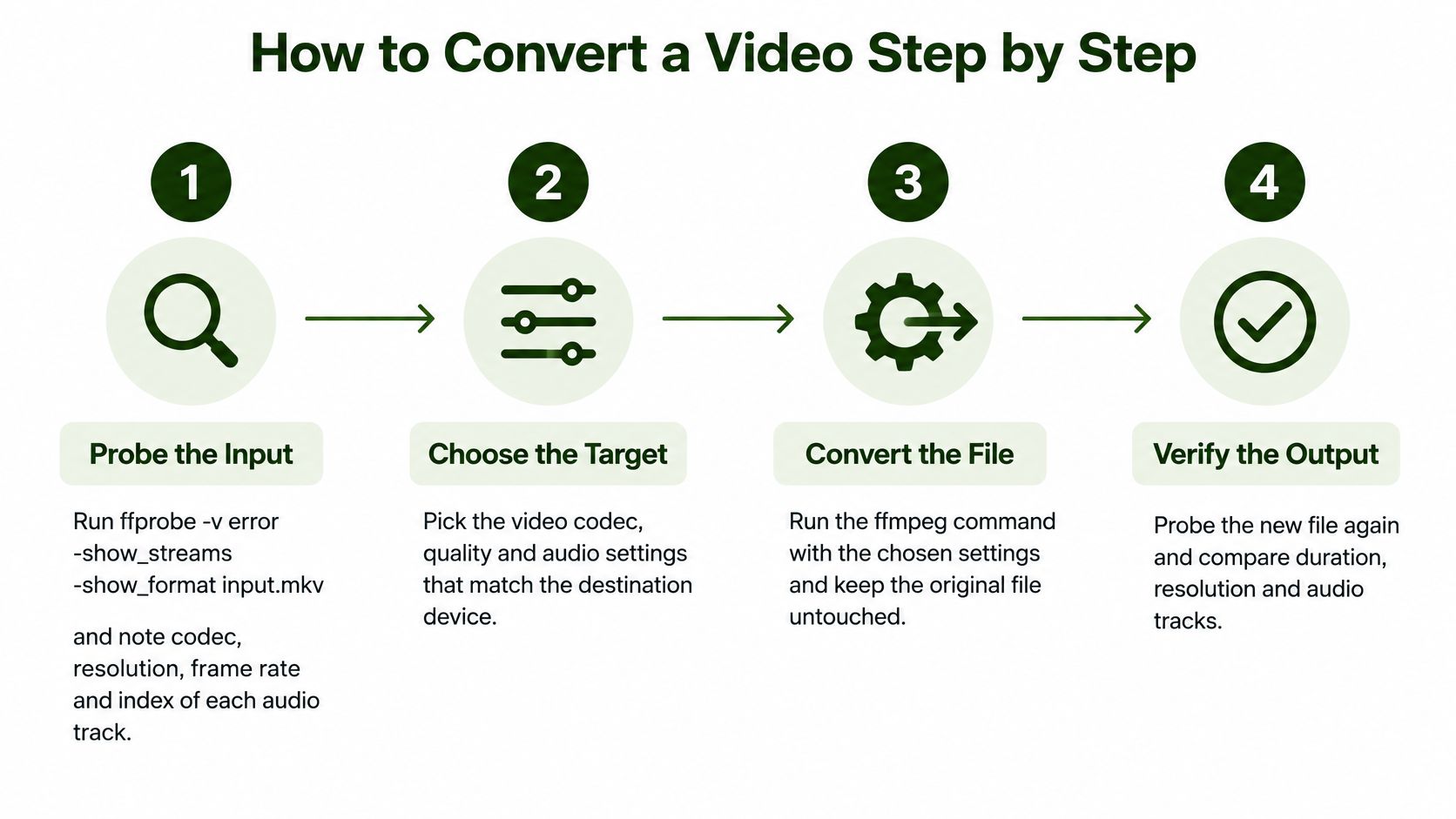
Step 1. Probe the input
Run ffprobe -v error -show_streams -show_format input.mkv. Note the codec, resolution, frame rate, and the index of each audio track. Files from recorders and editors often carry commentary tracks, silent tracks, or subtitles in positions you wouldn't guess.
This output also tells you whether you're remuxing or re-encoding. If the codecs fit your target container and you don't need to resize, stop here and use -c copy.
Step 2. Map the streams explicitly
Use -map 0:v:0 -map 0:a:0? so FFmpeg doesn't guess. Automatic stream selection picks based on its own rules, and those rules don't know which language or commentary track you wanted.
The ? makes the audio map optional. Without it, a silent clip fails the whole job. With it, the command succeeds whether audio exists or not.
Step 3. Convert in one command
Run this as a starting point for a web-ready MP4:
ffmpeg -i input.mkv -map 0:v:0 -map 0:a:0? -vf 'scale=1280:-2:force_original_aspect_ratio=decrease,fps=30,format=yuv420p' -c:v libx264 -preset medium -crf 20 -c:a aac -b:a 128k -movflags +faststart output.mp4
Each part earns its place:
scale=1280:-2: Resizes to 1280 wide while keeping the height even, which 4:2:0 encoders require.fps=30: Normalizes variable frame rate footage, which is common in phone recordings.format=yuv420p: Sets a pixel format that phones and browsers reliably decode.-c:v libx264 -preset medium -crf 20: Encodes H.264 at a balanced speed and quality setting, following the approach in FFmpeg's H.264 encoding guidance.-c:a aac -b:a 128k: Produces widely compatible AAC audio instead of copying a codec MP4 players may reject.-movflags +faststart: Moves metadata to the front so playback can begin before the download finishes.
Doing the scale, frame rate conversion, and pixel format change in one filtergraph matters. It avoids intermediate files and repeated quality loss from encoding the same footage twice.
Step 4. Verify the output
Run ffprobe on output.mp4 and check duration, dimensions, stream count, and pixel format. Then run ffmpeg -v error -i output.mp4 -f null - to decode the entire file. Treat any stderr output from that decode test as a failure, even if the file opens.
A zero exit code doesn't mean a good file. It means FFmpeg finished.
The slip that causes most silent files is a missing audio map. FFmpeg exits successfully, the video looks fine in a thumbnail, and nobody notices until someone plays it with sound on. The probe in Step 4 catches it in seconds, which is why verification isn't optional when you convert video with FFmpeg in any repeatable workflow.
Resizing, Bitrate and Quality Control
Pick one control mode and stick with it. Mixing a quality target with a fixed bitrate without understanding which one wins is how files end up twice the expected size.
Quality, bitrate and resize settings by goal
| Goal | Setting | Starting value | Trade-off |
|---|---|---|---|
| Constant quality (H.264) | -crf 18 to 23 |
23 default, 18 near visually lossless | Size varies by content; lower CRF means larger files |
| Constant quality (VP9 WebM) | -crf 30 -b:v 0 |
30 | Same quality-first mode for WebM output |
| Target average bitrate | -b:v 2500k |
2500k | Predictable size; quality shifts with motion |
| Capped peaks for streaming | -maxrate 4M -bufsize 8M |
4M cap | Keeps spikes in check on slow links |
| Resize keeping aspect ratio | -vf scale=1280:-2 |
1280 wide for 720p | The -2 keeps height even for 4:2:0 encoding |
| Two-pass file size budget | -b:v from size math, then -pass 1 and -pass 2 |
Calculated per file | Closest hit to a size limit |
CRF when quality matters
For H.264, 0 is lossless and 51 is the lowest quality on the 8-bit scale, with 23 as the documented default. Lower values improve quality and increase bitrate. In practice, 18 to 23 covers most delivery work, with 18 close to visually lossless for typical footage.
VP9 in WebM uses the same idea differently. Pair -crf with -b:v 0 for constant quality mode. Without that zero bitrate flag, you aren't getting the pure quality mode you asked for.
Bitrate when size is capped
A fixed -b:v 2500k gives you a predictable file size, but quality shifts with motion. A static talking head looks clean and a sports clip falls apart at the same setting. Add -maxrate and -bufsize when a streaming platform punishes bitrate spikes.
For a hard budget, do the math first. Use total kbps = MB x 8192 / seconds. A 10 MB file over 60 seconds allows about 1,365 kbps including audio, so subtract your audio bitrate before setting -b:v, then run two passes to hit the target closely.
Resize without cutting the subject
scale=1280:-2 keeps the aspect ratio and produces an even height. For 9:16 uploads to TikTok, Reels, or Shorts, scale and pad instead of cropping:
ffmpeg -i input.mp4 -vf 'scale=1080:1920:force_original_aspect_ratio=decrease,pad=1080:1920:(ow-iw)/2:(oh-ih)/2' -c:v libx264 -crf 23 -c:a copy vertical.mp4
The scale step fits the whole frame inside 1080x1920, and the pad step adds bars so no part of the subject is cut. Choose CRF when quality matters, and choose a bitrate only when a platform or budget caps the size.
Extract Audio and Grab Thumbnails
Take a podcaster repurposing a 45-minute video interview. She needs a transcript, a shareable audio file, and a cover image. All three come from the same source without opening an editor.
Three audio extractions for three jobs
- Stream copy when the audio already fits: Run
ffmpeg -i input.mp4 -vn -c:a copy audio.m4awhen the source audio is AAC. The output keeps the original bytes, so there's no quality loss and it finishes almost instantly. - Re-encode to MP3 when a tool requires it: Run
ffmpeg -i input.mp4 -vn -c:a libmp3lame -q:a 2 audio.mp3. The-q:a 2setting is a high-quality variable bitrate near 190 kbps, which suits speech and music without bloated files. - Prepare speech for transcription: Run
ffmpeg -i input.mp4 -vn -ac 1 -ar 16000 speech.wav. That gives you mono 16 kHz audio, the format most speech-to-text engines expect, and it feeds the transcript step directly.
The pattern is the same one used to separate sound from picture in this guide to extracting audio from video with FFmpeg. Copy first, re-encode only when the destination demands a different codec or layout. The -vn flag drops video entirely, so FFmpeg doesn't waste time decoding frames you'll throw away.
Thumbnails and contact sheets
For a single frame, run ffmpeg -ss 00:00:05 -i input.mp4 -frames:v 1 -q:v 2 thumb.jpg. Placing -ss before -i seeks fast by jumping to a nearby keyframe. Placing it after -i is slower but frame-accurate, which matters when you need one exact moment.
For picking a cover image, build a contact sheet instead. Run ffmpeg -i input.mp4 -vf 'fps=1/10,scale=320:-1,tile=4x3' sheet.jpg to get one image of 12 frames taken every 10 seconds. Scanning twelve candidates at once beats exporting twelve separate files and opening each one.
Common Errors and How to Fix Them
Silent output is the failure I see most, because nothing looks wrong until someone unmutes. FFmpeg's automatic stream selection picked no audio track or the wrong one, the job exited cleanly, and the bad file shipped. Most failures like this come from three causes: a codec that doesn't fit the container, streams FFmpeg didn't select, or timestamps that don't line up.
Symptoms, causes and fixes for failed conversions
| Symptom | Likely cause | Fix |
|---|---|---|
| No audio in output | Automatic selection picked no track or the wrong one | Add -map 0:a:0? and confirm with ffprobe |
| Error width not divisible by 2 | Odd dimensions rejected by 4:2:0 encoders | Scale to an even size such as scale=-2:720 |
| Plays in VLC but not in browser or iPhone | Unsupported profile, pixel format or missing faststart | Re-encode with libx264, -pix_fmt yuv420p and -movflags +faststart |
| Muxer error about codec not supported | Codec incompatible with the container, such as H.264 in WebM | Pick a container-compatible codec from the container table in the first section |
| Audio drifts out of sync | Variable frame rate from phone footage | Add -fps_mode cfr or fps=30 to the filter chain |
| Output shorter than input | Broken timestamps or an interrupted job | Re-run with -fflags +genpts on the input and check duration with ffprobe |
| File far larger than source | CRF too low, or copy mode on incompatible streams | Raise CRF by 2 to 4, or remux instead |
Why these keep happening
A superficially valid command can still fail, or produce a file that plays on one platform but not another. As one guide to FFmpeg format conversion and container compatibility puts the underlying problem, treating conversion as a container-renaming exercise misses that containers and codecs are separate decisions. The compatibility check at the start of this guide exists to catch that before you encode.
Run the ffprobe check first on any failing file, because most rows in the table are confirmed by a stream listing. Pixel format, stream count, duration, and codec names narrow the cause faster than re-running the encode with different flags.
Keep the full stderr for each failed file. It's your primary diagnostic artifact, and the useful line is rarely the last one. In automated work, route jobs by probe result rather than sending one generic command to every file.
One command for every input isn't a pipeline. It's a queue of failures you haven't met yet.
Batch Convert Folders and Speed Up with Hardware
A social team converting 300 phone clips overnight doesn't need 300 manual commands. It needs a loop that survives one bad file and resumes without redoing finished work. The following diagram shows a MOV to MP4 conversion moved onto a GPU path.
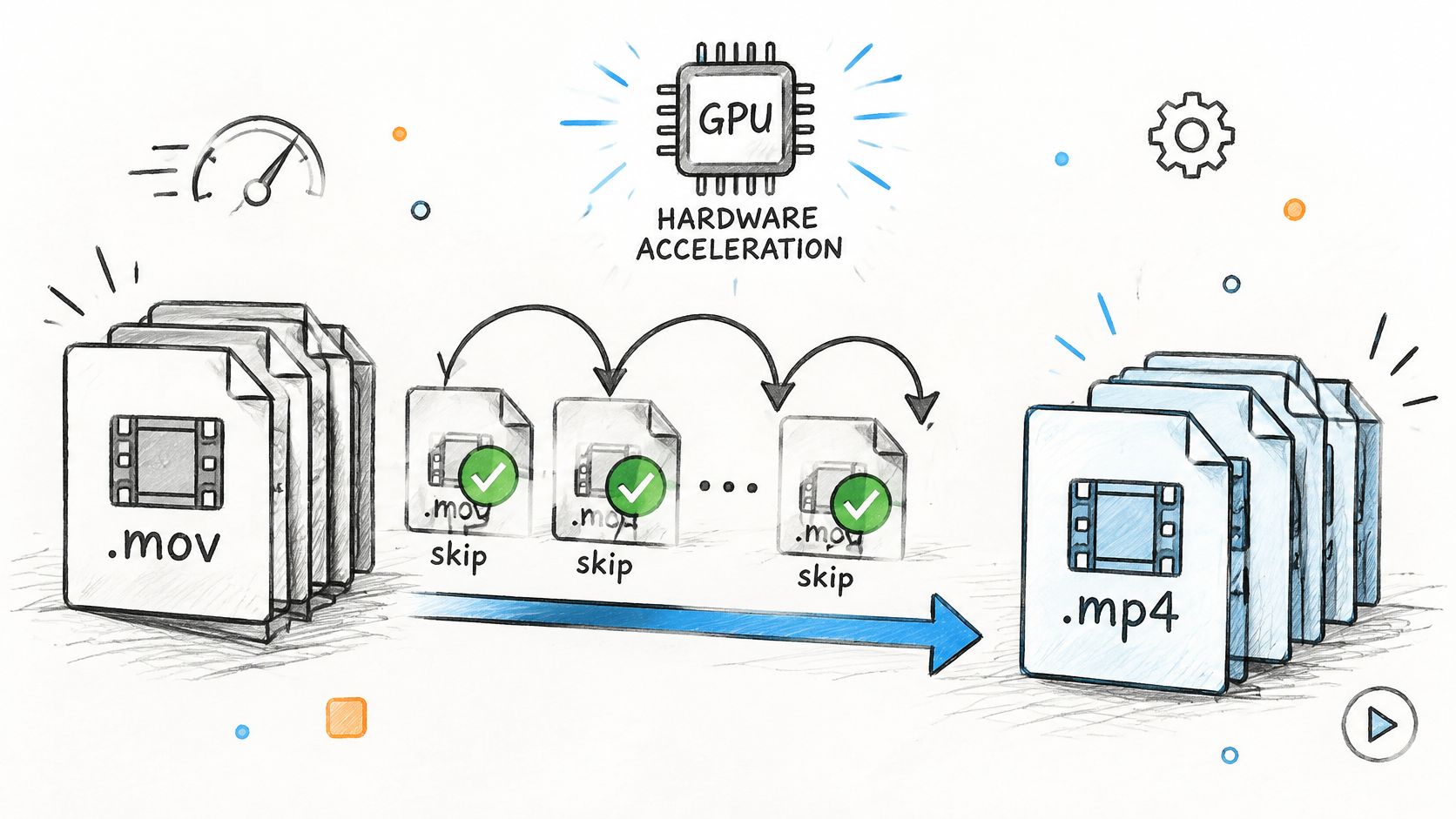
A loop that skips finished files
Start here:
for f in *.mov; do ffmpeg -n -i "$f" -c:v libx264 -crf 22 -c:a aac "${f%.mov}.mp4"; done
The -n flag stops FFmpeg from overwriting outputs, so a restarted batch picks up where it stopped. Quoting "$f" handles filenames with spaces, which phone exports have constantly.
Better still, make the loop probe-first. Run ffprobe on each file, remux with -c copy when its codecs already fit MP4, and re-encode only the files that don't. The batch never re-encodes footage that needs no change.
Run in parallel, log separately
Use xargs -P 4 or GNU parallel to process several files at once. Set the job count to your physical cores, because each encode already takes several threads and memory. Oversubscribing makes every job slower.
Save stderr for each file in its own log. One corrupt input shouldn't bury the diagnostics for the other 299 clips. The walkthrough below shows the batch pattern in action.
Benchmark hardware before trusting it
List what your build supports with ffmpeg -hwaccels, then confirm the encoder with ffmpeg -h encoder=h264_nvenc on NVIDIA machines, since availability depends on the compiled build and hardware stack described in the FFmpeg command documentation. Benchmark a representative set of 20 clips, including motion-heavy and low-light footage, against libx264 at equivalent perceptual quality. Record wall-clock time, output size, and visual quality, because hardware encoders often give different quality at the same bitrate.
Hardware decode, scaling, filtering, and encode can run in different memory domains, and a software filter between them can erase the speedup. Benchmark the whole pipeline, not the encoder name alone. Build the fallback in from the start: if the hardware encode fails, rerun that file with libx264 so the overnight batch still finishes.
Choose Local FFmpeg or RenderIO for Volume Work
Decide by volume, frequency, and who maintains the machines. A one-off conversion fits a local script. A recurring job with a growing failure log is a different problem, and it's the comparison explored in this breakdown of hosted FFmpeg versus self-hosted setups.
Local FFmpeg script versus RenderIO API
| Criterion | Local FFmpeg script | RenderIO API |
|---|---|---|
| Setup | Install FFmpeg 7.x and maintain the machine | Send the same command over REST |
| Scaling | Limited by your hardware and queue | Parallel commands on a global edge network |
| Failure handling | Write your own retries and logging | Automatic retries and a dead letter queue |
| Debugging | Read local stderr | Full FFmpeg stderr returned with the job |
| Storage and delivery | Your disks and bandwidth bills | Signed URLs with automatic expiry and zero egress fees |
| Best fit | One-off or small batches | Recurring, high-volume or no-code workflows |
The screenshot below shows an FFmpeg command submitted through the API rather than a local terminal.
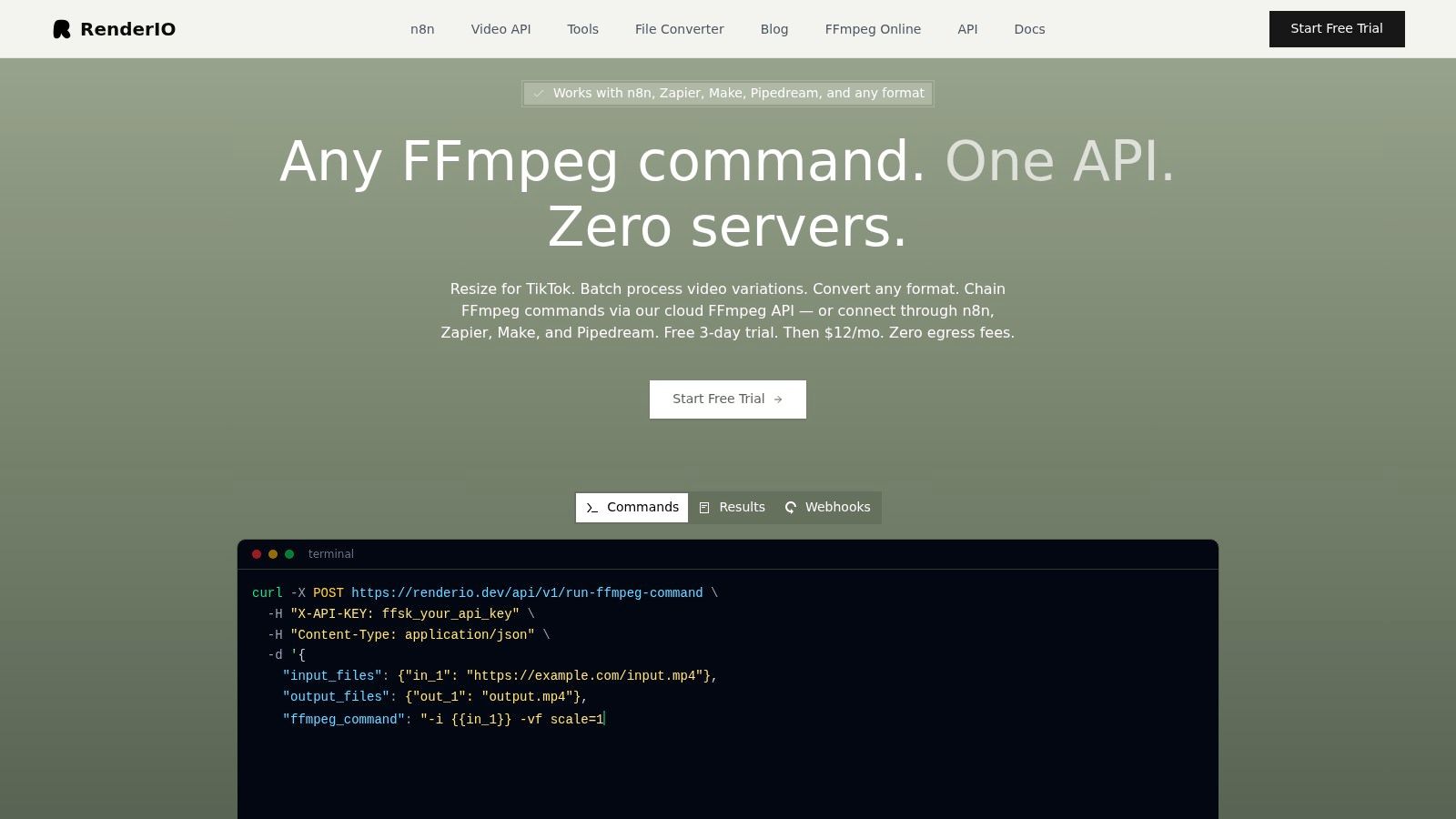
RenderIO is a cloud FFmpeg API that accepts any FFmpeg 7.x command through a REST endpoint and returns processed outputs. The parts that matter in practice are full FFmpeg stderr when a job fails, progress by polling or webhook, automatic retries with a dead letter queue, signed URLs that expire automatically, idempotent requests that prevent duplicate work, and zero egress fees. No-code routes run through n8n, Zapier, Make, and Pipedream, and a free trial lets you test before committing.
The rule is simple. If the batch outgrows your machines or the failure log keeps growing, the same command moves to the API unchanged. As a next action, run the step-by-step conversion on five of your real files, including the probe and verification steps, and compare the stderr and timings against that rule.
When your folder of clips outgrows your laptop, RenderIO runs the exact FFmpeg 7.x commands from this guide through a REST API, with full stderr on failures, automatic retries, and signed output URLs. Send the probe-first command you just tested on five files, check the returned timings and logs, and scale the batch without maintaining encoding machines yourself.