Matroska, the container behind every .mkv file, was formally standardized as RFC 9559 in October 2024, according to Wikipedia's Matroska entry, which dates the format's first release to December 6, 2002. A wrapper that permissive can carry almost anything: H.264 or AV1 video, four audio tracks, image-based subtitles, embedded fonts, chapter markers. That's exactly why converting MKV to MOV isn't one operation with one command. It's a compatibility decision about which streams your destination will accept, and that decision changes the flags you type, the minutes you wait, and whether the picture comes out untouched or re-compressed.
Table of Contents
- Pick Remux or Transcode Before You Type Anything
- Check Your Streams Before Converting
- Set the Output Values and Run the Command
- Fixing MOV Files That Still Fail to Play
- Decide Between Local FFmpeg and a Batch Run
Pick Remux or Transcode Before You Type Anything
Renaming input.mkv to input.mov changes the label on the box and nothing inside it. Real conversion happens one of two ways: remuxing copies the existing compressed streams into a MOV wrapper, while transcoding decodes them and encodes new streams.
The fast path looks like this:
ffmpeg -i input.mkv -map 0 -c copy output.mov
That finishes in seconds and leaves quality untouched, but only when every stream in the file is something the MOV muxer and your target player will accept. MOV is stricter company than Matroska. It descends from Apple's QuickTime File Format, whose proprietary release dates to December 2, 1991, with the complete specification published on March 1, 2001, as documented in Wikipedia's QuickTime File Format article. A track-based container of that age expects a predictable set of track types, not arbitrary attachments.
Match your file to a method
| Source streams | Method | Re-encodes? | Speed |
|---|---|---|---|
| H.264 video and AAC audio, no subtitles or attachments | Remux with -c copy |
No | Near-instant |
| HEVC, VP9 or AV1 video that the QuickTime target accepts, with AAC or AC-3 audio | Remux with -c copy, then test playback |
No | Near-instant |
| H.264 video in 10-bit or non-yuv420p pixel format | Transcode video to H.264 with yuv420p | Video | Minutes to hours |
| FLAC, Opus, DTS or multichannel audio with compatible video | Transcode audio to AAC and copy video | Audio only | Fast to moderate |
| PGS subtitles, attachments or commentary tracks | Map only the needed streams and drop or burn in subtitles | Video only if burned in | Near-instant when dropped, minutes to hours when burned in |
| Mixed or unknown codecs | Transcode both to H.264 and AAC | Video and audio | Slowest |
The first two rows are pure repackaging, so there's no reason to pay for an encode. Row three is the trap: the codec name looks safe, but a 10-bit or 4:2:2 pixel format is what breaks playback, and only a video encode fixes it. Row four is cheap because audio encoding costs a fraction of video encoding, so keep -c:v copy and rewrite only the sound. Row five is a mapping problem rather than a codec problem, and it only gets slow if you burn subtitles into the picture. Row six is the honest fallback when you can't identify what's inside.
Practical rule: if the video codec, pixel format and audio codec are all accepted by the destination, copy them. Change only the stream that fails.
Run a probe on the file next, then pick the row that matches what it reports.
Check Your Streams Before Converting
Two .mkv files can have nothing in common besides the extension. One is a screen recording with H.264 video and AAC stereo. The other is a downloaded film with HEVC video, FLAC 5.1 audio, two PGS subtitle tracks and a folder of attached fonts. The first remuxes in a blink. The second needs an encode and a subtitle policy.
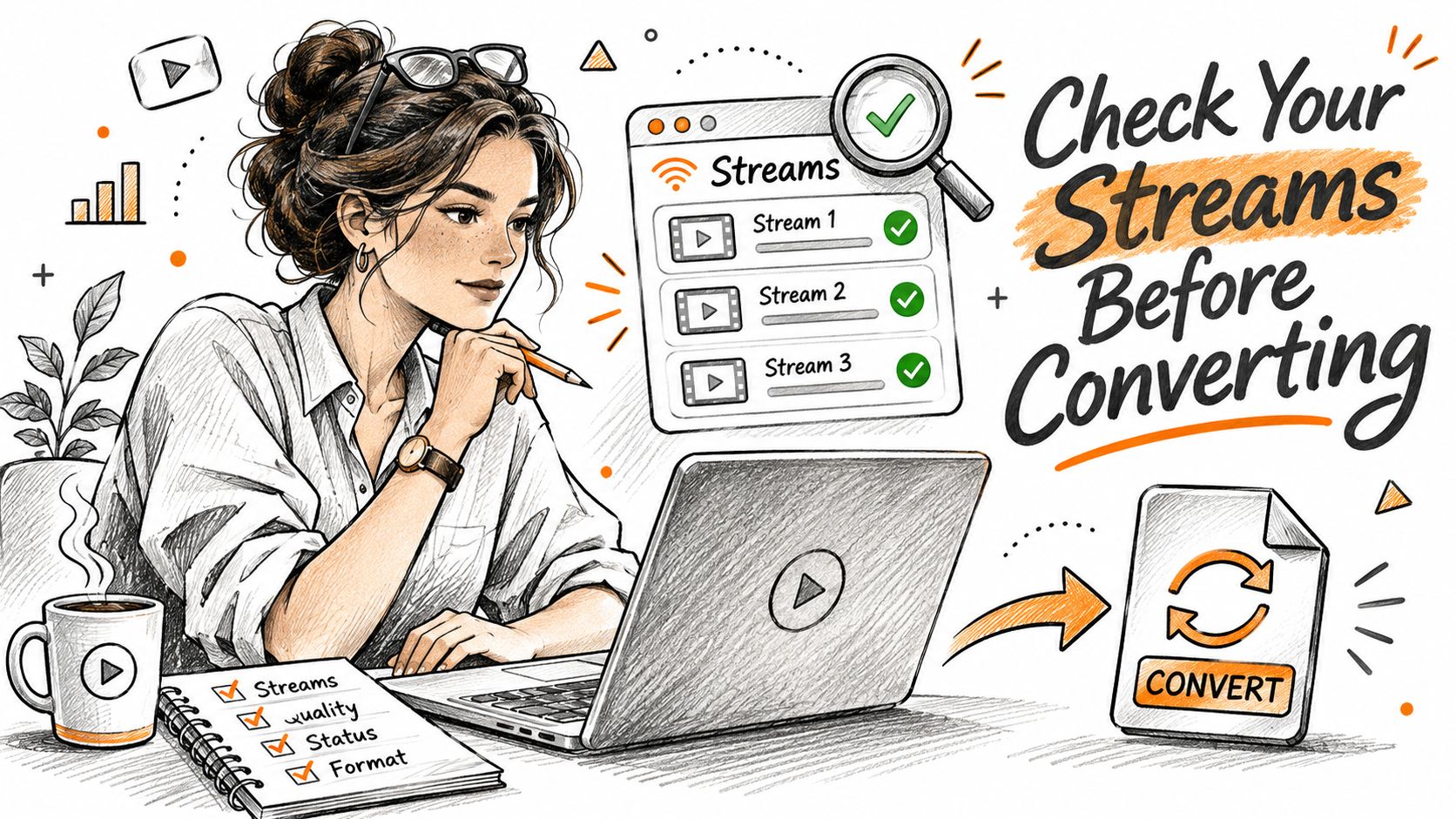
Confirm the toolchain first with ffmpeg -version, which also tells you the build number you'll need later for frame rate flags. Then read the file:
ffprobe -v error -show_streams -show_format input.mkv
The fields that decide the command
codec_nameon every stream: this is the actual codec, and it's what determines whether copying is legal at all.h264plusaacis a green light,vp9oropusis not.pix_fmt:yuv420pis the safe target, whileyuv420p10leoryuv422pmeans a video encode even when the codec name looks friendly.codec_type: count how manyaudio,subtitleandattachmententries exist, because those extra entries are what a blind-map 0drags along.channelsandsample_rate: six channels at 48 kHz is fine for editing but worth downmixing to stereo for a compatibility-first deliverable.r_frame_rateagainstavg_frame_rate: a mismatch signals variable frame rate, which is the usual source of drift in an editor. If you want the full field-by-field breakdown, the ffprobe tutorial on RenderIO's blog walks through reading stream and format output in detail.
FFmpeg treats Matroska and MOV as separate muxers, and its stream-copy path passes encoded packets straight to the output muxer without decoding them, which is why copying is fast and lossless but also why it can't repair an unsupported stream, as the FFmpeg formats documentation makes clear. Matroska can hold subtitle, attachment and codec combinations the MOV muxer can't represent.
Write down five things before you choose
Video codec. Pixel format. Audio codec and channel layout. Subtitle types and attachment count. Frame rate mode, constant or variable. Those five answers select the row from the decision table, and they also become your acceptance criteria when you check the finished file.
A probe costs a second. A wrong batch of two hundred files costs an afternoon.
Set the Output Values and Run the Command
For the widest playback across desktops, browsers, phones and editors, the conservative target is H.264 video at yuv420p with AAC-LC audio. Apple's QuickTime movie file documentation describes MOV as a container for multiple media types, but playback depends on the codecs and stream layout the receiving application supports, so treat HEVC, VP9, AV1, PGS subtitles, fonts and MKV attachments as conditional rather than copying them on faith.
Here are the values to settle before you type.
| Setting | Recommended value | Why it matters |
|---|---|---|
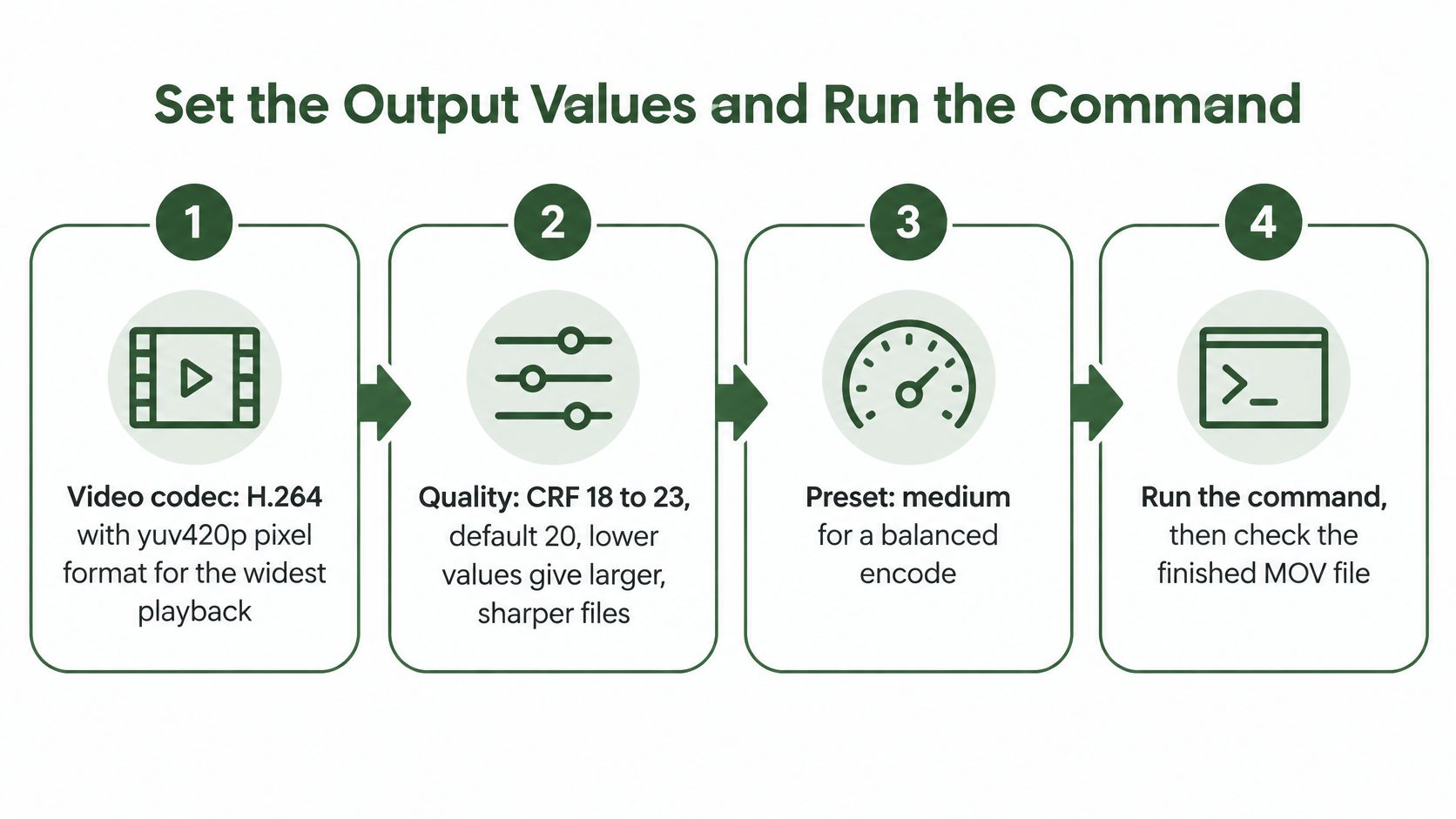
| Video codec | libx264 (H.264) | Plays in browsers, phones, desktops and most editors |
| Pixel format | yuv420p | Avoids 4:2:2 or 10-bit output that older players reject |
| Quality (CRF) | 18 to 23, default 20 | Lower numbers give larger, sharper files |
| Encoder preset | medium | Slower presets shrink files at a higher time cost |
| Audio codec and bitrate | AAC-LC, 192 kbps, stereo | Accepted across QuickTime, Apple devices and editors |
| Frame rate mode | Constant (CFR) | Variable timing causes drift in editors and at cuts |
| Fast start | -movflags +faststart |
Places the index at the front for progressive playback |
A four-step view of the same choices:
Build the command flag by flag
- Name the input and output. Point
-iat the full path and end the output in.movso FFmpeg selects the MOV muxer instead of guessing from a mislabeled file. - Map streams explicitly.
-map 0:v:0takes the first video track and-map 0:a:0?takes the first audio track if one exists, with the?making it optional so silent files don't error out. Automatic mapping can pull in a commentary track or a subtitle stream you never wanted. - Encode video.
-c:v libx264 -preset medium -crf 20 -pix_fmt yuv420pgives you a sharp, broadly decodable picture. Drop to CRF 18 for grainy or high-motion source, raise it toward 23 when file size matters more than detail. - Encode audio.
-c:a aac -b:a 192kwrites AAC-LC at a bitrate that survives a second round of platform re-encoding without sounding thin. Add-ac 2if the source is 5.1 and the deliverable is a social upload. - Move the index.
-movflags +faststartrelocates the MOV index toward the front of the file so playback can begin before the whole file arrives. It's a layout change, not a quality change. - Run it.
ffmpeg -i input.mkv -map 0:v:0 -map 0:a:0? -c:v libx264 -preset medium -crf 20 -pix_fmt yuv420p -c:a aac -b:a 192k -movflags +faststart output.mov
- Validate the output. Probe the finished MOV and compare duration, stream count, codec names, pixel format, frame rate and audio sample rate against the notes you took from the source.
The whole sequence, including how the flags read on a real file:
Where these values still won't save you
H.264 at yuv420p is a floor, not a guarantee. An AV1 source is a good example of a codec that's still unevenly supported: AV1 support among surveyed video-development organizations reached 13% in the 2024–2025 codec market report, according to Streaming Media Global's analysis of Bitmovin's developer survey. Copying AV1 into MOV may produce a valid file that a specific editor or upload endpoint refuses, so test one file on the actual target before you commit a batch.
Subtitles need a policy, not a flag you forget. PGS image subtitles and styled ASS tracks don't map cleanly into a compatibility-focused MOV, so either drop them or burn them into the picture with a subtitles filter, which forces a video encode. If you're delivering into a streaming product rather than a single desktop player, the codec and packaging constraints get stricter downstream, and the Cleffex Digital OTT development guide is a useful reference for how playback requirements shape an entire delivery pipeline.
Cost check:
mediumis the balanced preset. Moving toslowbuys a smaller file at the same CRF, but on a long feature it can add real hours, and nobody watching a phone screen will thank you.
For files that already match the target, skip all of it and copy: ffmpeg -i input.mkv -map 0 -c copy output.mov. That path fails the moment subtitle or attachment streams are present, which is why explicit mapping beats -map 0 in production.
Fixing MOV Files That Still Fail to Play
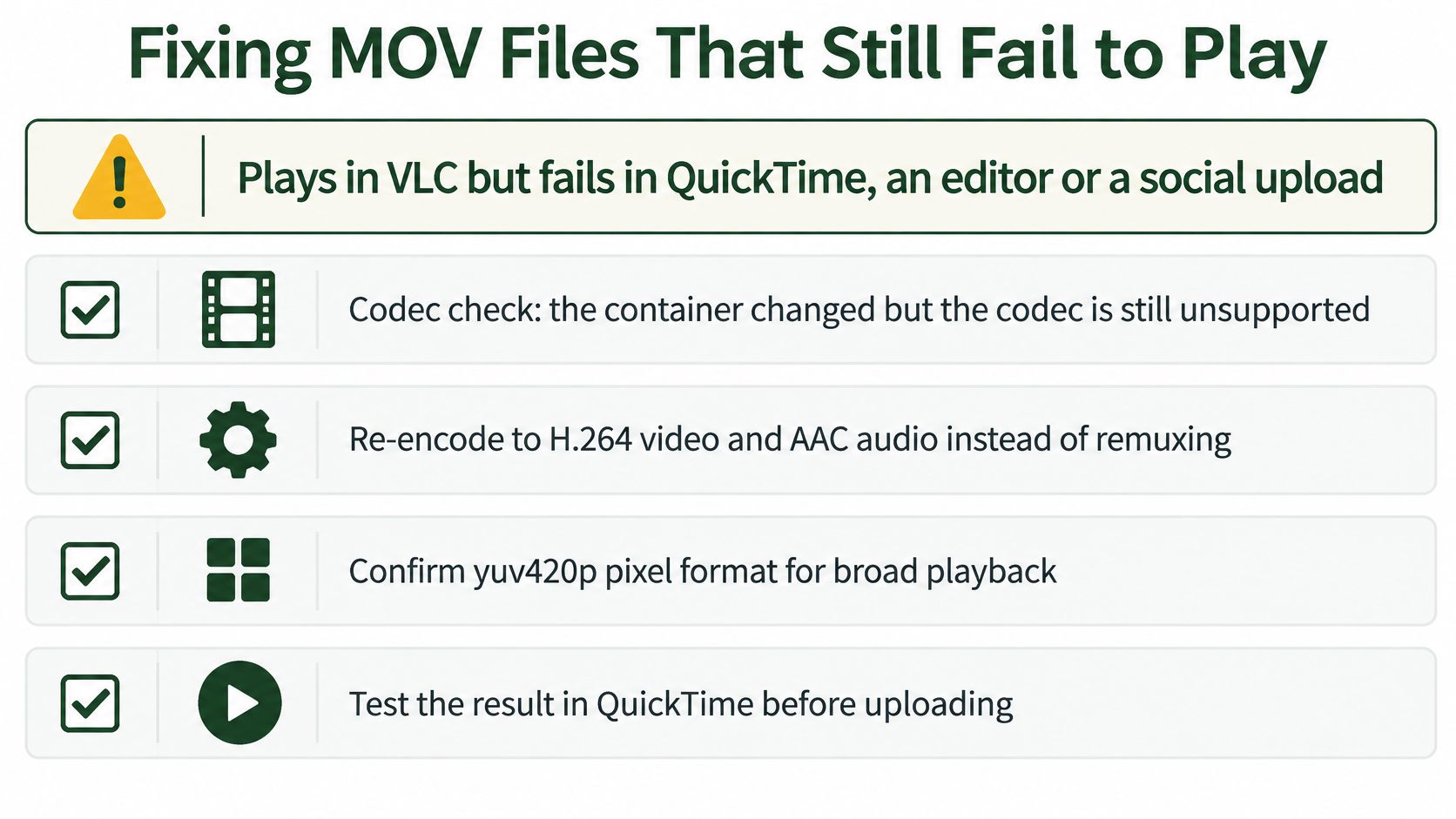
The most common report is a converted file that plays fine in VLC and then shows a black picture in QuickTime, refuses to import into an editor, or gets rejected on upload. VLC decodes almost anything, so it proves the file isn't corrupt, not that it's compatible. As Cloudinary's practical MKV versus MOV QA for developers points out, changing the container doesn't make an unsupported codec, subtitle format, audio stream or pixel format compatible, and Apple's own export workflow produces H.264 or HEVC QuickTime movies rather than arbitrary combinations.
Symptom, cause, fix
| Symptom | Likely cause | Fix |
|---|---|---|
| Audio only, black picture | HEVC, VP9 or AV1 video the player cannot decode | Transcode video to H.264 with yuv420p |
| Silent playback | Audio codec such as FLAC, Opus or DTS not supported | Add -c:a aac -b:a 192k |
| Wrong duration or stutter at cuts | Variable frame rate timestamps | Re-encode with -fps_mode cfr, or -vsync cfr on older FFmpeg |
| Subtitles missing or conversion error | PGS or ASS subtitles that MOV cannot hold | Add -sn to drop them, or burn them in with a subtitles filter |
| Washed-out or shifted colors | Wrong pixel format or untagged color data | Set -pix_fmt yuv420p and check color tags in ffprobe |
| Plays in VLC, fails in QuickTime | Codec profile outside the set QuickTime accepts | Re-encode with H.264 High profile at yuv420p |
The frame rate check most people skip
Compare the decoded stream duration against the container duration in your probe output. When they disagree, the source was variable frame rate and the MOV inherited uneven timestamps, which an editor reads as drift at every cut. Re-encode with -fps_mode cfr on FFmpeg 5.1 and later, or -vsync cfr on older builds, and set an explicit rate such as -r 30 when the destination demands one. Codec support tables help here, and the video codec support reference on RenderIO's blog is a quick way to confirm whether the player you're targeting decodes a given profile at all.
Fix one variable at a time, then re-test the same way each time. If you're chasing several failures across a queue, the AppJet guide to verifying fixes is a sensible model for confirming a change resolved the symptom rather than masking it.
Finish with a playback test that means something: play from the first second, jump to the middle, play the last ten seconds, seek across a hard cut, and confirm audio and video end together. A file that passes those five checks is deliverable. A file that only opens is not.
Decide Between Local FFmpeg and a Batch Run
Decide by volume, not by preference. A handful of files, one-off fixes and full control over every flag belong on a local FFmpeg install. Dozens or hundreds of files, scheduled jobs, or a team where half the machines don't have FFmpeg installed belong in an automated run. The scale is real: Spherical Insights & Consulting valued the global media video processing solutions market at USD 16.61 billion in 2023 and projects it reaching USD 73.51 billion by 2033, according to its market outlook published by GlobeNewswire.
The local loop
for f in *.mkv; do ffmpeg -i "$f" -map 0:v:0 -map 0:a:0? -c:v libx264 -crf 20 -pix_fmt yuv420p -c:a aac -movflags +faststart "${f%.mkv}.mov"; done
That reuses the same settings, so convert one file first, probe it, and play it in the actual target application before you point the loop at a folder. A shell loop is serial and unforgiving: one malformed file can stall the run, and a laptop thermal-throttles through a long queue. The batch processing best practices on RenderIO's blog cover queue design and failure handling for exactly this situation.
The hosted route
We built RenderIO for the second case. You submit a job by sending a POST request with your FFmpeg command and input and output file mappings, and full FFmpeg 7.x handles MP4, WebM, MOV, AVI, MKV, H.264, H.265, VP9, AV1, AAC, MP3, FLAC, WAV, PNG, JPEG, GIF and WebP, so the same MKV-to-MOV command you tested locally runs unchanged. Sign up, run your actual commands against the API, and generate an API key when you're ready to wire it into a workflow.
The trade-offs are honest ones:
- Local: no upload wait, no service dependency, every flag under your control, and your CPU pays the bill.
- Hosted: no installed toolchain, easier automation and retries, and outputs you verify with the same probe checks you'd run on a local file.
Start locally for a single file. Move to an API when volume, scheduling or team access starts to matter more than shaving a flag.
If you'd rather not install a toolchain to convert MKV to MOV, RenderIO runs your exact FFmpeg command through a REST endpoint, returns the finished MOV, and hands back complete FFmpeg stderr when a stream refuses to map so you can fix the flag instead of guessing. Test the remux command on one file, then scale the same command into a batch or an n8n workflow. Sign up and generate an API key at RenderIO and run your first conversion against a real file today.