Four hundred clips sit in a folder, the client wants MP4 and WebM by Friday, and the laptop needs to stay awake long enough to finish. Multiply one file's encode time by four hundred and the deadline stops looking comfortable.
The batch rarely fails on the files you looked at. It fails on the portrait clip whose rotation flag gets dropped, the MP4 that was never H.264 in the first place, and the corrupt download that stops the loop partway through with no log telling you which one it was.
The rule that saves the most time: inspect the library before you convert a single frame. Probing 400 files with ffprobe takes minutes. Re-encoding half of them because you assumed they were all H.264 costs hours.
Batch conversion is three decisions stacked in order: which files deserve conversion, which output profile they get, and which machine does the work. Get the order wrong and the compute cost triples while the quality drops. Get it right and most batches shrink to a fraction of the files you thought you had to touch.
Table of Contents
- Choose a Batch Method That Fits Your Library
- Sort Every File Into Convert, Remux or Skip
- Pick One Codec Policy for Mixed Destinations
- Set Quality Targets with VMAF Instead of Guessing CRF
- Batch Convert Locally with an FFmpeg Loop
- Scale Locally with GNU Parallel and HandBrake
- Automate the Batch with Retries and a Cloud Pipeline
- Run a Small Sample Batch Before the Full Library
Choose a Batch Method That Fits Your Library
A folder of 400 phone clips, a client who needs both MP4 and WebM by Friday, and a laptop that can't stay awake all night. That combination has four honest answers, and none of them is "run FFmpeg on everything and hope."
| Method | Best for | Re-encodes? | Setup effort |
|---|---|---|---|
| FFmpeg shell loop | Scripted batches on one machine | Yes, unless you stream-copy | Low |
| FFmpeg with GNU parallel | Large local libraries on multi-core hardware | Yes, several files at once | Medium |
| HandBrake queue | Occasional batches with a graphical interface | Yes | Low |
| Cloud FFmpeg API | Automated pipelines with no local hardware | Yes, one command per file | Medium |
Encoding dominates the clock. A stream copy of a file whose codecs are already compatible finishes in seconds because no pixels are decoded, while a full transcode of the same file runs for as long as the encoder needs. That gap is bigger than the gap between any two tools in the table, which is why the method matters less than whether you re-encode files you didn't need to touch.
GNU parallel earns its place on a machine with many cores and a library big enough that serial processing wastes an afternoon. HandBrake's queue wins when someone who doesn't live in a terminal needs to convert a folder twice a year. A cloud FFmpeg API makes sense when the batch runs on a schedule and no machine should be sitting awake waiting for it.
The question that settles the choice: does this batch run once, or does it run again next week with nobody watching? A one-off batch belongs on your own hardware, where the files already sit and no upload is required. A recurring batch needs job state, retries and logs that survive a closed laptop lid.
Some batches aren't really about containers at all. If you're preparing street or dashcam footage for publishing, keep plates unreadable frame by frame is a filter-chain problem that runs in the same pass as the conversion, and it changes how you build the command before you think about parallelism.
Sort Every File Into Convert, Remux or Skip
The common assumption that "batch convert everything to MP4" is harmless doesn't survive contact with a real library. In a 2026 dataset of desktop video files, 23.5% were portrait, 25.8% sat below 2 Mbps, 7.3% ran longer than an hour, and 16.5% of the MP4 files were not H.264 at all, as Forasoft's codec survey reports.
Each of those facts breaks a different part of a blind batch. Re-encoding footage that's already compressed below 2 Mbps costs compute and can lower quality without saving meaningful space. Standardizing portrait clips without checking the display matrix produces rotated, cropped or platform-rejected output. And a file with an .mp4 extension that carries HEVC or VP9 will fail on players you assumed it would work on.
| File condition | Action | Command approach |
|---|---|---|
| H.264 in MP4 at the target resolution | Skip | No command needed |
| MKV or MOV with MP4-compatible codecs | Remux | -c copy into an MP4 container |
| HEVC, VP9 or ProRes source | Transcode | Re-encode with libx264 unless the destination decodes HEVC |
| Already below 2 Mbps | Skip or light transcode | Avoid a quality-lowering re-encode |
| Portrait footage | Check rotation before any resize | Keep the display matrix intact |
| Extension does not match the codec | Probe first, then route | ffprobe output decides the queue |
The sorting step is a probe, not a guess. Run ffprobe across every file and write codec, resolution, bitrate, duration and rotation into a CSV, then sort that file into queues. One command gets you most of the way:
ffprobe -v error -show_entries stream=codec_name,width,height,bit_rate:format=duration -of csv=p=0 input.mov
Trust the probe over the extension. An .mp4 tells you about the container wrapper, nothing about what's inside it. Keep sources read-only by writing every output to a separate tree, so a failed job can never damage an original. Quarantine long files. Anything over an hour belongs in its own queue, because one 90-minute recording can hold up a batch of 300 short clips behind it.
Pick One Codec Policy for Mixed Destinations
A batch destined for multiple platforms fails when the codec policy is decided file by file instead of once, up front. A 2026 survey of 286 video professionals found H.264 in production use at 84%, HEVC at 65% and AV1 at 17%, with 40% planning AV1 deployment during 2026, according to NETINT's encoding trends report. H.264 still carries the widest reach, HEVC handles real volume at the premium end, and AV1 remains a planned bet rather than a working default.
| Destination | Primary codec | Fallback |
|---|---|---|
| Maximum device reach | H.264 (libx264) | Not needed for most libraries |
| Efficient premium delivery | HEVC (libx265) | H.264 re-encode for older devices |
| Selective next-generation test | AV1 | H.264 or HEVC when playback fails |
Five inputs decide the policy for a given batch: playback coverage on the devices you ship to, licensing exposure, encoder speed on your hardware, whether hardware acceleration is available, and whether your workflow can validate outputs automatically. Skip the validation input and a second codec variant becomes a liability, because nobody catches the file that encoded with a broken audio track.
Weigh those inputs together rather than in isolation, because they pull against each other. AV1 compresses well but encodes slowly on most hardware. HEVC halves bitrate at equivalent quality on supported devices, then fails outright on the ones that lack a decoder. H.264 plays almost everywhere but costs you the most storage per minute of video. The right answer depends on your destination mix, not on which codec wins benchmarks.
Energy sits inside that same trade-off. Transcoding is compute-heavy work, and every additional codec variant multiplies both the processing time and the storage footprint of the batch. Convert a 500-file library into two codec variants and you have doubled the encode hours; a third variant triples them. That multiplication is the actual cost of a loose policy, and it lands on your power bill and your storage bill at the same time.
Policy I'd apply to most libraries: ship one universal H.264 output for the wide audience, and add a second codec only when destination data shows enough capable devices to justify the compute. Test AV1 on a sample, not on the whole archive.
Codec choice moves file size as much as it moves compatibility, which is why it deserves a measured decision instead of a copied default. If you need the per-browser and per-platform picture before committing, this breakdown of video codec support across players and devices is the reference to check first.
Set Quality Targets with VMAF Instead of Guessing CRF
Copying a CRF value from a forum post is a guess about someone else's content. Netflix's VMAF work compares encoded output against the source using multiple objective metrics, and it's built to approximate perceived quality better than PSNR-only decisions, as the Netflix and USC VMAF paper sets out. The same body of work found x265 roughly 20.1% more bitrate-efficient than VP9 across tested 360p, 720p and 1080p material, and VP9 beating x264 by 31.6% at 720p and 42.6% at 1080p. Those are codec-level differences, and they show up in your storage bill.
Run the test in four steps
- Pick representative clips. Choose short samples that cover high-motion, dark, grainy, text-heavy and screen-capture content. Five clips of 20 to 30 seconds each will tell you more than one full-length film.
- Encode each clip at three CRF points. With libx264, try 20, 23 and 26. Keep everything else identical so the comparison means something.
- Score each encode against its source with FFmpeg's
libvmaffilter, and record the resulting bitrate alongside the score. - Choose the lowest bitrate that clears your threshold, such as a VMAF of 93 for general delivery, and write that CRF and threshold into the batch configuration.
One CRF across a mixed batch is a risk that can go unnoticed. Animation, heavy grain, dense on-screen text and fast motion all respond differently to the same quantizer, so a setting that looks clean on an interview can smear a sports clip.
Score audio and streams separately
VMAF scores video only. It will not notice a lost channel layout, clipping, timing drift or an audio track that disappeared entirely, and it won't flag non-monotonic timestamps that break playback on a set-top box.
Reject any output with a missing stream, an abnormal duration change, excessive VMAF loss against the source or an unexplained bitrate spike. Keep FFmpeg's stderr and the per-file metrics next to the output, so a bad result can be diagnosed without re-running the whole batch. Save the chosen CRF and threshold with the job definition, and every rerun produces the same result instead of drifting with someone's mood.
Batch Convert Locally with an FFmpeg Loop
The loop is the workhorse for anything under a few hundred files on a machine you control. Build it in seven steps, and treat each step's slip as the reason the step exists.
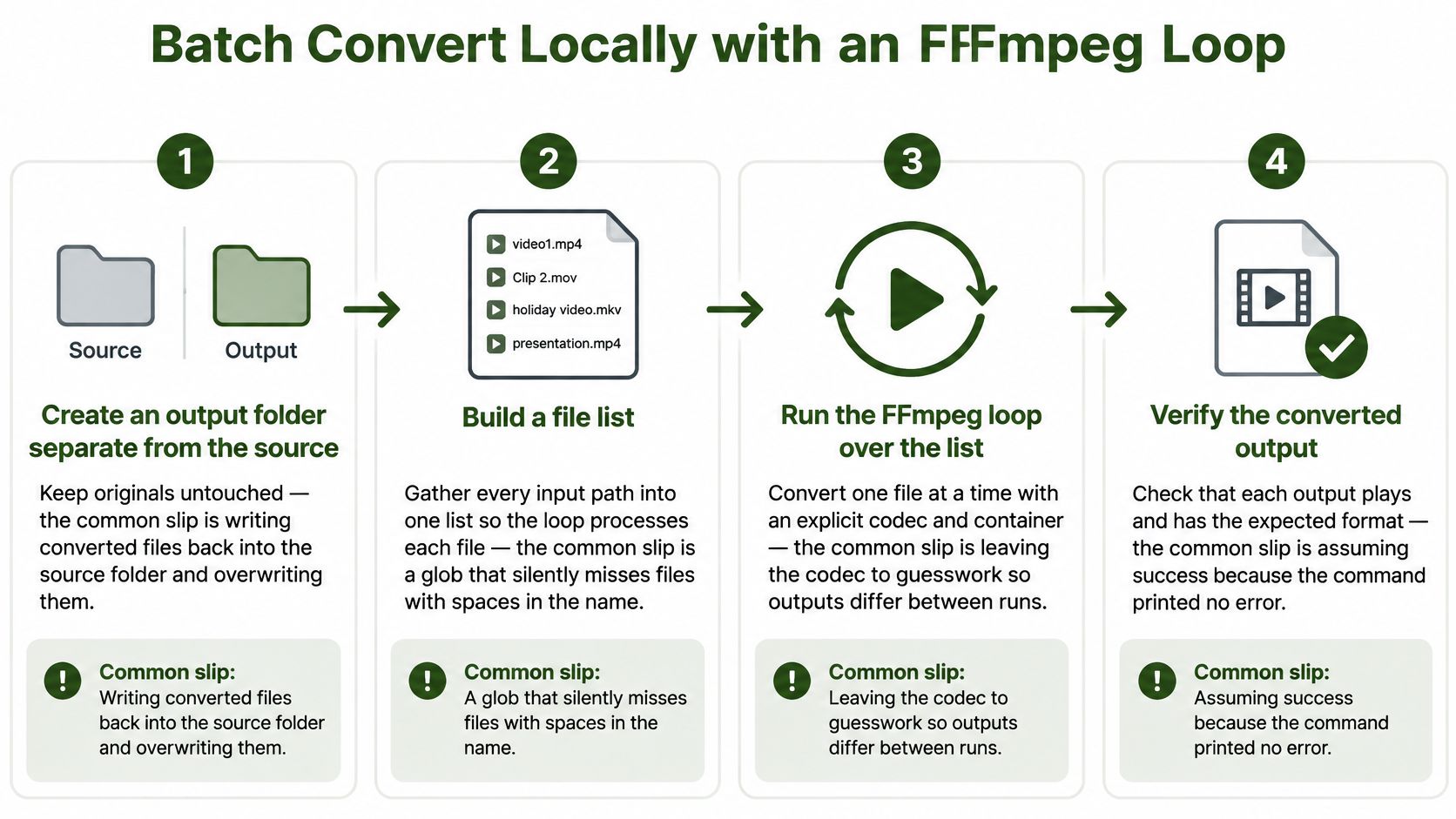
- Create an output folder separate from the source. Keep originals untouched. The common slip is writing converted files back into the source folder, where an interrupted run and a rerun overwrite good files with partial ones.
- Build a file list before you loop. Use
findto write every input path into a text file, then iterate that list. The common slip is a shell glob that misses filenames containing spaces or newlines. - Encode one file at a time with an explicit profile.
ffmpeg -i input.mov -c:v libx264 -crf 22 -c:a aac output.mp4, with quoted paths. The common slip is leaving codec and container to guesswork, so two runs of the same batch produce different files. - Give every file its own log. Redirect stderr to a per-file log. The common slip is one shared log where a single failure is buried under hundreds of successes.
- Treat any nonzero exit as a failure. Check
$?after each command, even when an output file appeared. FFmpeg can write a truncated file and exit nonzero, and the file will look fine until someone plays past the break. - Verify the artifact with ffprobe. Duration within a small tolerance of the source, the required video and audio streams present, and a full decode with no errors.
- Run the batch inside tmux or screen. A dropped SSH session shouldn't kill a three-hour encode. The common slip is starting a long batch in a bare terminal and losing it to a sleeping laptop.
What a clean run looks like: a summary line at the end with counts for converted, remuxed, skipped and failed, and every failed filename printed with its log path. If you can't name the files that failed, the batch isn't done.
Scale Locally with GNU Parallel and HandBrake
One machine with many cores can carry a large library if you spread the work without thrashing memory and disk. GNU parallel handles that, and the job count matters more than the tool.
- Set the job count below your core count.
find . -type f -name '*.mov' -print0 | parallel -0 -j 4 'ffmpeg -n -i {} -c:v libx264 -crf 22 -c:a aac {.}.mp4'runs four files at once. Set-jto physical cores minus one, because x264 saturates memory bandwidth and disk before it saturates the CPU, and oversubscribing makes the whole batch slower. - Keep the
-nflag. It refuses to overwrite existing outputs, so a rerun after a crash skips the files already finished instead of re-encoding them. - Log per job. Redirect each job's stderr to its own file, so a failure points at one input rather than at the batch.
- Use HandBrake for queue work. Add files in the GUI, pick one preset such as Fast 1080p30, and queue them. For scripted runs, loop
HandBrakeCLI -i input.mov -o output.mp4 --preset 'Fast 1080p30'over the same file list. - Verify HandBrake output anyway. A job reported as complete means the encoder finished, not that the file is playable. Run the ffprobe checks before trusting it.
Reserve the GUI queue for one-off batches. Anything repeated or scheduled belongs in the loop or the cloud pipeline.
Automate the Batch with Retries and a Cloud Pipeline
Automation starts when a file becomes an independent job rather than a line in a loop. The AWS Streaming Media Lens guidance on resilient media workflows recommends redundant processing paths, automatic retries, quality validation at each stage and idempotent operations, which maps cleanly onto batch conversion.
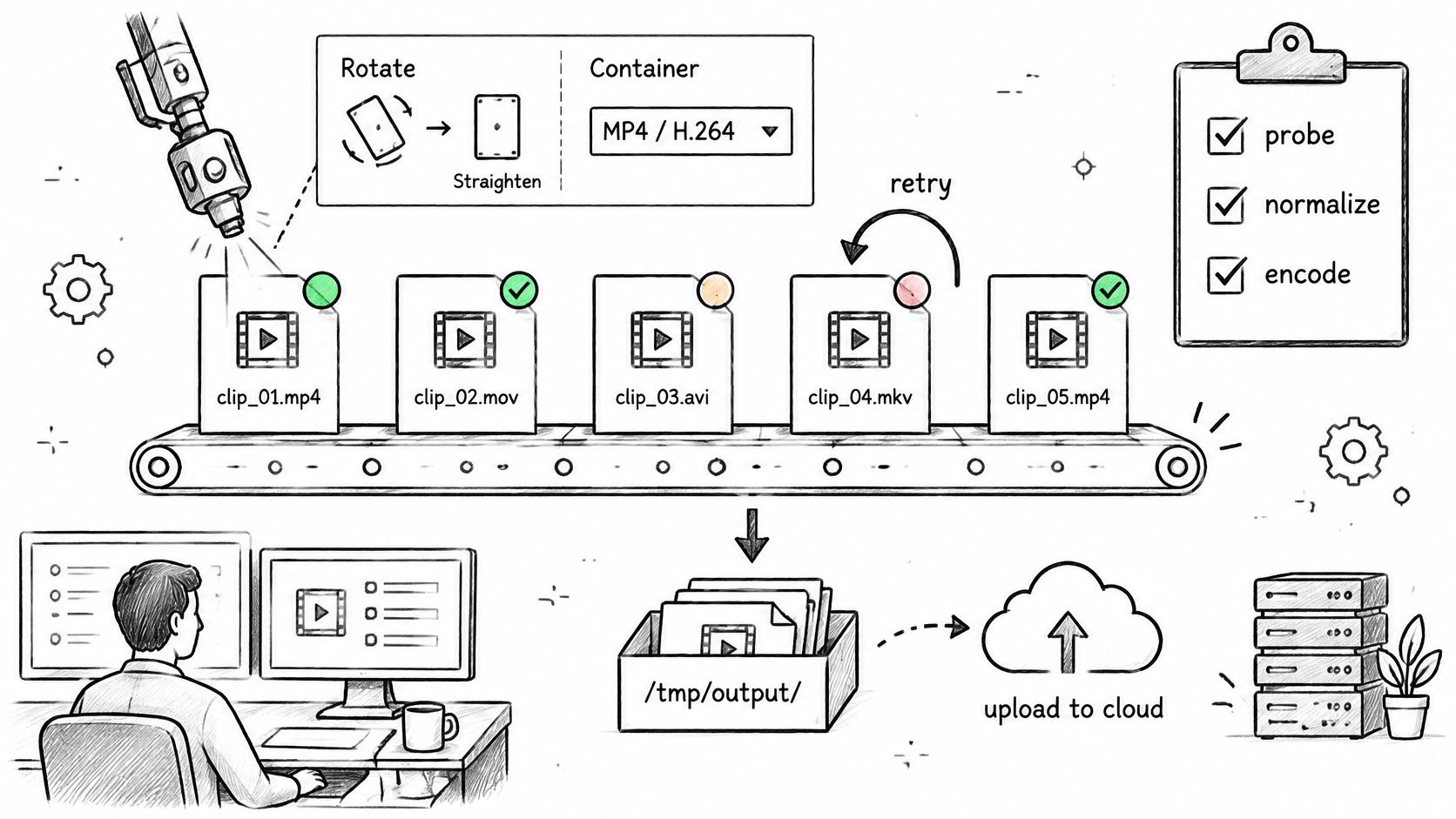
Make every job retryable
- Probe the input with ffprobe before anything else touches it, and record what you found with the job.
- Normalize rotation metadata and select an explicit container and codec profile, so the job can't inherit a surprise from the source.
- Encode to a temporary output, never to the final path.
- Run the artifact checks you'd use locally: exit code, duration tolerance, required streams, full decode.
- Publish atomically by renaming the temporary file into place, which means a reader never sees a half-written file.
Derive each job ID from the source checksum plus the conversion settings. A retry then overwrites nothing and creates no duplicate, because the same input and the same settings always resolve to the same ID.
Separate transient failures from permanent ones
Network interruptions, temporary storage failures and terminated workers are transient. Retry them with exponential backoff and a fixed attempt limit. Unsupported codecs, corrupt headers and missing streams are permanent, and retrying them just burns compute. Route exhausted jobs to a dead-letter queue where a person can look at the FFmpeg stderr and decide.
Move the command to an API when hardware stops being the constraint
A cloud FFmpeg API takes the same command you validated locally. Inputs and outputs are referenced with {{placeholder}} syntax such as {{in_1}} and {{out_1}}, and you submit a job with a POST request carrying the command plus the input and output mappings.
The trade-off is transport time. Uploading a 2 GB file over a 100 Mbps connection takes about 2.5 minutes before processing even begins, so for a small batch sitting on a fast local disk, local conversion usually finishes first. The cloud path wins when the batch is large, recurring, or needs to run while nobody's laptop is open. If your video conversion is one stage of a larger publishing operation, the principles in this guide to scaling creative operations with automation apply directly to how you sequence the steps.
For the full command structure, placeholders and endpoint behaviour, the batch processing documentation covers the request format end to end.
Run a Small Sample Batch Before the Full Library
Twenty files will tell you whether the whole plan works, and they cost minutes rather than an afternoon. Pick them deliberately.
- Cover every row of the sorting table. Include one portrait clip, one file already below 2 Mbps, one MKV that only needs a remux, and one recording longer than an hour.
- Run your chosen method and time it. Extrapolate. If 20 files take 12 minutes, 400 files need about four hours plus whatever the long recordings add.
- Check the summary against the input count. Converted plus remuxed plus skipped plus failed should equal the number of files you started with. A gap means files are missing.
- Spot-check three outputs at full screen in a real player. Watch the first ten seconds and the last ten. Check that audio is present and in sync, and that portrait footage is upright.
- Compare file sizes against the expected range. If outputs grew, your skip rule isn't catching the already-compressed files it should.
- Scale in batches of about 100 once the sample passes, so a bad setting costs a hundred files rather than the whole library.
When the local machine stops being the right home for the work, the switch is mechanical rather than a rewrite. RenderIO runs FFmpeg 7.x commands through a REST API, and supported operations include transcoding, resizing, watermarking, chaining filters, extracting audio and generating thumbnails. Each video in a batch counts as a separate API call, so a batch of 100 videos uses 100 commands, which is the number to plan capacity around. If you want to build regression checks around your encodes before committing to a pipeline, this guide to automating video testing shows how to keep quality from drifting between runs.
Write down three decisions before you start: the method, the codec policy, and the quality threshold. Everything else in the batch follows from those, and any rerun that changes one of them is a different batch.
If your library has outgrown the laptop and the batch needs to run whether or not anyone is awake, RenderIO takes the FFmpeg command you already validated and runs it as an API call, with parallel and chained endpoints for multi-format output, full stderr on failure, and no egress fees. You can move a tested command into a pipeline without rebuilding your logic, then scale from a sample batch to the whole archive. Start with the RenderIO batch processing guide and run your first 20 files through it before you commit the library.