The usual advice for converting AVI to MP4 is to select H.264, choose a high-quality preset, and click Convert. That skips the most important question: does the video need encoding at all? If the existing stream already works in MP4, running it through an encoder adds processing and risks damage for no benefit.
Converting AVI to MP4 without losing quality starts with inspecting the source, not choosing an output preset. Some files can move straight into an MP4 container with their compressed video untouched. Others need a carefully controlled re-encode, and some can't become widely playable MP4 files without sacrificing information.
Table of Contents
- Check the Codec Inside Your AVI Before Converting
- Choosing H.264, HEVC or AV1 as the Target
- How to Convert AVI to MP4 Step by Step
- Picking a CRF Value for H.264 Re-encodes
- Keeping Audio and Subtitle Tracks Intact
- Batch Convert Your AVI Library Safely
Check the Codec Inside Your AVI Before Converting
AVI is a container, not a compression method. Renaming input.avi to input.mp4 changes the filename, not the container structure or the encoded streams inside it.
Microsoft introduced AVI in November 1992 as part of Video for Windows, according to the Library of Congress AVI format description. Its long history helps explain why an AVI archive can contain everything from heavily compressed downloads to lossless capture masters.
Find your codec before choosing settings
The codec determines whether you can copy the video into MP4 or need to encode it. The probe command appears in the numbered procedure below; the ffprobe tutorial also explains how to interpret individual stream fields.
Source codec inside AVI and the right conversion action
| Source codec in AVI | Copy into MP4? | Recommended action |
|---|---|---|
| H.264 (AVC) | Yes, subject to stream validity and player support | Stream copy with -c:v copy |
| MPEG-4 Part 2 (DivX, XviD) | Usually | Try stream copy; re-encode to H.264 if target playback fails |
| MJPEG (camera and capture files) | Not a dependable delivery route | Re-encode to H.264 using a high-quality CRF setting |
| FFV1, HuffYUV, UT Video (lossless) | No practical interoperable route | Keep the original; create a high-quality H.264 delivery copy, or evaluate lossless H.264 |
| Uncompressed (YUV, RGB) | Not a broadly compatible route | Probe pixel format and bit depth, then encode deliberately |
| Unknown or mixed | Inspect each stream first | Probe with ffprobe before choosing |
Container support and playback support aren't interchangeable. An MP4 muxer accepting a stream doesn't guarantee that a browser, phone, or television will decode it. Older MPEG-4 video is a common case where a technically valid file still fails the destination test.
The lossless-source rows need special care. A high-quality delivery encode isn't a replacement for a lossless master, even when nobody notices a difference during ordinary playback.
What actually preserves quality
A remux copies compressed packets into a different container without decoding and compressing the pictures again. Container headers, indexing, timestamps, and packet representation may change, but the encoded picture information can remain intact.
MP4's role as a container is defined by the MPEG-4 Part 14 specification; changing that container is a different operation from changing the video compression. That's why the extension alone tells you very little about quality.
A lossy re-encode decodes the source into frames, then compresses those frames again. The encoder quantizes picture information, potentially removing texture, weakening edges, or simplifying motion that survived the previous encode.
Practical rule: The cheapest way to avoid another generation of compression loss is never to decode the video.
For a necessary re-encode, keep the original dimensions, frame rate, and aspect ratio. Avoid unnecessary pixel-format conversion, and choose a quality-targeted mode instead of forcing every scene into an aggressively low bitrate.
A larger result isn't proof of identical quality. An encoder can spend more space reproducing existing compression artifacts without restoring anything that the source already lost.
Use H.264 stream copy when the stream and destination support it. Try compatible older codecs rather than rejecting them automatically, encode incompatible material once, and inspect anything unknown before committing an archive to a preset.
Choosing H.264, HEVC or AV1 as the Target
The newest codec isn't automatically the right destination. Choose for the devices, applications, and upload services that must accept the file.
A 2025 streaming-industry survey reported H.264 usage at 79% and HEVC at 49%, with AV1 showing strong planned adoption but comparatively stagnant deployment, according to the Streaming Learning Center's Bitmovin report coverage. Those are industry adoption figures, not guarantees about a particular viewer's hardware.
Delivery codecs compared for AVI to MP4 conversion
| Target codec | Compatibility | Size vs H.264 at similar quality | Choose it when |
|---|---|---|---|
| H.264 with AAC | Broad support across current playback platforms | Baseline | Broad playback and social uploads |
| HEVC (H.265) | Strong on supported recent hardware; uneven across browsers and installations | Potentially smaller, with encoder-dependent savings | Devices are known and bitrate matters |
| AV1 | Growing support; mobile hardware decoding remains uneven | Potentially smaller, with encoder-dependent savings and greater encoding cost | Delivery volume justifies testing and processing |
| Stream copy (original codec) | Only as compatible as the source stream | Original compressed payload, with different container overhead | The source is MP4-compatible and fidelity matters |
The size comparisons are qualitative, encoder-dependent expectations, not measured savings. Source noise, grain, motion, encoder implementation, and quality settings can change the outcome substantially.
Choose for the playback environment
A separate 2024 video-developer survey reported H.264/AVC use by 86% of respondents, H.265/HEVC by 46%, and AV1 by 7%, according to TVBEurope's survey coverage. These separate surveys aren't a controlled year-over-year comparison, but both support treating compatibility as a practical requirement.
For a download that customers will open on assorted devices, H.264 with AAC is the conservative choice. For a controlled television installation or application with known decoder support, HEVC may justify a separate delivery profile.
AV1 makes more sense when you can amortize encoding work across substantial distribution. For a private archive played occasionally, its processing cost may buy little practical benefit.
Preserve the source until the chosen output passes actual playback testing. Smaller files are useful only if viewers can decode them correctly.
How to Convert AVI to MP4 Step by Step
Use this workflow to separate inspection, conversion, and verification rather than hiding them behind a preset.
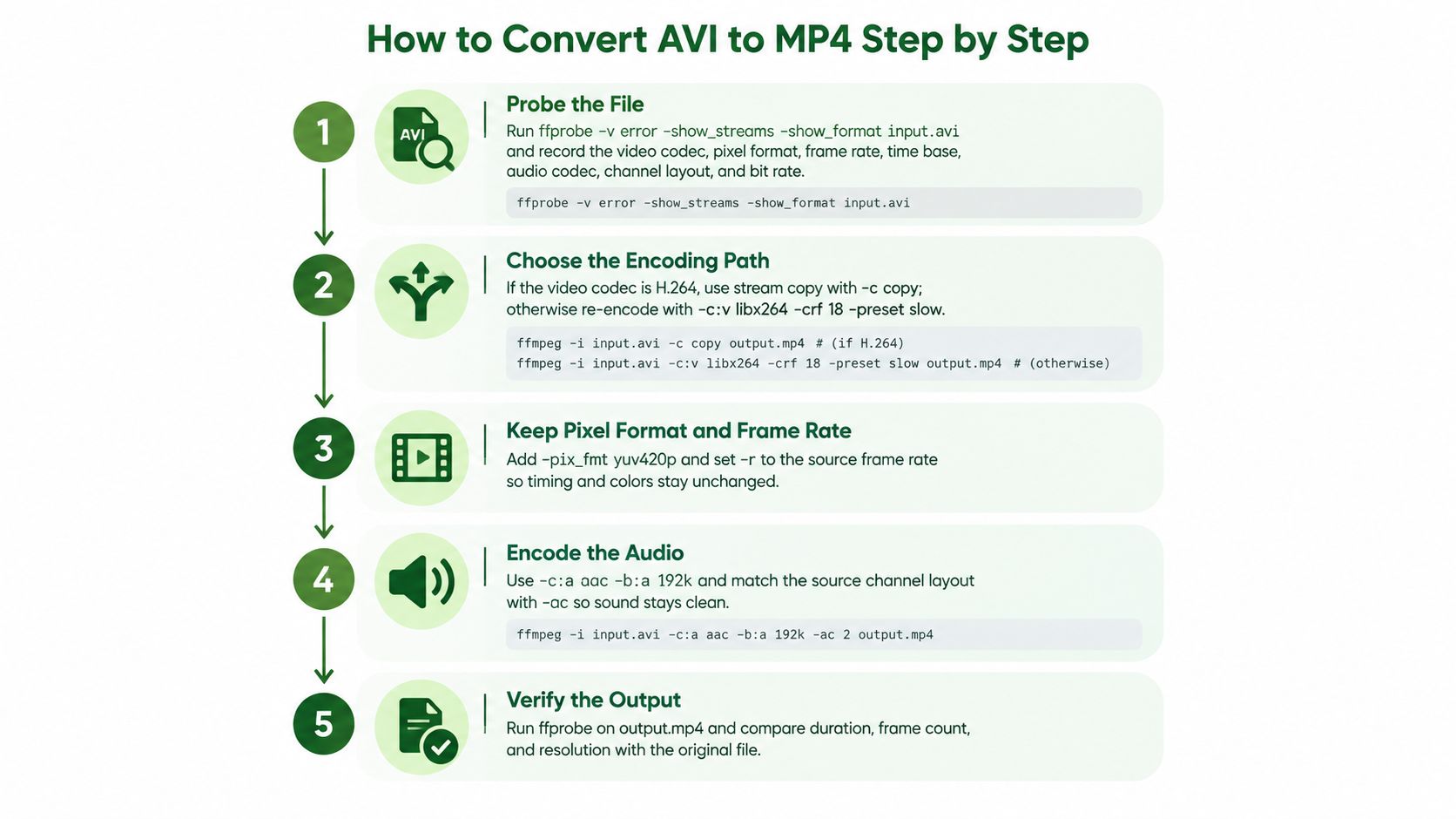
Treat pixel-format conversion and explicit frame-rate settings in the graphic as optional compatibility operations, not preservation requirements. Adding them indiscriminately can change color information or timing.
Inspect and attempt stream copy
Probe the original file.
Run
ffprobe -v error -show_streams -show_format input.avi.Record the video codec, pixel format, dimensions, frame rate, time base, bitrate, audio codec, channel layout, and rotation metadata. Save the output alongside the source so validation doesn't depend on memory.
Try a remux when the streams are suitable.
Run
ffmpeg -i input.avi -map 0 -c copy -movflags +faststart output.mp4.The FFmpeg documentation describes stream copy as transferring packets without decoding or encoding. Here,
-map 0selects every input stream, while+faststartmoves MP4 indexing information toward the beginning for progressive web playback.Selecting every stream also exposes incompatibilities. An unsupported subtitle or data track can stop the mux even when the video is suitable; inspect the error instead of assuming the pictures need transcoding.
Validate the remux before accepting it.
Run
ffprobe -v error -show_streams -show_format output.mp4.Compare stream count, dimensions, duration, frame rate, aspect ratio, and audio layout with the source. Container time bases may legitimately differ, but unexplained duration changes, missing tracks, or altered display geometry need investigation.
Repair only the incompatible streams
Encode only what must change.
If video needs H.264 but the audio can remain untouched, use:
ffmpeg -i input.avi -map 0 -c copy -c:v libx264 -crf 18 -preset slow -movflags +faststart output.mp4The initial copy setting preserves streams unless a later codec option overrides it. If audio also needs conversion, replace audio copying with
-c:a aac -b:a 192k; don't transcode compatible audio merely because the video requires work.
Unsupported ancillary streams still need an explicit decision. Convert them, extract them, or deliberately exclude them, rather than accepting their disappearance without noticing.
Check decoding and target playback.
Run
ffmpeg -v error -i output.mp4 -map 0:v? -map 0:a? -f null -to decode the audio and video without creating another media file.Then test the intended browser, phone, or television. Check seeking, rotation, dialogue synchronization, and playback near the end, not just the opening frame.
For a visual demonstration of the conversion interface and process, use the accompanying walkthrough.
A completed command isn't the acceptance criterion. The output succeeds when its intended streams survive, its timing remains correct, and the destination can play it.
Picking a CRF Value for H.264 Re-encodes
Constant Rate Factor, or CRF, lets the encoder allocate more bits to difficult pictures instead of forcing a fixed bitrate everywhere. For 8-bit H.264, CRF runs from 0 to 51, with 0 lossless, 23 the default, and 17–28 a broadly sensible range, according to the FFmpeg H.264 encoding guide.
CRF values for H.264 re-encoding
| CRF value | Typical use | Quality and size effect |
|---|---|---|
| 0 | Mathematical lossless encoding, also available through -qp 0 |
Usually very large files and restricted player compatibility |
| 17–18 | High-fidelity delivery candidate | Often near-transparent after review, but still lossy |
| 20–22 | High-quality delivery candidate | Lower storage demand; inspect fine detail and motion |
| 23 | Default starting point for general delivery | More compression; difficult material may show artifacts |
| 28 | Storage-constrained delivery candidate | Greater risk of softened grain, texture, and motion |
These are testing categories, not guarantees. Don't label a lossy CRF encode an archival master merely because it looks clean.
Test the difficult pictures
Choose short excerpts containing camera movement, foliage, hair, gradients, dark scenes, and noise. Compare decoded frames at native display size, then watch the same passages in motion. Paused frames alone won't reveal every temporal artifact.
VMAF or SSIM can help compare candidate encodes when reference and output are aligned correctly. Review troublesome passages individually because a whole-file average can hide a visibly poor sequence.
A quality setting is a starting hypothesis. Your source footage is the test.
If a candidate removes texture you need, lower CRF and repeat the comparison. If you can't distinguish the result during the intended viewing conditions, decide whether a larger file provides any useful delivery benefit.
Separate compression effort from picture changes
The slow preset is a reasonable starting point for a conversion you expect to perform once. Slower presets spend more processing effort searching compression choices and can improve efficiency, but identical CRF values across presets don't promise identical appearance or a fixed size reduction.
The FFmpeg video compression guide explains how to balance quality control with storage requirements. Don't chase a smaller result by adding filters that weren't part of the original requirement.
- Scaling: Changes spatial detail and can alter aspect ratio if configured incorrectly.
- Deinterlacing: Changes temporal and spatial characteristics; use it deliberately for interlaced delivery.
- Frame-rate conversion: Can duplicate, drop, or synthesize frames.
- Sharpening: Changes the image rather than preserving the source.
Likewise, -pix_fmt yuv420p is a compatibility choice. Converting a source with richer chroma sampling or greater bit depth to that format discards information before lossless encoding could protect it. Even -qp 0 cannot reverse an earlier pixel-format conversion.
Keeping Audio and Subtitle Tracks Intact
Video can survive untouched while a default audio setting introduces another lossy generation. Treat sound and subtitles as independent streams, each with its own preservation decision.
Copy sound before considering an encoder
AAC and MP3 generally copy into MP4 without audio decoding. Use -c:a copy when the destination supports the source codec and layout.
Uncompressed PCM isn't a dependable choice for broadly compatible MP4 delivery, even where particular tools can mux it. Encode a delivery track to AAC when necessary, but retain the PCM original if its lossless status matters.
- Stereo delivery: Use the AAC setting in the conversion command as a starting point, then listen to speech, music, and transients.
- Surround delivery: Allocate more audio bitrate than for stereo and confirm the receiving device supports the layout.
- Channel handling: Avoid adding
-acautomatically. It can trigger a channel conversion rather than preserve the input. - Sample rate: Leave it unchanged unless the destination requires a specific rate.
Keep subtitles selectable where possible
AVI files often have no embedded subtitles. When text subtitles are present, -c:s mov_text can convert compatible text tracks for MP4, although styling and positioning may not survive unchanged.
Bitmap formats such as PGS or VobSub don't translate directly into MP4 text subtitles. Extract them as sidecars, use a more suitable container, or perform a separate text-recognition workflow if selectable text is required.
Burning subtitles into the picture requires video encoding. Keep it as a delivery-specific last resort, not a preservation shortcut.
After conversion, inspect channel layout and sample rate with ffprobe. Listen near the beginning and end, and check a clearly visible speech event or impact to catch both constant synchronization offsets and duration drift.
Batch Convert Your AVI Library Safely
Start with a remux pass, not a folder-wide encoding preset. This Bash loop writes outputs beside their originals, quotes filenames correctly, and records failures:
for f in ./*.avi; do [ -f "$f" ] || continue; ffmpeg -nostdin -n -i "$f" -map 0 -c copy -movflags +faststart "${f%.avi}.mp4" 2>"${f%.avi}.remux.log" || printf '%s\n' "$f" >> failed.log; done
The -n option refuses to overwrite existing outputs. -nostdin prevents FFmpeg from consuming interactive input during unattended processing, and the per-file stderr logs preserve the reason a job failed.
Separate failed jobs from unfinished validation
A failed remux isn't automatically a request for video encoding. The cause might be incompatible audio, an unsupported data track, broken timestamps, an existing output, or a storage problem.
Inspect each failure log and classify it before scheduling a fallback. Remove or quarantine partial outputs before retrying, and distinguish previously completed files from files that merely exist on disk.
Use a manifest to track source path, probe metadata, chosen conversion path, output path, and validation status. The batch-processing best practices guide is useful when turning a shell experiment into a repeatable pipeline.
Move orchestration off the workstation when needed
A local shell suits a bounded archive on a machine you control. For application-triggered conversions, RenderIO is one cloud option that accepts FFmpeg commands through a REST API, allowing inspection, remux, fallback encoding, and validation to become chained jobs.
Its polling and webhook notifications report progress, while automatic retries and a dead letter queue help separate transient failures from jobs needing intervention. Returned FFmpeg stderr gives developers the command-level details needed to diagnose a rejected stream.
Signed output URLs expire automatically, so copy accepted deliverables into durable storage before treating the job as complete. Idempotent requests prevent duplicate conversion work when a caller retries a submission, but your own manifest must still distinguish processing success from quality acceptance.
No-code users can build conditional paths with n8n or Zapier. The important condition isn't just whether FFmpeg returned success; it also includes whether the output matches the expected streams and passes the destination's playback requirements.
Before releasing a full batch, use a small representative set:
- Different sources: Include compressed, lossless, and unusual-codec AVI files where available.
- Metadata checks: Compare stream counts, dimensions, duration, frame rate, and audio layout.
- Playback checks: Test seeking, synchronization, subtitles, and target-device decoding.
- Recovery checks: Confirm that rerunning a job neither overwrites an accepted output nor creates duplicate work.
Keep originals until acceptance is recorded. Automation should remove repetitive handling, not remove the decision about what quality you're willing to sacrifice.
RenderIO offers API-based FFmpeg processing for automated video conversion workflows. Turn your AVI inspection, stream-copy attempt, and selective re-encode into a repeatable pipeline, then visit RenderIO to build and test it with representative source files.