The usual advice for AVI to MP4 batch conversion is to point FFmpeg at a folder and apply the same command to everything. That works only when the files have compatible stream layouts and reasonably healthy timestamps. A safer approach is to inspect each AVI, decide which streams need conversion, and verify the resulting MP4 before calling the job complete.
Table of Contents
- Why Renaming an AVI Does Not Make an MP4
- Probe Each AVI and Choose Remux or Re-encode
- Run the Batch and Verify Every Output
- Fixing Outputs That Fail or Look Wrong
- Running the Batch Through an API Instead
Why Renaming an AVI Does Not Make an MP4
AVI and MP4 are containers, not video codecs. An AVI can carry DivX, Xvid, Motion JPEG, uncompressed video, alternate audio tracks, or timestamps that need repair. Changing the extension leaves those streams untouched. The file name changes, while the actual codec and stream mix stay exactly where they were.
AVI's legacy matters when you handle an archive. It is a Microsoft Video for Windows container from the early 1990s, and files collected across that history will not necessarily behave alike, even when their filenames end identically. One AVI may hold H.264 video and AAC audio, while another may contain an old codec, MP3 audio, no audio stream, or timing quirks. That difference, far more than the extension, decides whether a batch job stays simple or produces broken output.
Establish a playback baseline
Start with this single-file command:
ffmpeg -i input.avi -map 0:v:0 -map '0:a:0?' -c:v libx264 -preset medium -crf 23 -pix_fmt yuv420p -c:a aac -b:a 160k -movflags +faststart output.mp4
This is a delivery preset, not a preservation recipe. It selects the first video stream and the first audio stream if present, then produces H.264 video with AAC audio. It doesn't promise to retain every alternate track or subtitle. That trade-off is acceptable for a playback copy, but careless for an archival master.
Baseline MP4 settings for batch conversion
| Setting | FFmpeg option | Why it matters |
|---|---|---|
| Video codec | -c:v libx264 |
H.264 is a practical playback target for phones, browsers, TVs, and editors |
| Quality | -crf 23 |
A starting quality setting, not a guarantee of transparent results; test within 18 to 28 |
| Speed | -preset medium |
Slower presets generally improve compression efficiency at the same quality setting |
| Pixel format | -pix_fmt yuv420p |
Widely supported by hardware decoders |
| Audio | -c:a aac -b:a 160k |
Encodes audio as AAC for standard MP4 playback |
| Optional audio | -map '0:a:0?' |
Prevents an absent audio stream from making the mapping fail |
| Web delivery | -movflags +faststart |
Moves MP4 metadata to the front for progressive playback |
Treat those numeric settings as starting choices to test, not measured quality promises. Grain, screen recordings, and damaged analog transfers can need different compromises. A clean transfer may tolerate a faster preset, while fine detail or noisy sources can expose compression choices quickly.
Practical rule: Keep an archival original and make a separate playback copy. A convenient MP4 isn't automatically an archival replacement.
MP4 is itself a standardized container family, as the ISO Base Media File Format overview explains. Explicit codec choices matter more than the extension. A renamed AVI with unsupported video inside may open in one player and fail in another, because the player is reading streams, not the label at the end of the filename.
If the actual destination is a Mac editing workflow rather than web playback, Photo for Video's MOV conversion steps for Mac editors provide useful context for choosing a different delivery container. Convert a representative file, inspect motion and fine detail, and confirm playback in the intended application before scaling. Group files only after that check, because a batch should reflect compatible inputs rather than a shared folder name.
Probe Each AVI and Choose Remux or Re-encode
Run a probe before assigning a conversion route:
ffprobe -v error -show_entries format=format_name,duration,nb_streams:stream=index,codec_name,codec_type,width,height,r_frame_rate,avg_frame_rate,pix_fmt -of json input.avi
This reports the container, duration, stream count, codecs, dimensions, reported frame rates, and pixel format. JSON is easier to parse reliably than a display-oriented listing when your worker needs to make decisions.
The VideoAlchemy AVI batch-conversion guide recommends inspecting each input and allowing stream copy only when its streams are valid and MP4-compatible. A codec match is necessary, but timestamps and target-device support still matter.
Conversion path by source stream type
| Source streams | Action | Cost |
|---|---|---|
| H.264 video + AAC audio | Remux with -c copy after compatibility checks |
Container rewrite, no generational quality loss |
| H.264 video + MP3 audio | Copy video, encode audio to AAC for the delivery policy | Audio encoding plus file reading and writing |
| MPEG-4 Part 2, including DivX and Xvid | Encode video to H.264 | Full video transcode |
| Motion JPEG video | Encode video to H.264 | Decode and encode work; no intermediate file required |
| Uncompressed video | Encode video to H.264 | Heavy input reading plus encoding |
| No audio stream | Use optional audio mapping and produce silent output | No audio encoding work |
Don't classify every technically muxable codec as a good delivery choice. Your routing policy should express what the receiving device or platform supports, not merely what FFmpeg can write.
Turn inspection into a routing manifest
- Probe each input. Save the complete result, not just the video codec name.
- Record the selected streams. Include their indexes, codec pair, duration, and any unusual track layout.
- Assign a route. Choose copy, audio-only conversion, full conversion, or review.
- Flag exceptions. Missing video, unclear timestamps, alternate language tracks, and subtitles deserve explicit handling.
Use the ffprobe tutorial when you need to build stream selection into a script. For a web publishing destination, revid.ai's YouTube video format explained adds useful platform context without replacing your own validation.
For an approved remux candidate:
ffmpeg -i input.avi -map 0:v:0 -map '0:a:0?' -c copy -movflags +faststart output.mp4
For compatible video that only needs audio conversion, replace -c copy with -c:v copy -c:a aac.
Use this workflow as an operational checklist, with the delivery policy decided before workers start:
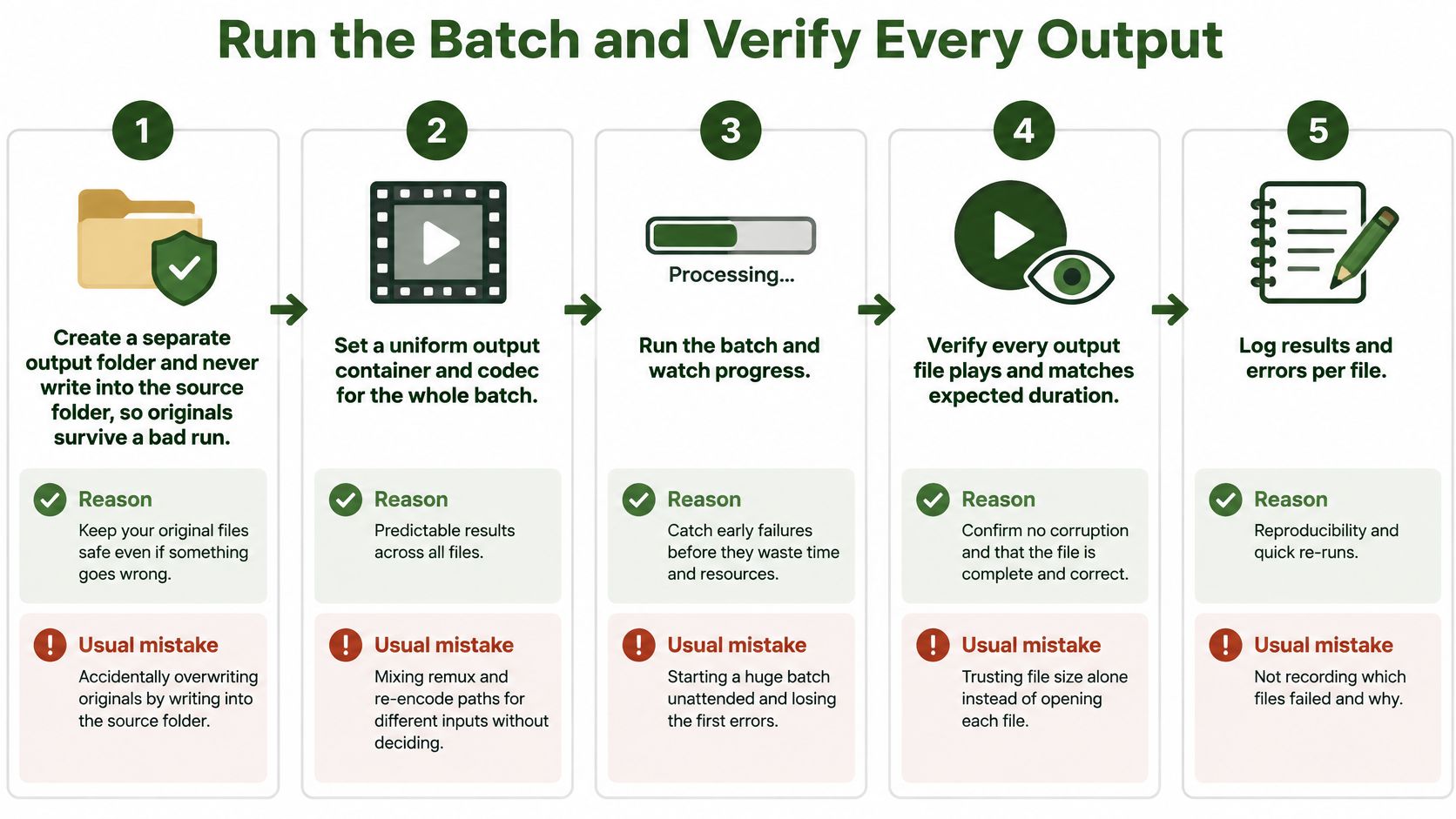
Mixed processing routes are fine. Unplanned mixed output specifications aren't.
Run the Batch and Verify Every Output
For inputs already assigned to the full-conversion route, this shell command preserves relative directories, handles spaces, captures stderr and exit status, and writes to a temporary MP4 before promotion:
mkdir -p output
find input -type f -iname '*.avi' -print0 |
  xargs -0 -P 4 -I{} sh -c '
    src=$1
    rel=${src#input/}
    out="output/${rel}.mp4"
    mkdir -p "$(dirname "$out")"
    [ -f "$out" ] && exit 0
    tmp="${out%.mp4}.partial.mp4"
    ffmpeg -nostdin -y -i "$src" \
      -map 0:v:0 -map "0:a:0?" \
      -c:v libx264 -preset medium -crf 23 \
      -pix_fmt yuv420p -c:a aac -b:a 160k \
      -movflags +faststart "$tmp" 2>"$out.log"
    rc=$?
    printf "%s\n" "$rc" >"$out.exit"
    [ "$rc" -eq 0 ] || exit "$rc"
    ffprobe -v error -show_format -show_streams \
      -of json "$tmp" >"$out.probe.json" 2>"$out.probe.log" ||
      exit 1
    mv "$tmp" "$out"
  ' _ {}
The four-worker setting is an operational starting point, not a throughput guarantee, consistent with the FFmpeg Engineering Handbook's batch guidance. Benchmark representative inputs with your intended storage and encoder settings before increasing concurrency.
This command is a worker scaffold, not a complete acceptance system. A successful probe means FFmpeg can inspect the output; your controller must still check the reported values.
Execute with explicit acceptance gates
Separate sources and outputs. The reason is recovery: a bad preset mustn't destroy the archive. The usual mistake is placing converted files beside originals and later confusing them.
Enumerate safely. Null-delimited filenames survive spaces and embedded line breaks. Don't replace this with a loop over
$(find ...).Keep a stable output key. The example retains the relative filename, including its AVI suffix, avoiding collisions between similarly named inputs. It skips existing final outputs, so only validated files should be allowed to keep those names.
Measure each execution. Capture elapsed processing time, return code, output bytes, source duration, and output duration in a manifest. Preserve full stderr and a short diagnostic excerpt; a log filename alone isn't a status record.
Separate retryable failures from media defects. Retry interrupted downloads or temporary storage failures under a bounded policy. Send repeatable decoder errors to a review queue instead of repeatedly consuming encoder capacity.
Validate stream expectations. Require the selected video stream, a positive duration reasonably consistent with the source, and audio when the selected source contained it. Don't impose identical durations blindly on files with questionable indexes.
Test decoding and real playback. A useful decode check is
ffmpeg -v error -i output.mp4 -f null -. Also open samples on the actual phone, browser, and TV destinations; a parseable MP4 can still expose playback problems.Reconcile before retention decisions. Every input must have either an accepted output or a documented review result. File count alone won't catch duplicates, silent truncation, or wrong-track selection.
The operational flow should make failed files visible rather than bury them among completed outputs:
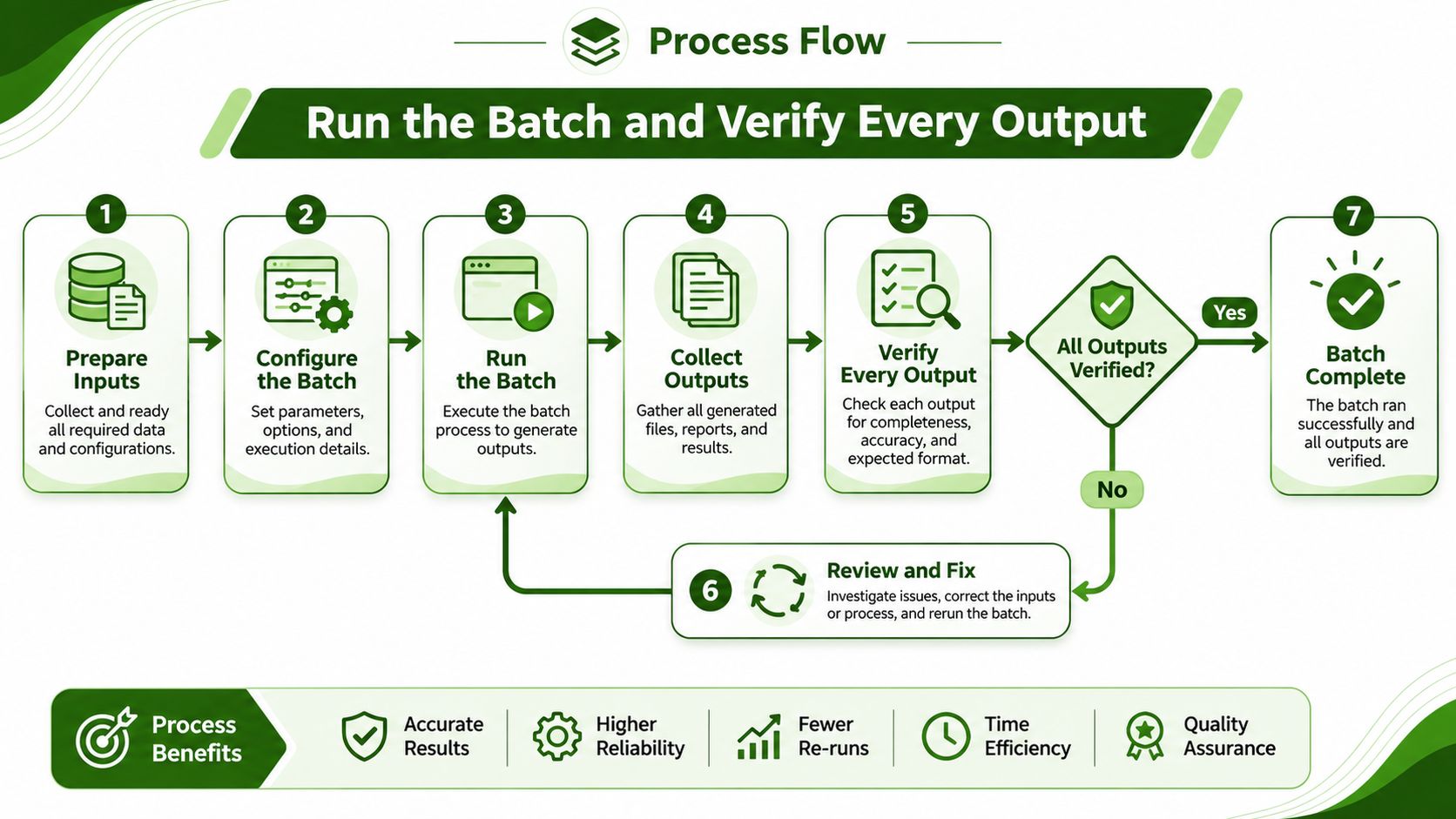
A finished process isn't the same as an accepted asset. Keep those statuses separate.
The batch-processing best practices guide is useful for designing resumable workers. For retention planning, Busylike's guide to measuring video storage ROI provides context for deciding which originals and derivatives justify continued storage.
Fixing Outputs That Fail or Look Wrong
An MP4 that opens without picture or sound needs stream-level diagnosis, not another blind run of the same command. First determine whether the missing stream exists in the output, whether it decodes, and whether the target player supports it.
Batch output symptoms, causes and fixes
| Symptom | Likely cause | Fix |
|---|---|---|
| No picture or no sound | A copied codec isn't compatible with the delivery target | Encode the affected stream to H.264 or AAC |
| Audio missing from output | Source has no audio; a required audio map would instead make conversion fail | Use -map '0:a:0?' to permit silent inputs; inspect mappings if source audio exists |
| Audio drifts out of sync | Missing or inconsistent timestamps, potentially associated with AVI indexing | Test -fflags +genpts before -i; use a fixed frame rate only after checking source timing |
| Errors on only some files | Damaged stream or corrupt AVI index | Quarantine the input and test recovery with -err_detect ignore_err before -i |
| Wrong colours on some devices | Unsupported pixel format or incorrect colour interpretation | Test -pix_fmt yuv420p, then inspect range and colour metadata if needed |
| Output very large | High-bitrate stream copy or a demanding encode at low CRF | For copied video, switch to encoding; for encoded video, raise CRF and consider a slower preset |
Distinguish a repair from a workaround
Optional mapping doesn't restore missing sound. It permits conversion when the source lacks audio. If the AVI contains a commentary track and a main soundtrack, choose the intended stream index instead of assuming the first track is correct.
Timestamp fixes need closer inspection. -fflags +genpts can generate missing presentation timestamps, but it won't repair every discontinuity or compensate for incorrectly recorded audio. Forcing a constant frame rate can duplicate or drop frames, so check a passage near the beginning and another near the end before accepting the result.
Recovery caution: Ignoring decoder errors may produce a playable file with missing or damaged content. Mark it as recovered, not clean.
Rerun narrowly, benchmark structural changes
A mapping correction or audio-only conversion usually warrants a targeted rerun of the affected file. Changing frame-rate policy, pixel format, encoder settings, or corruption handling deserves a representative test before applying it across the archive.
Don't use yuv420p as a universal colour repair. Washed-out blacks or clipped highlights can involve range interpretation, while unusual colours may require checking the source decoder and metadata.
Likewise, slowing the encoder won't shrink a stream-copied video because the encoder never touches it. Change the operation that caused the problem, then revalidate the resulting asset rather than merely checking whether the rerun returned successfully.
Running the Batch Through an API Instead
Keep a small, private archive local when your workstation can finish it comfortably and the files are already on disk. An API becomes more attractive when encoding blocks other work, inputs already live in remote storage, or a server or no-code workflow must launch conversions without a person opening a terminal.
Archive size alone isn't the deciding factor. Consider where the files start, where the outputs must land, and who will maintain the workers.
| Decision | Local workers | API workers |
|---|---|---|
| Inputs are on your workstation | Avoids an upload stage | Requires accessible input delivery |
| Workstation must remain responsive | Needs resource limits or scheduling | Moves encoding off the workstation |
| Application triggers conversion | You maintain execution infrastructure | Application submits processing jobs |
| Debugging a failed source | Read local stderr and inspect the file | Retain returned diagnostics and source identity |
| Acceptance policy | Your controller validates outputs | Your controller still validates outputs |
Keep the media policy and replace the executor
With RenderIO, we run submitted FFmpeg commands through an API. You send a POST request containing the command and input and output file mappings; we download the inputs, execute FFmpeg in an isolated container, and upload the outputs.
The command endpoint returns a command_id immediately, while processing continues in the background. Store that identifier against your manifest entry rather than treating the submission response as proof that conversion finished.
Use the API quick-start guide for the request structure. File placeholders such as {{in_1}} and {{out_1}} replace local paths, while your chosen stream mappings, codec settings, and acceptance rules remain explicit.
Account for transfer and failure handling
Upload time belongs in the cost and scheduling calculation. Moving a large archive over a constrained uplink can dominate the workflow, even if remote encoding is convenient; measure the complete path from source availability to accepted output, not just encoding time.
Your controller should:
- Persist submission state. Associate the input key, selected route, command identifier, and intended output.
- Track completion. Poll job status or use the supported notification workflow before collecting results.
- Retain diagnostics. Returned full FFmpeg stderr belongs beside the same media manifest used for local failures.
- Validate independently. Check the downloaded or remotely stored result against the source expectations.
Each video in a batch is a separate API call, so a batch of 100 videos uses 100 commands. Don't model an entire folder as a single conversion merely because your application submits it from one screen.
Start with a small representative set containing different codecs, a silent file, and an awkward legacy input. Accept those results only after probing and playback checks, then expand the same routing policy to the remaining archive.
RenderIO lets you run your AVI-to-MP4 FFmpeg commands through an API without maintaining the encoding workers yourself. Visit RenderIO to submit a representative conversion, retain its diagnostics, and build a batch workflow around verified outputs rather than filename changes.