An audio extractor from video pulls the sound track out of a clip so you can use it for transcription, podcasting, subtitles, or social media snippets. In most cases, FFmpeg can copy compatible audio streams without touching the quality, which keeps things fast and cheap.
Table of Contents
- Why Audio Extraction Matters for Content Pipelines
- Use Stream Copy When the Codec Fits
- Re-Encode for Predictable Delivery
Why Audio Extraction Matters for Content Pipelines
Video teams rarely end up with just one final file. That campaign recording might also feed a podcast episode, a transcript, a caption source, a voiceover reference, and a handful of short-form clips. Pulling the audio early means each downstream process gets the right asset instead of repeatedly opening and re-transcoding the original footage.
This becomes even more valuable when your content library grows faster than your team can manually edit. An automated audio extractor can:
- Generate speech files ready for transcription and subtitle tools.
- Prepare downloadable audio for podcast feeds or course platforms.
- Keep a clean source on hand for short-form edits and accessibility needs.
- Handle large batches consistently through an API or automation platform.
Think of extracted audio as a first-class asset, not a leftover. That mindset makes reuse, search, and quality control far less painful.
The key performance decision is whether to copy or re-encode the audio stream. Stream copying strips out the video track while leaving the audio bit-for-bit identical, as long as the output container supports the codec. There's zero generational loss, and the job finishes in seconds because nothing gets decoded and compressed again.
Re-encoding comes into play when a downstream service demands a specific format, like MP3 for broad device compatibility or WAV for a speech recognition pipeline. It eats more CPU, but gives you predictable, standardized outputs. Before you automate anything, nail down which formats each destination actually accepts, and avoid converting files without a clear reason.
For a look at how video-focused workflows handle media presentation in practice, SpecStory's video demos offer a useful reference.
A solid production pipeline also preserves filenames, language metadata, and ownership details wherever it can. Those small bits of context save headaches when multiple speakers, versions, or regional tracks move through storage and publishing.
The payoff is a simpler content factory: one upload spawns several useful derivatives, while the original video stays untouched and ready for future edits.
Deciding how to extract audio from a video really comes down to one thing: does whatever you're feeding the output to accept the original codec? If it does, stream copy is the way to go — it strips the video track and leaves the audio untouched. If it doesn't, re-encoding gets the job done but eats up more CPU time in the process.
The infographic below lays out the trade-off between straight stream copying and converting into common delivery formats.
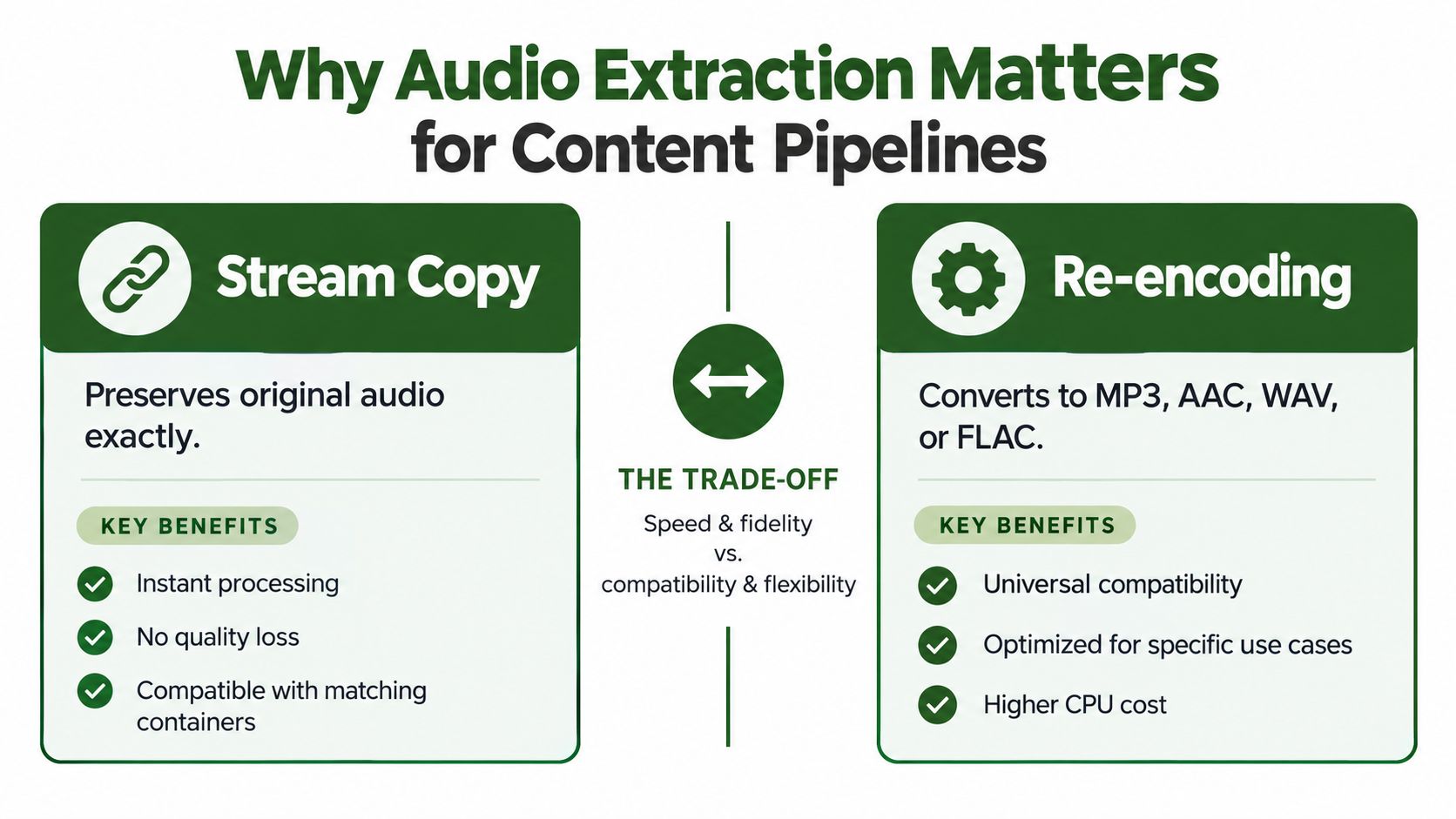
The rule of thumb is simple: copy when the destination already supports the codec, re-encode only when it demands something different. That approach keeps batch jobs moving fast and avoids paying for compute you don't need.
Use Stream Copy When the Codec Fits
Stream copy makes sense for archiving, internal review, or handing off to another workflow that accepts whatever codec the source uses. It skips decoding and recompression entirely, so quality stays exactly where it was and processing wraps up in seconds.
For example, an MP4 with AAC audio can usually be pulled out into an M4A container without touching the actual audio data. In FFmpeg, the pattern looks like:
ffmpeg -i input.mp4 -vn -c:a copy output.m4a
The -vn flag drops the video track, while -c:a copy passes the audio through as-is. The one gotcha is container mismatches — a combination that looks right on paper might fail to play somewhere down the line. Always test a representative file before committing to a large batch run.
Stream copy is the fastest path, but only when the container and codec agree.
Re-Encode for Predictable Delivery
Re-encoding earns its place when a transcription service, media player, or publishing platform insists on a specific format. Match the output to the actual use case instead of defaulting to the biggest file available.
| Format | Best use | Speed | Quality impact |
|---|---|---|---|
| WAV | Speech recognition | Medium | No lossy compression |
| MP3 | Consumer distribution | Medium | Loss depends on bitrate |
| AAC | Modern web and mobile playback | Medium | Efficient lossy compression |
| FLAC | Lossless storage | Slow | No quality loss, larger files |
For speech recognition specifically, 16 kHz mono WAV cuts file size substantially while keeping the frequency range most speech systems actually need. For public downloads, a high-bitrate MP3 covers the widest range of players.
Before you automate anything, nail down what formats the destination accepts, whether it needs mono or stereo, and what bitrate ceiling it enforces. RenderIO can execute FFmpeg commands through its API, which lets you test both approaches side by side, compare the outputs, and then batch the method that meets your quality bar without burning through extra compute cycles.
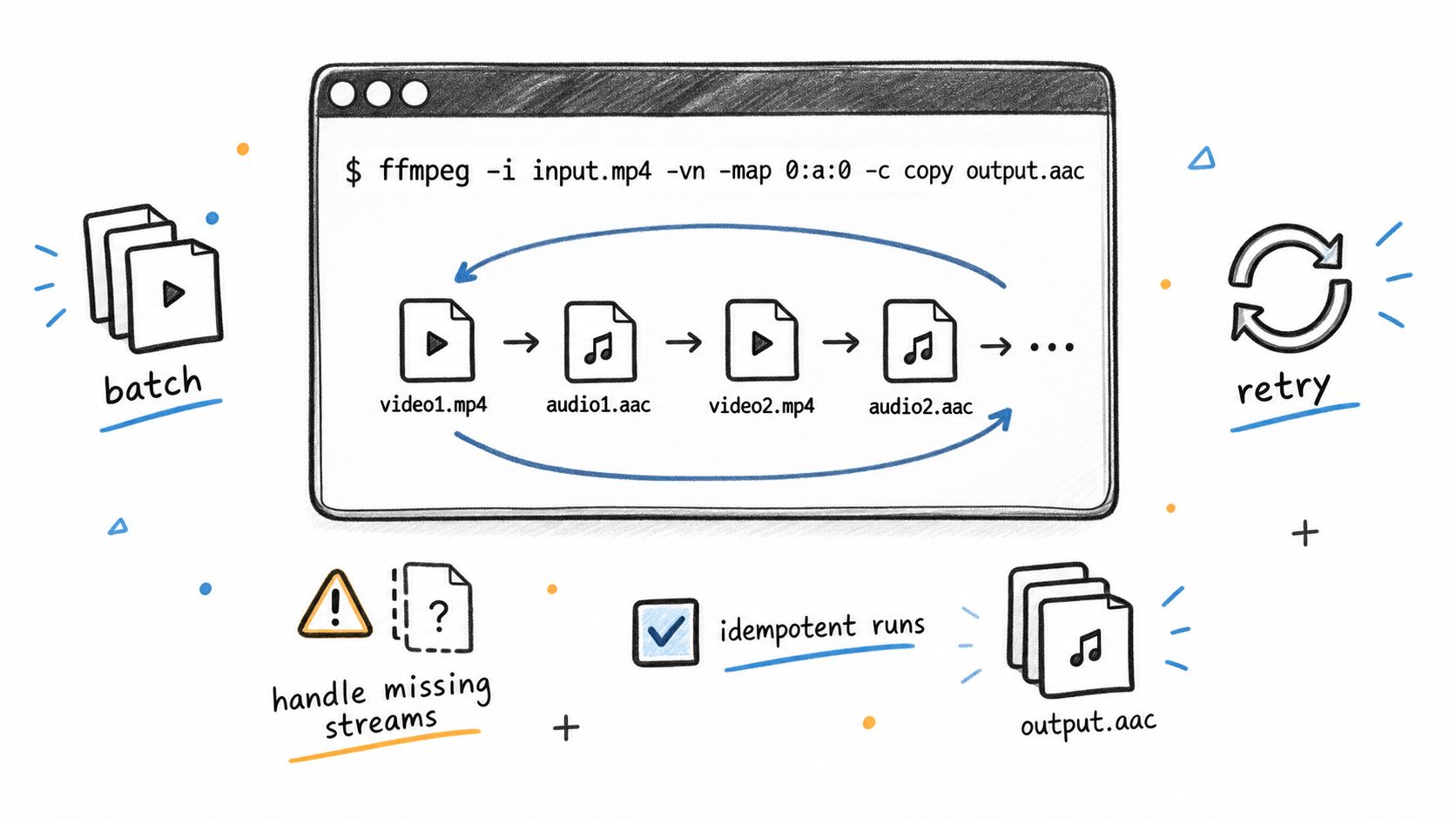
A reliable audio extractor from video needs more than a command that works once. Start with stream mapping so every job selects the intended track, especially when files contain commentary, music, and several language dubs.
ffmpeg -i input.mp4 -map 0:a:0 -vn -c:a copy output.m4a
Here, -vn removes video, while -map 0:a:0 selects the first audio stream. For a second language, change the final index to 0:a:1, but inspect the source first because track order can vary between files.
ffprobe -v error -select_streams a -show_entries stream=index:stream_tags=language -of json input.mp4
This check helps prevent extracting a silent or incorrect stream. If the destination requires MP3, replace copying with encoding:
ffmpeg -i input.mp4 -map 0:a:0 -vn -c:a libmp3lame -b:a 192k output.mp3
Make Batch Jobs Safe to Retry
For a folder of campaign videos, a shell loop can process each file while retaining predictable names:
for f in input/.mp4; do
base="${f##/}"
ffmpeg -y -i "$f" -map 0:a:0 -vn -c:a copy "output/${base%.mp4}.m4a"
done
Production scripts should still validate stream presence, capture exit codes, and write failures to a separate log. Use -map 0:a:0? when missing audio should skip gracefully rather than terminate the entire batch.
Never treat a completed process as proof of a correct output. Validate the stream, container, duration, and file size before publishing.
When source codecs and containers conflict, re-encode instead of forcing a stream copy. For API-driven batches, send one request per asset with a stable job identifier. Idempotent requests ensure retries don't create duplicate files when a network response is delayed.
Localized dubbing is a practical example. First inspect language tags, then map the matching stream where your wrapper supports metadata-based selection. For cloud execution, RenderIO's FFmpeg audio extraction guide provides adaptable command patterns and API workflow details.
Keep stderr from every job. It reveals missing streams, unsupported codecs, malformed containers, and bitrate warnings that ordinary success messages can hide. Finally, compare input and output durations, then test a sample from each source type before releasing a large batch.
Cloud FFmpeg APIs let non-technical teams trigger audio extraction through webhooks or HTTP requests, skipping the hassle of managing servers, queues, or storage. A fresh upload can automatically produce an audio derivative, save it securely, and notify the next tool when processing finishes.
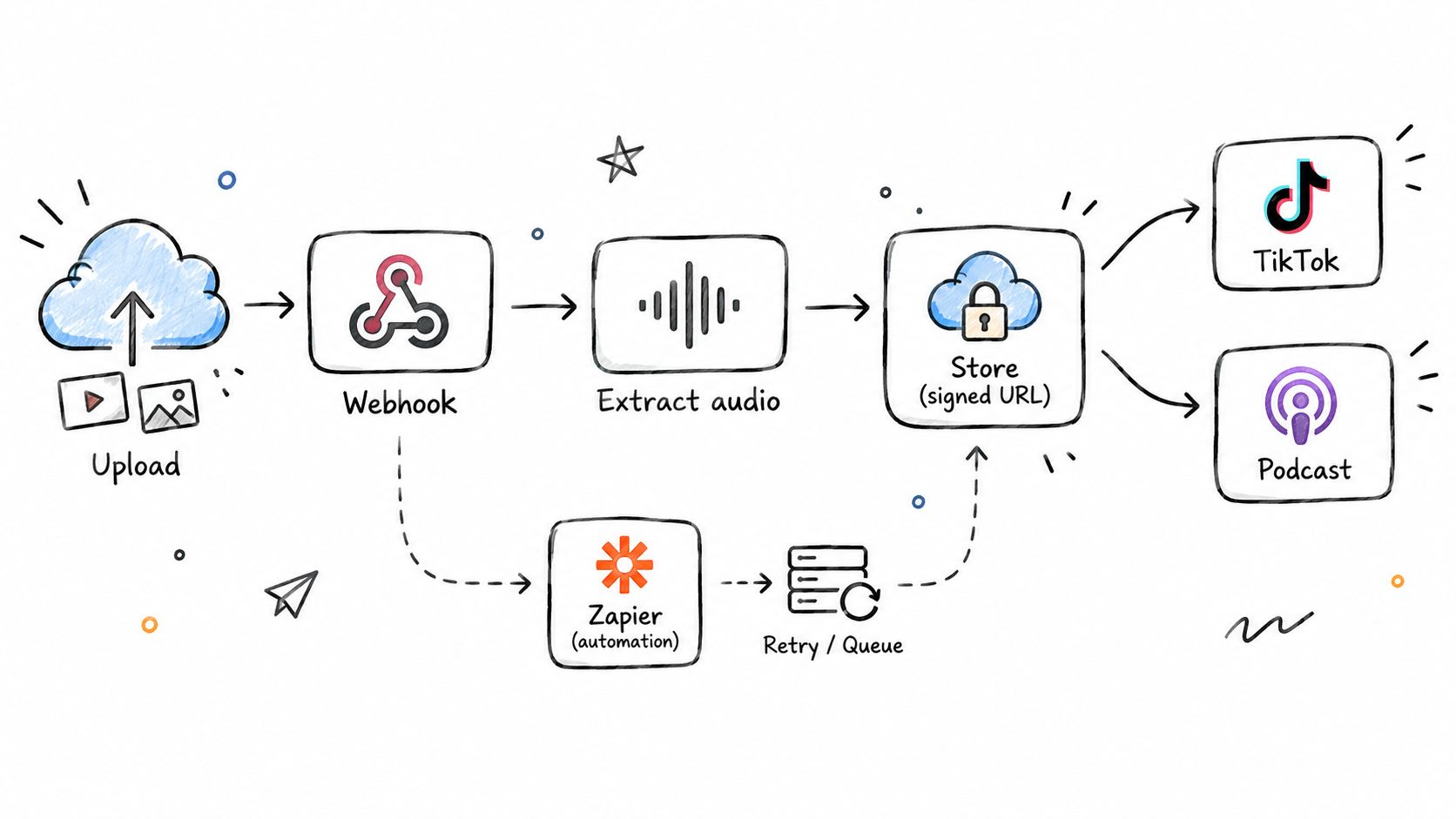
In Zapier, n8n, Make, or Pipedream, you connect a file-upload trigger to a RenderIO request. Pass along the source URL, your FFmpeg command, the output format, and a stable job identifier. From there, the response feeds into transcription, podcast publishing, cloud storage, or a content calendar.
A typical workflow might do all of this:
- Pull a 16 kHz mono WAV for transcription services
- Create an MP3 copy for podcast distribution
- Resize the original video for TikTok, Reels, or Shorts
- Push a completion message to Slack or email
A single upload can generate multiple ready-to-publish assets without any manual editing or infrastructure work.
Making These Pipelines Production-Ready
When you're sharing generated files internally, always use signed output URLs with expiration. This prevents permanent public links from spreading through your team's Slack channels and storage buckets long after anyone needs them.
For workflows that actually matter, configure retries and capture failed jobs separately. A dead letter queue gives your team a concrete list of what went wrong instead of silently losing assets — which happens more often than you'd expect when a source file lacks an audio stream or contains an unsupported codec.
RenderIO runs commands in isolated environments on a global edge network, with progress available through polling or webhook notifications. Idempotent requests are built in, so if your automation platform retries after a delayed response, you won't end up with duplicate outputs.
Here's a scenario that plays out constantly: a marketing team uploads a webinar, generates a transcript-ready WAV, extracts an MP3 for the company podcast, and stores both alongside the original video — all without anyone opening an editing tool. Teams pulling material from YouTube can also browse forex content tools when planning video-based workflows.
If n8n is your go-to builder, there's a dedicated guide on n8n video-to-audio automation with a pattern you can adapt to your own stack. My suggestion: start with one file type, validate the duration and output format, and only expand to batch processing once the workflow handles failures gracefully.
A dependable audio extractor from video needs to hold on to more than just sound. Artist, title, album, language, and copyright tags matter — publishing platforms, archives, and rights teams all rely on them to identify each output correctly.
For MP4 metadata workflows, RenderIO's guide to editing MP4 metadata covers the essentials. Once you've got that down, map relevant tags during extraction instead of assuming the output will inherit everything automatically.
ffmpeg -i input.mp4 -map 0:a:0 -map_metadata 0 -vn -c:a copy output.m4a
The -map_metadata 0 flag copies global metadata across, while -map 0:a:0 selects the first audio stream. For formats that require re-encoding, keep the same mapping and swap out -c:a copy for whatever codec settings your target format needs.
Metadata is part of the asset. Losing it can create publishing errors, rights confusion, and unnecessary manual cleanup.
Select the Correct Language Track
Videos often pack in multiple audio streams — original dialogue, commentary, music, localized dubs. Before you batch anything, inspect what's actually there:
ffprobe -v error -select_streams a -show_entries stream=index:stream_tags=language,title -of json input.mp4
The returned indices let you target a specific language. -map 0:a:1 grabs the second stream, for example. But don't assume that index is consistent across every source file. Language tags, titles, duration, and file size all need validation before anything goes live.
A solid batch check should confirm:
- The selected stream contains audible content
- The language matches the destination market
- Output duration stays close to the source
- Copyright and ownership tags are present
Keep FFmpeg stderr logs for failed or suspicious jobs. They surface missing streams, unsupported containers, and mapping errors that a basic success response won't tell you. For production workflows, always test one sample from each source type before running the full library.
Does Extraction Damage the Original Video?
No. An audio extractor from video performs a read-only operation when configured correctly, creating a separate file while leaving the source unchanged. FFmpeg reads the video, selects the audio stream, and writes a new output.
For example, -vn excludes video, while -c:a copy copies compatible audio without re-encoding.
Keep the original file immutable, and validate the new audio before deleting anything.
Why Do Batch Jobs Fail Silently?
The usual causes are missing stream validation and weak error handling. Before processing, confirm that each file contains audio, then capture FFmpeg's exit code and stderr output.
Your batch checks should confirm:
- An audio stream exists and contains expected language metadata.
- Output duration is close to the source duration.
- File size is greater than zero.
- The selected codec matches the destination.
If a track may be absent, optional mapping such as -map 0:a:0? can prevent one bad file from stopping the queue.
How Should Teams Handle Copyright?
Only extract material your team has permission to process. Apply access controls, retain ownership metadata, and maintain audit logs showing who created, downloaded, or shared each derivative.
Cloud processing can also help small teams avoid local hardware maintenance, cold starts, and egress charges. For automated extraction, RenderIO provides retries, signed URLs, and FFmpeg error logs for safer production workflows.