Editing MP4 metadata touches the file's descriptive layer, not the actual video or audio content. With FFmpeg stream copying, you can swap out a title, artist, or creation date in seconds while leaving the original streams completely untouched.
Table of Contents
- Understand the MP4 Metadata Structure
- Stream Data vs Container Metadata
- Editing Metadata in Practice
- Inspect Existing MP4 Tags
- Match Tags to Your Audience
- Changing a Single Stream's Metadata
- Preserve Streams During Metadata Editing
- Verify the Output with FFprobe
- Build A Repeatable Metadata Pipeline
- Protect Reliability At Scale
- Fix Encoding And Date Problems
- Read FFmpeg Errors Clearly
- Check Quality And Compatibility
- Update Dates In Batches
- Prioritize Searchable Fields
Understand the MP4 Metadata Structure
Think of an MP4 as a container — it bundles encoded video, audio, subtitles, and descriptive fields into a single file. Inside, metadata lives in structures called atoms (or boxes). The moov box serves as the container's index and label, holding duration info, track details, and tags.
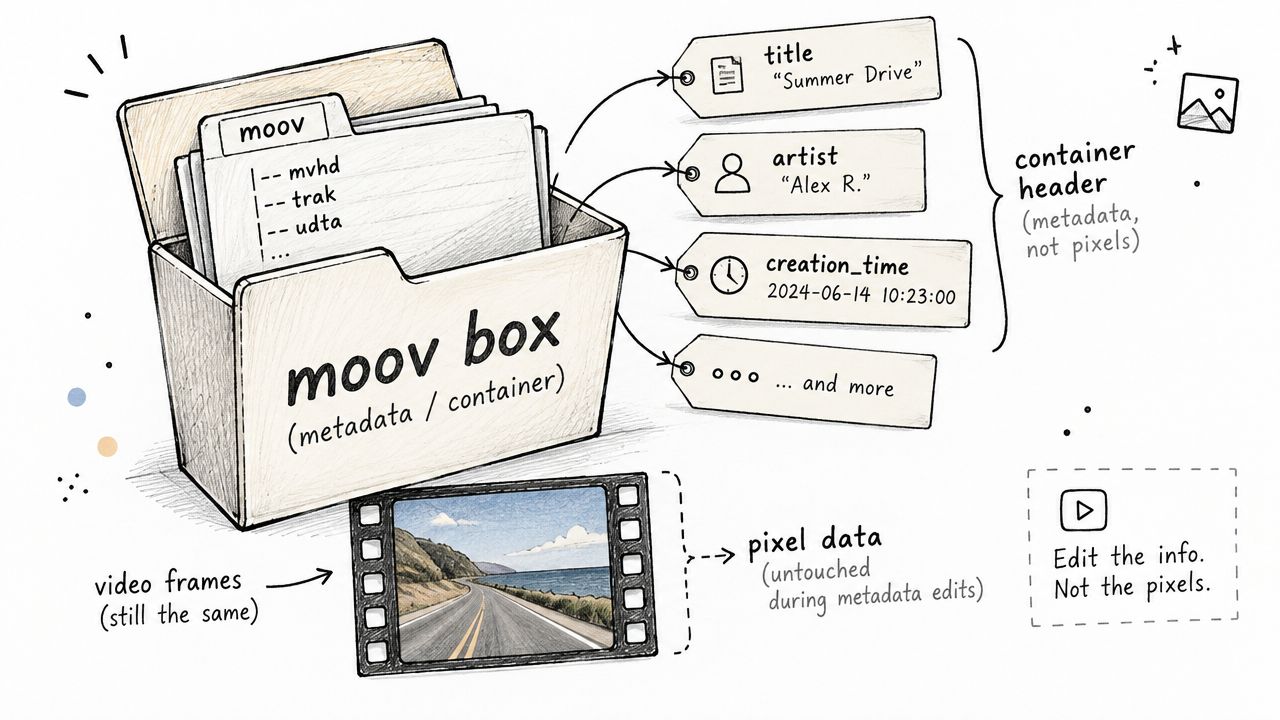
Here's why this distinction matters: editing metadata rewrites only those descriptive fields, not the encoded media itself. Re-encoding takes time and can degrade quality. A metadata-only edit is nearly instant and lossless.
Get familiar with what's inside your file using ffprobe, which dumps container and stream details. The FFmpeg metadata guide walks through how titles and stream languages appear in the output.
ffprobe -hide_banner input.mp4
Pay attention to these fields in particular:
title— the name your media player displaysartist— handy for author or production creditsdateorcreation_time— critical for archives and library sorting- Track-level metadata, including audio language and handler names
Stream Data vs Container Metadata
People often confuse re-encoding video with updating container tags. They're fundamentally different operations with different tradeoffs.
| Feature | Stream Re-encoding | Metadata Edit |
|---|---|---|
| Video quality | May change | Preserved |
| Processing time | Often substantial | Usually short |
| File contents | Rebuilt | Streams copied |
| Typical command | Codec settings required | -c copy |
A metadata edit simply copies the existing streams into a new container with updated tags. The encoded video and audio bytes never get touched.
Editing Metadata in Practice
To change just the title without disturbing the streams:
ffmpeg -i input.mp4 -c copy -metadata title="Product Demo" output.mp4
The -c copy flag is what makes this work — it tells FFmpeg to pass through the existing audio and video streams as-is. You can also clear a field entirely with -metadata title=.
One thing I've learned the hard way: always verify the output. Different media players read different MP4 atoms, and some will only display certain fields. What shows up in VLC might not appear in QuickTime or a web player. Test with whatever your audience actually uses.
Key takeaway: Metadata editing changes the container's label, while stream copying keeps the encoded media intact.
Before you edit MP4 metadata, take a moment to understand how the file actually stores its tags. MP4 has no single universal tagging scheme, so the same field can mean different things depending on the software reading it. Files from Apple applications often use iTunes-style atoms, while mobile recordings may follow 3GPP conventions. Some files also carry ID3v2 data, which creates overlapping or confusing labels.
That difference explains why a title can appear in VLC but vanish in another player. A field written under one convention might not map to the label expected by a media library, social platform, or digital asset manager.
Inspect Existing MP4 Tags
Start with ffprobe before changing anything. The command reveals container metadata, stream metadata, language codes, and handler names:
ffprobe -hide_banner -i input.mp4 2>&1
Look for the fields your workflow depends on:
titleidentifies the file in many players.artiststores a creator, presenter, or production credit.creation_timecan influence archive sorting and library dates.- Track metadata can identify audio language or handler information.
For deeper inspection, explore this online ExifTool metadata viewer. ExifTool often exposes QuickTime-specific date fields that ffprobe does not show as clearly, especially when an archive contains files from different cameras or editing applications.
Match Tags to Your Audience
Your destination determines which fields deserve priority. A digital asset manager may read title reliably, while a phone library may depend on QuickTime creation-date atoms. Social platforms can also discard fields during upload, so test one representative file before processing a complete collection.
Key takeaway: Read the existing atoms first, then write metadata that matches the software your audience actually uses.
Keep an untouched original and compare the edited copy in at least two target applications. If a title or date fails to display, the problem may be a compatibility mismatch rather than a failed FFmpeg command. This quick check prevents repeated batch edits and keeps your archive easier to repair.
FFmpeg can edit MP4 metadata without touching the encoded video itself. The safest approach copies every stream, keeps existing tags intact, and overwrites only the fields you actually want to change.
ffmpeg -hide_banner -i input.mp4
-map 0 -map_metadata 0 -c copy
-metadata title="Product Demo"
-metadata artist="Acme Studio"
-metadata album="Launch Videos"
-metadata creation_time="2026-01-15T10:30:00Z"
output.mp4
Here's what each piece does. -map 0 keeps all input streams — audio, subtitles, everything. -map_metadata 0 carries the container's existing metadata forward, and each -metadata flag overwrites just that one value. -c copy skips codec work entirely, so the encoded media stays bit-for-bit identical.
Changing a Single Stream's Metadata
Sometimes you need to fix one stream rather than the whole file. Say you want to relabel an audio track from English to Spanish:
ffmpeg -i input.mp4 -map 0 -map_metadata 0 -c copy
-metadata:s:a:0 language=spa output.mp4
The :s:a:0 targets the first audio stream specifically. The FFmpeg MP4 metadata guide walks through this exact scenario. ISO 639-2 codes like spa or eng are what compatible players look for when deciding which language to display.
Preserve Streams During Metadata Editing
This is where people accidentally wreck their files. Adding a filter or codec option when you only need tag changes triggers re-encoding — slower processing, potential quality loss, and a much longer wait.
A command like -c:v libx264 tells FFmpeg to re-encode the video. Drop it. Stick with -c copy and you're done in seconds regardless of file size.
Before processing a valuable archive, run through this checklist:
- Keep the original file untouched. Always.
- Use
-map 0when the file contains multiple streams. - Add
-map_metadata 0to retain tags you're not changing. - Write to a new output path during testing.
Key takeaway: Metadata-only updates should copy streams, map existing metadata, and overwrite only the fields you intend to change.
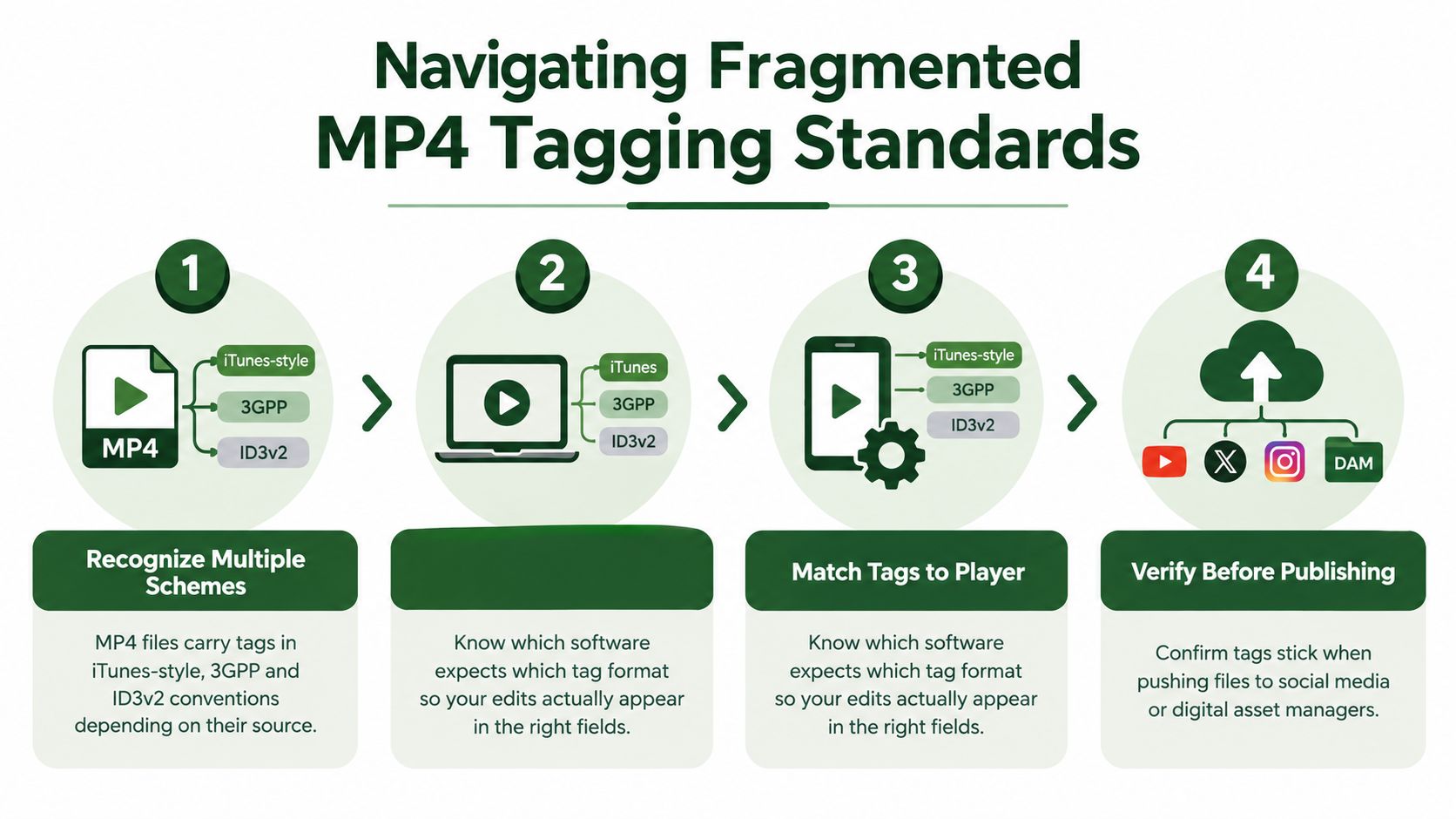
The infographic above shows why the same tag can display differently across players. Recognize the scheme, match the destination software, then verify the exported file before it goes live.
Verify the Output with FFprobe
A clean FFmpeg exit code doesn't guarantee every player will show what you expect. Always inspect the result:
ffprobe -hide_banner -i output.mp4 2>&1
Check the title, artist, date, stream count, codecs, and audio language. For automated RenderIO jobs, build these same checks into your pipeline — compare the returned file before publishing or handing it off to a digital asset manager.
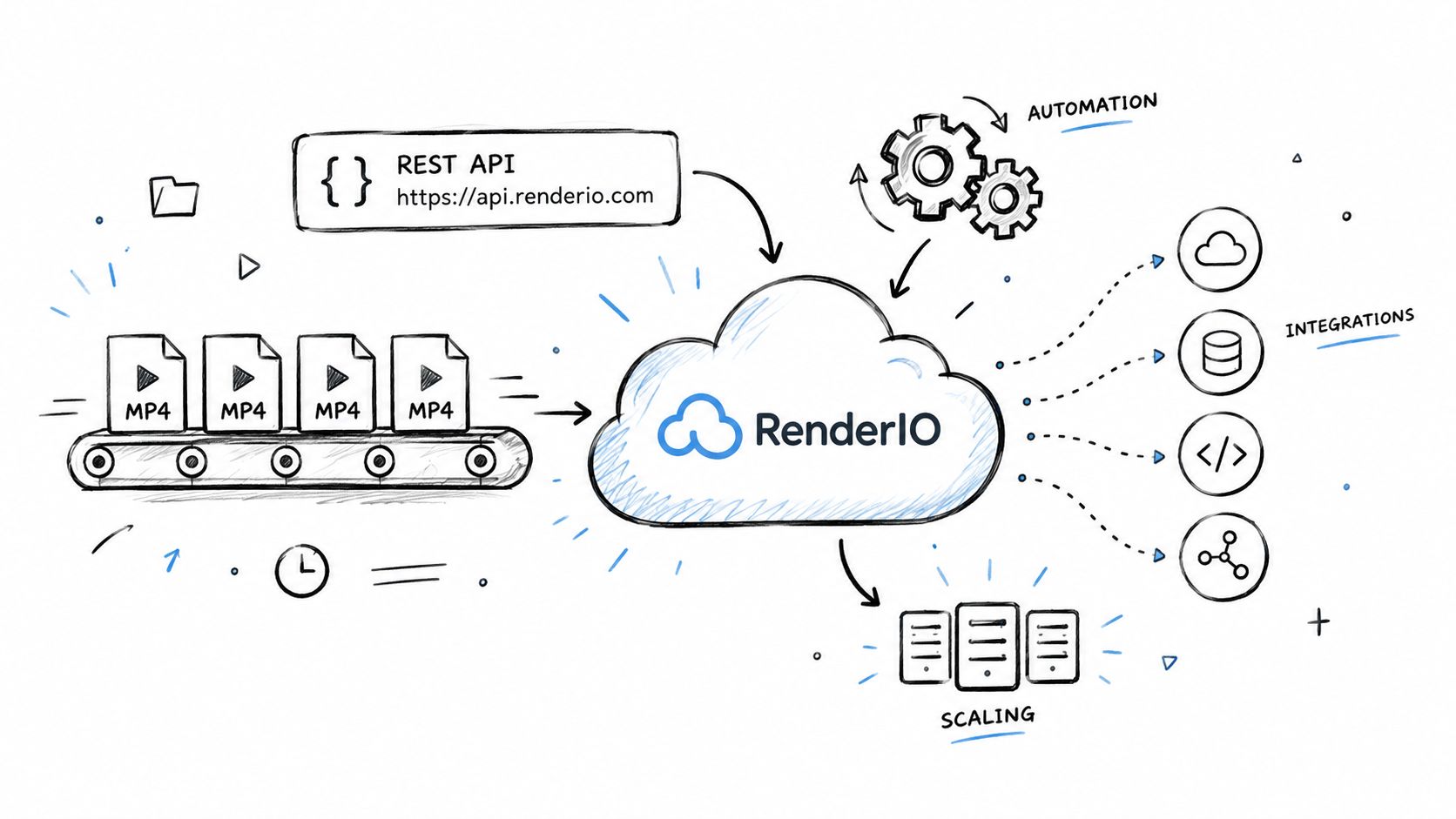
Running FFmpeg on your own machine is fine when you're dealing with a few files. The trouble starts once a library grows into thousands of clips — suddenly you're juggling local queues, storage limits, retry logic, and monitoring dashboards, and all of that overhead can feel heavier than the actual metadata edit itself. That's where RenderIO comes in. It shifts the workload to a cloud API, so your application can submit commands without maintaining a single processing server.
Here's how a typical request works: you send an input file along with an FFmpeg command to a REST endpoint, the service processes the asset, hands back an output, and reports progress through polling or webhook notifications. For teams that need to edit MP4 metadata after upload, this creates a repeatable path from ingestion all the way through to verification.
Key takeaway: Keep your metadata rules in your application, and let RenderIO handle execution, retries, and file processing capacity.
Build A Repeatable Metadata Pipeline
Picture a media team uploading product demos through a content system. An automation detects the new file, pulls a title from the campaign name, assigns the artist, sets creation_time, and drops the finished result into the asset library. No manual tagging, no forgotten fields.
The stages that make this work:
- Upload detection kicks off the workflow the moment a new video lands.
- Metadata generation derives values from filenames, form submissions, or campaign records.
- FFmpeg execution applies the tags using
-map 0,-map_metadata 0, and-c copyto keep streams intact. - Verification runs
ffprobeon the returned file before anything goes live.
RenderIO plugs into n8n and Zapier out of the box, while Make and Pipedream can hit the same endpoint with standard HTTP requests. That flexibility matters — it means both developers and no-code teams can build consistent processing across large volumes of uploads without reinventing the wheel.
Before you design your request payload or error handling, read through the RenderIO FFmpeg command API documentation. It'll save you guesswork later.
Protect Reliability At Scale
A successful command is only part of the story when you're running batch jobs. Keep the original file untouched, log the metadata you requested, and treat every output as a new version. Idempotent requests are your safety net here — they prevent duplicate work when an automation retries after a timeout.
When something does go wrong, RenderIO returns FFmpeg stderr, which gives you real diagnostic detail instead of a generic failure message. Malformed dates, missing inputs, unsupported tags — the error output tells you what actually broke. Signed output URLs, automatic retries, webhook notifications, and a dead letter queue make failures far easier to isolate than a silently stalled local script that nobody noticed until a week later.
One practical tip from running archive workflows: process a small sample first. Compare title, artist, creation_time, stream count, and codecs with ffprobe, then test the output in the same applications your audience uses. Once those checks pass, roll the same rule across the full queue with confidence rather than crossing your fingers.
Here's the rewritten section:
When you edit MP4 metadata, a successful FFmpeg exit does not guarantee that every player will display the new values. Start by comparing the output with ffprobe, then test it in the applications your audience uses.
ffprobe -hide_banner -i output.mp4 2>&1
Check title, artist, creation_time, stream count, codecs, and language codes. If the title appears in VLC but not another library, the file may contain a valid tag that the second application ignores.
Fix Encoding And Date Problems
Special characters can expose an encoding mismatch. Names such as "Beyoncé" or "München" may appear corrupted when the command, shell, or downstream service handles text incorrectly. Save commands as UTF-8, quote values carefully, and inspect the resulting metadata before processing a batch.
Dates create another common trap. MP4 files can contain several related creation and modification fields, and archive software may prioritize a different field than FFmpeg writes. If creation_time keeps reverting, inspect the file with this practical guide to stripping and checking video metadata, then update the date fields expected by your target application.
Key takeaway: A visible date or title depends on both the tag written and the software reading it.
Conflicting legacy tags can also confuse stricter media servers. Preserve the original, remove obsolete fields only when necessary, and retest the cleaned copy rather than modifying your master file.
Read FFmpeg Errors Clearly
For failed local commands, capture stderr instead of relying on a generic status message. In RenderIO workflows, stderr is especially useful because it can reveal malformed dates, missing inputs, unsupported options, or permission-related output failures.
Use a small test file first and record:
- The exact command and requested values.
- FFmpeg stderr and the returned status.
- The output's metadata and stream details.
Once the sample passes in your destination players, apply the same rule to the queue. This habit prevents one compatibility issue from affecting an entire archive.
When you edit MP4 metadata, you're only touching the container's descriptive fields — the actual video and audio streams stay untouched. That's why -c copy matters: it tells FFmpeg to skip re-encoding entirely, so quality is preserved bit for bit.
Check Quality And Compatibility
After editing, run ffprobe to verify what actually landed in the file:
ffprobe -hide_banner -i output.mp4 2>&1
Look for title, artist, creation_time, plus codecs, stream count, and language codes. Here's the catch — a tag might show up perfectly in VLC but stay invisible in another player or library. That's why you should always test in the same applications your audience actually uses.
Key takeaway: The software reading a tag matters as much as the tag itself.
Update Dates In Batches
Archival work calls for consistency. Set a uniform ISO timestamp across your files:
ffmpeg -i input.mp4 -c copy
-metadata creation_time="2026-01-15T10:30:00Z" output.mp4
Apply the same rule to every file in the batch, keep your originals untouched, and spot-check a few outputs before running the full collection. It's a small habit that saves you from discovering a systematic error after processing 500 files.
Prioritize Searchable Fields
For social uploads or asset libraries, not all metadata is equally useful. Focus on:
- Titles, which make clips easy to identify at a glance.
- Descriptions, which add context that helps with search and organization.
- Keywords, when the destination platform actually preserves custom fields.
Special characters can expose encoding issues fast. Keep your commands UTF-8, quote values carefully, and always check FFmpeg's stderr output when an automated job fails — that error message usually tells you exactly what went wrong.
When you're dealing with larger queues, RenderIO handles FFmpeg metadata updates through its cloud API, complete with retries and webhook tracking so you know the moment a job finishes or fails.
RenderIO helps automate reliable MP4 metadata workflows at scale.