You've got a video that needs to become an MP3, a folder of clips waiting for transcription, or a customer interview that shouldn't leave your computer. Searching for “audio extractor download free” brings up tools that look interchangeable. They aren't.
A free audio extractor might be a desktop installer, a portable application, a command-line utility, or a browser page that doesn't require a download at all. Some process files on your device. Others upload the entire video before you can save its audio.
Pick the extractor by the job, not the format. Decide whether the media can leave your device, whether you're processing a single file or a recurring queue, and whether the audio needs editing afterward. Those decisions narrow the options faster than a long codec list.
- Private local work: Start with desktop software or a browser tool that explicitly processes files locally.
- Repeated conversions: Choose a batch converter or a scriptable tool.
- Editing and reuse: Use an audio editor or video timeline when extraction is only the beginning.
If you're preparing recordings for a direct-to-fan music sales platform, keep your original master separate from the listening copy. Extracting a soundtrack doesn't isolate vocals or instruments, and exporting a compressed source as WAV won't restore missing detail.
Table of Contents
- 1. FFmpeg
- 2. VLC Media Player
- 3. Shutter Encoder
- 4. Audacity
- 5. MediaHuman Audio Converter
- 6. audio.js.org Audio Extractor
- 7. Online Audio Converter (123apps)
- 8. VEED
- 9. Kapwing
- 10. Clideo
- Free audio extractors compared by workflow
- Use a Local Tool First, Then Automate the Repeat Jobs
1. FFmpeg
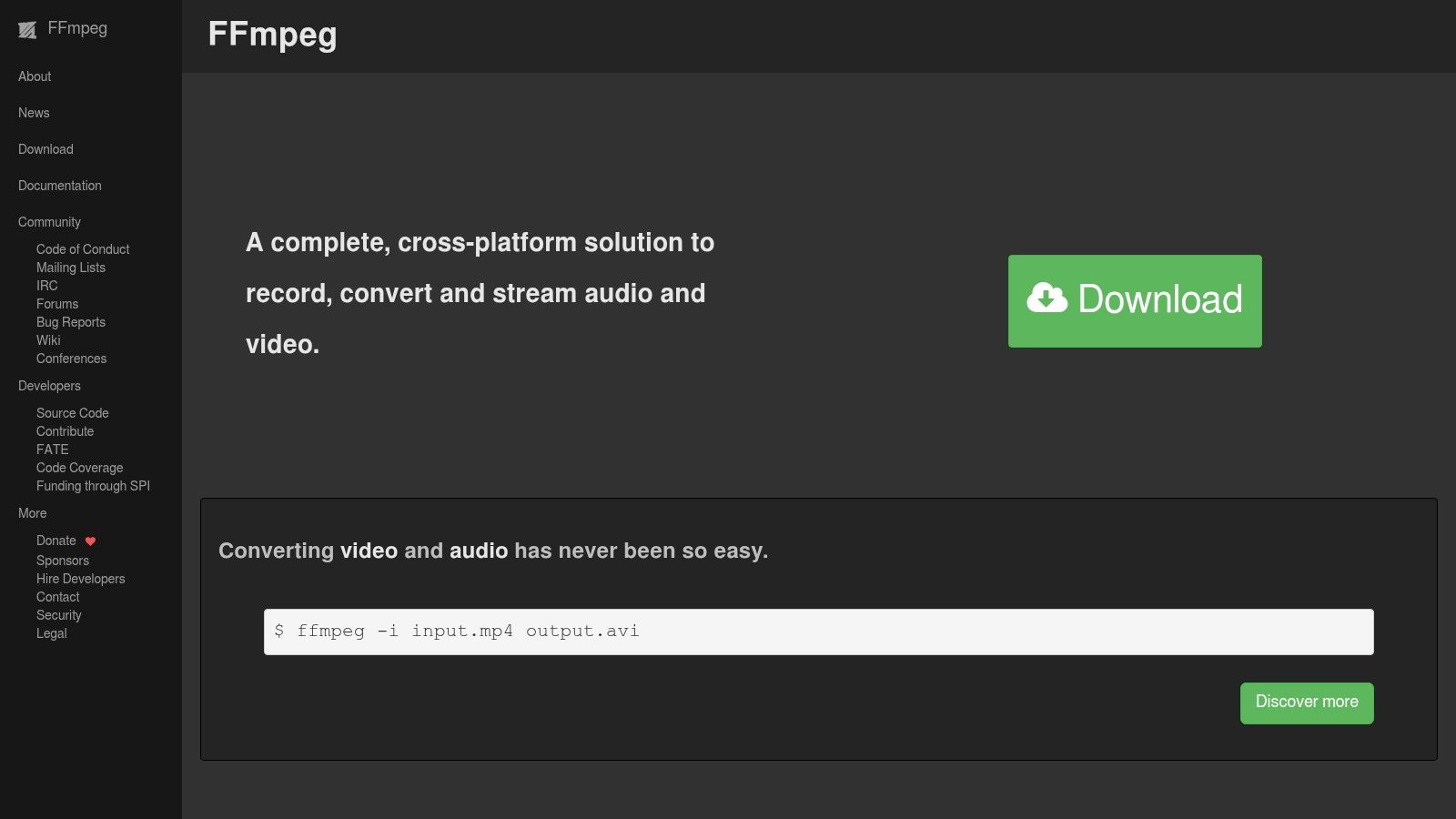
Best for local processing that must run the same way again. FFmpeg is free, open-source command-line software for extracting streams, converting codecs, and applying filters. It's the strongest choice here when you need to turn a successful manual test into a repeatable job.
The important distinction is stream copying versus re-encoding. If the existing audio codec fits your destination container and playback requirements, copy it instead of converting it. If you specifically need MP3 from an AAC soundtrack, you must encode a new audio stream.
Start with the stream, not the extension
Inspect the input before choosing an output. Videos can contain multiple language tracks, commentary, or no audio at all, so explicitly selecting the intended stream prevents surprising results. The FFmpeg audio extraction guide explains the command patterns for these choices.
An independent FFmpeg benchmark measured MP4-to-MP3 extraction from a 60-second source at roughly 0.45 seconds, while stream-copy operations took approximately 20–90 milliseconds. Those are repository test results, not capacity guarantees for your hardware or files.
- What works: Saved commands, explicit stream selection, local processing, and scripted batches.
- What gets awkward: Shell quoting, installation choices, and interpreting errors.
- When to skip it: You need an occasional conversion and don't want to use a terminal.
The official project provides source code and links to compiled builds rather than a single universal installer. Follow those download routes instead of installing a repackaged executable from an unfamiliar site.
2. VLC Media Player
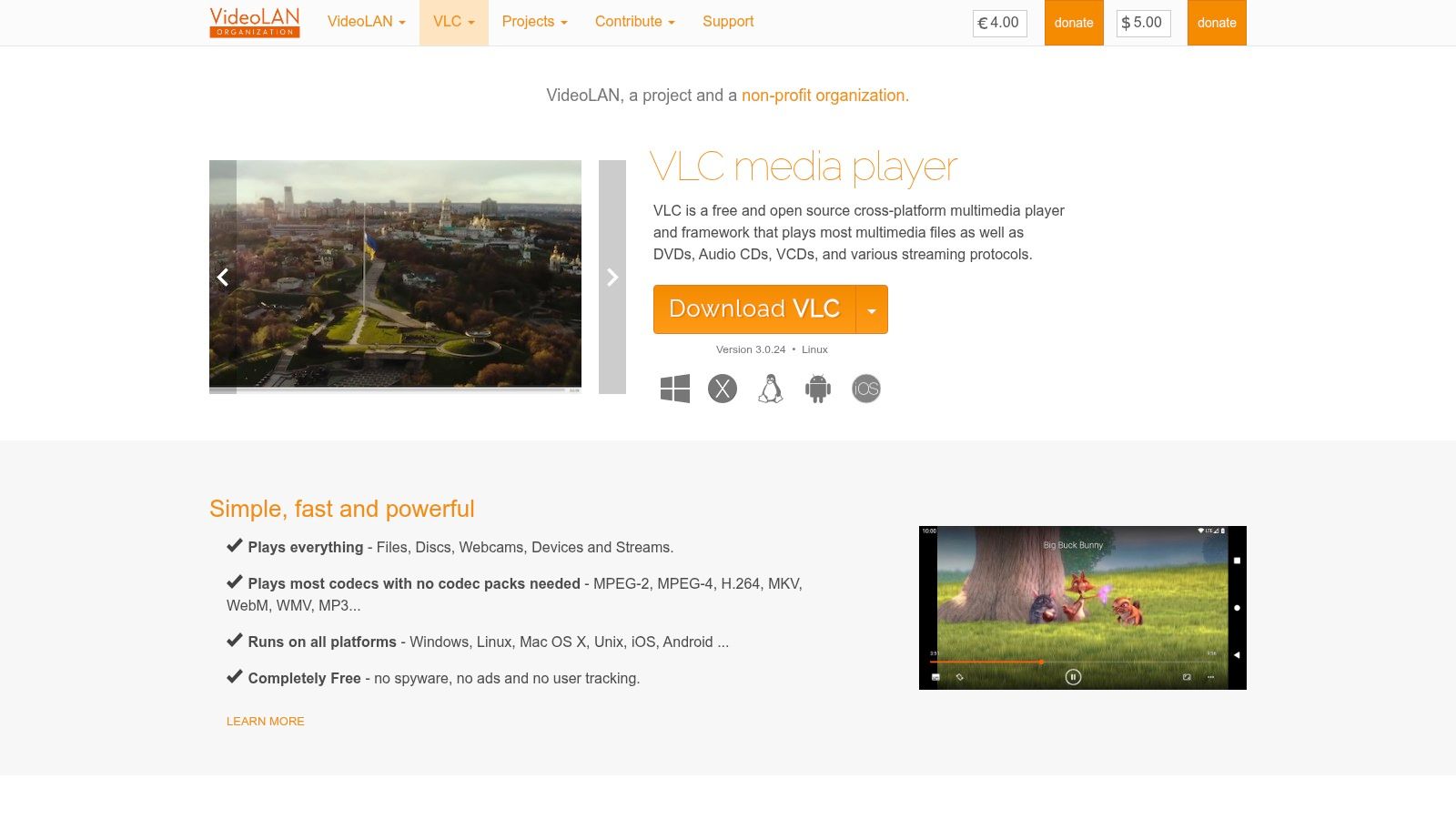
If VLC Media Player is already installed, try it before downloading another utility. Its desktop Convert/Save workflow can convert video into an audio file without uploading your source.
VLC suits the person who needs a playable result, not a processing pipeline. Open the conversion workflow, select the video, choose an audio profile, and set the destination filename. Menu wording differs across desktop platforms, so don't expect the mobile app to mirror those steps.
Practical rule: Play the exported file before deleting or moving the source. A completed conversion dialog doesn't prove you selected the right soundtrack.
Watch the profile and destination
The awkward part is the relationship between the conversion profile and the filename. Renaming an output with an MP3 extension doesn't make its contents MP3. Choose the actual audio encoding profile, then give the destination a matching extension.
VLC's broad playback support is useful for checking the source and the result in the same application. That convenience makes it a sensible fallback for a short interview, a recorded presentation, or a clip you own.
It becomes less attractive when each job needs identical settings, predictable output paths, and a record of failures. You can spend more effort repeating dialog choices than you would configuring a dedicated batch converter.
Choose VLC for occasional, offline extraction. Skip it when you need detailed audio editing or unattended processing. It's a capable media player with conversion features, not the clearest interface for managing a recurring folder of production assets.
3. Shutter Encoder
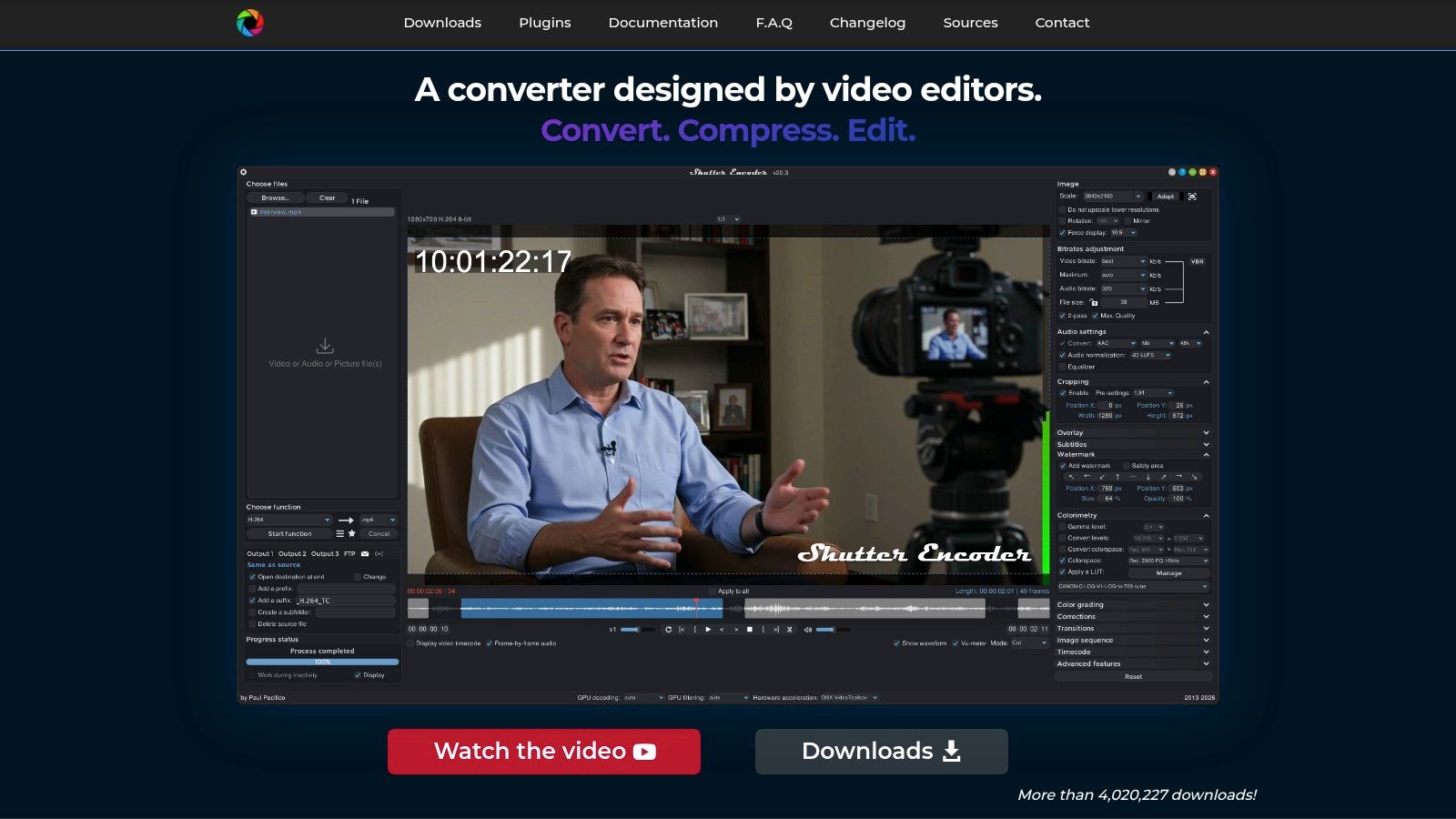
A folder of mixed camera clips calls for more than a video-to-MP3 button. Shutter Encoder provides a desktop interface for stream extraction, audio conversion, and batch-oriented media processing. Its official site describes the application as free, without advertising or feature limitations.
This is the middle ground between VLC and FFmpeg. You get a graphical workflow without giving up the distinction between extracting an existing stream and encoding a different format. Processing stays on your computer.
Use extraction when conversion isn't needed
Say you're collecting interview audio from camera originals. If your next application accepts the existing soundtrack codec, stream extraction avoids an unnecessary lossy conversion. If the editor needs WAV, choose an audio conversion function instead.
Shutter Encoder offers audio outputs including MP3, WAV, FLAC, AAC, and Opus. That range is useful, but its advantage is applying deliberate settings to a group of files rather than repeatedly navigating a simple converter.
- Strong fit: Local folders, mixed media inputs, and users who want graphical control.
- Main friction: The extensive interface takes longer to understand than a dedicated extractor.
- Installation choice: Windows users can choose portable downloads as well as installers.
Keep the first batch small enough to inspect manually. Confirm the selected stream, naming behavior, channels, and destination before processing the rest of the folder.
I'd choose Shutter Encoder when a creator wants repeatable desktop work but doesn't want to maintain shell scripts. Skip it for a throwaway conversion if VLC already handles the file. Its breadth is useful only when you'll use the extra control.
4. Audacity
Extraction isn't always the hard part. Removing a long pause, adjusting uneven speech, or cutting an interview into usable excerpts takes an editor. Audacity is the better fit when you need to work on the sound after importing it.
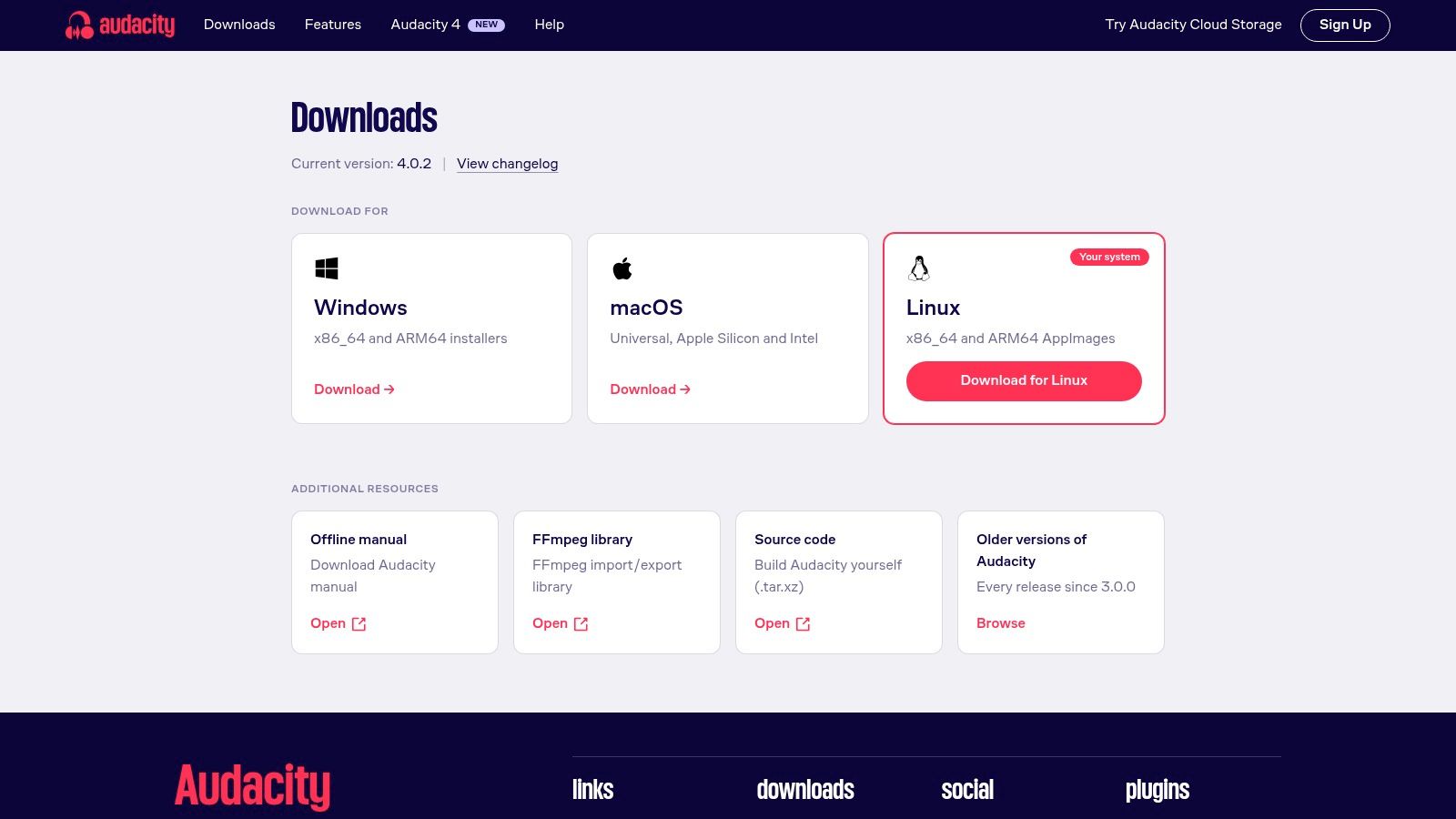
Audacity runs locally and offers detailed audio editing, but it isn't a dedicated video extractor. Some media imports require the additional FFmpeg library. If a video won't open, check format support before assuming the recording is damaged.
Edit first, encode the delivery copy last
Keep an editable project and export the final delivery format after your changes. Repeatedly exporting MP3, importing it again, and exporting another MP3 adds avoidable lossy encoding.
The Free-Codecs audio extractor guide describes common extraction formats and workflow considerations; the practical distinction is that extraction needn't reduce quality, but unnecessary lossy re-encoding can. WAV or FLAC can preserve the decoded audio for subsequent work, without improving the original recording.
For music edits, treat tempo changes as a separate production decision. Guidance on preparing faster edits with SCHelper is relevant when the next task is changing pacing rather than merely separating audio from video.
- Choose Audacity: You need trimming, cleanup, fades, or close listening.
- Expect setup: Additional import support may require FFmpeg.
- Skip Audacity: You only need routine conversion across a folder.
Its editing interface earns its place when you'll make decisions by listening. For mechanically identical jobs, a converter or script is less work.
5. MediaHuman Audio Converter
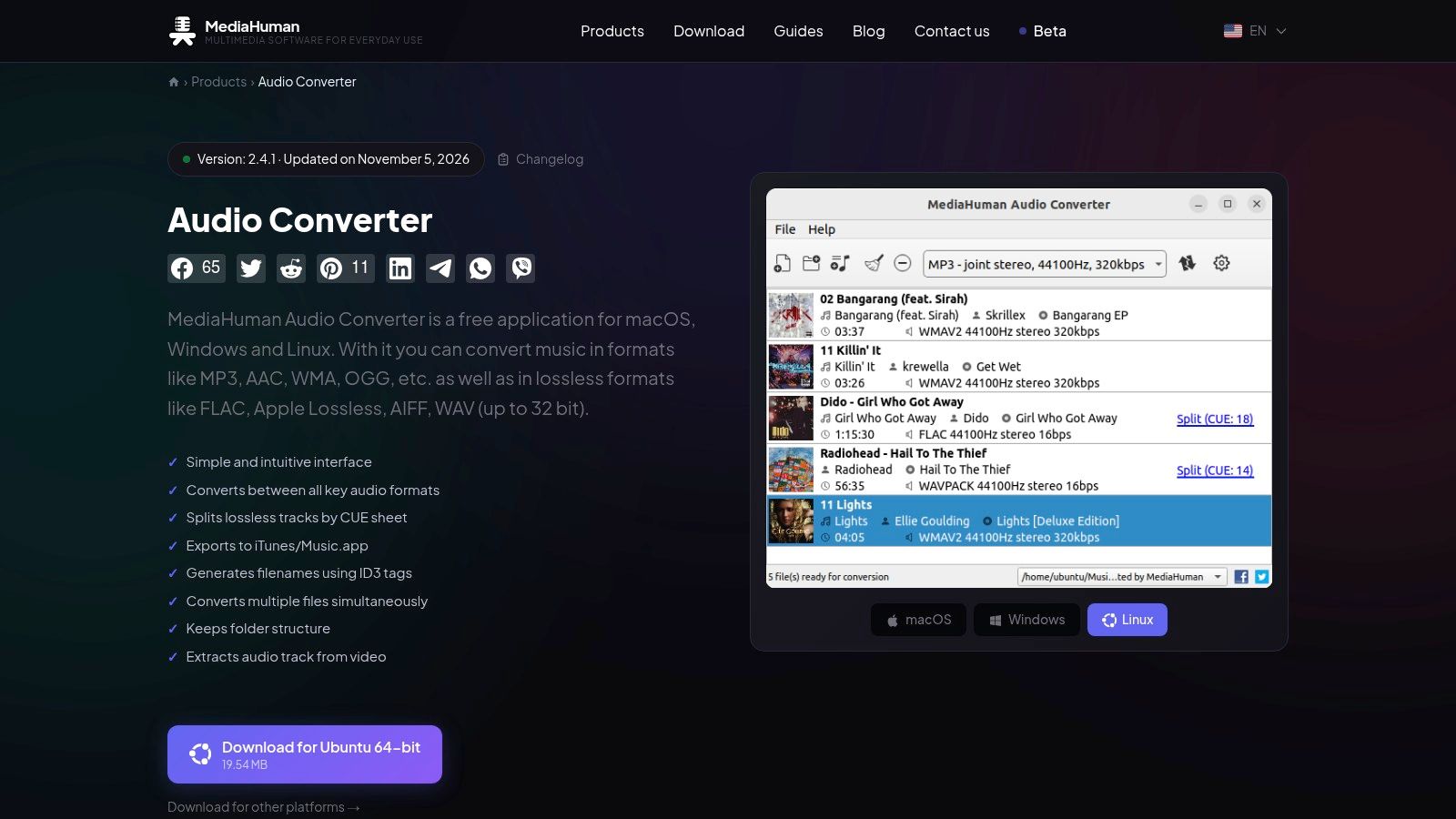
MediaHuman is the approachable folder converter. MediaHuman Audio Converter can extract audio from video, convert audio formats, and process multiple files locally. It's useful when you want batch handling without learning FFmpeg syntax.
Its filename and folder options matter more than they might appear. A batch is only helpful if you can identify the results afterward. Preserving source organization and using tags for filenames can reduce the cleanup needed after conversion.
Decide how the outputs will be organized
Before starting, choose whether outputs should mirror source folders or collect in a separate destination. Camera files and downloaded assets can share filenames, so avoid flattening unrelated projects into an undifferentiated output directory.
For a folder of voice recordings, choose the format accepted by the next application rather than automatically selecting the largest output. The WAV-to-MP3 conversion guide is useful when you need compact listening copies while keeping higher-quality working files separately.
A batch converter saves clicks. It doesn't replace checking whether every source contains the audio you intended to extract.
MediaHuman gets awkward when the workflow requires conditional stream selection, custom filters, or integration with another system. At that point, a saved command is easier to audit than a set of desktop preferences.
Choose it for recurring manual batches. Skip it for unattended SaaS processing or detailed waveform editing. Confirm that your installed version exposes the formats, metadata handling, and output settings you need before committing a large folder.
6. audio.js.org Audio Extractor
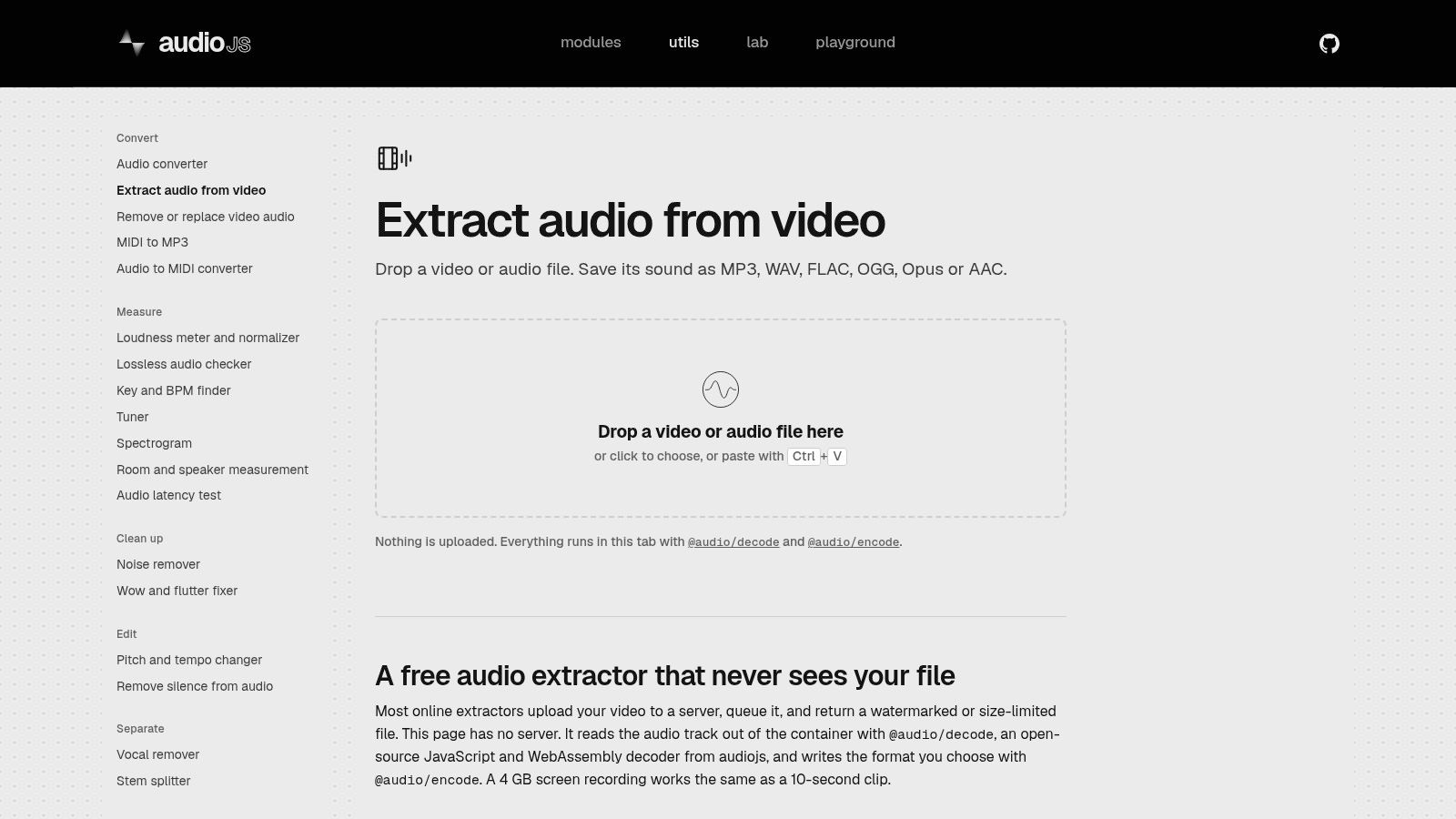
A browser interface doesn't necessarily mean a cloud upload. The audio.js.org Audio Extractor says it processes files on your device rather than uploading them. That makes it worth considering when installation is inconvenient but sending the source to a server is unacceptable.
The tool offers outputs including MP3, WAV, FLAC, OGG, Opus, and AAC. Choose based on the next task, not the assumption that a lossless extension improves a compressed soundtrack.
Local processing still has constraints
The browser uses your device's resources. A large video can be awkward on a memory-constrained laptop or phone, and support can vary with browser capabilities and the source's codec or structure. Keep the source available until you've checked the downloaded result.
- Good fit: Occasional extraction without installing desktop software.
- Privacy distinction: The tool states that media processing happens locally.
- Weak fit: Recurring queues that need consistent retries and failure reporting.
Local processing is useful, but it isn't a blanket security guarantee. You still need to trust the page you open and understand any permissions it requests.
Guidance on downloading audio safely warns about converter-site redirects, fake installer prompts, and malicious downloads. Use official software sources, check signatures or checksums when available, and avoid unexpected executables.
Skip this option when a browser tab is an unreliable place to run the job. A desktop batch tool or FFmpeg gives you better control over repeated processing.
7. Online Audio Converter (123apps)
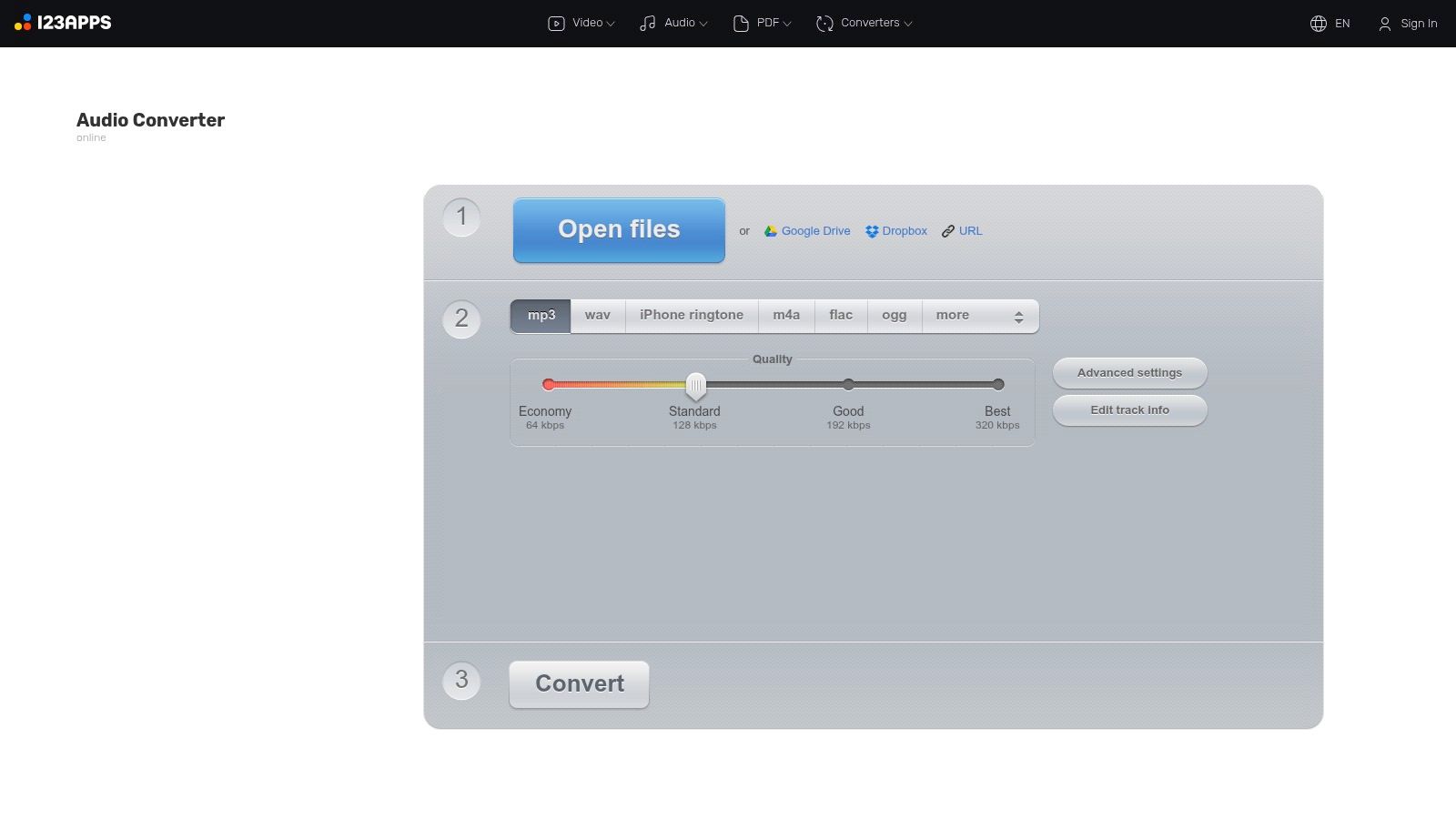
Online Audio Converter is a browser service for extracting and converting audio with controls for format, bitrate, frequency, and channels. It also supports batch conversion. Unlike a browser-local extractor, it uploads your files for processing.
That trade-off can be acceptable for a public promotional clip you're authorized to reuse. It's a poor default for confidential interviews, customer recordings, or unreleased campaign material.
Separate conversion convenience from permission
The service suits users who want familiar audio controls without installing software. Upload time is part of the job, though, and a slow connection can matter more than the actual conversion. Free access may also have restrictions compared with paid access, so inspect the current interface before preparing a batch.
For a focused alternative workflow, the extract-audio-from-video tool provides another starting point. Choose based on processing location and output requirements, not just whether a page says free.
If your starting point is advice to download audio from YouTube videos, establish authorization before converting anything. YouTube's Terms of Service restrict downloading and reproducing service content unless authorized by the service, relevant rights holders, or applicable law.
- Use it for: Non-sensitive files and occasional browser-based conversion.
- Check before uploading: Current limits, retention terms, and needed output controls.
- Skip it for: Private source material or automated production queues.
A technically successful download doesn't establish a right to reuse the recording.
8. VEED
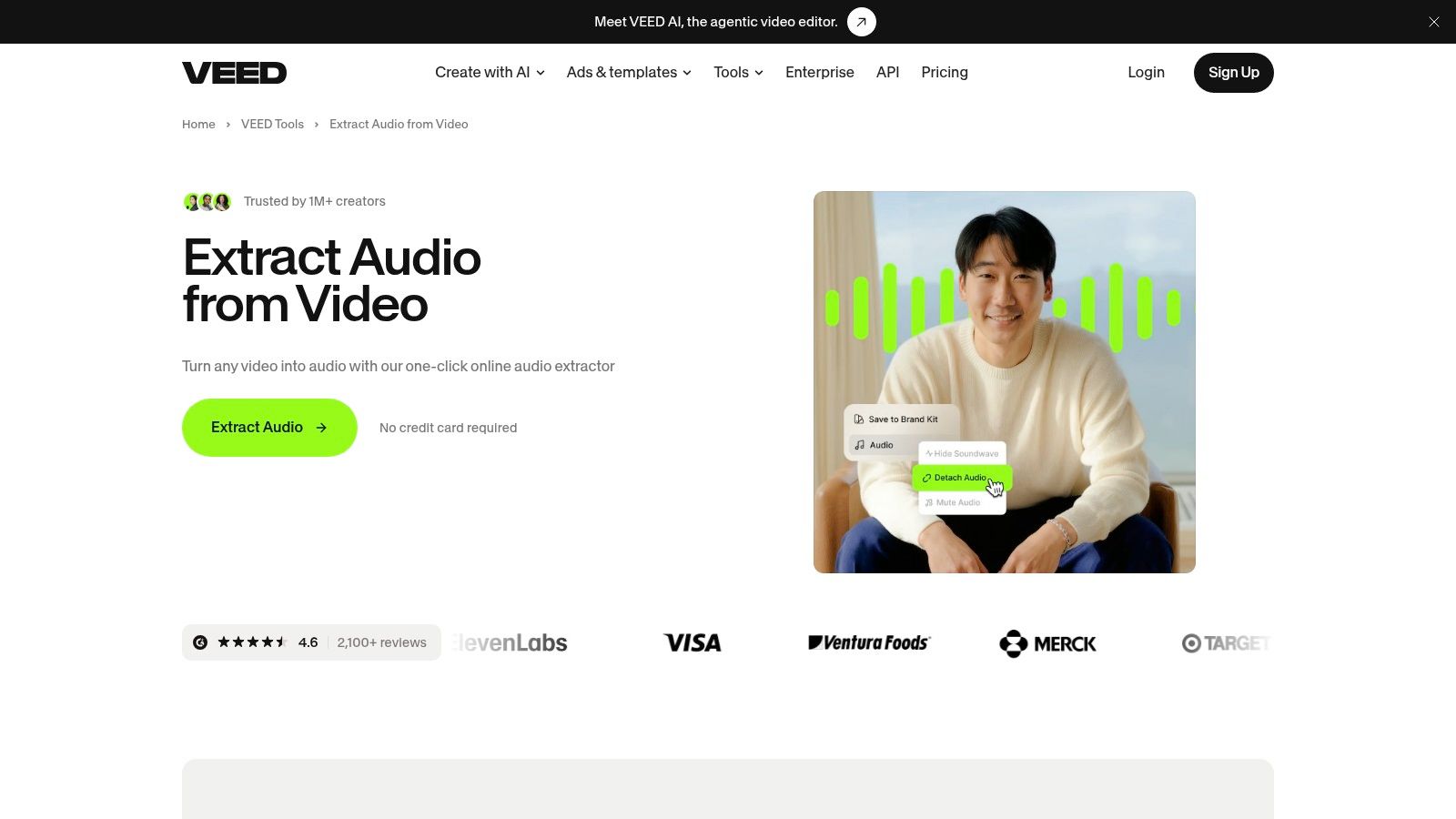
Choose VEED when you want to trim the soundtrack while working in a browser editor. Its extraction workflow can save video audio as MP3, and its timeline helps when the useful sound is only part of the source.
Say a product demonstration begins with setup chatter and ends with a long pause. Editing the selection before export is more convenient than downloading the entire soundtrack and opening another application.
Check the export before committing
VEED requires uploading media to an online editor. That makes it less suitable for sensitive recordings and adds transfer overhead to a task a local converter could perform without an upload.
Its free exports include watermark restrictions. Don't assume video-export rules describe an audio-only download in exactly the same way. Inspect the selected export route and confirm what the free plan lets you save before doing extensive editing.
Use a browser editor because you need its timeline, not because separating audio requires a full video project.
VEED is approachable for creators who already understand visual timelines. It's less compelling when the entire requirement is preserving an existing audio stream, or when a folder needs identical conversions.
Keep a local source copy and check the exported file for the intended start, ending, and complete speech. Those checks matter more than the number of editing features available.
Use VEED for extraction plus simple creative decisions. Skip it for private local work, scriptable batches, or a task that doesn't benefit from timeline editing.
9. Kapwing
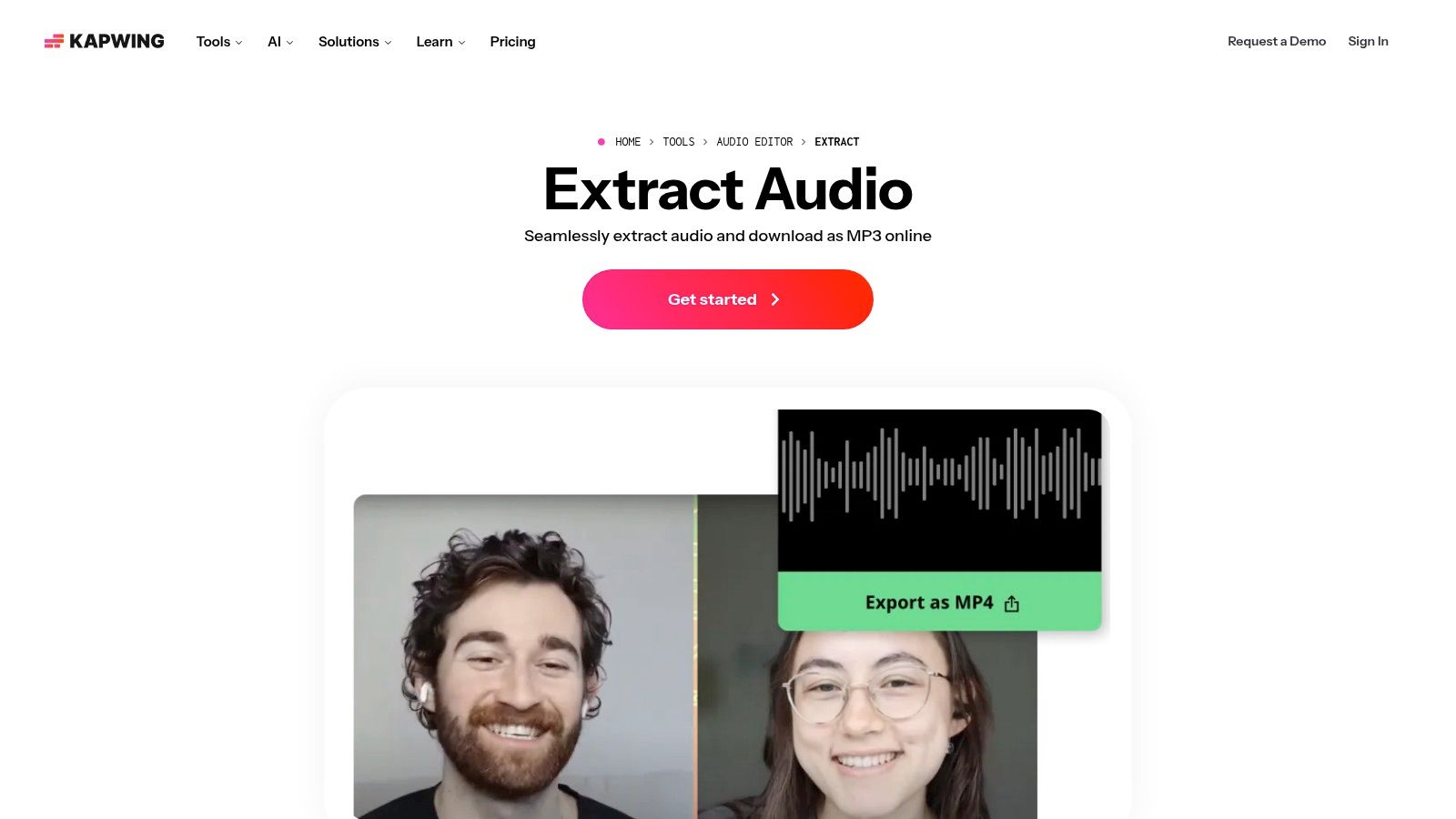
A detached soundtrack doesn't always need to become a separate file immediately. Kapwing makes sense when you want to separate audio on a timeline, move it beneath different footage, and continue editing the same project.
For example, you might retain an approved voiceover while replacing screen recordings or product shots. In that scenario, reuse within the editor is the main benefit. MP3 export is useful when another application needs the track.
Distinguish detaching from downloading
Detaching audio creates an independently editable track in the project. Exporting audio creates a file outside it. Decide which outcome you need before spending time arranging the timeline.
- Choose Kapwing: You're already assembling a video and want to reuse its soundtrack.
- Watch the free plan: Upload and export limits apply, and free exports carry watermark restrictions.
- Check the output route: Confirm audio-only availability and the applicable restrictions before editing.
- Skip it: You need offline processing or unattended extraction.
Like other upload-based editors, Kapwing introduces a separate copy of the source into a hosted workflow. Use media you're permitted to upload, and don't treat a browser interface as evidence that processing stays on your device.
Kapwing is awkward as a replacement for a straightforward batch converter. Each project introduces editing decisions that don't help a purely mechanical task.
I'd choose it for a creator who wants to keep editing after separation. For an archive folder or an extraction endpoint inside a product, use a tool designed around repeatable file processing instead.
10. Clideo
For a short, non-sensitive clip on a device where you can't install software, Clideo offers a straightforward upload, trim, and download workflow. It can extract sound, let you select a section, and provide output-format choices.
The appeal is a narrow task without a desktop setup process. Supported cloud-storage access can also be convenient when the source is already stored remotely, although that doesn't remove the need to consider where processing happens.
Trim for the actual destination
If you only need a spoken excerpt, select that section before exporting. Leave enough context around the edit to avoid cutting off a word or removing a useful breath. Listen through the result instead of relying only on the visual selection.
Clideo is an upload service, not a private local extractor. A modest source file can still be unsuitable if it contains customer information or unreleased material. Confidentiality is about the contents, not just the transfer size.
Its main weakness is repeatability. A manual page is convenient for an occasional task, but it doesn't give a developer a versioned command, a predictable error response, or an automated retry path.
Check the current upload allowance and export conditions on the tool before selecting your source. Free-service restrictions can determine whether the workflow is practical even when the format is supported.
Choose Clideo when installation is blocked and the file is appropriate for hosted processing. Skip it for recurring folders, large production queues, and recordings that should remain on your computer.
Free audio extractors compared by workflow
Choose by where the file is processed and whether you need to repeat the job. Local tools keep processing on your computer; online services require an upload. For recurring work, batch support matters more than a long list of export settings.
| Item | Where it runs | Best for | Batch friendly | Install needed | Main catch |
|---|---|---|---|---|---|
| FFmpeg | Local desktop, command line | Precise, repeatable media processing | Yes | Yes | Command-line learning curve |
| VLC Media Player | Desktop and mobile | Occasional conversions, especially if already installed | Limited | Yes | Settings and file naming can be confusing |
| Shutter Encoder | Local desktop, graphical interface | Advanced extraction without command-line tools | Yes | Yes | Extensive interface can overwhelm beginners |
| Audacity | Local desktop | Extracting audio for editing or cleanup | Limited | Yes | Some video formats require FFmpeg setup |
| MediaHuman Audio Converter | Local desktop | Batch extraction and format conversion | Yes | Yes | Less suited to custom processing pipelines |
| audio.js.org Audio Extractor | Browser, on your device | Extraction without installation or file uploads | Limited | No | Compatibility and performance vary by device and file |
| Online Audio Converter (123apps) | Browser, online service | Convenient conversion with format and quality controls | Yes | No | Files are uploaded; free use may have limits |
| VEED | Browser, online editor | Extraction with basic trimming | Limited | No | Free exports include a watermark |
| Kapwing | Browser, online editor | Extracting audio for use in a video project | Limited | No | Free-plan limits and watermarked exports |
| Clideo | Browser, online service | Occasional extraction and trimming | No | No | Upload required; free uploads are size-limited |
For a one-off conversion, an installed tool such as VLC avoids uploading the source. If you need to edit or clean up the extracted sound, Audacity offers a local workflow, while Shutter Encoder provides a graphical interface for more involved media processing.
For repeated jobs, FFmpeg and MediaHuman are better suited to batches. FFmpeg gives you precise settings and a repeatable command, but takes time to learn. MediaHuman keeps batch conversion accessible through a desktop interface, with less control over custom processing pipelines.
Browser-based options reduce setup, but differ in where the file is handled. audio.js.org processes files on your device, while online services require uploads. Clideo's free uploads are size-limited, so check whether the file fits before starting. Choose an online service for occasional work when uploading is acceptable; use a local tool when you need the file to stay on your device.
Use a Local Tool First, Then Automate the Repeat Jobs
Start with the smallest workflow that satisfies the constraint. For a single short file, use VLC if it's installed. Clideo is a reasonable alternative when installation isn't possible and uploading the source is acceptable.
For folders, choose MediaHuman when you want straightforward conversion and output organization. Choose Shutter Encoder when stream extraction, format control, and broader media processing matter. Use Audacity when the recording still needs listening, trimming, cleanup, or other editorial decisions.
FFmpeg is the right choice when the same operation must run again with explicit settings. Save the command, record the expected output, and test it against representative inputs. A successful conversion on a simple clip doesn't establish that your workflow handles missing soundtracks, alternate languages, or unusual channel layouts.
Preserve the source and verify the result
Keep extraction separate from enhancement. Copying an existing compatible stream avoids re-encoding; converting to MP3 creates a new lossy file. WAV and FLAC are useful working formats, but neither restores information already lost in the source.
Before handing off an output, check:
- Content: The correct soundtrack, language, and selected section are present.
- Playback: The beginning and ending are intact, with no unexpected silence.
- Technical fit: The receiving application accepts the codec, channels, and sample rate.
- Organization: The output name identifies its source and won't overwrite another result.
Browser editors can impose watermark and export restrictions on free workflows. Inspect the actual audio export rather than assuming every free-plan restriction applies identically to audio and video. Upload tools are also a poor fit for sensitive media unless your organization has approved that processing arrangement.
Automation threshold: Stop repeating manual clicks when the settings no longer require human judgment.
For teams that already script FFmpeg, our RenderIO cloud API can extract audio and perform other media jobs without requiring you to manage processing servers. We download the input, run FFmpeg in an isolated container, and upload the outputs, with zero egress fees on processed downloads.
Cloud automation is still hosted processing, not local extraction. Keep confidential jobs local when that's the requirement. Move repeatable, authorized jobs into an API workflow when the operational benefit justifies transferring the media.
RenderIO runs FFmpeg audio extraction and format-conversion jobs through an API, so you can reuse a tested command without managing processing servers. Visit RenderIO to try an extraction workflow and connect the result to your application or automation.