The popular advice is simple: choose 1080p whenever you can. That advice fails in automated video workflows. A 1080p file encoded with too few bits can look worse than a well-encoded 480p file, especially on a phone, while still consuming more processing time, storage, and delivery bandwidth.
The useful question isn't only how many pixels the viewer sees. It's how much bitrate each output can afford, how many variants your pipeline must create, and where those files will play. A resolution decision made once gets multiplied across every render, CDN request, archive copy, and creative test.
The technical baseline is clear. 1080p uses 1,920 × 1,080 pixels, or about 2.07 million pixels per frame, while 480p-class video commonly uses 720 × 480 pixels. That gives 1080p roughly four times the pixel count of that 480p class, as documented in this display resolution overview.
| Resolution | Typical frame class | Pixel load | Best fit |
|---|---|---|---|
| 480p | 720 × 480 or 854 × 480 class SD | Lower | Mobile playback, previews, constrained networks, high-volume variants |
| 1080p | 1,920 × 1,080 Full HD | About 2.07 million pixels | Large screens, desktop viewing, detailed graphics, final showcase exports |
Table of Contents
- Why Resolution Choice Matters More Than Resolution Itself
- What 480p and 1080p Actually Mean
- Bandwidth, File Size, and Data Cost Compared
- Bitrate Envelopes and Codec Choices
- Platform Requirements for TikTok, Reels, and Shorts
- Scaling Resolution Choices in Automation Pipelines
- Choosing the Right Resolution and Encoding It Correctly
Why Resolution Choice Matters More Than Resolution Itself
The expensive mistake is treating 1080p as the default output. Resolution should follow the bitrate budget, because every extra pixel affects encoding time, storage, CDN delivery, and the number of creative variants a pipeline can produce.
A 1080p output earns its place when viewers will see its added detail and the delivery path can sustain the required bitrate. For a small mobile placement, a well-allocated 480p encode may deliver the cleaner result while using fewer resources. The decision is less about the label on the file than the amount of data available to represent each frame.
Practical rule: Set a bitrate budget first, then choose the highest resolution that budget can support without visible compression damage.
Automation makes that rule operational. One source video may generate aspect-ratio, language, account, and campaign variants. Each additional output consumes encoder time and occupies storage. Every playback also moves that file through the CDN. Selecting 1080p for outputs that do not need it can reduce variation throughput, increase delivery capacity requirements, and leave less budget for other renditions.
The bitrate ranges provide a useful starting point. Delivery guidance commonly places 480p around 1 to 3 Mbps and 1080p around 3 to 6 Mbps, although frame rate, codec, and scene complexity can push requirements higher. BroadbandNow's streaming bandwidth guidance gives similar context for comparing these tiers. Treat those ranges as an allocation framework, not a quality guarantee.
At a constant duration, bitrate sets the file's data volume. Raising the bitrate increases storage and CDN transfer directly. Raising resolution may also require more encoding computation, particularly when the content contains motion, texture, or fine graphic detail.
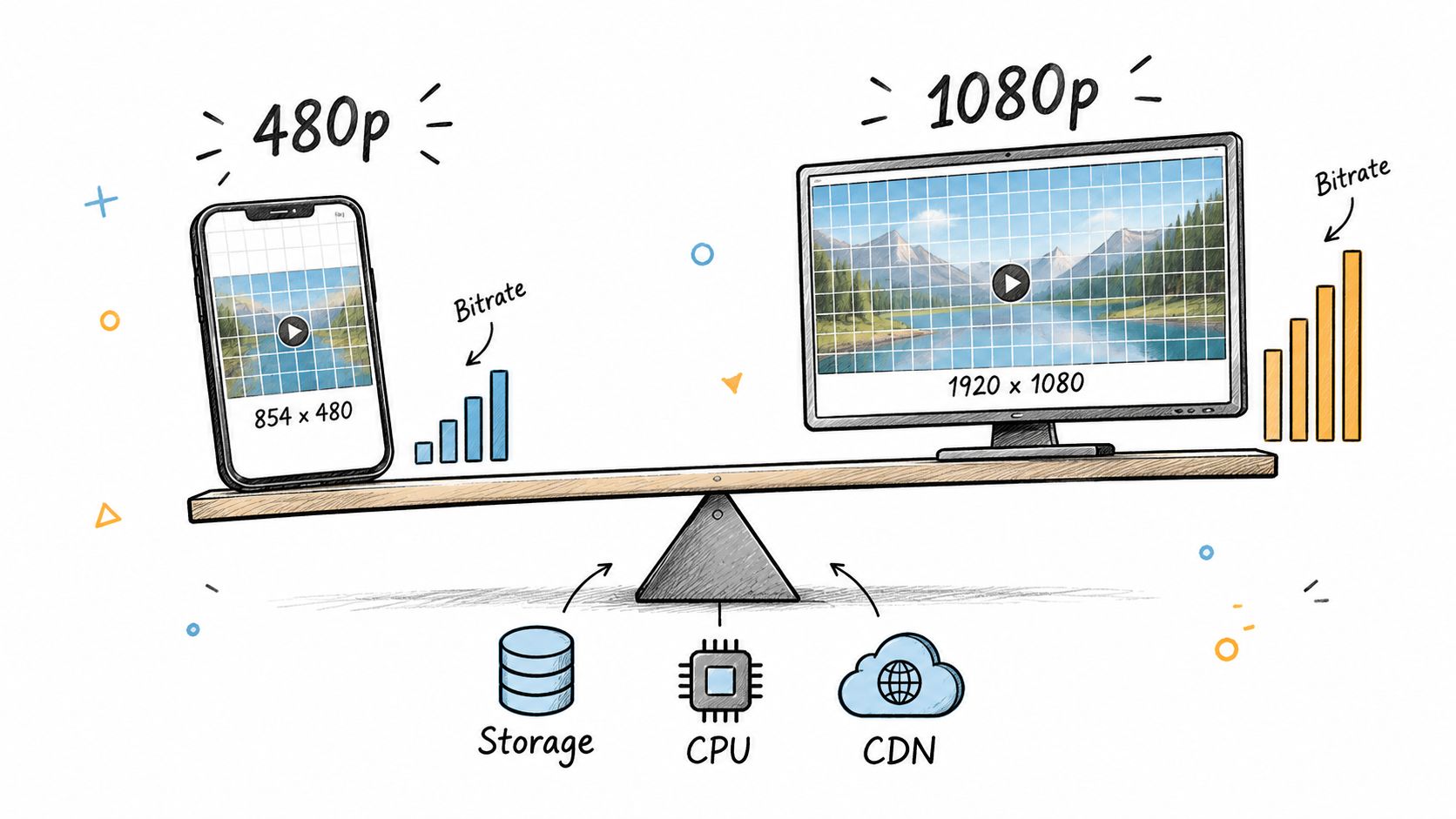
Use 1080p for masters and placements where detail supports the viewing experience. Use 480p for drafts, constrained playback, and high-volume experiments when delivery reliability and creative throughput carry more weight.
What 480p and 1080p Actually Mean
The letter p means progressive scanning. The number identifies the approximate vertical resolution, so 480p describes a frame with about 480 vertical pixels and 1080p describes one with about 1,080 vertical pixels.
For widescreen video, 480p commonly appears as 854 × 480 or in the broader 640 × 480-class SD family. Full HD 1080p uses 1,920 × 1,080. Both can support common modern frame rates, but frame rate, motion, codec, and scene complexity still determine how many bits the encoder needs.
The important distinction is the raster size. A 1080p frame contains about 2.07 million pixels, compared with the 720 × 480 480p class. That is roughly a fourfold pixel-count difference, so the encoder has substantially more edges, textures, faces, text, and background detail to represent in every frame. The broadcasting-focused resolution guide from Ant Media explains why the increase affects not only sharpness, but also bitrate, decoding, storage, and delivery requirements.
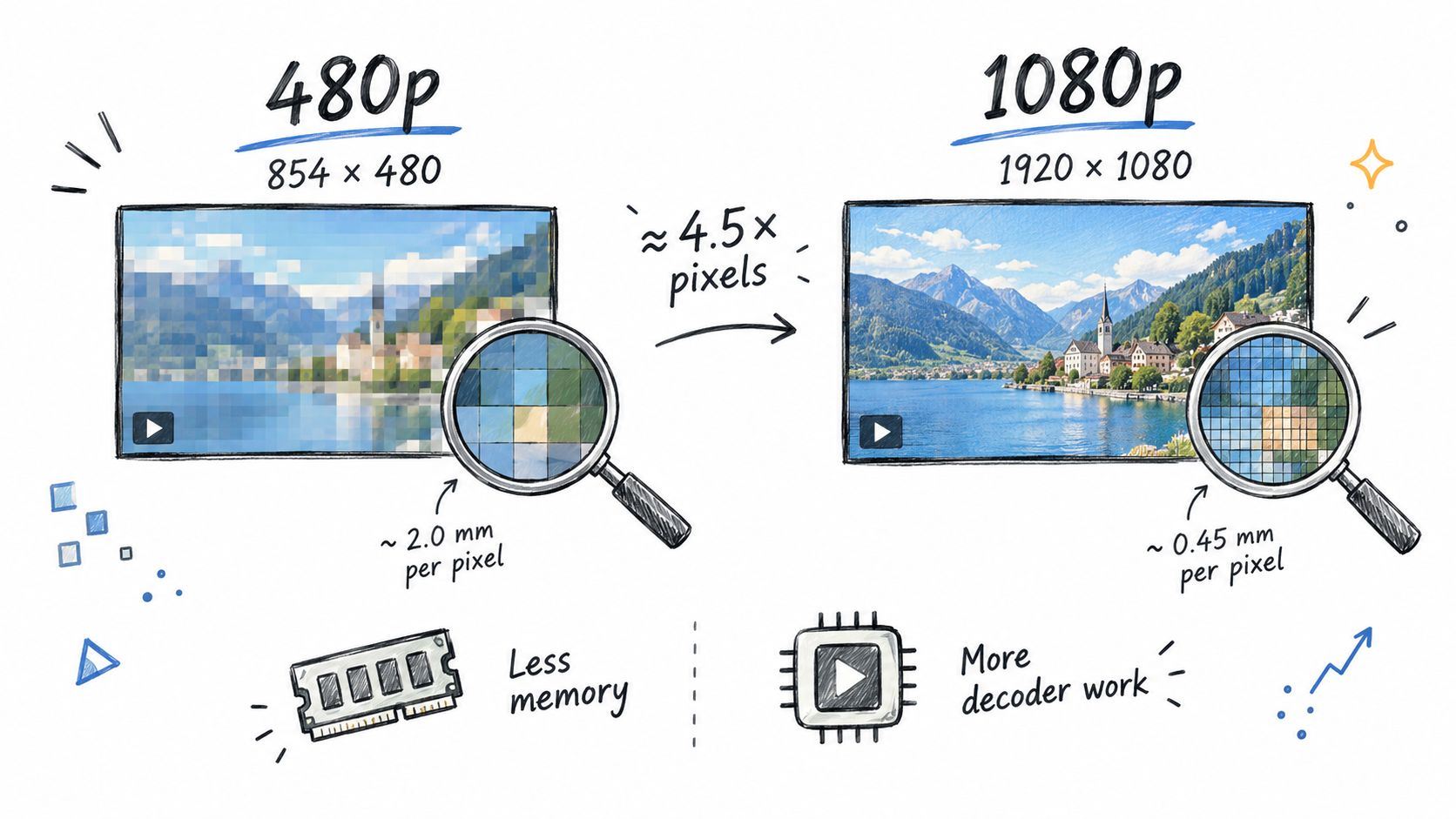
The frame is only the starting point
Resolution doesn't determine quality by itself. A static talking-head shot may compress efficiently at a modest bitrate. Confetti, foliage, water, fast camera movement, and animated typography need more data because the encoder must track more changing detail.
That's why two files with the same dimensions can look radically different. One may preserve skin tones and edges cleanly. The other may show blockiness around motion and smear small text. The second file has the same pixel canvas, but not enough bitrate to describe it.
Core specifications
| Spec | 480p | 1080p |
|---|---|---|
| Common widescreen frame | 854 × 480 class | 1,920 × 1,080 |
| Classification | SD-class digital video | Full HD |
| Pixels per frame | Lower pixel load | About 2.07 million |
| Encoding demand | More modest | Substantially higher |
| Typical viewing context | Small screens, previews, constrained playback | TVs, desktop monitors, detailed creative |
| Main risk | Loss of detail on large displays | Compression artifacts when bitrate is too low |
Choose the frame size according to the final display, not the source file's prestige. Upscaling a 480p source to 1080p can produce a larger file, but it can't recreate detail that the source never captured.
Bandwidth, File Size, and Data Cost Compared
The expensive part of a resolution decision is not the pixel label. It is the bitrate budget per output. Every additional bit affects retained files, replication, CDN transfer, and the number of creative variants a pipeline can produce within a fixed budget.
A 1080p export does not automatically justify its higher transfer cost. A static presenter with clean backgrounds may look acceptable at a restrained bitrate, while foliage, confetti, water, rapid camera movement, and animated text can consume that budget quickly. Resolution sets the canvas, but motion and texture determine how much data the encoder needs to preserve usable detail.
Use viewer-hour estimates as a cost model, not as a promise about every encode. The mobile streaming data comparison places 480p around 0.3 to 1 GB per hour and 1080p around 2 to 3 GB per hour. It also estimates that 1 GB can last about 2 to 3 hours at 480p but less than 40 minutes at 1080p. Travelers, prepaid users, and viewers on limited plans may select 480p even when their devices support Full HD.
Calculate the cost per retained output
A useful pipeline calculation starts with one playable output, then multiplies it by the number of variants and plays. Using the planning figures of 0.6 GB per viewer-hour at 480p and 2.25 GB per viewer-hour at 1080p, 1,000 one-hour plays would transfer about 0.6 TB at 480p or 2.25 TB at 1080p. The 1080p choice therefore adds 1.65 TB of CDN transfer for those 1,000 plays.
That difference also applies across creative variation. If an automated campaign produces 1,000 variants and retains a master, platform exports, review copies, captions, thumbnails, and alternate renditions for each, the storage multiplier applies to every copy. The exact file size depends on duration, frame rate, codec, motion, and scene complexity, but the operational pattern remains consistent: a larger per-output budget scales across the entire catalog.
Storage and delivery are only two parts of the bill. Encoding 1080p consumes more processing time, larger files take longer to move through review and publishing queues, and every additional rendition reduces throughput when a pipeline has a fixed compute or transfer allowance.
The cheapest resolution is the one that meets the viewing requirement without forcing every downstream system to carry unnecessary data.
Codec selection changes the result. H.264 may require around 6 Mbps, while H.265 can be closer to 3 Mbps for similar quality in some delivery scenarios. H.265 can reduce transfer and storage, but compatibility and device support still determine whether that saving works in production. Test representative motion before applying one bitrate budget to every output.
Bitrate Envelopes and Codec Choices
Resolution sets the canvas. Bitrate determines how much paint the encoder has. A larger canvas with too little paint produces a technically large file that still looks poor.
For broad planning, 480p usually sits in the 1 to 3 Mbps delivery envelope, while 1080p commonly sits around 3 to 6 Mbps, with some workflows using 5 to 12 Mbps depending on frame rate and codec. Those ranges are not universal presets. A high-motion game capture and a static interview shouldn't receive the same allocation just because they share dimensions.
| Codec | 480p SD | 720p HD | 1080p Full HD | Notes |
|---|---|---|---|---|
| H.264 | About 1 to 3 Mbps | Intermediate planning tier | About 3 to 6 Mbps, sometimes higher | Broad compatibility and predictable playback |
| H.265 / HEVC | Often lower than H.264 for similar quality | Codec-dependent | Can approach about 3 Mbps in suitable cases | Better compression, but compatibility needs testing |
| VP9 | Content-dependent lower-bitrate option | Content-dependent | Content and device dependent | Useful where the playback stack supports it |
| Any codec | Allocate according to motion and texture | Test representative scenes | Don't hold bitrate flat as resolution rises | Quality depends on the whole encode ladder |
The H.264 versus H.265 comparison is useful when deciding whether compression efficiency justifies a more demanding playback profile. H.265 can reduce transfer requirements, but it won't help if target devices fail to decode it smoothly or a platform immediately re-encodes the upload.
Why an underfunded 1080p file fails
Suppose a pipeline gives a 1080p output only the bitrate normally suitable for a simpler 480p rendition. The encoder must represent about four times the pixel count with roughly the same amount of data. It begins discarding fine texture and simplifying motion, which creates softness, blocks, ringing, and mosquito noise.
A healthy 480p output can preserve the subject's silhouette, color boundaries, and readable composition more effectively because its bitrate is proportionate to its smaller raster. This is why a resolution ladder should be tested by visual quality, not selected by dimension alone.
Use two-pass encoding when targeting the lower end of a bitrate envelope and the content is important enough to justify the extra pass. For fast drafts, one-pass encoding may be the right operational trade-off. For paid creatives, text-heavy scenes, and final exports, inspect motion-heavy samples before promoting a preset across the pipeline.
Platform Requirements for TikTok, Reels, and Shorts
Short-form platforms make 1080p attractive because vertical creative often contains fine captions, product edges, and interface-safe composition. But an upload preset should be based on the platform's current documentation and your own playback tests, not on a universal claim that every account receives the same treatment.
A safe workflow keeps the source composition vertical from the start. Don't take a 480p file and stretch it into a vertical frame. That enlarges the image without adding detail and can distort people, products, or typography. Crop deliberately, pad deliberately, or render a native vertical composition.
| Platform | Aspect ratio approach | Recommended export approach | Codec approach | File-size handling |
|---|---|---|---|---|
| TikTok | Use the platform's current vertical guidance | Export a tested 1080p vertical master when the placement requires Full HD | H.264 is the conservative compatibility choice; test H.265 separately | Check the current account and upload-surface limit |
| Instagram Reels | Keep the creative natively vertical | Use a platform-tested vertical preset and inspect text after re-encoding | H.264 remains a practical baseline | Confirm the current Instagram limit before automation |
| YouTube Shorts | Compose for vertical playback | Keep a clean vertical master and validate the upload result | Use the codec profile supported by the current YouTube workflow | Check current YouTube duration and file rules |
Platform transcoders may create their own delivery renditions after upload. Sending a source above the platform's accepted or useful ceiling can increase upload time without improving the final viewer copy. Keep a high-quality archive separately, then upload the tested delivery rendition.
Aspect-ratio mistakes often cost more than the choice between 480p and 1080p. A correctly framed 480p vertical clip can outperform a badly cropped 1080p wide-format clip because the subject remains visible and captions stay readable. The video aspect ratio guidance offers a useful reference for avoiding mismatched canvas dimensions.
Transcription adds another practical constraint. Captions generated from speech need enough visual clarity to remain readable after the platform's second encode, so review subtitle size, contrast, and placement in the final output. A step-by-step video transcription guide can help teams connect caption generation with the export workflow.
Scaling Resolution Choices in Automation Pipelines
At pipeline scale, resolution becomes an orchestration decision rather than an editor preference. Every output consumes encoder capacity, occupies storage, and may trigger another delivery or review action.
Consider a brand producing a large library of product clips. A sensible architecture doesn't render every draft at the final delivery quality. It generates a lightweight review rendition, rejects weak concepts early, and promotes only approved creative to a higher-resolution export.
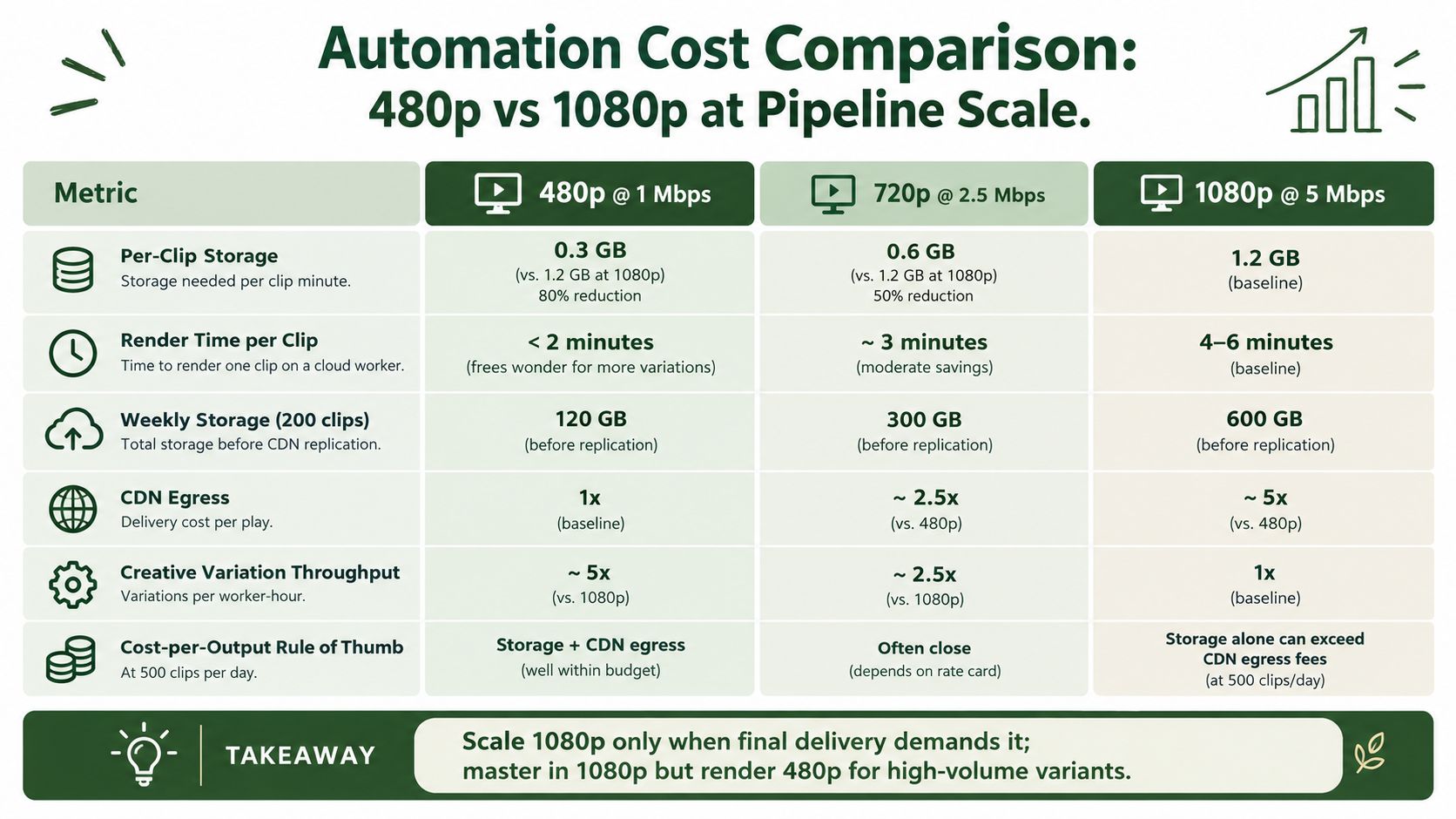
Three pipeline patterns
Draft-first production uses 480p for storyboard review, copy testing, and early creative selection. It reduces the data moved through queues and makes it practical to generate many alternatives before spending resources on final renders.
Final-only production renders 1080p from the beginning. This is appropriate when each output is already approved, the destination needs Full HD, or the source includes detail that reviewers must inspect. It is wasteful when most generated variants are discarded.
Hybrid production keeps a 1080p master and creates 480p delivery variants for high-volume testing. This preserves a strong archive while keeping ad experiments, mobile previews, and internal review lightweight.
| Metric | 480p at a constrained bitrate | 720p as an intermediate tier | 1080p at a production bitrate |
|---|---|---|---|
| Review workflow | Fast and economical | Balanced | More demanding |
| Storage pressure | Lower | Moderate | Higher |
| CDN burden | Lower per play | Moderate | Higher per play |
| Variation throughput | Better for high-volume testing | Balanced | Lower when worker capacity is fixed |
| Best role | Drafts, previews, constrained delivery | General-purpose compromise | Final delivery and archival master |
Measure the pipeline, not just the file
Track queue wait, encode duration, output size, retry rate, and playback failures by preset. A faster 480p rendition may be the right choice if it lets the team test more concepts before a campaign deadline. A slower 1080p rendition may be justified for the small set of assets that will appear on large displays or in detail-sensitive placements.
Scale 1080p only when final delivery demands it. Mastering high and testing low usually gives automation teams a better balance than rendering every variation at Full HD.
The important comparison is not “480p or 1080p for everything.” It's which stage needs which resolution. Review assets, social previews, and constrained-network copies can use the smaller raster. Approved hero creative, archive masters, and large-screen placements can receive the larger one.
Choosing the Right Resolution and Encoding It Correctly
Use 480p when bandwidth is constrained, output volume is high, or the audience is dominated by small mobile screens. Use 1080p when viewers will inspect detail on a TV or desktop, when the creative contains fine text, or when the destination expects a Full HD upload.
Then allocate bitrate according to the scene. A practical 480p target can sit near the lower end of the 1 to 3 Mbps envelope. A 1080p target often needs the 3 to 6 Mbps range, and demanding motion may require more. Don't upscale a soft 480p source and expect the output to become genuinely detailed.
H.264 examples
For a 480p H.264 output, a representative command can use a 1 Mbps target with a controlled ceiling:
ffmpeg -i input.mp4 -vf "scale=-2:480" -c:v libx264 -b:v 1M -maxrate 1.5M -bufsize 2M -c:a aac -b:a 96k -movflags +faststart output-480p.mp4
For a 1080p H.264 output, allocate substantially more data:
ffmpeg -i input.mp4 -vf "scale=-2:1080" -c:v libx264 -b:v 5M -maxrate 6M -bufsize 10M -c:a aac -b:a 128k -movflags +faststart output-1080p.mp4
These are starting points, not guarantees. Test a talking head, fast movement, gradients, and text overlays before standardizing them. Use a faster preset on containerized workers when throughput matters more than compression efficiency, then reserve slower passes for approved final assets.
HEVC examples
HEVC can achieve similar visual quality at a lower bitrate in suitable workflows. The verified guidance gives about 3 Mbps as a possible 1080p H.265 reference, but device and platform compatibility still need validation.
A compact 480p HEVC example is:
ffmpeg -i input.mp4 -vf "scale=-2:480" -c:v libx265 -b:v 1M -maxrate 1.5M -bufsize 2M -tag:v hvc1 -c:a aac -b:a 96k -movflags +faststart output-480p-hevc.mp4
For 1080p HEVC:
ffmpeg -i input.mp4 -vf "scale=-2:1080" -c:v libx265 -b:v 3M -maxrate 4M -bufsize 6M -tag:v hvc1 -c:a aac -b:a 128k -movflags +faststart output-1080p-hevc.mp4
| Output | Codec | Video bitrate | Maxrate and buffer approach | Audio | Key flags |
|---|---|---|---|---|---|
| 480p delivery | H.264 | Around 1 to 3 Mbps envelope | Set a controlled ceiling for network stability | AAC, workflow-dependent | Progressive scan, +faststart |
| 1080p delivery | H.264 | Around 3 to 6 Mbps envelope | Increase ceiling for motion-heavy content | AAC, workflow-dependent | Progressive scan, +faststart |
| 480p efficient delivery | H.265 | Test below H.264 allocation | Validate device and platform support | AAC, workflow-dependent | hvc1, +faststart |
| 1080p efficient delivery | H.265 | Around 3 Mbps can be a reference point | Test carefully against texture and motion | AAC, workflow-dependent | hvc1, +faststart |
+faststart moves MP4 metadata for progressive playback, which is useful when viewers begin watching before the full file downloads. For automated jobs, also make the request idempotent, preserve FFmpeg error output, and test the actual uploaded result because platform transcoding can change both quality and bitrate.
RenderIO provides a cloud FFmpeg and yt-dlp API for submitting these commands without managing render servers, queues, or storage infrastructure. It supports resizing, transcoding, watermarking, thumbnails, audio extraction, batch conversion, and webhook-based workflow tracking, so visit RenderIO to test a resolution ladder that sends lightweight variants to review and reserves 1080p rendering for final delivery.