You've just come back from a wedding, birthday, holiday, or family gathering with a camera roll full of good photos. The images are meaningful, but sending a folder of files doesn't create the same emotional impact as a carefully paced album with music. The practical answer to how to make a photo album with music today is to turn those still images into a shareable video, usually an MP4 with an audio track.
That choice affects everything, from the app you use to the orientation, soundtrack, timing, and export settings. A phone slideshow is quick and convenient. A desktop editor gives you more control. An automated FFmpeg workflow makes sense when you need repeatable renders, multiple aspect ratios, or batch production.
Table of Contents
- Why a Music Photo Album Is Now a Video
- What to Decide Before You Build
- How to Make a Photo Album With Music on Phone and Desktop
- Automating Photo Albums With Music Using FFmpeg and RenderIO
- Timing Music and Photos So It Feels Professional
- Choose Your Path and Publish Without Rework
Why a Music Photo Album Is Now a Video
A static photo album can be viewed at the recipient's pace, but it can't control the rhythm of the experience. A music-backed slideshow can introduce a scene gently, build toward the strongest images, and end with a deliberate final frame. That's why the modern version of a photo album with music is usually a video slideshow, not a PDF gallery.
The format has a long history. Slide shows grew from 17th-century magic lanterns, which projected hand-painted glass images. By 1900, photographic slides had replaced painted images, and the introduction of 35 mm Kodachrome color film in 1936 helped establish the standardized 2×2 inch slide format for projected photo presentations, as documented in the history of slide shows. PowerPoint 1.0 later shipped for Macintosh in 1987, making music-backed photo presentations easier to build in software rather than with physical slides.
Photography had to become accessible before personal albums could become common. The first permanent photograph is generally dated to 1826, Daguerre's daguerreotype arrived in 1839, and Eastman's 1888 roll-film Kodak camera helped move photography into mass use. Steven Sasson's 1975 digital camera prototype eventually pointed toward the file-based workflows used for transitions, soundtracks, and exportable video albums, according to this history of photography presentation.
Practical rule: If people need to watch the album on a phone, post it to social media, email it, or embed it on a website, build a video rather than a PDF.
A finished album should have a clear beginning, a soundtrack that plays after export, photos that aren't unexpectedly cropped, and a final frame that doesn't disappear too quickly. MP4 is the safest general delivery choice because it keeps the audio and visuals together across common mobile and social environments. Before sharing, watch the rendered file from start to finish, not just the editor preview.
What to Decide Before You Build
The fastest way to waste time is to open an app before deciding what the finished album needs to do. Make four choices first: duration, music rights, orientation, and export format.
Match the album to the music
Choose the photos after you understand the soundtrack's structure. A quiet introduction can support establishing images, while a chorus or crescendo gives you a natural place for a memorable group shot, emotional portrait, or highlight moment. Don't force every photo into the project. A shorter, curated sequence usually feels more intentional than an unedited camera roll.
Decide who can hear the music
Private sharing and public publishing aren't the same use case. Apple states that its built-in slideshow music and themes are intended for personal, non-commercial use, while a published slideshow typically needs synchronization rights. Popular commercial tracks commonly require both a sync license and a master-use license, and royalty-free doesn't mean copyright-free, as explained in Apple's slideshow music guidance.
For a private family video, local music may be workable within the relevant terms. For a wedding recap, business post, paid advertisement, or website embed, use music with a license that explicitly covers the intended distribution. Keep a record of the license rather than assuming a track is safe because an app includes it.
Pick the viewing shape
Use a vertical composition when the main destination is a phone feed. Choose horizontal when the album will be watched on a television, laptop, or traditional video player. If you'll publish in more than one place, keep the original photos safe and plan separate crops instead of letting one automatic crop serve every platform.
Lock the technical path
Use MP4 for the video and a widely supported soundtrack format such as MP3 or AAC. Adobe Lightroom Classic supports .mp3, .m4a, and .m4b soundtracks for slideshows, but music plays in exported video slideshows, not exported PDF slideshows, according to Adobe's Lightroom Classic slideshow documentation.
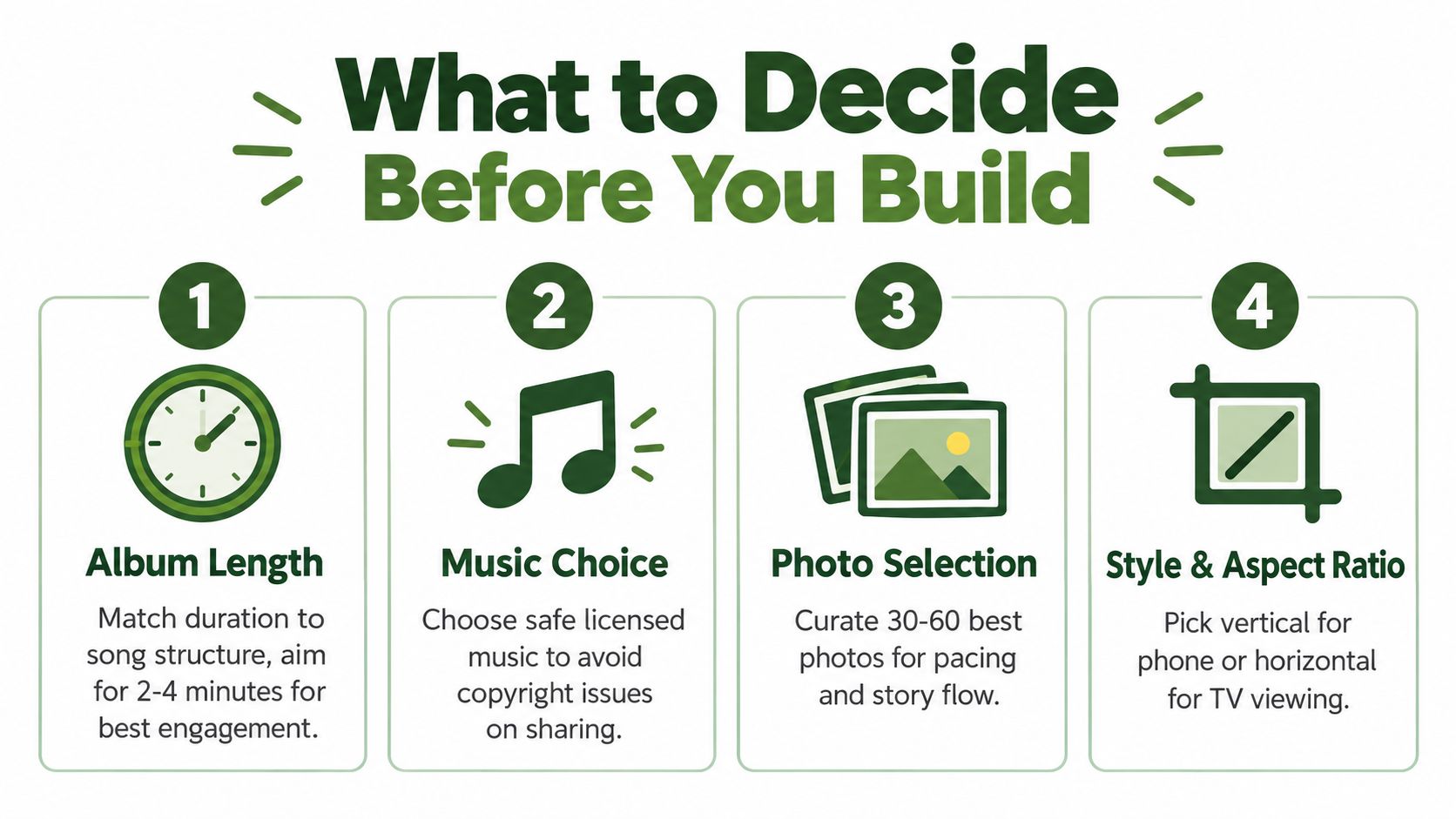
Write these decisions into the project brief before importing anything. They'll determine whether a one-tap phone slideshow is enough or whether you need a desktop timeline or repeatable render pipeline.
How to Make a Photo Album With Music on Phone and Desktop
For a one-off family album, a phone is usually the quickest route. Select the photos, create a memory or slideshow, choose music that the app permits, preview the sequence, and export or share it as video if that option is available. Apple Photos and Google Photos provide built-in album and slideshow features, while dedicated mobile editors add more control over image order, duration, transitions, text, and audio.
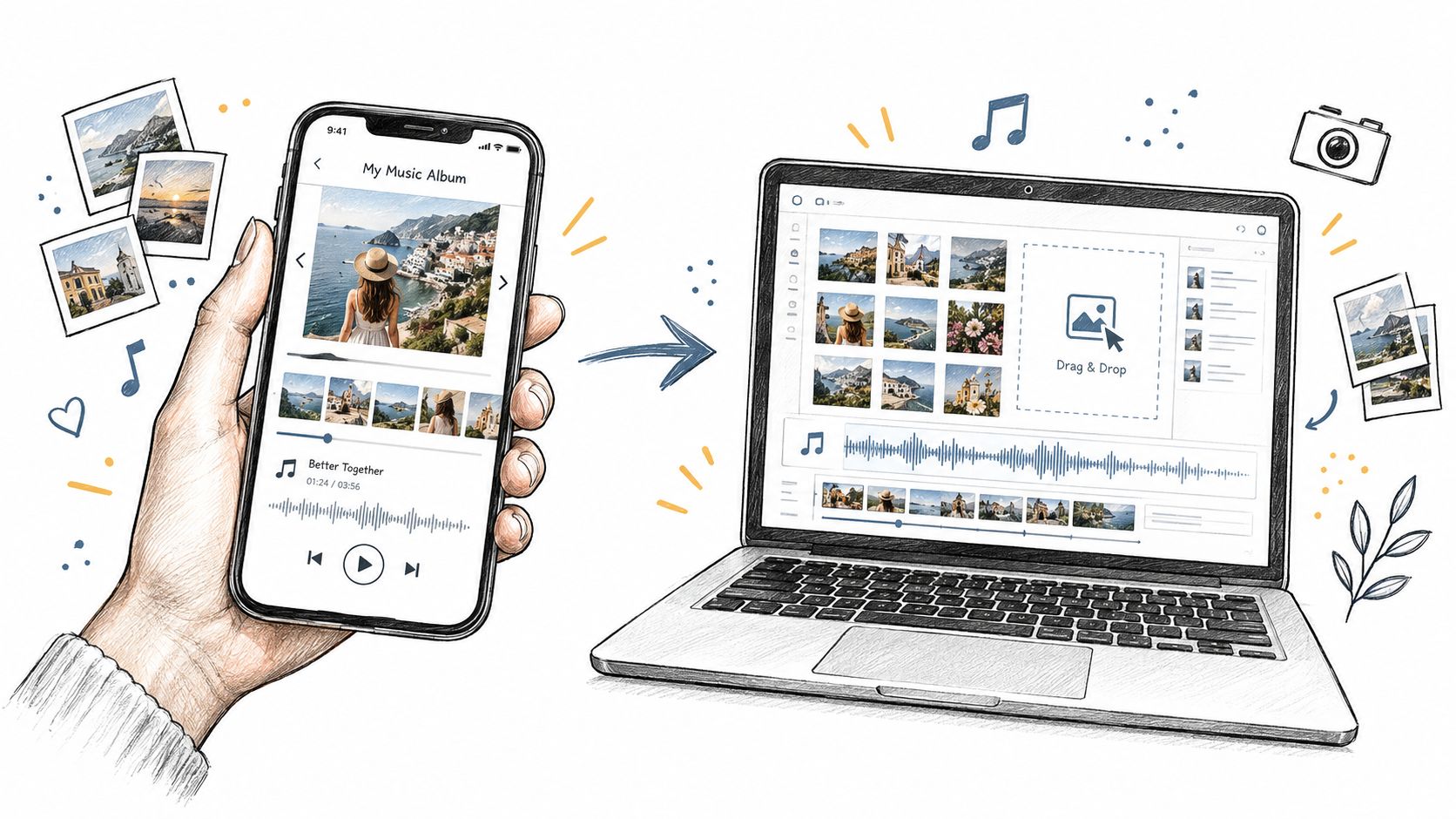
On a phone, start by creating a dedicated album and removing duplicates before opening the editor. Put the photos in story order rather than relying on capture date. Check faces, direction, and images with important details near the edges, because automatic vertical crops can cut off people or text.
The quick phone workflow
- Create and curate the album. Make a new album in Photos or Google Photos, then remove near-identical frames and accidental screenshots.
- Choose a template or slideshow tool. Built-in tools are useful when speed matters more than detailed timing.
- Add permitted music. If the app uses a built-in catalog, check whether the soundtrack is limited to personal use.
- Set the visual shape. Preview the album in the orientation used by its destination.
- Export a video. Prefer a video export when you need to send the album outside the original app or reuse it elsewhere.
- Test the actual file. Play it from the device's file system or share preview, checking both picture and sound.
The phone path breaks down when you need precise beat edits, narration mixing, multiple crops, or consistent output across many albums. It's also easy to confuse an in-app preview with a portable file. A slideshow that looks fine inside Photos may not be reusable as a normal video until it's explicitly exported.
The desktop workflow
Desktop editing is the better choice when the album matters enough to refine. Arrange the photos first, add an MP3 or compatible local soundtrack, then place key images at musical punctuation points. Lightroom Classic is particularly clear about the difference between video and PDF output, and protected streaming tracks can fail at export even when they preview correctly. Apple's documentation also notes that Apple Music tracks can't be embedded into exported slideshow videos, while purchased or local library songs can be exported.
For a practical desktop sequence, import the images, set the sequence order, choose a soundtrack, adjust image durations around the music, and export MP4. If you're unfamiliar with the encoding choices, this guide to how to make an MP4 video provides useful format context. For more editing ideas around transitions and soundtrack placement, these slideshow with music tips are also helpful.
Use a desktop editor when you need a polished keepsake or a version you'll publish repeatedly. Use the phone when the priority is getting a good private recap shared quickly.
Automating Photo Albums With Music Using FFmpeg and RenderIO
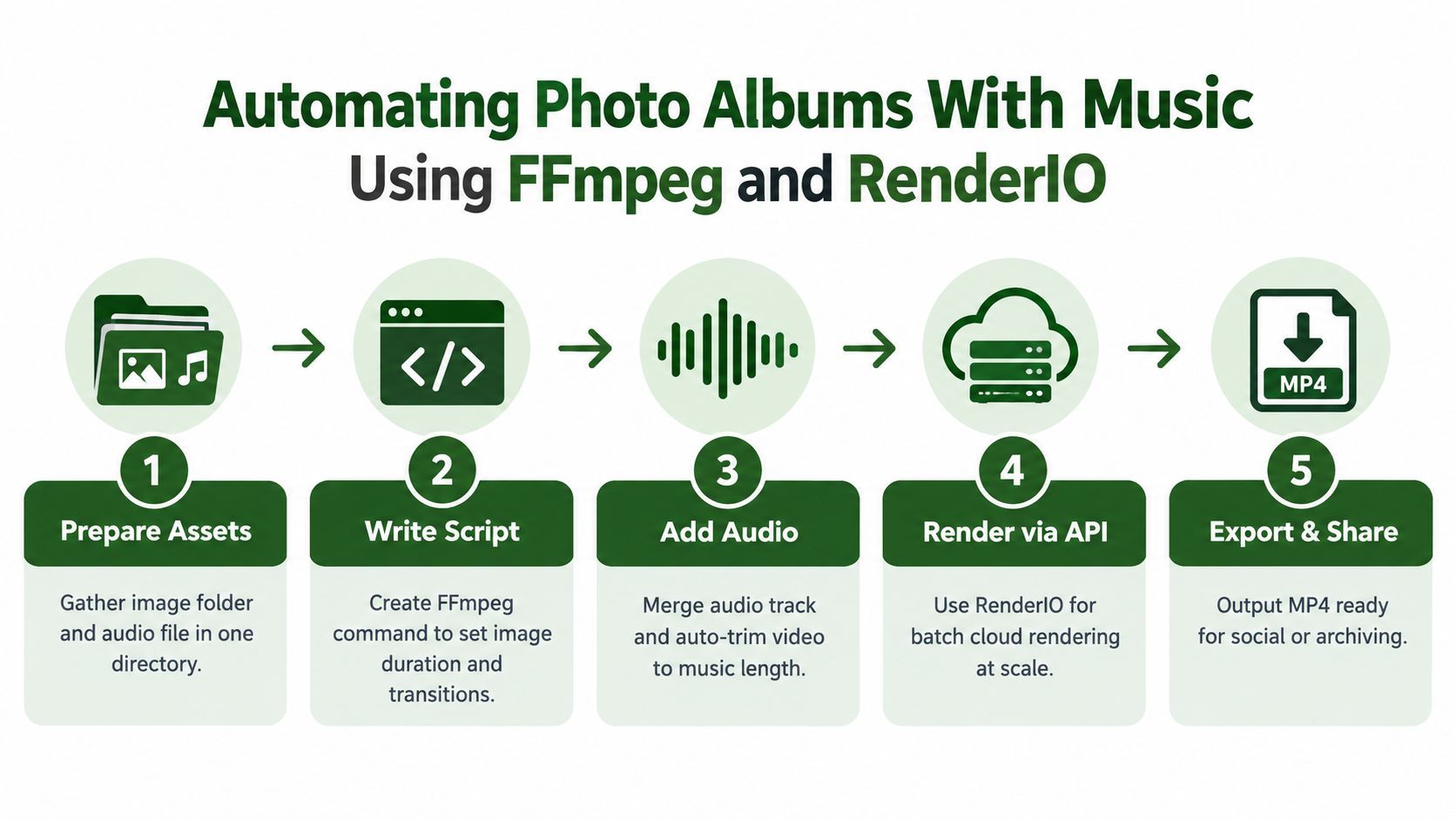
Manual editing works for one album. It becomes inefficient when every event produces several versions, each account needs a different crop, or a content team receives image folders regularly. An automated workflow treats the album as structured input: an image directory, an audio file, timing rules, an output profile, and a destination.
Prepare predictable inputs
Give the images a consistent sort order before processing. Rename them or generate a manifest so the first image is always the opener and the last image is always the closing frame. Keep the audio file local or available through a controlled URL, and validate that the file can be decoded before starting a long render.
FFmpeg can assemble image sequences, apply scaling and cropping, combine audio, and encode the final MP4. A typical pipeline creates a video stream from still images, adds transitions where required, trims or loops the soundtrack to match the visual runtime, and writes a platform-specific output. The exact command depends on the desired duration, transition behavior, aspect ratio, and codec settings, so test the command locally before putting it behind an API.
Build the render as stages
A reliable pipeline separates preparation from delivery. First validate and order the assets. Then generate a master video, merge the audio, and create delivery variants from that master rather than rebuilding every version from the original images.
- Asset validation: Confirm that every image loads, the audio exists, and the intended order is stable.
- Master assembly: Generate the slideshow with the chosen image durations and transitions.
- Audio handling: Add the soundtrack, trim it to the visual length, and apply fades where needed.
- Variant encoding: Produce separate vertical, horizontal, or square outputs for the destinations you support.
- Delivery tracking: Store the output reference, capture errors, and make retries safe.
RenderIO can run FFmpeg commands through a REST API, which lets developers and no-code users move rendering away from an application server. Jobs can be tracked through polling or webhooks, and FFmpeg stderr can be returned when a command fails. Signed URLs, automatic expiration, idempotent requests, and queue-oriented processing are useful when albums arrive from forms, cloud storage, or automation tools.
For a detailed command-oriented approach, see how to create a video from images with FFmpeg. If the project is tied to an event, organizing the assets and final delivery alongside other ways to find wedding photo sharing ideas can help you design the workflow around how guests will receive the album.
Automation isn't automatically better. It adds setup and debugging, but it pays off when you need consistent timing, repeatable exports, or several versions per album.
Timing Music and Photos So It Feels Professional
Adding a song doesn't make an edit feel musical. The photos need to respond to the track's structure. Listen for the intro, verse, chorus, bridge, and crescendo, then mark those points on the timeline. Place stronger images on musical peaks and use calmer frames during quieter passages.
Fast music can support beat-matched cuts, while slower music often benefits from longer holds and clean cross-dissolves. Avoid changing every photo on every beat unless the subject and song support that energy. A family album usually feels more considered when the transitions serve the story instead of advertising the editing software.
Editing insight: The strongest photo doesn't always belong at the end. Put it where the music gives it emotional space.
Use short fades at the opening and closing. Practical guidance recommends a 1 to 2 second fade-in and fade-out, and suggests lowering background music by roughly 60 to 70 percent during spoken sections so narration stays intelligible, as outlined in this photo slideshow music timing guide.
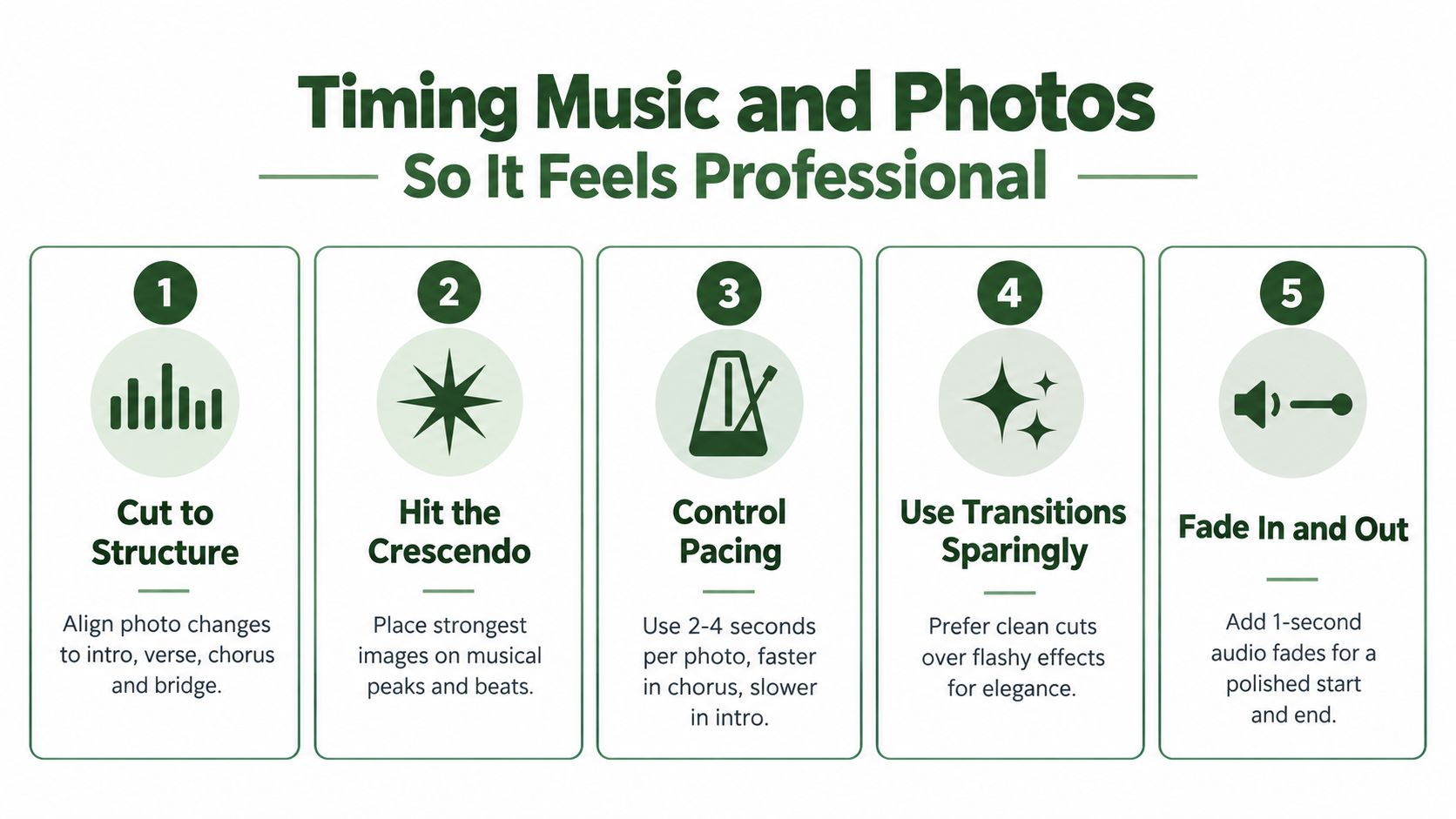
After changing slide durations, watch the entire render again. Check the first few seconds for an abrupt start, the last few seconds for a cut-off ending, and the total runtime for unexpected drift. Verify settings such as loop audio and play-across-slides before export. When you need to inspect or alter the audio and video streams independently, this guide to merging audio and video with FFmpeg gives the technical workflow.
MP4 remains the dependable handoff format for mobile and social delivery because it carries the visual and audio streams in one file. Always test the exported file on the device or platform where people will watch it.
Choose Your Path and Publish Without Rework
Choose the phone workflow when the album is private, the edit is simple, and speed matters most. Choose a desktop editor when you need deliberate music timing, narration, clean crops, or a keepsake that deserves revision. Choose an automated FFmpeg workflow when you're producing albums repeatedly, creating multiple aspect ratios, or connecting image uploads to a larger content system.
Before publishing, run this final check:
- Watch the exported MP4: Confirm that both image and audio play in the actual file.
- Confirm the destination shape: Check that faces, text, and important details aren't cropped.
- Verify the soundtrack: Make sure the selected track is permitted for the intended audience and distribution.
- Check the ending: Ensure the final image and audio fade naturally rather than stopping abruptly.
- Keep the source project: Save the ordered images, licensed audio reference, and export settings for future versions.
Start with the simplest path that meets today's need. Move to desktop control or automation only when manual editing creates repeat work or inconsistent results.
RenderIO lets you send FFmpeg 7.x commands through a cloud API to assemble, resize, encode, and deliver photo albums with music without maintaining your own rendering servers, queues, and storage. Visit RenderIO to test a repeatable slideshow pipeline and turn one finished album into reliable outputs for social sharing, archiving, or automated delivery.