If H.264 plays “everywhere,” why do perfectly valid files still fail on particular phones, browsers, social platforms, or smart TVs?
Because H.264 isn't a single playback format. It's a family of configurations packaged inside containers, and compatibility depends on the exact combination of profile, level, pixel format, frame rate, bitrate, audio, and decoder capabilities. A file can be correctly encoded as H.264 and still exceed the limits of the device or platform receiving it.
That hidden gap causes many production failures. Teams inspect a file and see “H.264,” then overlook the stream metadata that determines whether playback succeeds. The reliable approach is to define an explicit delivery specification, encode against it, and validate the result before distribution.
Table of Contents
- Understanding the H.264 Codec Family
- Profiles and Levels Explained
- H.264 vs Newer Codecs
- Encoder Settings That Actually Matter
- Platform-Specific Delivery Presets
- When to Choose H.264 Over Modern Codecs
- Troubleshooting Playback Failures
Understanding the H.264 Codec Family
H.264, also called MPEG-4 AVC or ISO/IEC 14496-10, was developed jointly by ITU-T's Video Coding Experts Group and ISO/IEC MPEG. The organizations formed the Joint Video Team in December 2001, aiming to create a codec suitable for use cases ranging from mobile video distribution to high-definition television. The first version of the specification was completed in May 2003. The ITU-T specification history shows why the standard shouldn't be treated as a fixed, one-size-fits-all format.
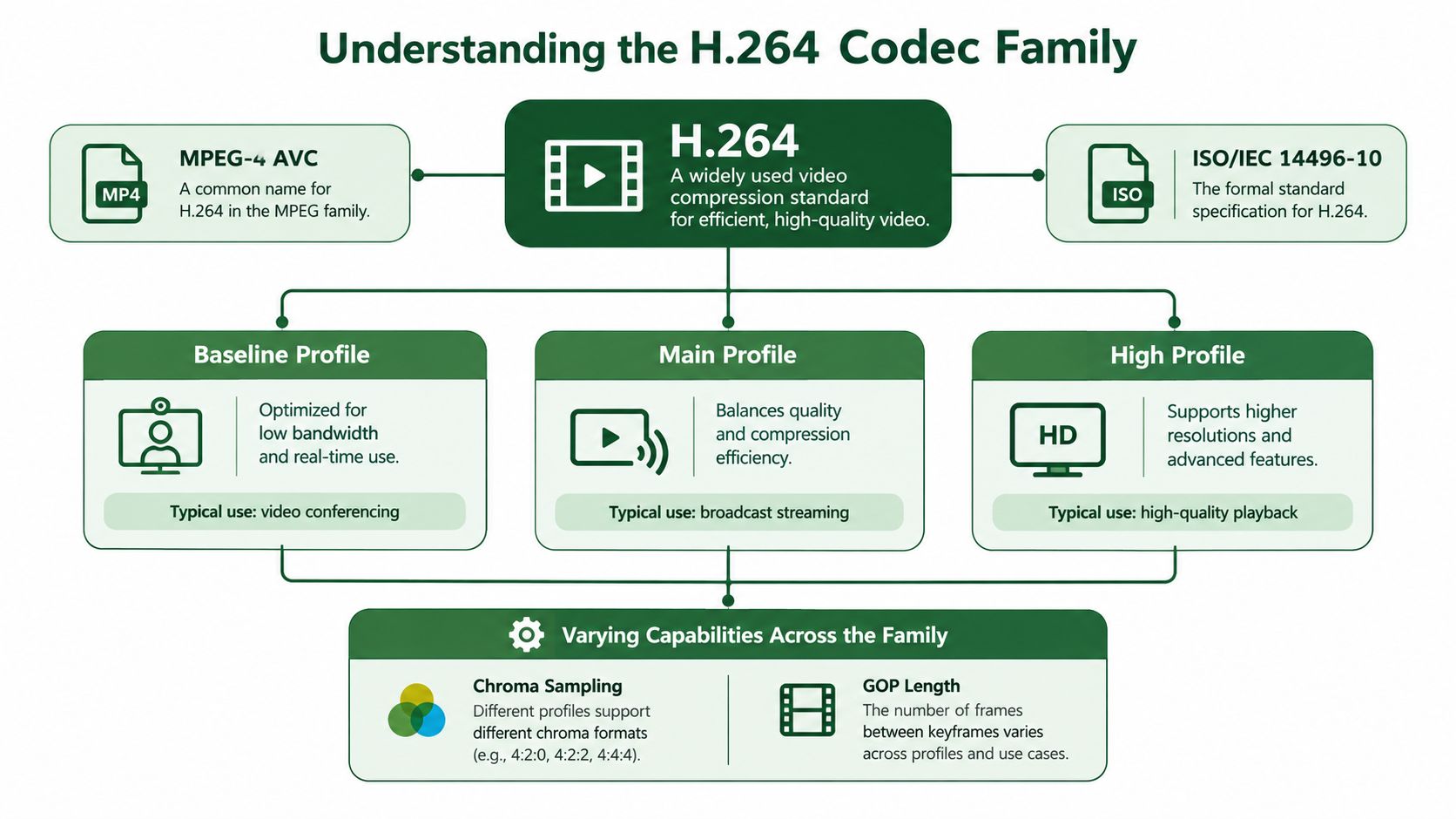
The original design defined three principal profiles:
- Baseline focused on lower-complexity communication and mobile applications.
- Main targeted broader broadcast and storage workflows.
- Extended added tools for streaming and resilience against transmission errors.
Later amendments expanded the family. A second development phase introduced Fidelity Range Extensions, including High, High 10, High 4:2:2, and High 4:4:4 profiles. Scalable Video Coding followed as another development phase. The result is a codec family that can serve very different workflows, from a lightweight conferencing stream to a high-fidelity professional asset.
H.264 is a capability framework
A profile determines which coding tools an encoder may use. A level constrains the workload a decoder must handle, including limits related to frame size, macroblocks per second, and bitrate. Bit depth, chroma format, frame rate, and GOP structure add further variables.
That's why the phrase “H.264 video” is incomplete as a delivery specification. A useful specification might state MP4, AVC High Profile, a defined Level, yuv420p, progressive scan, AAC audio, and a platform-specific bitrate limit. A vague specification merely says H.264 and leaves the most important interoperability decisions unresolved.
For a broader explanation of how codecs differ from containers and formats, see what a video codec is. In production, that distinction prevents a common mistake: treating MP4 as the codec when MP4 is a container that can hold H.264 video and other streams.
Profiles and Levels Explained
H.264 uses a two-dimensional capability model. The profile selects the available coding tools. The level limits the amount of data and decoder workload those tools can process. You need both values to describe a predictable output.
Baseline prioritizes low complexity and error resilience, which suits conferencing and constrained mobile environments. Main adds tools for broader broadcast and storage use. High enables more compression-oriented features and is widely used for SD and HD distribution. Moving from Baseline to High can improve rate-distortion efficiency, but older decoders may not accept the result.
| Profile | Best For | Complexity | Typical Level Range |
|---|---|---|---|
| Baseline | Conferencing, mobile, legacy decoders | Low | Lower levels selected for constrained targets |
| Main | Broadcast, storage, general-purpose delivery | Moderate | Mid-range levels selected for the output dimensions |
| High | SD and HD distribution, compression-focused delivery | Higher | Levels selected according to frame size, frame rate, and bitrate |
The table is deliberately qualitative because a “typical” level isn't a substitute for checking the target decoder. A nominal resolution can appear supported while the combination of frame rate, bitrate, and macroblock processing exceeds the selected level.
Practical rule: Choose the profile for decoder feature support, then choose the level for the stream's workload. Don't infer either value from resolution alone.
Why the level can reject an apparently valid file
A decoder may reject a stream when its declared level is too high, even if the visible dimensions look ordinary. The reverse problem also occurs. An encoder can produce a file that plays on a powerful desktop but fails on a mobile device using a more constrained hardware path.
The High Profile level bitrate ceiling is reported as 1.25× the corresponding Baseline/Main ceiling in the referenced AVC technology explanation. The profile and level reference makes the operational point clear: profile and level must be set deliberately.
A dependable FFmpeg starting point is:
ffmpeg -i input.mov -c:v libx264 -profile:v high -level:v 4.1 -pix_fmt yuv420p -c:a aac -movflags +faststart output.mp4
That command isn't a universal preset. It's an explicit contract. Before using it broadly, confirm that the target platform accepts High Profile, Level 4.1, the selected frame rate, bitrate, and audio configuration. If legacy playback matters more than compression, Main or Baseline may be the safer choice.
H.264 vs Newer Codecs
H.264's main weakness is compression efficiency. Newer codecs can preserve comparable visual quality at a lower bitrate, but they often require more encoding work and offer less predictable decoder coverage.
In an evaluated HDR-video comparison using H.264/AVC High Profile, 4:2:0 chroma, and GOP size 8, HEVC achieved equivalent-quality bitrate savings averaging 25.08% relative to H.264/AVC. The reported savings ranged from 14.16% to 38.86%, and HEVC delivered an average fixed-bitrate PSNR advantage of 1.52 dB. The published H.264 and HEVC comparison also explains the trade-off: HEVC uses larger coding-unit structures and more advanced prediction decisions, but generally demands greater encoding complexity.

The practical choice depends on where the cost appears:
- H.264 spends more on storage and delivery bytes, but usually reduces decoder uncertainty.
- HEVC can reduce bitrate and storage requirements, but may introduce device, licensing, and processing constraints.
- AV1 can be attractive for bandwidth-sensitive on-demand delivery, but encoding cost and hardware availability matter.
- VP9 may fit ecosystems that already support it, though it doesn't automatically solve every mobile or platform compatibility issue.
Compare the whole workflow
A codec decision should include encoding time, queue capacity, latency, hardware acceleration, playback reach, and failure handling. A lower bitrate is useful only when the audience can decode the file and the pipeline can produce it within the required service window.
For a short-form automation service generating many creative variants, H.264 often remains a sensible default. A failed playback on a destination platform can cost more operationally than the additional bytes saved by a newer codec. For an archival master or a controlled audience with known decoder support, HEVC or AV1 may justify the extra complexity.
The detailed H.264 and H.265 comparison is useful for evaluating compression separately from delivery compatibility. Don't turn that comparison into a blanket upgrade rule. Measure representative vertical, high-motion, and text-heavy clips, then compare bitrate with VMAF or PSNR.
Encoder Settings That Actually Matter
Most playback failures aren't caused by the word H.264. They're caused by an encoder producing a stream that doesn't match the receiving decoder.
Start by separating three controls that are often confused:
- Bitrate sets a rate target. It's useful when a platform or network imposes a ceiling.
- CRF targets visual quality and allows bitrate to vary with scene complexity. It's usually practical for file-based output.
- Preset controls the encoder's speed and search effort. A slower preset can improve compression efficiency, but it takes more processing time.
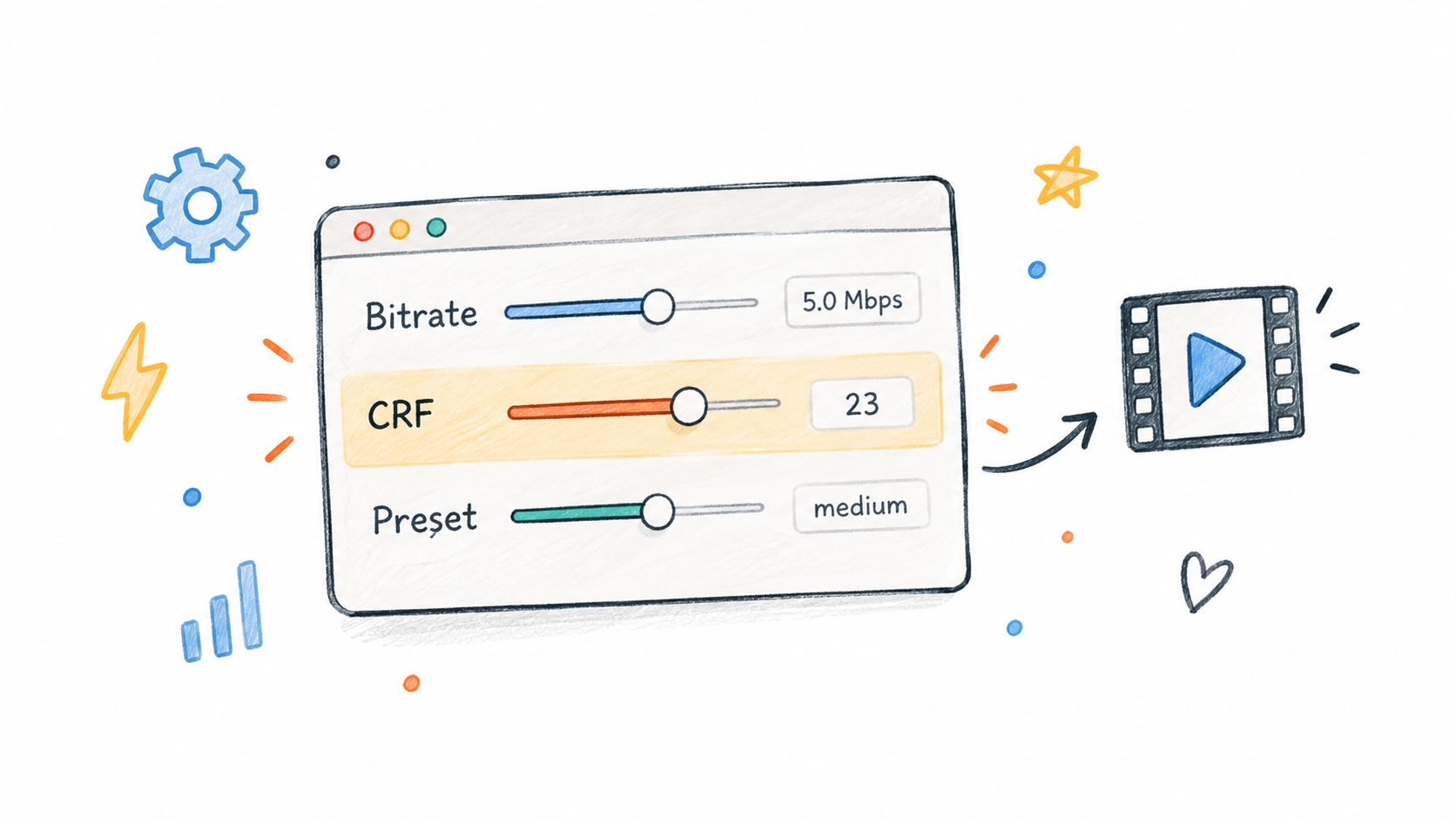
A quality-targeted file encode might look like this:
ffmpeg -i input.mp4 -c:v libx264 -preset medium -crf vingt -profile:v high -level:v 4.1 -pix_fmt yuv420p -c:a aac -b:a 128k -movflags +faststart output.mp4
Use a numeric CRF value appropriate for your quality target. The placeholder above must be replaced before execution. A platform-controlled output should use an explicit bitrate instead:
ffmpeg -i input.mp4 -c:v libx264 -preset medium -b:v 5M -maxrate 5M -bufsize 10M -profile:v high -level:v 4.1 -pix_fmt yuv420p -c:a aac -b:a 128k -movflags +faststart output.mp4
For two-pass encoding, encode the first pass without an output file, then run the second pass with the desired audio and video settings. Two-pass control is useful when a hard bitrate target matters more than flexible file size.
Measure the output, don't trust the command
A lower bitrate can reduce file size while making text crawl, edges ring, or motion break into blocks. Transcoding everything downward without quality measurement is a cost-cutting shortcut that can damage the asset.
Use representative samples and inspect both objective metrics and actual playback. Check VMAF or PSNR where available, then review difficult scenes manually. These video compression techniques are most useful when they're applied as a measurement loop rather than a collection of arbitrary flags.
For real-time delivery, prioritize predictable rate control and decoder compatibility. For on-demand output, quality-targeted encoding often gives the encoder more room to allocate bits where the image needs them. In either case, explicitly set the profile, level, pixel format, audio codec, and container instead of relying on defaults that may change between environments.
Platform-Specific Delivery Presets
A platform preset should describe the entire file, not just its video codec. The container, pixel format, scan mode, audio stream, frame rate, profile, level, and bitrate all contribute to whether the destination accepts and plays the asset.
A conservative cross-platform baseline is:
-f mp4 -c:v libx264 -profile:v high -level:v 4.1 -pix_fmt yuv420p -c:a aac -movflags +faststart
Adjust the level and bitrate to the actual dimensions, frame rate, and platform rules. Avoid assuming that a file is safe because it has an .mp4 extension. The extension says little about the encoded stream inside.
Short-form vertical outputs
For TikTok, Instagram Reels, and YouTube Shorts, use a vertical output specification and validate the resulting dimensions. A representative FFmpeg command for resizing and watermarking is:
ffmpeg -i input.mp4 -i watermark.png -filter_complex "[0:v]scale=1080:1920:force_original_aspect_ratio=decrease,pad=1080:1920:(ow-iw)/2:(oh-ih)/2:color=black[base];[base][1:v]overlay=W-w-32:H-h-32" -c:v libx264 -profile:v high -level:v 4.1 -pix_fmt yuv420p -c:a aac -movflags +faststart output.mp4
That example preserves the complete vertical canvas and places the watermark near the lower-right edge. Change the scale and placement to match your creative system, and avoid covering captions or platform interface areas.
For clipping source material into Shorts, a practical editorial reference is the FindClout Shorts clipping guide. The encoding lesson is separate from the editing lesson: a well-framed clip still needs a decoder-friendly output.
API execution and validation
A cloud FFmpeg API can run the same explicit commands without forcing each application team to maintain encoder workers, queues, and temporary storage. RenderIO accepts FFmpeg 7.x commands through a REST endpoint and supports H.264 output with libx264, along with resizing, watermarking, format conversion, polling, webhooks, and returned FFmpeg stderr for diagnosis.
Treat each platform preset as a versioned object. Store the command, expected metadata, and validation result together. After processing, inspect codec name, profile, level, pixel format, frame rate, dimensions, audio codec, and container. That metadata record is more valuable than a generic “H.264 succeeded” status.
When to Choose H.264 Over Modern Codecs
The rational question isn't whether H.264 is technically newer or more efficient. It's whether the entire workflow benefits from the trade.
Choose H.264 when the destination set is broad, decoder support is uncertain, or processing needs to stay responsive. It remains particularly practical for short-form creative variants, live or interactive processing, browser fallback renditions, and any workflow where failed playback creates more damage than additional delivery bytes.
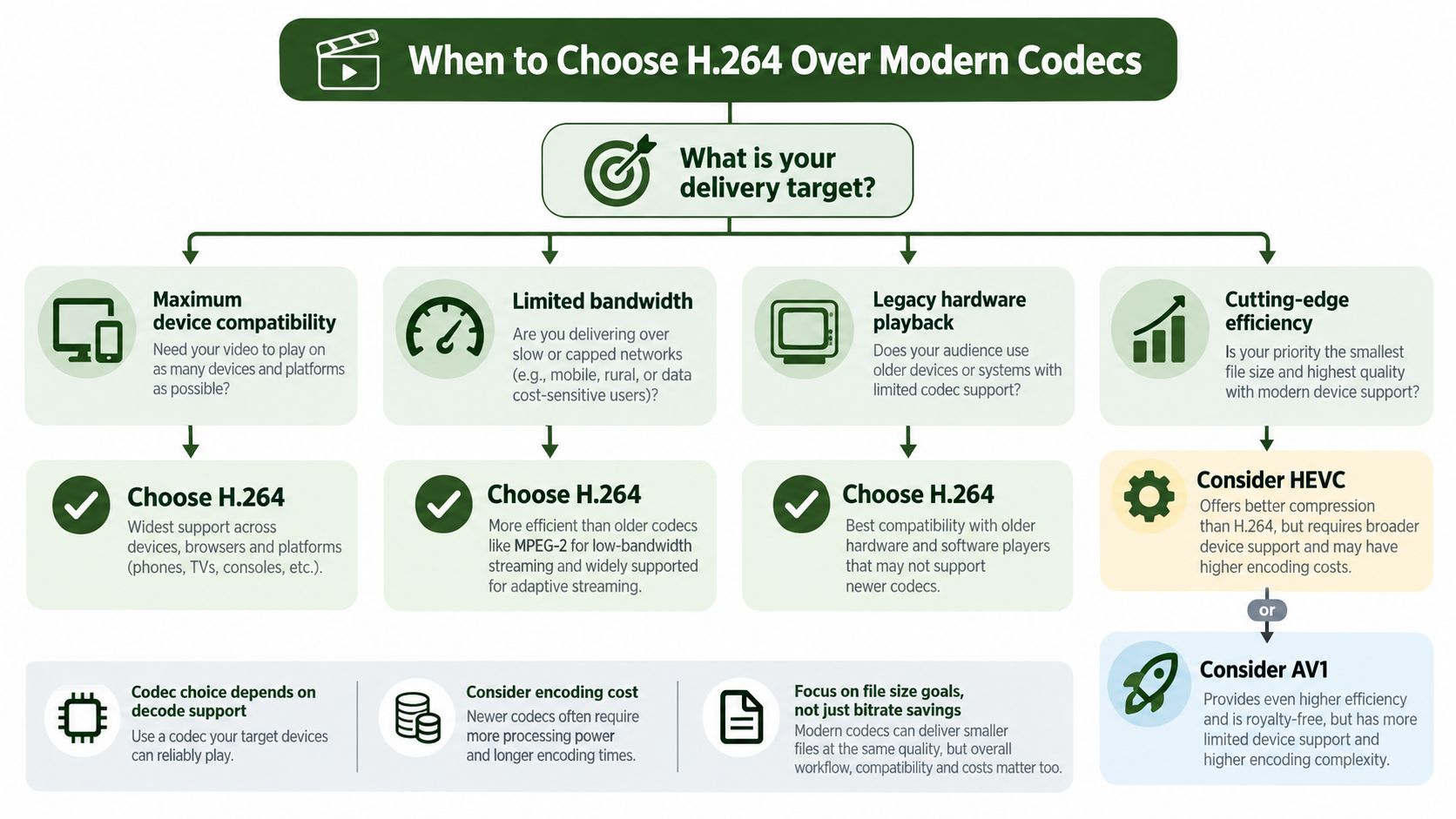
Use a workload decision, not a codec fashion rule
H.264 usually offers broad decoder availability and mature real-time performance. That matters when a pipeline must generate outputs quickly, support varied hardware, or provide a dependable fallback.
HEVC or AV1 become more compelling when the audience and devices are known, bandwidth is constrained, or storage and delivery costs dominate the decision. The gain is not free. Newer codecs can increase encoding cost, latency, hardware dependency, and operational complexity.
Choose the codec that minimizes total workflow risk, not the one with the smallest isolated bitrate.
A sensible architecture can use more than one codec. H.264 can serve as the compatibility rendition, while HEVC or AV1 serves audiences with confirmed support. That approach avoids forcing every viewer onto the most demanding format while still capturing efficiency where it produces a measurable benefit.
For a high-volume pipeline, establish a break-even test. Encode representative content with the candidate codecs, measure output quality and bitrate, record processing time and failure rates, then test playback across the actual destination devices. Don't assume that theoretical compression savings translate into lower total cost if your queue, decoder coverage, or support workload grows.
Troubleshooting Playback Failures
Start with the receiving device, not the source file. Record the exact platform, operating system, browser or app, hardware path, container, and stream metadata. “It doesn't play” isn't enough information to distinguish a level rejection from an unsupported pixel format or an audio failure.
Run ffprobe against the output:
ffprobe -v error -select_streams v:0 -show_entries stream=codec_name,profile,level,pix_fmt,width,height,r_frame_rate,bit_rate -of default=noprint_wrappers=1 output.mp4
Then inspect the audio stream separately if the video appears but playback has no sound. FFmpeg stderr can reveal invalid dimensions, encoder limitations, filter failures, unsupported pixel formats, and muxing problems. Preserve that stderr in your job record rather than returning only a generic failure message.
Common causes
- Level too high: The stream exceeds the decoder's supported workload. Re-encode with a suitable level and verify frame rate and bitrate, not just resolution.
- Pixel format rejected: Some hardware paths expect yuv420p and won't accept a higher chroma format or bit depth. Set
-pix_fmt yuv420pfor conservative compatibility. - Bitrate exceeds a ceiling: A platform may reject or mishandle a stream that exceeds its documented limit. Use controlled bitrate encoding and validate the measured output.
- Container mismatch: H.264 inside an unexpected or poorly supported container can fail even when the video stream itself is valid. MP4 is often the practical choice for broad file delivery.
- Audio incompatibility: A video can appear silent or fail entirely when the audio codec, channel layout, or sample rate falls outside the target's expectations. Encode AAC when the platform calls for it.
- Hardware and software differences: A desktop software decoder may play a file that a mobile hardware decoder rejects. Test both paths when device coverage matters.
Finish every job with metadata validation against the target preset. A successful FFmpeg exit code proves that the command completed. It doesn't prove that the output meets the receiving decoder's constraints.
RenderIO provides a cloud FFmpeg and yt-dlp API for running explicit H.264 commands, resizing, watermarking, format conversion, and batch processing without managing encoding servers, queues, or storage. Visit RenderIO to test a delivery workflow that preserves FFmpeg stderr and supports polling or webhook-based job tracking.