A video library can look healthy until storage and delivery costs start exposing its weak points. The H.264 files still play everywhere, editors can open them, and nobody has reported a playback failure. Yet every large source file keeps consuming storage, and every streamed copy carries the older codec's bitrate overhead.
That's where converting H.264 to H.265 becomes tempting. The mistake is treating HEVC as an automatic upgrade. It's a storage and bandwidth optimization workflow, not a quality-restoration process. The right decision depends on resolution, target devices, source quality, encoding capacity, and whether the resulting savings justify another lossy encode.
Table of Contents
- When Converting H264 to H265 Actually Makes Sense
- What You Save With H265 in Real Numbers
- The Core FFmpeg Command for H264 to H265
- Presets, CRF Targets, and Hardware Acceleration
- Tuning Quality Without Wasting Bitrate
- Batch Pipelines and Running the Job at Scale
- Quick Decision Checklist Before You Transcode
When Converting H264 to H265 Actually Makes Sense
Suppose an editorial team has a large H.264 mezzanine library in object storage. The originals play reliably across phones, browsers, editing systems, and smart TVs, but storage usage and video delivery costs keep rising. The obvious reaction is to convert everything to H.265. That reaction is often too broad.
Conversion makes sense when three conditions overlap:
- The source is at least 1080p. HEVC's efficiency is most useful as resolution and bitrate increase. Smaller, low-resolution clips may save too little to justify a second encode.
- The playback audience supports HEVC. H.264 remains the safer choice for broad compatibility. A smaller HEVC file doesn't help if your player has to fall back to H.264 or your platform rejects the asset.
- The savings outweigh the processing cost. Compare the expected storage and egress reduction with CPU time, queue capacity, quality-control work, and the cost of retaining the original.
HEVC, also called H.265, became the key successor to H.264 during the industry's move toward UHD delivery. The standard was approved in 2013, when 4K and 8K workflows were becoming more important for broadcasters and streaming services, as documented in the HEVC standard history.
Practical rule: Convert assets that have a long delivery life and a clear HEVC playback audience. Don't re-encode files simply because a newer codec exists.
Conversion is usually the wrong move for already-small clips, H.264 sources that have already been heavily compressed, or material that will be edited again. Every lossy transcode gives the encoder another opportunity to expose blocking, banding, mosquito noise, or texture loss. For a broader comparison of compatibility and efficiency, see this guide to H.264 versus H.265.
What You Save With H265 in Real Numbers
HEVC's primary benefit is bitrate efficiency. Multiple sources summarize H.265 as offering about 50% better compression than H.264 at equivalent visual quality, while reported tests for natural content have measured bitrate reductions ranging from 51% to 74% in some conditions. One cited test set recorded an average reduction of 53% while maintaining approximately the same subjective quality, according to Adobe's H.264 versus H.265 comparison.
Those figures are useful expectations, not guarantees. Clean animation, screen recordings, and simple graphics can compress efficiently. Grainy live action, sports, smoke, foliage, and fast camera movement are less forgiving. The encoder has to spend more bits preserving irregular detail and motion, so the actual result depends on the source and your quality target.
The same Adobe guidance gives a practical 1080p example. A stream commonly using 4,500 to 6,000 kbps with H.264 may use roughly 2,250 to 3,000 kbps with H.265 at comparable quality. For a 10-minute 4K file, a source around 2 GB in H.264 may land around 1 GB in H.265 under similar quality settings.
| Content type | H.264 High Profile | H.265 libx265 | Expected result |
|---|---|---|---|
| 1080p streaming content | 4,500 to 6,000 kbps | 2,250 to 3,000 kbps | Roughly half the bitrate in common guidance |
| 4K file around 10 minutes | Around 2 GB | Around 1 GB | Smaller delivery file at similar quality |
| Grainy or highly complex footage | Higher source bitrate | Variable | Savings may be below the headline expectation |
The trade-off is operational. HEVC encoding takes more compute than H.264 encoding, and playback support isn't universal. A smaller file can increase support tickets, force fallback renditions, or complicate browser delivery. The storage math matters, but so does the distribution contract. For additional compression tactics, review this guide to reducing video file size.
The Core FFmpeg Command for H264 to H265
Start by checking the source instead of trusting its filename:
ffprobe -v error -select_streams v:0 -show_entries stream=codec_name,profile,pix_fmt,width,height -of default=noprint_wrappers=1 input.mp4
You want to confirm that the video stream is h264. A file called video_final.mp4 tells you nothing about its codec. The probe also exposes resolution, profile, and pixel format, which affect your HEVC target.
A sensible software encode begins with a quality-based command:
ffmpeg -i input.mp4 -c:v libx265 -crf 28 -preset medium -pix_fmt yuv420p -c:a copy output-hevc.mp4
Each option has a specific job:
-i input.mp4selects the source.-c:v libx265chooses the software HEVC encoder.-crf 28sets a constant-rate-factor quality target. The encoder raises bitrate for difficult scenes and reduces it for simple ones.-preset mediumcontrols the speed and compression efficiency trade-off. Slower presets generally spend more time searching for compression decisions.-pix_fmt yuv420pkeeps the output broadly compatible with standard 8-bit playback.-c:a copycopies the audio stream without re-encoding it.
FFmpeg's H.265 guidance describes libx265 as typically saving about 25% to 50% bitrate compared with libx264 at similar quality. It also identifies CRF 28 as visually corresponding to libx264 CRF 23 in common guidance, often producing approximately half the file size. Those are starting points, not a substitute for visual inspection.
If your workflow is genuinely 10-bit, use a compatible pixel format:
ffmpeg -i input.mp4 -c:v libx265 -crf 28 -preset medium -pix_fmt yuv420p10le -c:a copy output-main10.mkv
The 10-bit path can help preserve gradients and support a Main10 workflow, but it narrows compatibility. Don't select it merely because the encoder supports it. Confirm that your players, editing tools, and delivery system accept the resulting profile.
Always encode a representative sample first. Compare the source and output side by side, inspect motion-heavy scenes and gradients, and measure with VMAF or SSIM when your pipeline supports those metrics. Then adjust CRF rather than blindly choosing a lower bitrate. The same command skeleton works locally, in a worker queue, or through a cloud FFmpeg API.
Presets, CRF Targets, and Hardware Acceleration
Three controls dominate the result: quality target, encoder preset, and hardware path. CRF determines how aggressively the encoder spends bits. The preset determines how much analysis it performs. Hardware encoders prioritize throughput and can behave differently from libx265 at a similar nominal quality setting.
For software encoding, begin with libx265, CRF 28, and a middle preset. If the output shows visible degradation, lower the CRF. If the output looks good but remains too large, raise it cautiously. Presets slower than medium may improve compression, but the extra processing time often makes less sense for a one-off conversion than it does for a long-lived library or a heavily reused delivery ladder.
| Encoder | FFmpeg flag | Speed | Typical quality approach | Best fit |
|---|---|---|---|---|
| Software HEVC | libx265 |
Slowest of these options | Start around CRF 28 and benchmark | Efficient archival and controlled VOD encoding |
| NVIDIA hardware HEVC | hevc_nvenc |
Fast | Use the encoder's quality controls and validate visually | High-throughput workstation or server jobs |
| Intel hardware HEVC | hevc_qsv |
Fast | Tune against the available QSV rate-control mode | Systems with a suitable Intel GPU or iGPU |
| Apple hardware HEVC | hevc_videotoolbox |
Fast | Validate profile, bitrate, and pixel-format behavior | macOS workflows using VideoToolbox |
A software command might look like this:
ffmpeg -i input.mp4 -c:v libx265 -crf 28 -preset medium -c:a copy output.mp4
For hardware paths, the encoder name changes:
ffmpeg -i input.mp4 -c:v hevc_nvenc -cq 28 -c:a copy output.mp4

ffmpeg -i input.mp4 -c:v hevc_qsv -global_quality 28 -c:a copy output.mp4

ffmpeg -i input.mp4 -c:v hevc_videotoolbox -b:v 3000k -c:a copy output.mp4
Hardware options aren't one-to-one replacements for x265 CRF. They can finish much sooner, but quality per bit may be weaker, and the available controls differ by driver and platform. On Apple systems, profile and pixel-format choices can also affect playback behavior. The FFmpeg GPU acceleration guide is useful background, but your own sample encode remains the final authority.
Encode for the bottleneck you actually have. If the queue is measured in days, hardware acceleration may win. If storage efficiency matters more than throughput, benchmark
libx265before moving the job to a GPU.
Tuning Quality Without Wasting Bitrate
The most expensive mistake is optimizing the wrong target. A quality-based encode should answer, “What is the lowest bitrate that still looks right for this source?” A bitrate-targeted encode should answer, “What quality can I preserve within this delivery budget?” Those are different jobs.
Use CRF for general VOD and archival optimization. The encoder adapts bitrate scene by scene, which is usually more sensible than forcing every shot into the same allocation. Use two-pass encoding when a platform or network gives you a hard bitrate ceiling and you need predictable average bitrate.
The visual difference between CRF values isn't linear. A small change near the point where gradients, textures, and motion begin to break down can cost more quality than the same numerical change elsewhere. Test the difficult sections first, not the easy talking-head shot that every codec handles well.
Preserve difficult detail
Grain, rain, smoke, foliage, confetti, and fast pans reveal poor settings quickly. A source that already contains H.264 artifacts gives x265 less clean information to work with. HEVC can reduce the file size, but it can't reconstruct detail that the first encode discarded.
The practical workflow is:
- Select a representative sample containing both simple and complex scenes.
- Encode it at the planned CRF and preset.
- Compare gradients, faces, fine textures, and motion.
- Check VMAF or SSIM if those metrics are part of your quality pipeline.
- Change one variable at a time.
You can use x265-params for advanced control, including a fixed keyframe interval and adaptive quantization behavior. The exact values should follow the requirements of your player, segmenter, and delivery format rather than being copied from an unrelated preset.
Generation loss is the ceiling. Lowering CRF can't restore original camera detail. It only spends more bits preserving the already-compressed H.264 result.
Avoid pushing quality settings far beyond what the source can justify. A very large HEVC file made from a modest H.264 source may preserve artifacts with greater fidelity, but it won't become a better master. If the material will be re-edited, retain the original or a proper mezzanine instead of treating HEVC as a replacement source.
Batch Pipelines and Running the Job at Scale
A batch job should preserve originals, skip files that already contain HEVC, log failures, and make each output independently repeatable. This shell pattern keeps the output in a separate directory and checks the video codec before encoding:
#!/usr/bin/env bash
set -u

src_dir="${1:-input}"
out_dir="${2:-output}"
mkdir -p "$out_dir"

find "$src_dir" -type f \( -iname '*.mp4' -o -iname '*.mov' -o -iname '*.mkv' \) -print0 |
while IFS= read -r -d '' input; do
  base="$(basename "$input")"
  name="${base%.*}"
  output="$out_dir/${name}.mp4"

  codec="$(ffprobe -v error -select_streams v:0 \
    -show_entries stream=codec_name -of csv=p=0 "$input")"

  if [ "$codec" = "hevc" ]; then
    echo "Skipping HEVC: $input"
    continue
  fi

  echo "Encoding: $input"
  ffmpeg -hide_banner -y -i "$input" \
    -c:v libx265 -crf 28 -preset medium \
    -pix_fmt yuv420p -c:a copy "$output" \
    >"${output}.log" 2>&1
done
The loop is intentionally conservative. Parallel workers can overload a CPU, saturate storage, or make the system unusable for other work. Use xargs -P or GNU Parallel only after measuring how many concurrent encodes your machine can sustain. Keep the source tree immutable until validation confirms that the output opens, contains the expected streams, and meets your quality threshold.
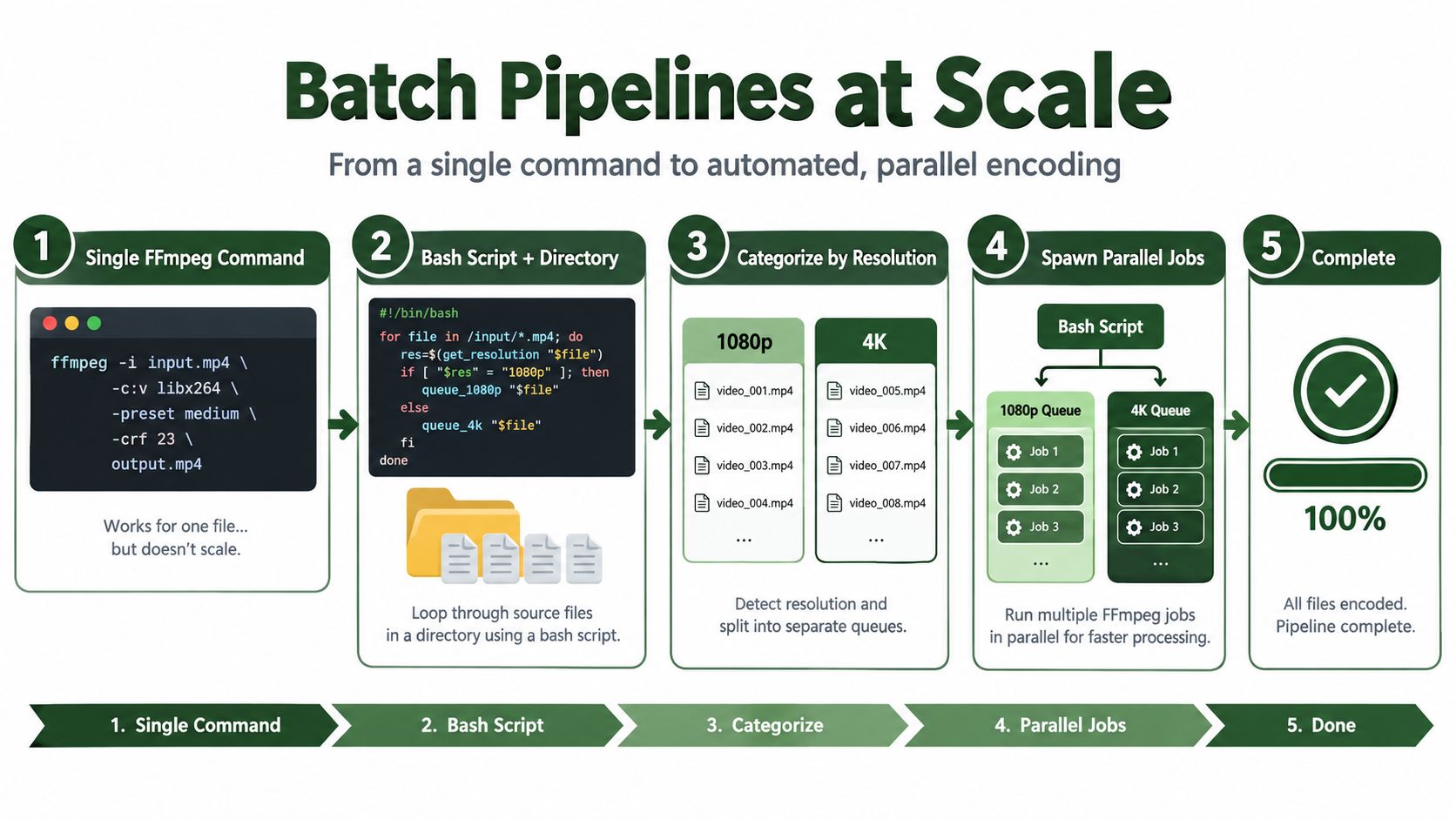
For a laptop or an overloaded local queue, a cloud FFmpeg API can accept a source URL, run the same libx265 command, and return a processed output. The request shape depends on the service, so keep the payload conceptually simple: source URL, FFmpeg command or output preset, callback or polling configuration, and an idempotency key. Local FFmpeg avoids per-minute processing charges but consumes your hardware. A managed API costs money, yet it can parallelize work without requiring you to operate workers, queues, retries, and temporary storage.
Quick Decision Checklist Before You Transcode
Run this checklist against the actual delivery requirement, not against the codec's reputation.
Compatibility
- Will the target devices decode HEVC Main or Main10? If the answer is uncertain, keep H.264 as the default delivery copy and add HEVC as an optional rendition.
- Does the player accept the chosen container and codec tag? Validate the complete output in the target application, not just in VLC.
- Will the editing tool import the HEVC file cleanly? If editors need to cut the material, retain the source or create an editing-friendly mezzanine.
Source quality
- Is the source 1080p or higher? If not, benchmark before converting. The expected efficiency gain may not justify the encode.
- Has the H.264 file already been compressed or transcoded repeatedly? If yes, inspect gradients, textures, and motion before approving a second lossy generation.
- Will the asset be re-edited? If yes, don't discard the original. HEVC is a delivery optimization, not a detail-recovery workflow.
- Does the sample pass visual and metric checks at CRF 28? If yes, use that setting as the baseline. If no, lower CRF or choose a more suitable source.
Economics and operations
- Will the saved storage or delivery bandwidth exceed the processing effort? Estimate the complete job, including validation and retry time.
- Do you have suitable GPU hardware? If yes, compare hardware throughput with a short
libx265sample instead of assuming the GPU output is equivalent. - Can the queue run without affecting production work? If no, use controlled concurrency or an external processing service.
- Can you retain the originals until validation finishes? If no, postpone the deletion policy.
The safest rollout is small and measurable. Pick representative content, encode it with libx265, compare playback on the devices that matter, record the resulting size and quality, then expand only when the operational case is clear.
RenderIO provides a cloud FFmpeg and yt-dlp API for running H.265 conversions, batch jobs, retries, and webhook-tracked processing without managing your own encoding workers. If your local queue is becoming the bottleneck, test the same command through RenderIO and compare its throughput and workflow overhead with your existing FFmpeg setup.